1. Introduction
This manual provides essential information and instructions for the realme P4 pro 5G Smartphone, Model RMX5116. Please read this manual thoroughly before using your device to ensure proper operation and to maximize its performance and longevity. Keep this manual for future reference.
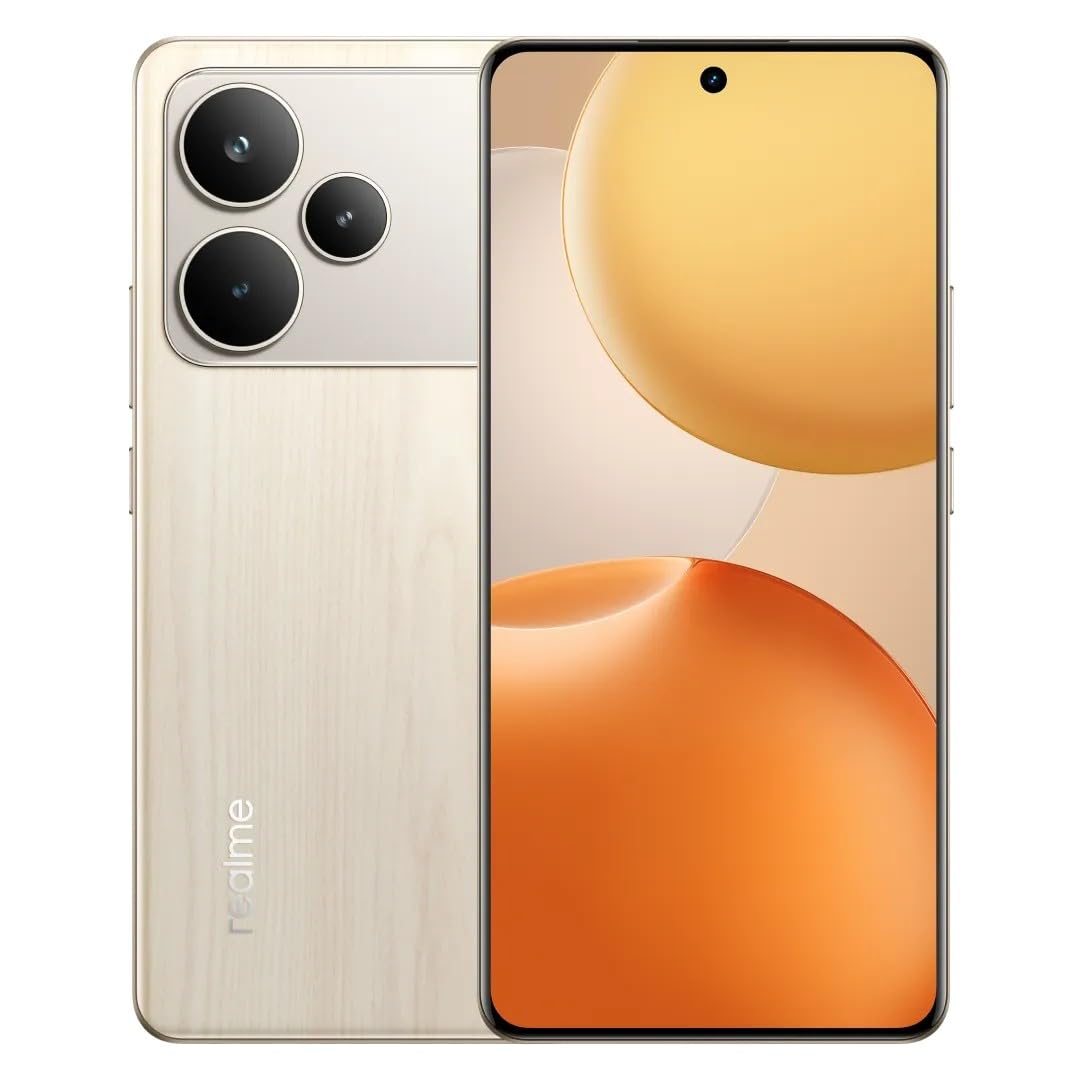
Image 1.1: Front and back view of the realme P4 pro 5G Smartphone, showcasing its design and camera module.
2. What's in the Box
Upon unboxing your realme P4 pro 5G Smartphone, verify that all the following items are included:
- realme P4 pro 5G Smartphone (Model RMX5116)
- Phone Case
- Power Adapter (80W Ultra Charge compatible)
- USB Cable
- SIM Tray Ejector
- USB OTG Adapter
3. Setup
3.1. Inserting SIM Card and/or SD Card
- Locate the SIM tray on the side of your device.
- Insert the SIM tray ejector tool into the small hole next to the tray and press firmly until the tray pops out.
- Place your Nano-SIM card(s) and/or microSD card (if applicable) into the designated slots on the tray, ensuring correct orientation.
- Carefully reinsert the tray into the phone until it clicks into place.
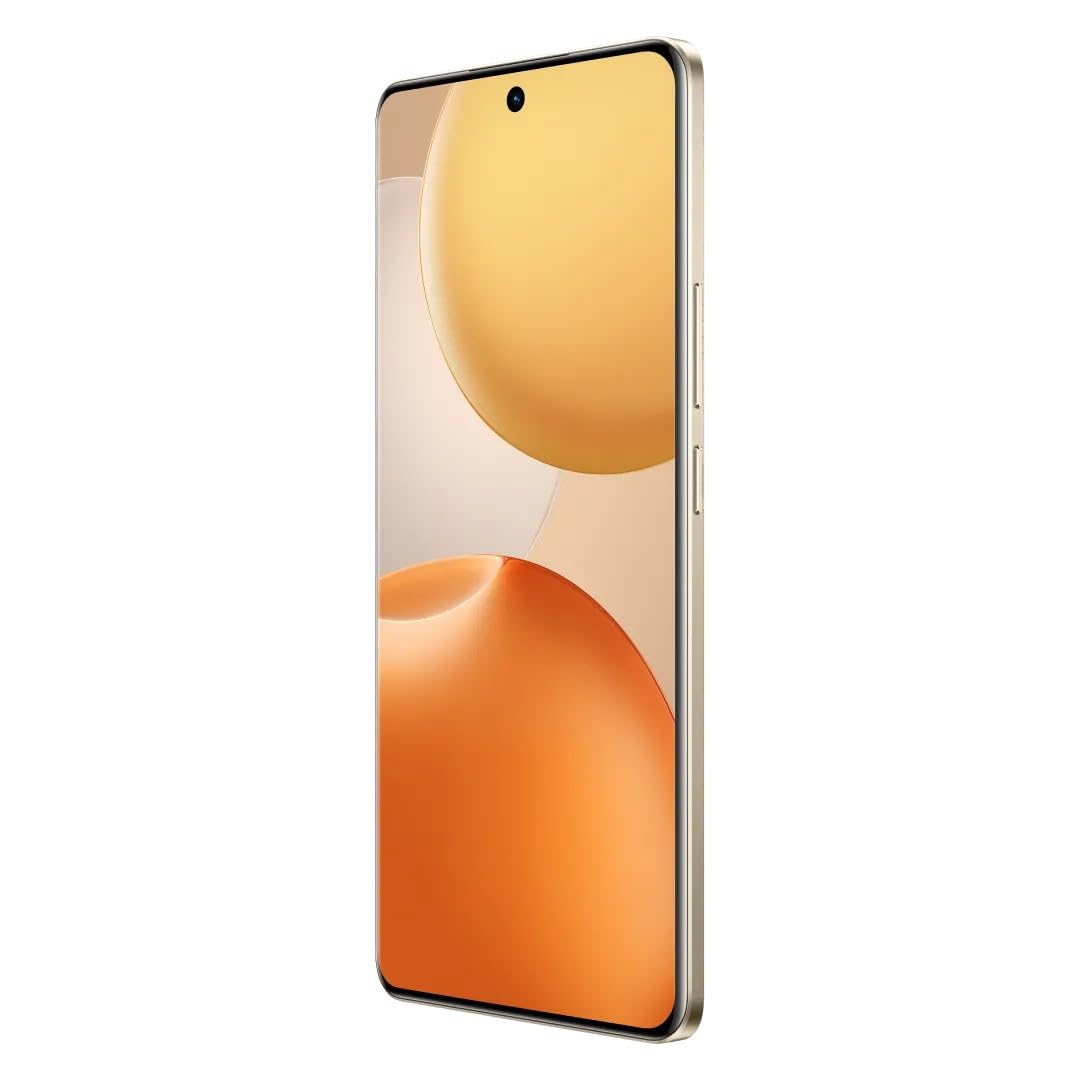
Image 3.1: Side view of the realme P4 pro 5G Smartphone, showing the slim profile and button placement, where the SIM tray is typically located.
3.2. Initial Power On and Basic Setup
- Press and hold the Power button (usually on the right side) until the realme logo appears.
- Follow the on-screen prompts to select your language, region, and connect to a Wi-Fi network.
- Complete the setup wizard, which may include signing into your Google account, setting up security (fingerprint, face unlock, PIN), and transferring data.
3.3. Charging the Device
Before first use, it is recommended to fully charge your device. Use the provided 80W Ultra Charge power adapter and USB cable for optimal charging speed.
- Connect the USB cable to the power adapter.
- Plug the power adapter into a wall outlet.
- Connect the other end of the USB cable to the USB-C port on your phone.
- The device will indicate that it is charging. The 80W Ultra Charge can provide 50% battery in approximately 25 minutes.
4. Operating Instructions
4.1. Display and Navigation
The realme P4 pro 5G features a 6.8-inch 144Hz display, offering smooth visuals and responsive touch. Navigate using gestures or the traditional three-button navigation bar, configurable in Settings.
- Home Screen: Swipe left/right to access different home screen panels.
- App Drawer: Swipe up from the bottom of the screen to access all installed applications.
- Notification Panel: Swipe down from the top of the screen to view notifications and quick settings.

Image 4.1: The realme P4 pro 5G Smartphone display, emphasizing its 144Hz refresh rate for smooth visuals.
4.2. Camera Usage
Your device is equipped with a 108MP AI Camera system. Open the Camera app to capture photos and videos.
- Photo Modes: Switch between modes like Photo, Portrait, Night, Pro, and more.
- AI Enhancements: The AI camera automatically optimizes settings for various scenes.
- Video Recording: Supports 4K 60FPS video recording.
- Front Camera: Use the front camera for selfies and video calls.

Image 4.2: Visual representation of the realme P4 pro 5G's AI Camera capabilities, including 108MP resolution and various shooting modes.
4.3. Performance and Gaming
Powered by the Snapdragon 7 Gen 4 Chipset, the realme P4 pro 5G delivers robust performance for multitasking, demanding applications, and gaming. The 144Hz display enhances the gaming experience with fluid visuals.
4.4. Battery Management
The 7000mAh battery provides extended usage. To optimize battery life:
- Adjust screen brightness.
- Enable power-saving modes when needed.
- Close unused background applications.
- Utilize the 80W Ultra Charge for quick recharges.
4.5. Connectivity
- 5G Network: Supports 5G connectivity for faster mobile data speeds.
- Wi-Fi: Connect to Wi-Fi networks via Settings > Wi-Fi.
- Bluetooth: Pair with Bluetooth devices (headphones, speakers) via Settings > Bluetooth.
- GPS: Integrated GPS for navigation and location services.
4.6. Operating System
The realme P4 pro 5G runs on Android 15, offering a user-friendly interface and access to a vast ecosystem of applications via the Google Play Store.
5. Maintenance
5.1. Dust and Water Resistance (IP65)
The device is rated IP65 for dust and water resistance. This means it is protected against dust ingress and low-pressure water jets from any direction. However, it is not waterproof and should not be submerged in water. Avoid exposing the device to high-pressure water or extreme conditions.
5.2. Cleaning Instructions
- Turn off the device before cleaning.
- Use a soft, lint-free cloth to wipe the screen and body.
- For stubborn marks, slightly dampen the cloth with water or a screen cleaner. Avoid harsh chemicals or abrasive materials.
- Ensure all ports are dry before charging or connecting accessories.
5.3. Software Updates
Regularly check for and install software updates to ensure your device has the latest features, security patches, and performance improvements. You can check for updates in Settings > About phone > Software update.
6. Troubleshooting
If you encounter issues with your realme P4 pro 5G, refer to the following common troubleshooting steps:
- Device not powering on: Ensure the battery is charged. Connect to the charger for at least 15 minutes, then try powering on again. If unresponsive, perform a force restart (usually by holding Power and Volume Down buttons simultaneously for 10-15 seconds).
- Charging issues: Verify the charger and USB cable are securely connected and undamaged. Try a different outlet or charger. Clean the charging port gently if there's visible debris.
- Network connectivity problems (Wi-Fi/Mobile Data):
- Toggle Airplane Mode on and off.
- Restart the device.
- For Wi-Fi, forget the network and reconnect.
- For mobile data, check SIM card insertion and ensure data is enabled in settings.
- Applications crashing or freezing: Close and reopen the app. Clear the app's cache and data in Settings > Apps. If the issue persists, uninstall and reinstall the app.
- Slow performance: Close background apps. Clear cache. Restart the device. Ensure sufficient storage space is available.
For persistent issues, consider performing a factory reset (Note: This will erase all data on your device, so back up important information first) or contact realme customer support.
7. Specifications
Key technical specifications for the realme P4 pro 5G Smartphone (Model RMX5116):
| Feature | Specification |
|---|---|
| Model Number | RMX5116 |
| Operating System | Android 15 |
| Processor | Snapdragon® 7 Gen 4 Chipset (CPU Speed: 2.8 GHz) |
| Display | 6.8-inch, 144Hz Refresh Rate |
| RAM Memory | 8 GB |
| Internal Storage | 128 GB (as per current variant) |
| Rear Camera | 108MP AI Camera |
| Front Camera | Yes |
| Battery Capacity | 7000mAh |
| Charging | 80W Ultra Charge |
| Connectivity | 5G, Wi-Fi, Bluetooth, USB, GPS |
| Water & Dust Resistance | IP65 |
| Dimensions (LxWxH) | 16.33 x 7.59 x 0.76 cm |
| Item Weight | 189 g |
| Color | Birch Wood |
8. Warranty and Support
For detailed warranty information, please refer to the warranty card included with your product or visit the official realme website. The manufacturer is OPPO MOBILES INDIA PRIVATE LIMITED.
For technical support, service, or further inquiries, please contact realme customer service through their official channels. You can often find support contact details on the realme official website or within the device's settings under "About phone" or "Support".
Online Resources:
- Visit the realme Store on Amazon for product information.
- Check the official realme website for the latest support documents and FAQs.