
Introduction
This manual provides detailed instructions for the Hexgears X2 TKL Wireless Mechanical Gaming Keyboard. Please read this manual thoroughly to ensure proper setup, operation, and maintenance of your device. This keyboard features dual-mode connectivity, durable Kailh BOX linear switches, PBT keycaps, and a magnetic wrist rest for enhanced comfort.

Image: Overview of the Hexgears X2 TKL Mechanical Gaming Keyboard highlighting its key features such as PBT Double-Shot Keycaps, 2.4GHz/USB-C connectivity, Magnetic Wrist Rest, Ergonomic Design, Kailh Box Switches, White Backlighting, Full N-key Rollover, and Multimedia Keys.
Package Contents
Verify that all items are present in your package:
- 1 x Hexgears X2 TKL Mechanical Keyboard
- 1 x Magnetic Wrist Rest
- 1 x USB Type-C Cable
- 1 x 2.4 GHz Wireless Dongle
- 1 x Keycap Puller
- 1 x Switch Puller
- 1 x User Manual (this document)

Image: The Hexgears X2 TKL keyboard displayed alongside its included accessories: a magnetic wrist rest, USB-C cable, 2.4 GHz dongle, keycap puller, and user manual.
Setup
1. Connecting the Keyboard
The Hexgears X2 TKL supports two connection modes: 2.4GHz wireless and USB-C wired.
- 2.4GHz Wireless Mode:
- Locate the 2.4 GHz wireless dongle in the package.
- Plug the dongle into an available USB port on your computer.
- Ensure the keyboard's power switch (usually on the side or back) is set to wireless mode. The keyboard should automatically connect.
- USB-C Wired Mode:
- Connect one end of the provided USB Type-C cable to the keyboard's USB-C port.
- Connect the other end of the cable to an available USB port on your computer.
- The keyboard will function in wired mode and charge simultaneously.
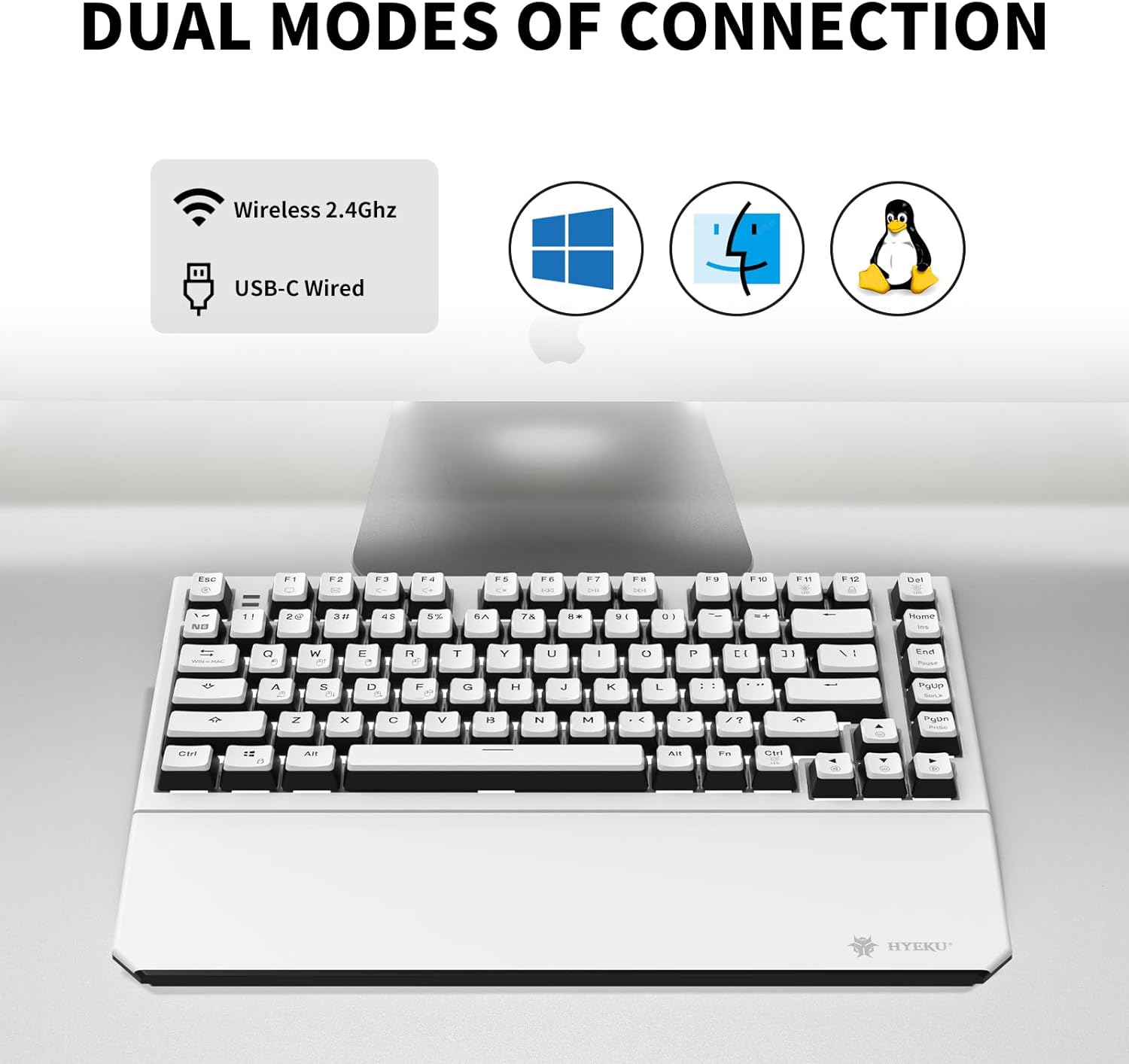
Image: The Hexgears X2 TKL keyboard illustrating its dual connection capabilities: Wireless 2.4GHz and USB-C Wired, compatible with Windows, Mac, and Linux operating systems.
2. Attaching the Magnetic Wrist Rest
The included wrist rest attaches magnetically to the front edge of the keyboard. Simply align the wrist rest with the front of the keyboard; the magnets will secure it in place. This provides ergonomic support during extended use.

Image: The Hexgears X2 TKL keyboard with its detachable magnetic wrist rest, demonstrating the magnetic attachment points for ergonomic comfort.
3. Adjusting Keyboard Tilt
The keyboard features two-level adjustable feet on the underside. Flip out the feet to achieve your preferred typing angle and prevent fatigue during long sessions.

Image: A side view of the Hexgears X2 TKL keyboard, highlighting its foldable kickstands and two-level adjustable feet for customizing the tilt angle (e.g., 6 degrees) for a comfortable typing experience.
Operating Instructions
1. Backlight Control
The Hexgears X2 TKL keyboard features a white LED backlight with 16 different lighting modes. Use the function keys to cycle through modes and adjust brightness:
- Fn + [Key]: Specific key combinations will control backlight effects. Refer to the keyboard's key legends for exact functions (e.g., Fn + Ins, Home, PgUp, PgDn for mode changes; Fn + Arrow keys for brightness/speed).
2. N-Key Rollover (NKRO)
The keyboard supports N-Key Rollover (NKRO), allowing all keys to be registered simultaneously without ghosting. This is particularly beneficial for fast typing and gaming. In wired mode, full NKRO is active. Some wireless modes may default to 6-Key Rollover (6KRO) for power efficiency.
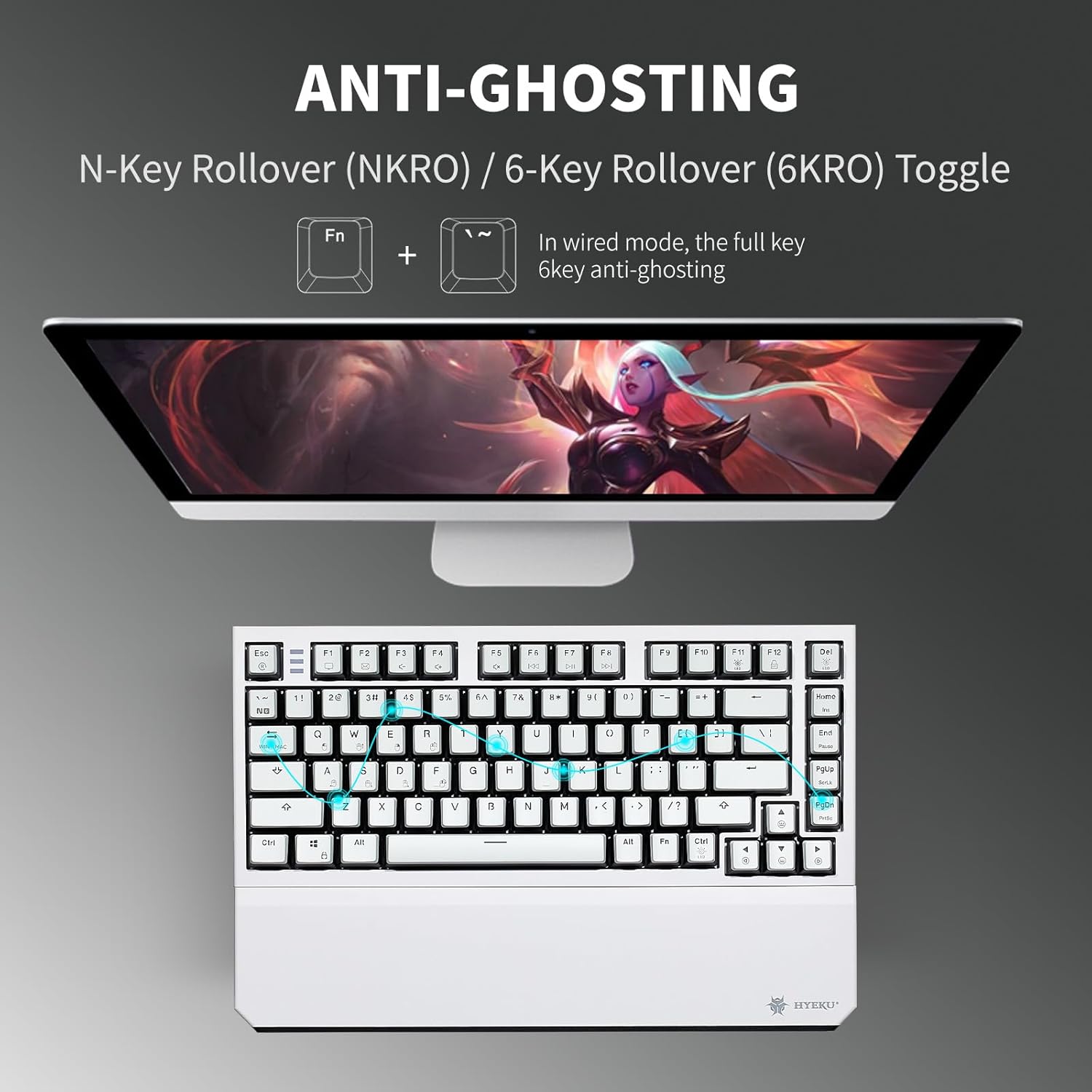
Image: The Hexgears X2 TKL keyboard illustrating the Anti-Ghosting feature with N-Key Rollover (NKRO) and 6-Key Rollover (6KRO) toggle. It shows that in wired mode, full key anti-ghosting is active.
3. Multimedia Keys
Access multimedia functions by pressing the 'Fn' key in combination with the designated F-keys (F1-F12). These functions are typically indicated by icons on the keycaps.
Maintenance
1. Cleaning the Keyboard
To clean your keyboard, disconnect it from your computer. Use a soft, lint-free cloth slightly dampened with water or a mild cleaning solution. For keycaps, a small brush or compressed air can remove dust and debris between keys. Avoid excessive moisture.
2. Keycap and Switch Replacement
The Hexgears X2 TKL features a hot-swappable PCB, allowing for easy replacement of 3-pin mechanical switches without soldering. The PBT keycaps are also removable.
- Removing Keycaps: Use the included keycap puller. Gently hook the puller onto the keycap and pull upwards.
- Removing Switches: After removing the keycap, use the included switch puller. Squeeze the tabs on the top and bottom of the switch and pull it straight up.
- Installing Switches: Align the pins of the new 3-pin switch with the holes on the PCB. Press down firmly until the switch clicks into place. Ensure pins are not bent.
- Installing Keycaps: Align the keycap with the switch stem and press down gently until it is secure.

Image: A detailed view of the Hexgears X2 TKL keyboard's hot-swappable PCB, showing how switches can be removed and replaced. It highlights the Rose Red Linear switch specifications and the hot-swap sockets.

Image: Close-up of the Hexgears X2 TKL keyboard demonstrating its double-shot PBT keycaps, emphasizing their durability and fade-resistant finish.
Troubleshooting
- Keyboard not responding:
- Ensure the keyboard is charged or connected via USB-C.
- For wireless mode, check that the 2.4GHz dongle is securely plugged in and the keyboard is switched to wireless mode.
- Try restarting your computer.
- Keys not registering or double-typing:
- Clean under the affected keycap.
- If using hot-swappable switches, try reseating the switch or replacing it with a spare.
- Backlight not working:
- Ensure the keyboard has sufficient power.
- Use the Fn key combinations to adjust brightness or cycle through modes.
- Wireless connection issues:
- Move the keyboard closer to the 2.4GHz dongle.
- Avoid interference from other wireless devices.
- Try plugging the dongle into a different USB port.
Specifications
| Model | Hexgears X2 TKL |
| Connectivity | 2.4GHz Wireless, USB-C Wired |
| Switches | Kailh BOX Linear Switches (Pre-lubed) |
| Keycaps | Frosted-finish PBT Double-Shot |
| Backlight | White LED Backlit (16 modes) |
| Layout | TKL (Tenkeyless) / 82 Keys |
| N-Key Rollover | Full NKRO (Wired Mode) |
| Wrist Rest | Magnetic, Detachable |
| Adjustable Feet | 2-Level |
| Compatible Devices | Laptop, MAC, PC, Tablet, Xbox |
| Item Weight | 2.07 pounds |
| Batteries | 2 Lithium Ion batteries (included) |
Warranty and Support
For warranty information and customer support, please refer to the official Hexgears website or contact your retailer. If you require assistance with your Hexgears X2 TKL keyboard, you can reach out to customer support through the following methods:
- Online Support: Visit the Hexgears official website for FAQs and support resources.
- Retailer Support: If purchased through Amazon, you can contact the seller directly via your order history.

Image: A visual guide detailing steps to contact customer support through Amazon, including navigating to the Hexgears product page, selecting the seller, and sending a message before or after placing an order.

