
Introduction
The Hexgears X2 TKL Wireless Mechanical Gaming Keyboard is designed for versatile performance. It features dual-mode connectivity, durable Kailh BOX clicky switches, white LED backlighting, and an ergonomic magnetic wrist rest. This manual provides essential instructions for the setup, operation, maintenance, and troubleshooting of your keyboard.

Image: Overview of the Hexgears X2 TKL Mechanical Gaming Keyboard highlighting its features such as PBT Double-Shot Keycaps, 2.4GHz/USB-C connectivity, Magnetic Wrist Rest, Ergonomic Design, Kailh Box Switches, White Backlighting, Full N-key Rollover, and Multimedia Keys.
Package Contents
Verify that all items are present in your package:
- 1 x Hexgears X2 Mechanical Keyboard
- 1 x Magnetic Wrist Rest
- 1 x 2.4 GHz Dongle
- 1 x Type-C Cable
- 1 x Keycap Puller
- 1 x User Manual

Image: Contents of the Hexgears X2 TKL keyboard package, including the keyboard, magnetic wrist rest, 2.4 GHz dongle, USB-C cable, keycap puller, and user manual.
Setup
Connection Modes
The Hexgears X2 TKL keyboard supports two connection modes:
- 2.4GHz Wireless Mode: Insert the 2.4GHz USB dongle into an available USB port on your computer. The keyboard will automatically establish a wireless connection.
- USB-C Wired Mode: Connect the keyboard to your computer using the provided USB-C cable. This mode provides a direct connection and charges the keyboard simultaneously.
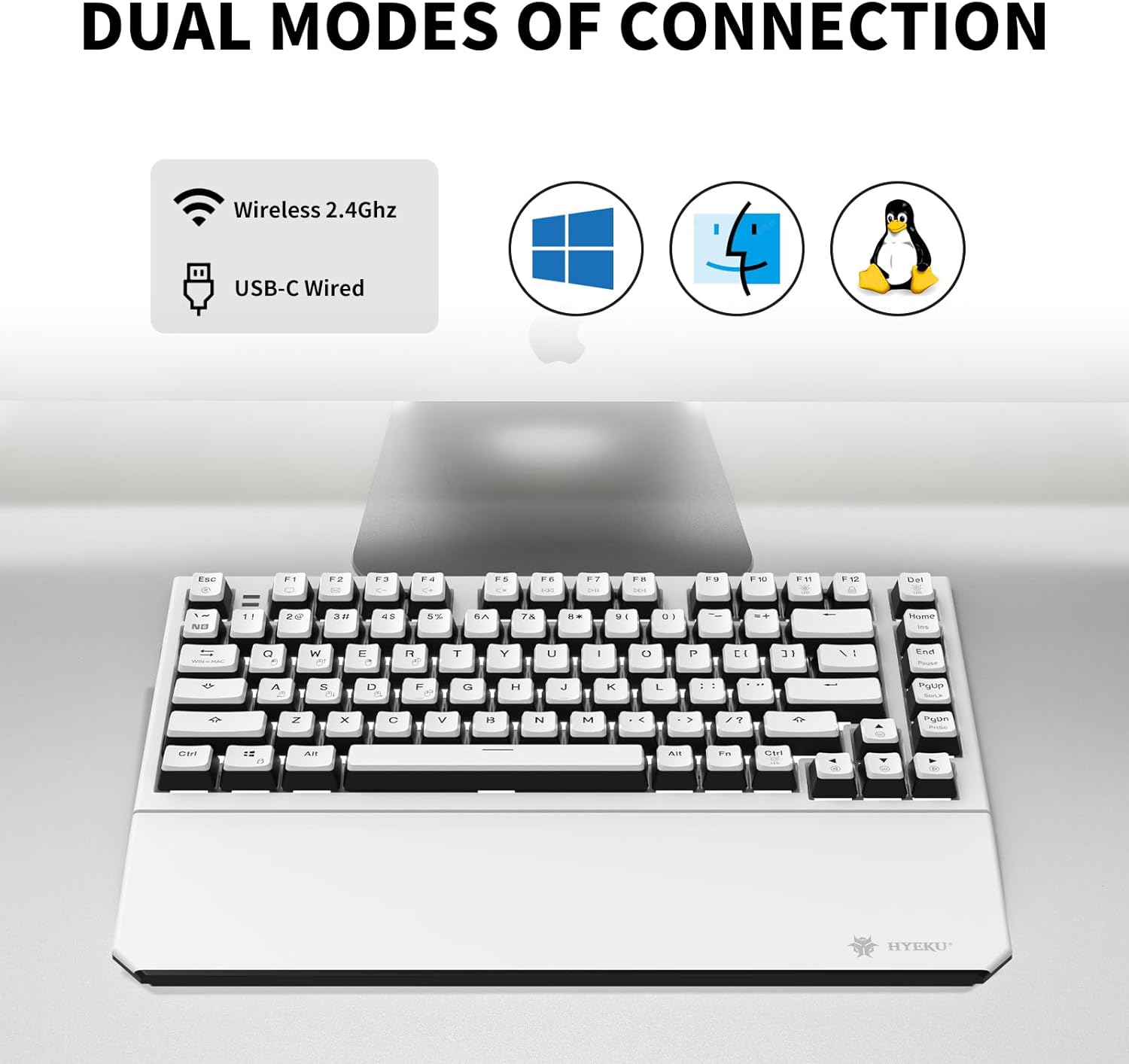
Image: Illustration of the Hexgears X2 TKL keyboard's dual connection modes, showing both 2.4GHz wireless and USB-C wired options, compatible with Windows, Mac, and Linux operating systems.
Magnetic Wrist Rest Attachment
Align the magnetic wrist rest with the front edge of the keyboard. The integrated magnets will secure it firmly in place, providing ergonomic support during use.

Image: The Hexgears X2 TKL keyboard with its detachable magnetic wrist rest, illustrating how the wrist rest attaches to the keyboard for ergonomic comfort.
Adjustable Feet
The keyboard features two adjustable horizontal feet on its underside. Flip them out to customize the tilt angle for a comfortable typing position and to help prevent fatigue.

Image: Close-up view of the Hexgears X2 TKL keyboard's adjustable feet, demonstrating the two-level tilt mechanism for ergonomic positioning.
Operating Instructions
Function Key Combinations (Fn)
Utilize the Fn key in combination with other keys to access various functions:
- Fn + F1-F12: Access multimedia controls (e.g., volume, play/pause) and system functions. Refer to the icons printed on the keycaps for specific actions.
- Fn + `~`: Toggle between N-Key Rollover (NKRO) and 6-Key Rollover (6KRO) modes. NKRO allows for simultaneous registration of multiple key presses, which is beneficial for gaming.
Backlight Control
The keyboard features white LED backlighting with 16 distinct light modes. Use the designated Fn key combinations (refer to your keyboard's specific keycap legends) to cycle through different lighting effects and adjust brightness levels.
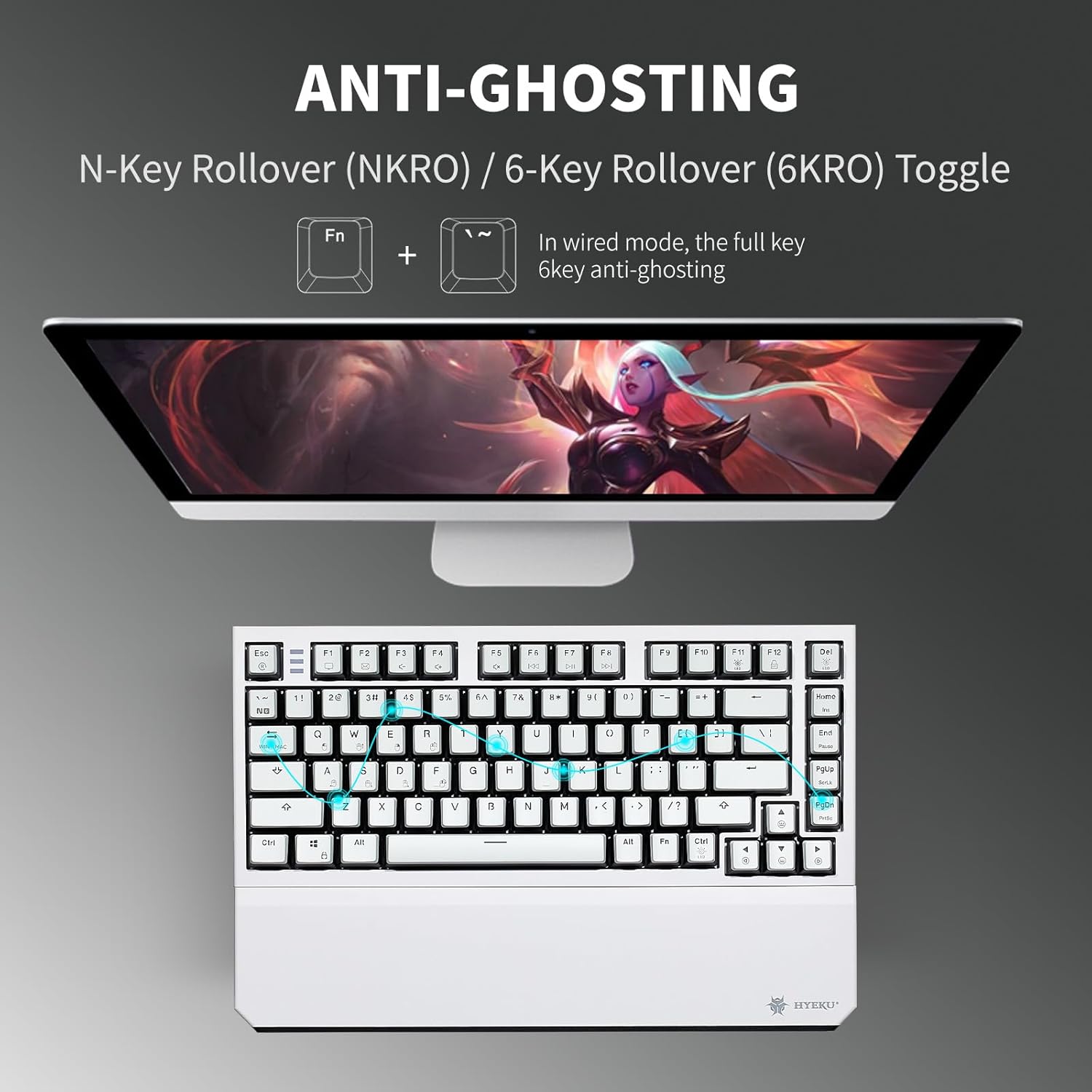
Image: The Hexgears X2 TKL keyboard demonstrating the Fn + `~` key combination to toggle between N-Key Rollover (NKRO) and 6-Key Rollover (6KRO) for anti-ghosting functionality.
Maintenance
Cleaning
To clean the keyboard, use a soft, dry cloth to wipe the surface. For deeper cleaning, carefully remove the keycaps using the provided keycap puller and use compressed air to remove dust and debris from beneath the keys.
Keycap Care
The keyboard is equipped with durable double-shot PBT keycaps. These keycaps are designed for longevity and resistance to wear. Use the included keycap puller for safe removal and reinstallation.

Image: Close-up of the Hexgears X2 TKL keyboard showing individual double-shot PBT keycaps, highlighting their textured finish and durability.
Switch Maintenance
The Hexgears X2 TKL features a hot-swappable PCB, allowing for easy replacement of 3-pin mechanical switches without soldering. If a switch needs replacement, use a switch puller (not included) to carefully remove the old switch and insert a new one.

Image: Detailed view of the Hexgears X2 TKL keyboard's hot-swappable PCB and Kailh BOX Sky Blue switches, illustrating the switch mechanism and specifications like operating force and actuation travel.
Troubleshooting
- Keyboard Not Responding:
- Ensure the keyboard is charged or connected via the USB-C cable.
- Verify the 2.4GHz dongle is securely inserted into a USB port and the keyboard is set to wireless mode.
- Try restarting your computer.
- Backlight Not Working:
- Check if the backlight is turned off or set to the lowest brightness level. Adjust using the appropriate Fn key combinations.
- Intermittent Connectivity:
- Ensure the 2.4GHz dongle is not obstructed and is within close proximity to the keyboard.
- Try connecting the keyboard via USB-C to determine if the issue is related to wireless interference.
Specifications
| Feature | Detail |
|---|---|
| Brand | Hexgears |
| Model | X2 TKL |
| Connectivity | USB-C / Wireless 2.4G |
| Keyboard Type | Mechanical |
| Switches | Kailh BOX Clicky |
| Keycaps | Double-Shot PBT |
| Backlight | White LED (16 modes) |
| N-Key Rollover | Yes (NKRO) |
| Wrist Rest | Magnetic, Detachable |
| Adjustable Feet | 2-Level |
| Number of Keys | 82 |
| Material | Metal |
| Item Weight | 2.07 Pounds |
| Compatible Devices | Laptop, MAC, PC, Tablet, Xbox |
Warranty Information
This product is covered by a standard manufacturer's warranty. For detailed information regarding warranty terms, conditions, and duration, please refer to the warranty card included in your product packaging or visit the official Hexgears website.
Customer Support
For technical assistance, troubleshooting guidance, or any inquiries related to your Hexgears X2 TKL keyboard, please contact Hexgears customer support. Contact information can typically be found on the official Hexgears website or within your product documentation.

