
1. Introduction
The Logitech Alto Keys K98M is a wireless mechanical keyboard designed for enhanced typing comfort and productivity. It features a unique UniCushion gasket mount for vibration absorption, hot-swappable Marble Switches, and versatile multi-device connectivity. This manual will guide you through the essential steps to set up, operate, and maintain your keyboard.
2. Package Contents
Ensure all items are present in your package:
- Logitech Alto Keys K98M Wireless Mechanical Keyboard
- Logi Bolt USB Receiver
- USB-C Charging Cable
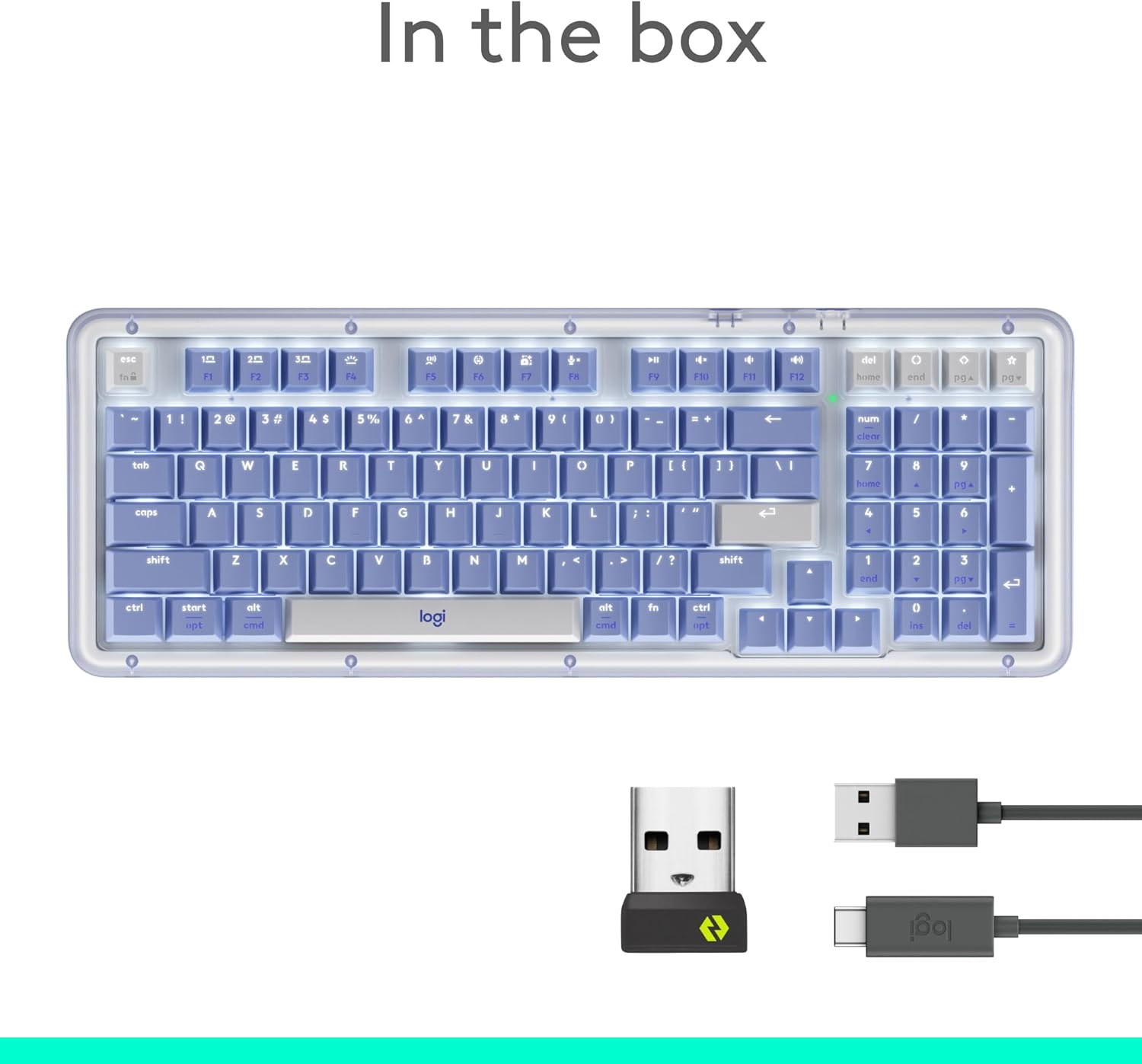
Image: Contents of the Logitech Alto Keys K98M package, including the keyboard, Logi Bolt receiver, and USB-C cable.
3. Setup
3.1 Charging the Keyboard
Before initial use, fully charge your keyboard using the provided USB-C cable. Connect one end to the keyboard's USB-C port and the other to a power source (e.g., computer USB port, wall adapter).
3.2 Connecting to Devices
The Alto Keys K98M supports connection via Bluetooth Low Energy or the Logi Bolt USB Receiver. It can pair with up to three devices simultaneously.
- Bluetooth Pairing:
- Press and hold one of the device pairing buttons (F1, F2, or F3) on the top row of the keyboard until the corresponding LED light blinks.
- On your computer, tablet, or smartphone, navigate to Bluetooth settings and select 'Logitech Alto Keys K98M' to pair.
- Logi Bolt Receiver:
- Insert the Logi Bolt USB Receiver into an available USB-A port on your computer.
- The keyboard should automatically connect. If not, use the Logi Options+ App to establish the connection.
To switch between paired devices, simply press the corresponding device pairing button (F1, F2, or F3) for a brief moment.
3.3 Software Installation (Logi Options+ App)
For full customization and advanced features, download and install the Logi Options+ App from the official Logitech website. This application allows you to remap keys, adjust backlighting, and configure smart actions.
4. Operating Instructions
4.1 Key Layout and Functions
The K98M features a 98-key layout, including a dedicated numeric keypad. The function row (F1-F12) includes media controls and special action keys. Keycaps are PBT and shine-through for clear visibility of legends with backlighting.

Image: The full layout of the Logitech Alto Keys K98M keyboard, showcasing its compact design with an integrated numeric keypad.
4.2 Backlighting
The keyboard features white backlighting. Use the dedicated backlighting key (F4) to cycle through brightness levels or turn the backlighting on/off. The Logi Options+ App provides further control over backlighting settings.

Image: A close-up view of the backlit keys on the keyboard, illustrating their visibility in various lighting conditions.
4.3 Customization with Logi Options+ App
The Logi Options+ App allows extensive customization:
- Key Remapping: Assign custom functions to most keys, including the function row and special action keys (e.g., dictation, emoji, screenshot, mic mute).
- Smart Actions: Create macros and sequences for increased productivity.
- AI Actions: Access AI-enhanced features through programmable keys.
Note: Customizations made in the Logi Options+ App are stored on the device running the app. Keycap labels will not change to reflect custom assignments.
5. Features
5.1 UniCushion Gasket Mount
The innovative UniCushion gasket mount system absorbs vibrations from each keystroke, providing a smoother and more refined typing experience with a satisfying sound.

Image: A detailed view of the UniCushion gasket mount, highlighting its design for vibration absorption.
5.2 Hot-Swappable Marble Switches
The keyboard is equipped with Logitech's linear Marble Switches, offering smooth and responsive typing. These switches are hot-swappable, allowing for easy replacement or customization with compatible switches.
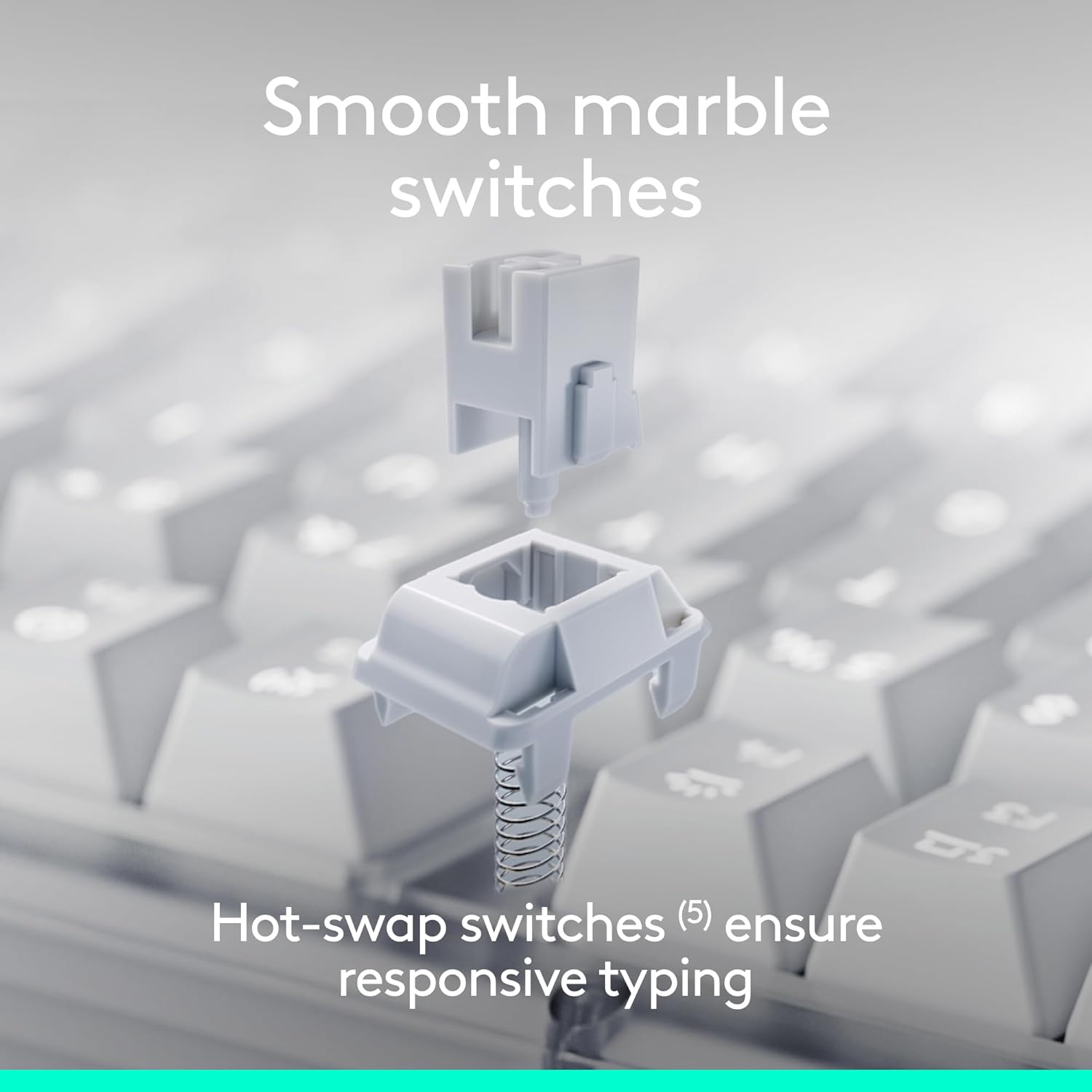
Image: An exploded view of a hot-swappable mechanical switch, demonstrating its modular design.
5.3 Multi-Device Connectivity
Connect wirelessly via Bluetooth Low Energy or the included Logi Bolt USB Receiver. The keyboard supports seamless switching between up to three paired devices, including PCs, Macs, laptops, smartphones, and tablets.
5.4 Battery Life and Recharging
Enjoy extended use with up to 12 months of battery life when the backlight is off. The keyboard recharges via USB-C, allowing you to continue typing while it charges.
5.5 Compatibility
The Logitech Alto Keys K98M is compatible with a wide range of operating systems:
- Windows 10 and later
- macOS
- Chrome OS
- Linux
- iOS
6. Maintenance
6.1 Cleaning
To clean your keyboard, gently wipe the keycaps and surface with a soft, lint-free cloth. For deeper cleaning, you may carefully remove keycaps (if comfortable) and use compressed air to clear debris from beneath. Avoid using harsh chemicals or abrasive materials.
6.2 Battery Care
To maximize battery lifespan, avoid fully discharging the keyboard frequently. Recharge when the battery indicator suggests it. Store the keyboard in a cool, dry place when not in use for extended periods.
7. Troubleshooting
- Keyboard not connecting:
- Ensure the keyboard is charged.
- Verify Bluetooth is enabled on your device.
- Re-initiate pairing mode on the keyboard (hold F1/F2/F3) and re-scan on your device.
- If using Logi Bolt, ensure the receiver is securely plugged in and try a different USB port.
- Keys unresponsive:
- Check battery level.
- Ensure the keyboard is connected to the correct device channel (F1, F2, or F3).
- Restart the keyboard by turning it off and on.
- Backlight not working:
- Adjust brightness using the F4 key.
- Check battery level, as low battery may disable backlighting.
8. Specifications
| Brand | Logitech |
| Model Number | 920-013577 |
| Item Weight | 2.43 pounds |
| Product Dimensions | 15.79 x 5.79 x 1.56 inches |
| Color | Lilac |
| Power Source | Battery Powered |
| Connectivity Technology | Bluetooth, RF (Logi Bolt), USB-C (charging) |
| Keyboard Description | Mechanical |
| Compatible Devices | Laptop, PC, Smartphone, Tablet |
| Operating System | Chrome OS, Linux, Mac OS, Windows 10, iOS |
9. Warranty and Support
For warranty information, technical support, and additional resources, please visit the official Logitech support website. Keep your proof of purchase for warranty claims.
10. Product Video
Watch the official product video for a visual overview of the Logitech Alto Keys K98M keyboard's features and design.
Video: Official Logitech Alto Keys K98M Product Video, showcasing its design, features, and typing experience.


