
1. Introduction
Thank you for choosing the Havit Gamenote MS966SE Wireless Gaming Mouse. This manual provides detailed instructions for setting up, operating, and maintaining your new gaming mouse. Please read this manual carefully before use to ensure optimal performance and longevity of your device.
2. Product Overview
The Havit Gamenote MS966SE is a versatile gaming mouse designed for performance and flexibility, featuring multiple connectivity options, adjustable DPI, and customizable RGB lighting.
Key Features:
- Adjustable DPI: 800-1600-2400-3200-6000-10000DPI for precise control.
- 7 Programmable Buttons for enhanced gaming.
- PMW3325 Gaming Chip for high-performance tracking.
- Triple Mode Connectivity: 2.4Ghz Wireless, Bluetooth V5.2, and Wired (USB/Type-C).
- Lightweight Design: Weighs only 68 grams for comfortable extended use.
- Built-in 500mAh Rechargeable Battery.
- Dynamic RGB Lighting.
Mouse Components:
- Left Click Button
- Right Click Button
- Scroll Wheel
- DPI Cycle Button
- Forward Button (Side)
- Backward Button (Side)
- Connectivity Mode Switch (Underside)
- USB-C Charging/Wired Connection Port (Front)
- RGB Light Strip
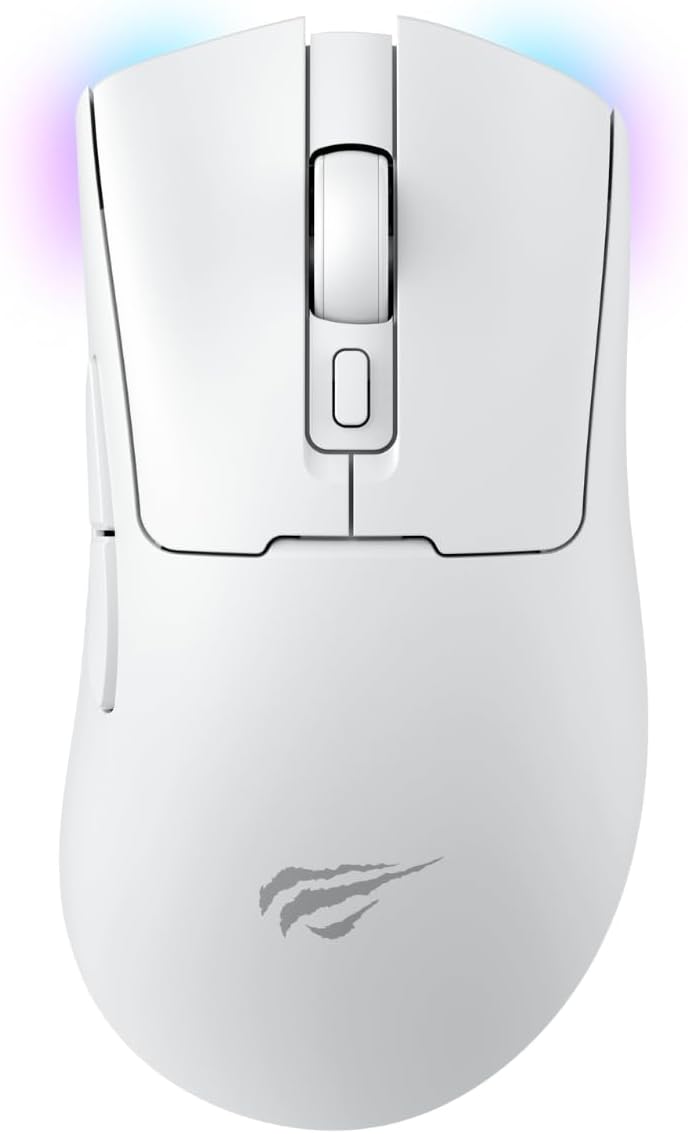
Figure 2.1: Top view of the Havit Gamenote MS966SE Wireless Gaming Mouse. This image displays the mouse from a top-down perspective, highlighting the main left and right click buttons, the central scroll wheel, and the DPI adjustment button located behind the scroll wheel. The Havit logo is visible towards the bottom of the mouse body.

Figure 2.2: Left side view of the Havit Gamenote MS966SE Wireless Gaming Mouse. This image shows the ergonomic contour of the mouse from the left side, featuring two prominent thumb buttons (Forward and Backward) designed for quick access during gaming. A subtle RGB light strip is visible along the bottom edge of the mouse.
3. Setup and Connectivity
The MS966SE offers three connection modes: 2.4GHz Wireless, Bluetooth, and Wired USB-C. Choose the mode that best suits your needs.
3.1 Charging the Mouse
Before first use, it is recommended to fully charge the mouse. Connect the included USB-C cable to the mouse's front port and the other end to a USB power source (e.g., computer USB port, wall adapter). The RGB lighting may indicate charging status.

Figure 3.1: Havit Gamenote MS966SE mouse connected via USB-C cable. This image illustrates the mouse with its USB-C cable plugged into the front port, demonstrating how to charge the device or use it in wired mode.
3.2 2.4GHz Wireless Connection
- Locate the USB receiver (dongle) usually stored in a compartment on the underside of the mouse.
- Plug the USB receiver into an available USB port on your computer.
- Turn on the mouse and set the connectivity switch on the underside to the "2.4G" position.
- The mouse should automatically connect to your computer.
3.3 Bluetooth Connection (BT V5.2)
- Turn on the mouse and set the connectivity switch on the underside to the "BT" position.
- On your computer, open Bluetooth settings and search for new devices.
- Select "Havit MS966SE" (or similar name) from the list of available devices to pair.
- Once paired, the mouse is ready for use.
3.4 Wired Connection
- Connect the included USB-C cable to the mouse's front port.
- Connect the other end of the USB-C cable to an available USB port on your computer.
- The mouse will function as a wired mouse and will also charge its internal battery.
4. Operating Instructions
4.1 DPI Adjustment
The mouse features a dedicated DPI button located behind the scroll wheel. Press this button to cycle through the available DPI settings:
- 800 DPI
- 1600 DPI
- 2400 DPI
- 3200 DPI
- 6000 DPI
- 10000 DPI
The RGB lighting may change color to indicate the current DPI setting.
4.2 Button Functions
The MS966SE has 7 buttons. The primary functions are:
- Left Click: Primary action.
- Right Click: Secondary action/context menu.
- Scroll Wheel: Scroll up/down, middle click.
- DPI Button: Cycles through DPI settings.
- Forward Button (Side): Navigates forward in web browsers or applications.
- Backward Button (Side): Navigates backward in web browsers or applications.
Some buttons may be programmable via software (if available from Havit).
4.3 RGB Lighting
The mouse features dynamic RGB lighting. Specific controls for RGB modes or colors may be available through dedicated software or by pressing a combination of buttons (refer to Havit's official website for software availability).
5. Maintenance
5.1 Cleaning
To clean your mouse, use a soft, dry cloth. For stubborn dirt, slightly dampen the cloth with water or a mild cleaning solution. Avoid using harsh chemicals or abrasive materials, as these can damage the surface.
5.2 Battery Care
The mouse contains a built-in rechargeable 500mAh battery. To prolong battery life:
- Avoid fully discharging the battery frequently.
- Charge the mouse when the battery indicator (if present) shows low power.
- Store the mouse in a cool, dry place when not in use for extended periods.
6. Troubleshooting
If you encounter issues with your Havit Gamenote MS966SE mouse, please refer to the following common solutions:
| Problem | Possible Solution |
|---|---|
| Mouse not responding (Wireless) |
|
| Lag or intermittent connection |
|
| DPI not changing |
|
| Mouse not charging |
|
7. Specifications
| Feature | Detail |
|---|---|
| Brand | Havit |
| Model Name | MS966SE |
| Color | White |
| DPI Settings | 800-1600-2400-3200-6000-10000DPI |
| Number of Buttons | 7 |
| Sensor | PMW3325 Gaming Chip |
| Connectivity | 2.4Ghz Wireless, Bluetooth V5.2, Wired (USB/Type-C) |
| Weight | 68 Grams |
| Battery Capacity | 500mAh (Rechargeable) |
| Compatible Devices | Desktop Computer |
8. Warranty and Support
The Havit Gamenote MS966SE Wireless Gaming Mouse comes with a 2-year distributor warranty. Please retain your proof of purchase for warranty claims.
For further assistance, technical support, or to inquire about software for button customization, please visit the official Havit store or contact their customer service:


