
1. Introduction
Thank you for choosing the Havit Gamenote MS955WB RGB Wireless Gaming Mouse. This advanced gaming mouse offers versatile connectivity options (2.4GHz wireless, Bluetooth 5.0, and wired), a high-precision sensor, customizable RGB lighting, and a convenient charging dock with a display. This manual provides detailed instructions to help you set up, operate, and maintain your new gaming mouse for optimal performance.
2. Package Contents
Please check the package contents to ensure all items are present:
- Havit Gamenote MS955WB RGB Wireless Gaming Mouse
- Charging Dock with Display
- USB-C to USB-A Charging Cable
- USB 2.4GHz Wireless Receiver (often stored inside the mouse)
- User Manual

Image: The Havit Gamenote MS955WB RGB Wireless Gaming Mouse shown with its charging dock. The mouse is black with the Havit logo and model number visible. The charging dock features RGB lighting at its base.
3. Setup
3.1 Charging the Mouse
Before initial use, it is recommended to fully charge the mouse. The mouse can be charged via the charging dock or directly using the USB-C cable.
- Using the Charging Dock: Connect the USB-C cable to the charging dock and then to a USB power source (e.g., computer USB port, USB wall adapter). Place the mouse onto the charging dock, ensuring the charging pins align. The display on the dock will indicate charging status.
- Direct USB-C Connection: Connect the USB-C cable directly to the mouse and then to a USB power source. The mouse can be used in wired mode while charging.
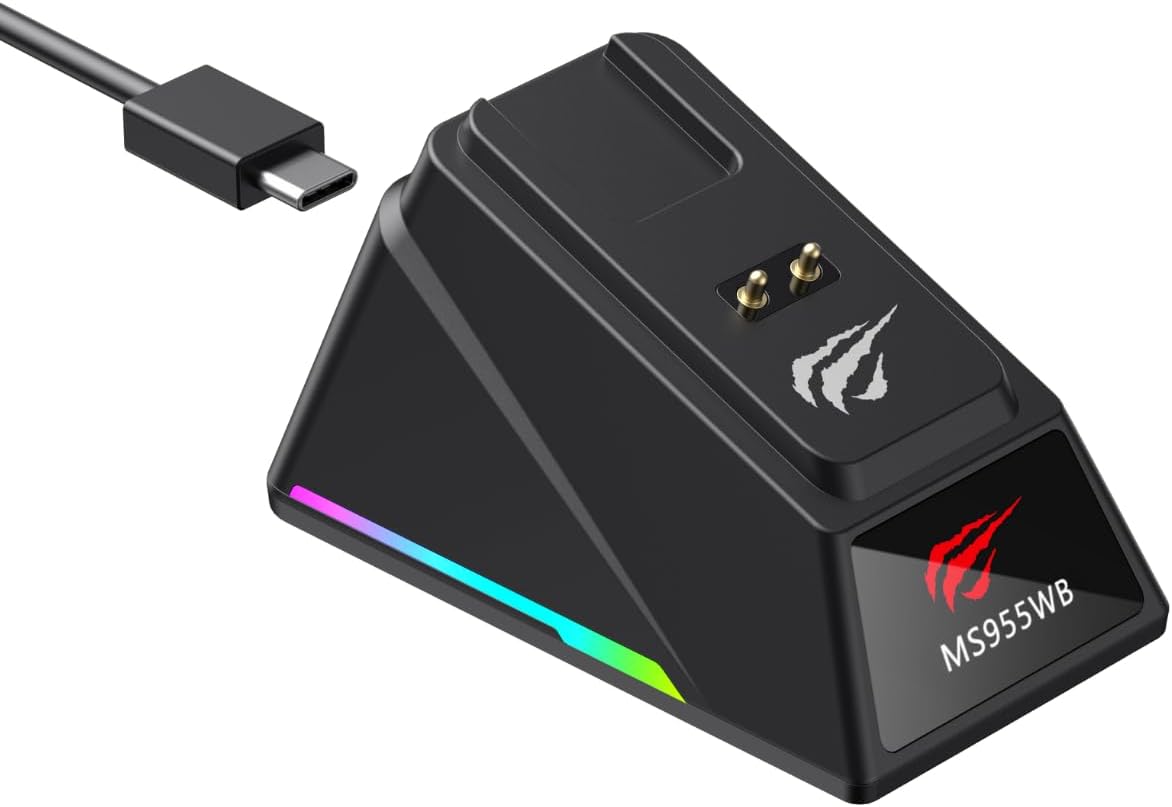
Image: The black charging dock for the Havit Gamenote MS955WB mouse, shown with a USB-C cable connected. The dock has charging pins and RGB lighting at its base.
3.2 Connecting the Mouse
The Havit Gamenote MS955WB offers three connection modes: 2.4GHz Wireless, Bluetooth 5.0, and Wired.
3.2.1 2.4GHz Wireless Mode
- Locate the USB 2.4GHz wireless receiver, usually stored in a compartment on the underside of the mouse.
- Plug the receiver into an available USB-A port on your computer.
- Turn on the mouse using the power switch on its underside. Select the 2.4GHz mode (indicated by an icon or switch position).
- The mouse should automatically connect to your computer.
3.2.2 Bluetooth 5.0 Mode
- Turn on the mouse and select the Bluetooth mode using the switch on the underside.
- On your computer or device, navigate to Bluetooth settings and enable Bluetooth.
- Search for new devices. The mouse should appear as "Havit MS955WB" or similar.
- Select the mouse to pair. Follow any on-screen prompts.
3.2.3 Wired Mode
- Connect the USB-C end of the charging cable to the mouse and the USB-A end to your computer.
- The mouse will automatically switch to wired mode and function without needing a battery charge.
4. Operation
4.1 DPI Adjustment
The mouse features adjustable DPI (Dots Per Inch) settings, allowing you to change cursor sensitivity on the fly. The available DPI levels are 1000, 2400, 4800, 6400, 8000, and 22000. Use the dedicated DPI button (usually located behind the scroll wheel) to cycle through these settings. The current DPI level may be indicated on the charging dock's display or via an LED indicator on the mouse.
4.2 Button Functions
The MS955WB mouse is equipped with 6 programmable buttons:
- Left Click Button: Standard primary click function.
- Right Click Button: Standard secondary click function.
- Scroll Wheel: Scrolls up/down, and acts as a middle click button.
- DPI Button: Cycles through preset DPI levels.
- Forward Button: Navigates forward in web browsers or file explorers.
- Backward Button: Navigates backward in web browsers or file explorers.

Image: A side view of the Havit Gamenote MS955WB mouse, highlighting the two programmable thumb buttons on the left side.
4.3 RGB Lighting Control
The mouse features customizable RGB lighting. Specific controls for changing lighting modes or colors may be available through a dedicated button or via software (if applicable). Refer to the product's official website for any available software downloads.
4.4 Charging Dock Display
The charging dock includes a small display that provides useful information, such as the current battery level of the mouse, the active connection mode (2.4GHz, Bluetooth, or Wired), and potentially the current DPI setting. This allows for quick monitoring of your mouse's status.

Image: A top-down view of the Havit Gamenote MS955WB mouse, showing its ergonomic shape, scroll wheel, and DPI button. The green LED indicator is visible.
5. Maintenance
Proper care ensures the longevity and performance of your Havit Gamenote MS955WB mouse:
- Cleaning: Use a soft, dry cloth to wipe the mouse and charging dock. For stubborn dirt, slightly dampen the cloth with water or a mild electronics cleaner. Avoid harsh chemicals or abrasive materials.
- Storage: When not in use for extended periods, store the mouse in a cool, dry place away from direct sunlight and extreme temperatures.
- Battery Care: To prolong battery life, avoid fully discharging the mouse frequently. Charge it when the battery indicator shows low power.
- Avoid Liquids: Keep the mouse and charging dock away from liquids to prevent damage to internal components.
6. Troubleshooting
If you encounter issues with your Havit Gamenote MS955WB mouse, refer to the following table for common problems and solutions:
| Problem | Possible Solution |
|---|---|
| Mouse not responding (2.4GHz) |
|
| Mouse not responding (Bluetooth) |
|
| Mouse not charging |
|
| Cursor movement is erratic or slow |
|
7. Specifications
Key technical specifications for the Havit Gamenote MS955WB RGB Wireless Gaming Mouse:
| Feature | Specification |
|---|---|
| Model Name | MS955WB |
| DPI Settings | 1000-2400-4800-6400-8000-22000 DPI |
| Number of Buttons | 6 |
| Connectivity | 2.4GHz Wireless, Bluetooth 5.0, Wired (USB-C) |
| Battery Capacity | 400mAh |
| Weight | 89 Grams |
| Charging | Charging Dock (with display) or USB-C Cable |
| Color | Black |
8. Warranty and Support
The Havit Gamenote MS955WB RGB Wireless Gaming Mouse comes with a 2-year distributor warranty. Please retain your proof of purchase for warranty claims.
For technical support, warranty inquiries, or further assistance, please contact your local distributor or refer to the official Havit website for customer service contact information.


