Introduction
This manual provides detailed instructions for the Mars Gaming MCPWX Wireless Gaming Combo, which includes a full-frame FRGB keyboard, an ultra-light RGB 3200DPI mouse, and a high-precision non-slip mouse mat. The combo utilizes DualPro Link 2.4GPRO technology for stable, interference-free wireless connectivity. Please read this manual carefully before using the product to ensure optimal performance and longevity.
Setup
Follow these steps to set up your Mars Gaming MCPWX Wireless Gaming Combo.
1. DualPro Link 2.4GPRO Wireless Connection
The MCPWX combo uses DualPro Link 2.4GPRO technology, where each device (keyboard and mouse) connects via its own dedicated USB 2.4GPRO receiver. This ensures a stable, interference-free connection with minimal latency.
- Locate the two USB 2.4GPRO receivers included with your combo.
- Plug one USB receiver into an available USB port on your computer for the keyboard.
- Plug the second USB receiver into another available USB port on your computer for the mouse.
- Ensure both receivers are securely inserted.
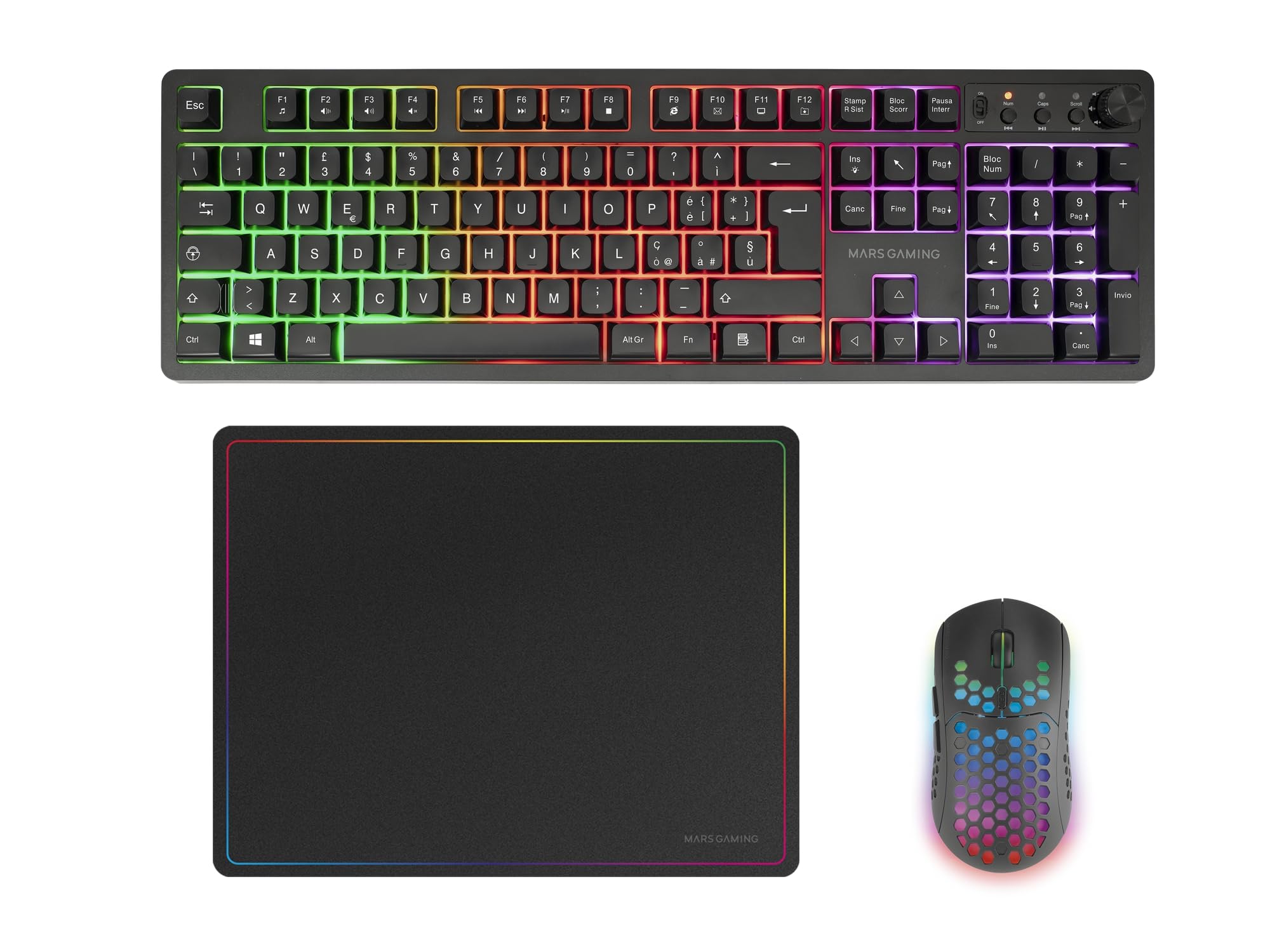
Image: The Mars Gaming MCPWX combo, highlighting the DualPro Link 2.4GPRO wireless connection technology and the two USB receivers.
2. Keyboard Setup
- After plugging in its dedicated USB receiver, ensure the keyboard's power switch (usually on the back or side) is in the "ON" position.
- The keyboard should automatically connect. If not, refer to the troubleshooting section.
- For initial use or after extended storage, charge the keyboard using the provided USB cable. Connect the cable to the keyboard and a USB power source.

Image: Close-up view of the Mars Gaming MCPWX full-size wireless keyboard, showing its layout and multimedia controls.
3. Mouse Setup
- After plugging in its dedicated USB receiver, ensure the mouse's power switch (usually on the bottom) is in the "ON" position.
- The mouse should automatically connect. If not, refer to the troubleshooting section.
- The mouse features a rechargeable energy-saving design. For initial use or when the battery is low, charge the mouse using the provided USB cable. Connect the cable to the mouse and a USB power source.

Image: Close-up view of the Mars Gaming MCPWX ultra-lightweight gaming mouse, highlighting its HIVE design and RGB lighting.
4. Mouse Mat Placement
- Place the high-performance mouse mat on a flat, stable surface.
- The non-slip natural rubber base ensures a firm grip, preventing unwanted movement during use.

Image: Close-up view of the Mars Gaming MCPWX gaming mousepad, showing its surface texture and anti-slip base.
Operating Instructions
Keyboard Functions
- FRGB Backlight: The keyboard features a rainbow breathing backlight. Specific controls for lighting modes or brightness may be available via function keys (Fn + specific keys). Refer to the keyboard's keycap legends for details.
- Multimedia Controls: Dedicated multimedia control buttons are located on the keyboard. These typically include:
- Volume control (up, down, mute)
- Play/Pause
- Previous/Next track
- Function Keys (F1-F12): These keys may have secondary functions when pressed in combination with the 'Fn' key. Consult the keycap legends for specific shortcuts.
Mouse Functions
- DPI Adjustment: The mouse features an optical sensor with adjustable DPI settings (800/1600/3200 DPI). A dedicated DPI button, usually located near the scroll wheel, allows you to cycle through these settings. The RGB lighting may change color to indicate the current DPI level.
- RGB Lighting: The mouse includes RGB lighting. This lighting often indicates DPI settings or battery status.
- Buttons: Standard left-click, right-click, scroll wheel, and side buttons (if present) function as typical for a gaming mouse.
Maintenance
- Cleaning: Use a soft, dry cloth to clean the surfaces of the keyboard, mouse, and mouse mat. For stubborn dirt, a slightly damp cloth can be used, but ensure no moisture enters the devices. Avoid harsh chemicals or abrasive cleaners.
- Battery Care: To prolong battery life, avoid fully discharging the devices frequently. Charge them when the low battery indicator appears. If storing for an extended period, charge them to about 50% and store in a cool, dry place.
- Storage: Store the combo in a clean, dry environment away from extreme temperatures and direct sunlight.
Troubleshooting
If you encounter issues with your MCPWX combo, refer to the following common solutions:
- No Connection/Input Lag:
- Ensure both USB 2.4GPRO receivers are securely plugged into your computer.
- Verify that the power switches on both the keyboard and mouse are in the "ON" position.
- Check battery levels and charge devices if necessary.
- Try plugging the USB receivers into different USB ports on your computer.
- Ensure there are no significant obstructions or sources of strong wireless interference between the devices and their receivers.
- Keyboard Backlight Not Working:
- Check if the backlight function is enabled (e.g., via Fn key combinations).
- Ensure the keyboard has sufficient battery charge.
- Mouse DPI Not Changing:
- Press the DPI button firmly.
- Observe if the RGB lighting changes, indicating a DPI switch.
- Inaccurate Mouse Tracking:
- Ensure the mouse sensor is clean and free of dust or debris.
- Use the provided mouse mat for optimal tracking performance.
If problems persist, contact Mars Gaming customer support for further assistance.
Specifications
| Feature | Detail |
|---|---|
| Brand | Mars Gaming |
| Model Number | MCPWX |
| Connectivity Technology | DualPro Link 2.4GPRO Wireless (USB) |
| Keyboard Backlight | FRGB (Rainbow Breathing) |
| Mouse DPI | 800 / 1600 / 3200 (Adjustable) |
| Mouse Weight | 79 grams (Ultra-light) |
| Mouse Mat Dimensions | 360 x 260 mm |
| Operating System Compatibility | Windows, macOS, Linux |
| Console Compatibility | PS4, PS5, Xbox One, Xbox Series X-S, Switch |
| Power Source | Battery Powered (Rechargeable) |
| Special Features | Backlit, Ergonomic, Lightweight, Portable, Rechargeable, Multimedia Controls |
Warranty Information
Mars Gaming products are designed and manufactured to the highest quality standards. This product is covered by a limited warranty from the date of purchase. Please retain your proof of purchase for warranty claims. For specific warranty terms and conditions, refer to the official Mars Gaming website or contact their customer support.
Support
For technical support, frequently asked questions, or additional product information, please visit the official Mars Gaming website. You can also contact their customer service team directly through the contact information provided on their website.


