
1. Introduction
This manual provides essential information for the safe and effective use of your WZWNEER Kids Smart Watch P72. Please read this manual thoroughly before using the device and retain it for future reference.
2. Features
- AI-integrated Functions: AI Customized Watch Face, AI Question and Answer, AI Image Recognition.
- Health Monitoring: Sleep Tracking, Heart Rate Monitor, Blood Oxygen, Stress Monitor.
- Activity Tracking: All-day activity tracking (Steps, Calories, Distance), Multi-sport Modes.
- Entertainment: Puzzle Games, Music Player, Built-in Camera, Video Recorder, Audiobooks.
- Utility Tools: Alarm Clock (10+ settings), Stopwatch, Calculator, Timer, Calendar, Torch, Bluetooth Phone, Sedentary Reminder, Recorder.
- Durability: IP68 Waterproof rating.
- Battery Life: Up to 30 days standby time.
- Learning Aids: Learning Cards, Storybook, 20 Languages.
- User-Friendly: HD Touch Screen, DIY Dial, Rewards System.
3. Setup
3.1 Initial Charging
Before first use, fully charge the smartwatch using the provided USB charging cable. Connect the magnetic end of the cable to the charging points on the back of the watch and the USB-A end to a compatible power adapter (not included).
3.2 Power On/Off
To power on the watch, press and hold the power button located on the side until the screen illuminates. To power off, press and hold the power button and select 'Power Off' on the screen.
3.3 App Connection
To unlock full features and parental controls, download the companion app on a smartphone. Scan the QR code provided in the quick start guide or on the watch packaging to find the correct app. Follow the in-app instructions to pair the watch via Bluetooth.
Video: Demonstrates the smartwatch features and app connection process.
3.4 SIM Card Installation (Optional)
If mobile data and direct calling features are desired, install a compatible SIM card (not included) into the designated slot on the watch. Refer to the quick start guide for detailed instructions on SIM card insertion.
3.5 Parental Controls
The companion app allows parents to set various controls, including time limits for games, disabling functions during class mode, and managing contacts for calls. Navigate to the 'Parental Control' section within the app to configure these settings.
Video: Shows how to access and configure parental control settings on the smartwatch.
4. Operating Instructions
4.1 Navigating the Interface
The smartwatch features an HD touch screen. Swipe left or right to browse through different applications and functions. Tap on an icon to open an application. Use the side button to return to the home screen or previous menu.

Image: A child interacting with the smartwatch touch screen, demonstrating navigation and watch face customization.
4.2 AI Functions
- AI Customized Watch Face: Personalize the watch face using voice commands via the companion app.
- AI Question and Answer: Ask questions to the watch and receive instant responses, fostering curiosity.
- AI Image Recognition: Use the camera to identify objects, animals, and places.

Image: Visual representation of the AI-integrated features, including custom watch faces, image recognition, and question-and-answer functionality.
4.3 Health Monitoring
- Heart Rate Monitor: Track heart rate throughout the day.
- Sleep Tracking: Monitors deep sleep, light sleep, and wake-up times.
- Blood Oxygen & Stress Monitor: Provides additional health insights.

Image: A child wearing the smartwatch while sleeping, with the watch display showing detailed sleep tracking information.

Image: The smartwatch interface showing real-time health monitoring data for heart rate, blood oxygen, and stress levels.
4.4 Activity Tracking
- All-day Tracking: Monitors steps, calories burned, and distance traveled.
- Multi-sport Modes: Select specific modes for various activities like running, walking, or playing to track performance accurately.
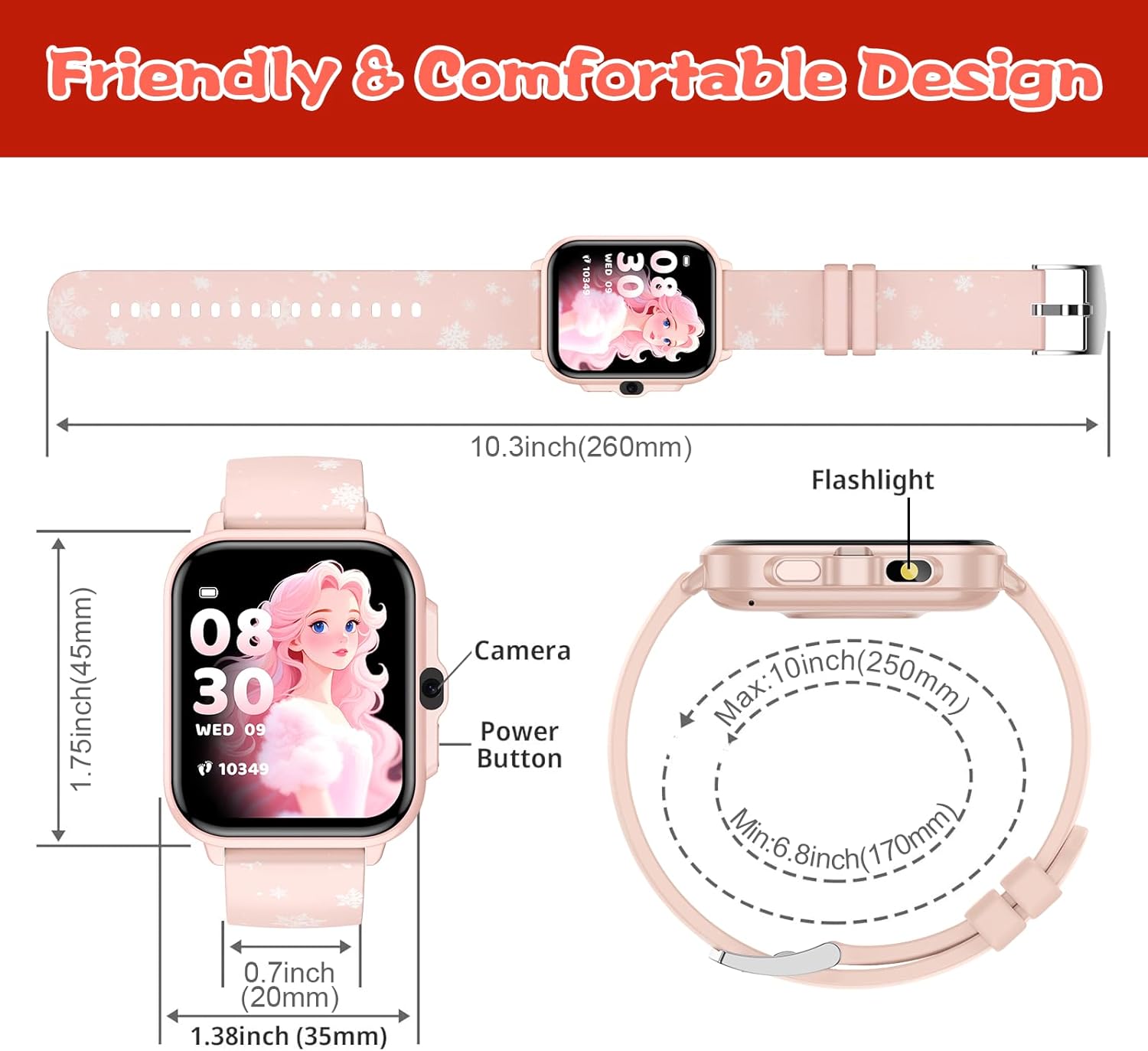
Image: A child engaged in sports while wearing the smartwatch, with the display showing activity metrics like steps and calories.

Image: The smartwatch interface displaying 24-hour activity tracking and various habit tracking reminders.
4.5 Entertainment Features
- Games: Access a variety of built-in puzzle games for entertainment and cognitive development.
- Music Player: Load and play music files.
- Camera & Video Recorder: Capture photos and videos directly from the watch.
- Audiobooks & Storybook: Listen to pre-loaded audiobooks and stories.

Image: A child enjoying the music player and camera features of the smartwatch.

Image: The smartwatch highlighting its music player, camera with fun stickers, and engaging puzzle games.
4.6 Utility Tools
- Flashlight: Activate the built-in torch for illumination.
- Calculator: Perform basic arithmetic calculations.
- Calendar, Alarm Clock, Stopwatch, Timer: Manage time and schedules.
- Recorder: Record voice notes.
- Bluetooth Phone: Make and receive calls when connected to a smartphone or with a SIM card.

Image: Multiple children using the smartwatch for different functions, including calculator, flashlight, and voice recorder.
4.7 Habit Tracking & Rewards
Set up daily tasks and habits (e.g., wake up, brush teeth, go to school) with reminders. A reward system encourages children to complete tasks, earning virtual coins for motivation.
4.8 SOS Emergency Call
In case of an emergency, the watch can be configured to make an SOS call to pre-set contacts. Refer to the app settings for configuring SOS numbers.
4.9 Class Mode
Activate Class Mode via the companion app to disable distracting features during school hours, helping children focus on learning.
5. Maintenance
5.1 Cleaning
Wipe the watch screen and band with a soft, dry cloth. For stubborn dirt, a slightly damp cloth can be used. Avoid harsh chemicals or abrasive materials.
5.2 Water Resistance (IP68)
The watch is IP68 waterproof, meaning it can withstand splashes and accidental submersion. However, it is not recommended for prolonged swimming or hot water activities. Ensure the charging port is dry before charging.

Image: The smartwatch submerged in water, illustrating its IP68 waterproof capability for active children.
5.3 Battery Care
To prolong battery life, avoid extreme temperatures and fully discharging the battery frequently. Charge the watch regularly, especially if it will not be used for an extended period.
6. Troubleshooting
6.1 Watch Not Powering On
- Ensure the watch is fully charged.
- Press and hold the power button for at least 10-15 seconds.
6.2 Connectivity Issues
- Check if Bluetooth is enabled on the connected smartphone.
- Ensure the watch and phone are within Bluetooth range.
- Restart both the watch and the smartphone.
6.3 Inaccurate Health Data
- Ensure the watch is worn snugly on the wrist, but not too tight.
- Clean the sensor on the back of the watch.
7. Specifications
| Feature | Detail |
|---|---|
| Model Number | P72 |
| Brand | WZWNEER |
| Screen Size | 1.8 Inches |
| Operating System | Android and IOS compatible |
| Connectivity Technology | Bluetooth |
| Water Resistance | IP68 |
| Battery Type | Nonstandard Battery (Lithium Polymer) |
| Item Weight | 2.5 Ounces |
| Package Dimensions | 7.28 x 2.99 x 0.71 inches |
8. Warranty and Support
For warranty information and technical support, please refer to the documentation included in your product packaging or contact the manufacturer directly. Keep your purchase receipt for any warranty claims.