
1. Introduction
Thank you for purchasing the AJAZZ AJ199 Carbon Fiber Gaming Mouse. This manual provides essential information for setting up, operating, and maintaining your device. Please read it carefully before use to ensure optimal performance and longevity.
2. Product Overview
The AJAZZ AJ199 is an ultra-lightweight gaming mouse featuring a high-quality carbon fiber body, weighing approximately 55g. It offers tri-mode connectivity (USB-C wired, 2.4GHz wireless, Bluetooth 5.0) and is equipped with a PixArt PAW3311 optical sensor, supporting up to 24000 DPI. Its ergonomic, symmetrical design and PTFE footpads ensure comfortable and precise control for extended gaming sessions.

Figure 2.1: AJAZZ AJ199 Carbon Fiber Gaming Mouse

Figure 2.2: Carbon Fiber Material of the AJAZZ AJ199 Gaming Mouse

Figure 2.3: AJAZZ AJ199 Ultra-lightweight Design (55g)
3. Setup
3.1 Initial Charging
Before first use, it is recommended to fully charge the mouse. Connect the included USB-C cable to the mouse's charging port and the other end to a USB port on your PC or laptop. The charging time is approximately 2 hours. The mouse can be used while charging.
Important: Do not use high-output (5V/2A or higher) fast chargers or smartphone chargers, as this may lead to overcharging, heat generation, or battery degradation. Always use the included USB-C cable connected to a PC for charging.
3.2 Connecting the Mouse
The AJ199 supports three connection modes:
- USB-C Wired Mode: Connect the included USB-C cable directly to your PC. The mouse will automatically switch to wired mode.
- 2.4GHz Wireless Mode: Insert the 2.4GHz USB receiver (located in the mouse's bottom compartment) into a USB port on your PC. Switch the mode selector on the bottom of the mouse to '2.4G'.
- Bluetooth 5.0 Mode: Switch the mode selector on the bottom of the mouse to 'BT'. On your PC, search for Bluetooth devices and select 'AJAZZ AJ199' to pair.
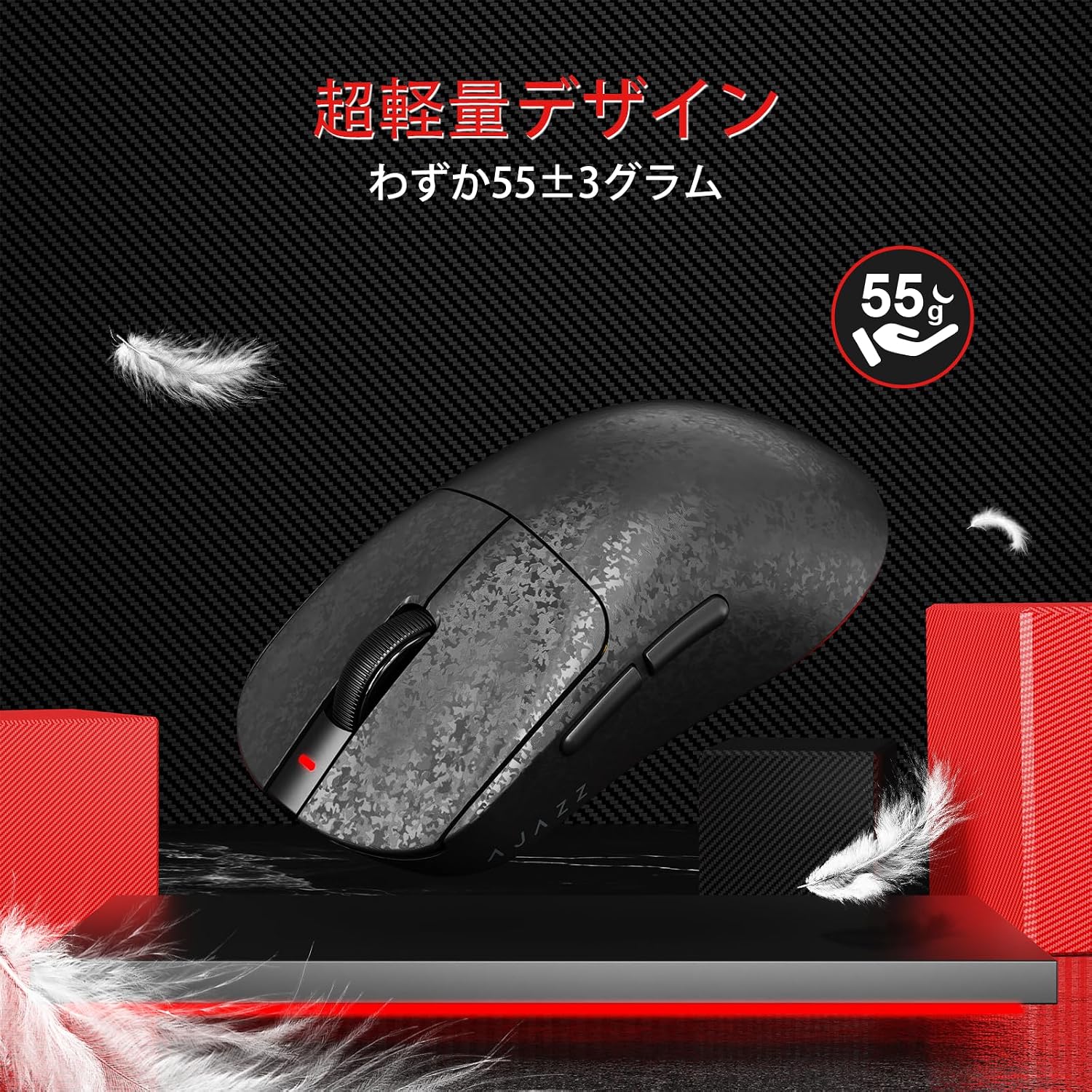
Figure 3.1: User operating the mouse with 3-mode connection

Figure 3.2: Tri-Mode Connectivity (Wired, 2.4G, Bluetooth)
3.3 Driver Software Installation
For advanced customization of buttons and DPI settings, download the official driver software from the AJAZZ website. The software is compatible with Windows Vista/7/8/10/11 and the latest macOS versions.

Figure 3.3: Web Driver Software for Customization
4. Operating Instructions
4.1 DPI Adjustment
The mouse features a DPI switch on its bottom for quick sensitivity adjustments. It offers 6 preset DPI levels: 400, 800, 1200, 1600, 2400, and 3600. For finer control and to reach up to 24000 DPI, use the driver software.

Figure 4.1: DPI Adjustment Feature of AJAZZ AJ199

Figure 4.2: Bottom view of the mouse highlighting the PAW3311 sensor and DPI switch
4.2 Polling Rate
The mouse supports a 1000Hz polling rate in both wired and 2.4GHz wireless modes, ensuring rapid response times. In Bluetooth mode, the polling rate is 125Hz.

Figure 4.3: Polling rate specifications for different connection modes
4.3 Button Functions
The AJ199 features 7 programmable buttons. Default functions include left click, right click, scroll wheel click, DPI switch, and two side buttons. These can be customized using the driver software.

Figure 4.4: Internal view of TTC mechanical micro switch and scroll wheel encoder
5. Charging and Power Management
The mouse is equipped with a 500mAh rechargeable battery, providing extended usage. A smart power management system automatically activates power-saving mode after 10 minutes of inactivity to conserve battery life.

Figure 5.1: 500mAh Large Capacity Battery

Figure 5.2: Extended battery life of 200 hours
6. Maintenance
- Cleaning: Use a soft, dry cloth to clean the mouse. Avoid using harsh chemicals or abrasive materials.
- Storage: Store the mouse in a cool, dry place away from direct sunlight and extreme temperatures.
- Charging: Always use the provided USB-C cable and a standard PC USB port for charging to prevent battery damage.
- PTFE Footpads: The high-purity PTFE footpads are designed for durability and smooth glide. Avoid scratching or damaging them.
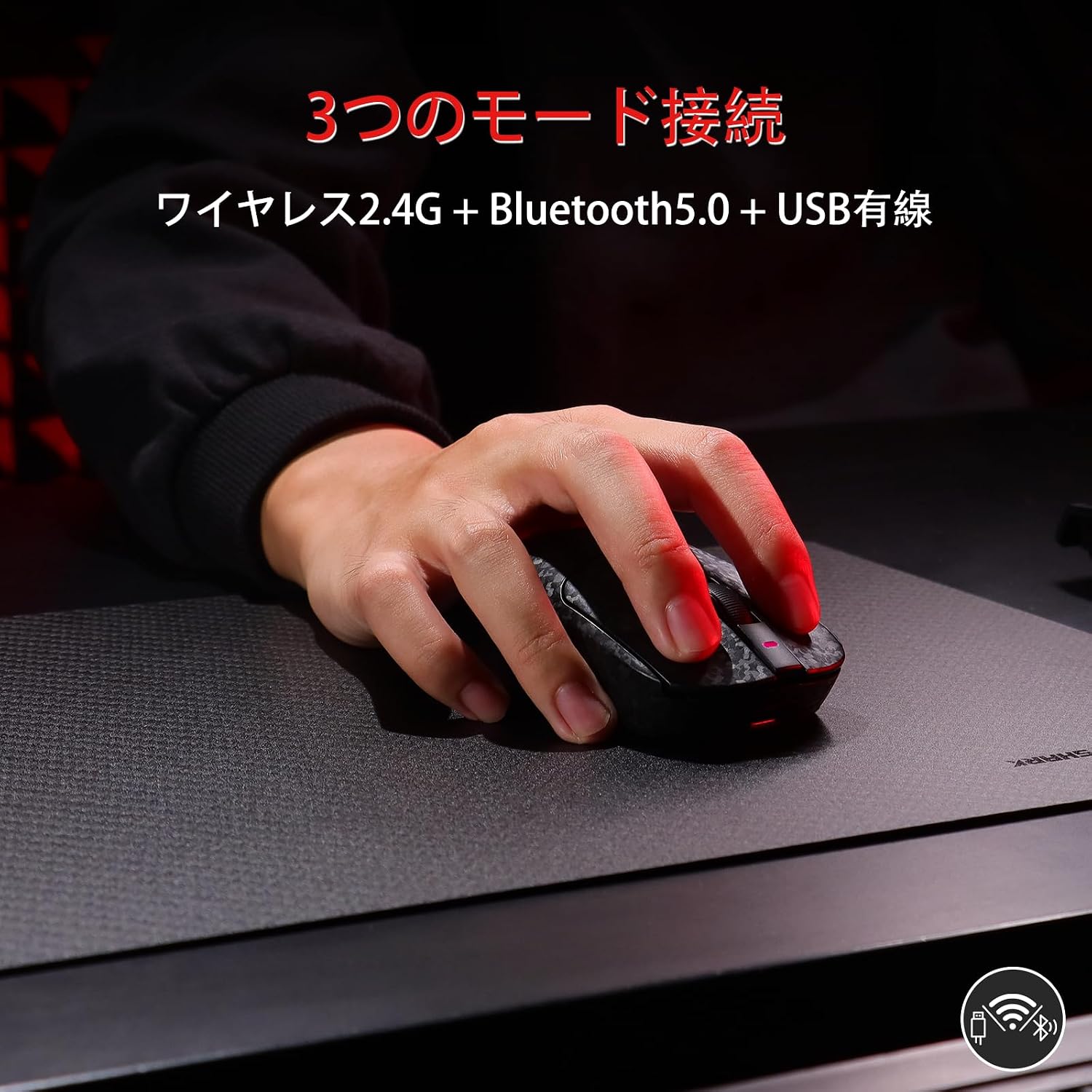
Figure 6.1: Bottom view of the mouse showing PTFE feet and mode switch

Figure 6.2: PTFE Footpads for Smooth Glide
7. Troubleshooting
| Problem | Possible Cause | Solution |
|---|---|---|
| Mouse not responding | Low battery, incorrect connection mode, loose cable/receiver. | Charge the mouse. Ensure the mode switch is set correctly (Wired, 2.4G, or BT). Reconnect the USB-C cable or 2.4GHz receiver. |
| Cursor movement is erratic or imprecise | Sensor obstruction, incorrect DPI setting, dirty mousepad. | Clean the optical sensor. Adjust DPI settings. Use a clean, suitable mousepad. |
| Bluetooth connection issues | Mouse not in pairing mode, interference, PC Bluetooth off. | Ensure mouse is in BT mode and discoverable. Check for other wireless devices causing interference. Verify PC Bluetooth is enabled. |
| Mouse not charging | Faulty cable, incorrect charger, USB port issue. | Use the included USB-C cable. Connect to a PC USB port. Try a different USB port. |
8. Specifications
| Feature | Detail |
|---|---|
| Model | AJ199 |
| Brand | AJAZZ |
| Color | Black |
| Connectivity | USB-C Wired, 2.4GHz Wireless, Bluetooth 5.0 |
| Sensor | PixArt PAW3311 Optical Sensor |
| DPI Range | 400-24000 DPI (6 preset levels: 400/800/1200/1600/2400/3600) |
| Polling Rate | 1000Hz (Wired/2.4GHz), 125Hz (Bluetooth) |
| Weight | 55g ± 3g |
| Dimensions | 118.57 × 62.2 × 39.56 mm |
| Buttons | 7 (Programmable) |
| Switches | TTC Mechanical Micro Switches (60 million click lifespan) |
| Scroll Wheel Encoder | TTC Silver Encoder (500,000 rotation lifespan) |
| Battery Capacity | 500mAh |
| Charging Time | Approx. 2 hours |
| Compatible OS | Windows Vista/7/8/10/11, macOS |
| Included Components | Mouse body, USB-C cable, Instruction manual |
| Technical Compliance Certification | 219-259476 |
9. Warranty and Support
This product comes with a 6-month warranty from the date of purchase. Please retain your proof of purchase for warranty claims.
For technical support, driver downloads, or further inquiries, please visit the official AJAZZ website or contact customer service through your retailer.


