
VSDISPLAY 8.8 Inch 1920x480 IPS LCD Monitor Instruction Manual
Model: VS088UJ01-B
1. Product Overview
The VSDISPLAY 8.8 Inch 1920x480 IPS LCD Monitor (Model VS088UJ01-B) is a versatile display designed for use as a secondary monitor or for integrating into a computer PC case to monitor system data such as CPU, GPU, and RAM temperature. It features a high-resolution IPS screen with wide viewing angles and supports both horizontal and vertical display modes.
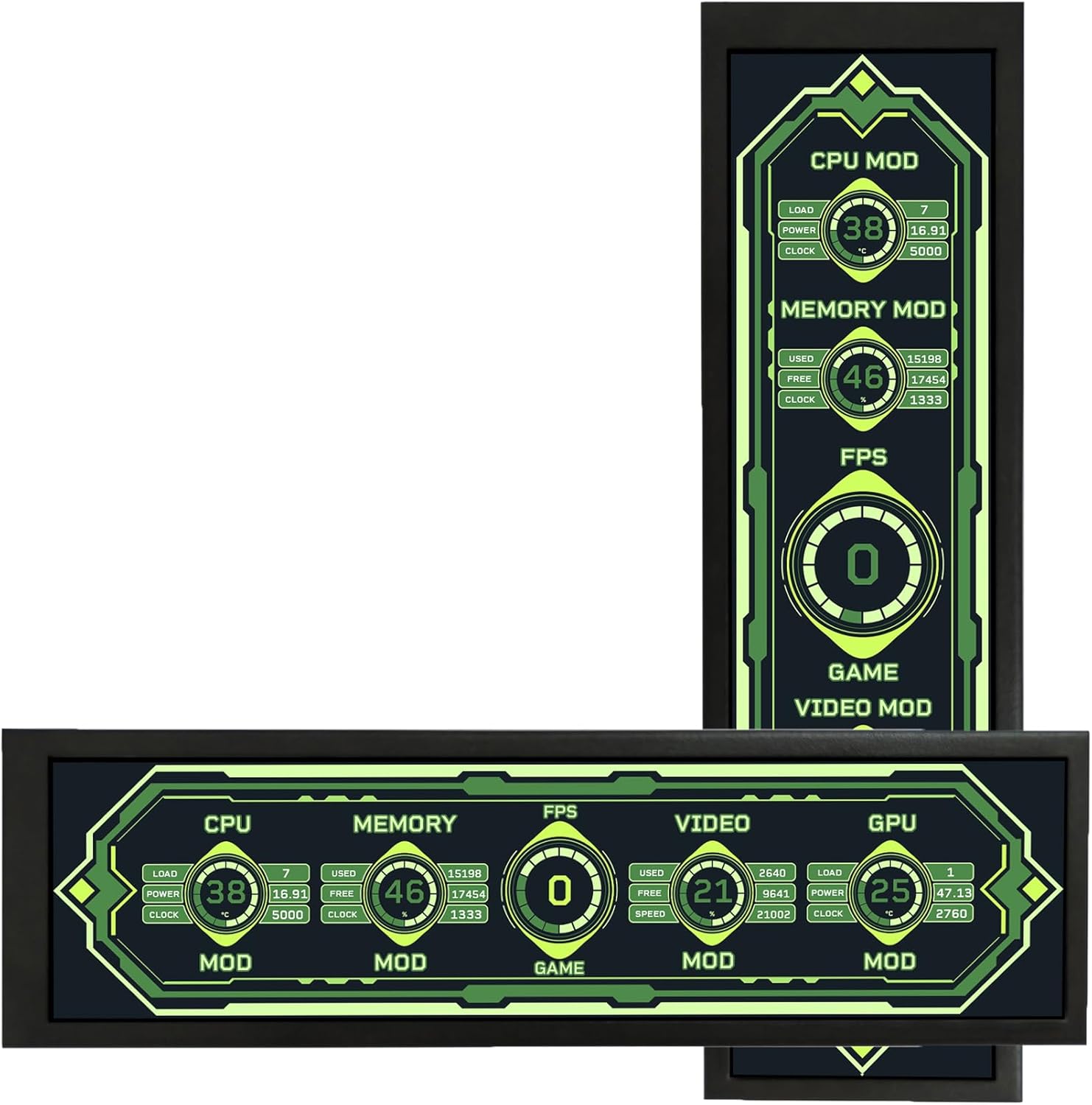
Image: The VSDISPLAY 8.8 Inch LCD Monitor displaying system monitoring data in both horizontal and vertical orientations.
2. Package Contents
Please verify that all items listed below are included in your package:
- 1x 8.8 inch 480x1920 VS088UJ01-B LCD Monitor (Black Case)
- 1x 9 Pin Signal Cable
- 1x USB Cable
- 1x Bracket

Image: The VSDISPLAY 8.8 Inch LCD Monitor, a 9-pin signal cable, a USB cable, and a bracket, as included in the package.
3. Features
- 8.8'' Stretched Bar LCD: Small stretched bar display with 1920x480 high resolution.
- Display Modes: Supports 1920x480 horizontal and 480x1920 vertical mode display switching.
- Dimensions: Outline Size 235×68×15(H×V×D) mm; Display Area 54.72(H)×218.88(V) mm.
- IPS Screen: Mini LCD monitor with IPS viewing angle for vivid and clear image display, offering a 178° full viewing angle.
- Easy Setup: Requires only one USB-C cable or one 9-pin cable for connection.
- Driver Installation: Software for display functionality will automatically prompt for installation upon signal cable connection.

Image: Features of the 8.8-inch IPS screen, including resolution, brightness, and orientation options.

Image: The monitor's 178-degree full viewing angle, illustrating clear visibility from various perspectives.
4. Setup
4.1 Connecting the Monitor
- Connect to Host via USB-C Cable: Connect the monitor to a USB port on your PC or laptop using the provided USB-C cable. This cable typically provides both power and signal.
- Connect to Host via 9-Pin Cable (Alternative): If using a 9-pin cable, connect it to the corresponding 9-pin header on your host device. This is often used for internal PC case connections.
- Identify Ports: The monitor features USB and USB-C ports for connectivity.

Image: Step-by-step guide for connecting the monitor using a USB-C cable to a host's USB port.

Image: Instructions for connecting the monitor to a 9-pin header on a host device.

Image: Detail of the USB and USB-C input ports on the monitor.
4.2 Driver Installation
Upon connecting the monitor, the necessary software for display functionality should automatically prompt for installation. Follow the on-screen instructions to install the driver. This is crucial for the monitor to function as a secondary display.
Video: A quick guide demonstrating the driver installation process for the VSDISPLAY monitor, typically completed within one minute.
4.3 Bracket Installation
The included bracket allows for flexible placement of the monitor. To install:
- Identify the fixed hole positions on the monitor's rear.
- Unscrew the existing screws, then align and fix the bracket using the provided screws.

Image: Visual guide for attaching the stand bracket to the monitor for stable positioning.
5. Operating Instructions
5.1 Display Orientation
The monitor supports both horizontal (landscape) and vertical (portrait) display modes. You can switch between these modes through your computer's display settings after the driver is installed. For Windows systems, navigate to Display Settings > Orientation.
Video: Demonstration of switching between vertical and landscape display modes on a 7.84-inch stretched bar LCD, similar to the 8.8-inch model.
5.2 Basic Display Settings
Once connected and recognized by your system, you can adjust various display settings (e.g., resolution, brightness, contrast) through your operating system's display preferences. The monitor's native resolution is 1920x480 pixels.
6. Application Scenarios
This monitor offers flexible applications:
- Secondary Display: Use as an extra monitor for your computer or laptop to extend your workspace.
- PC Case Monitoring: Integrate inside a computer PC case to monitor CPU, GPU, and RAM temperature data. For this application, you will need to download third-party software such as Aida64 or Wallpaper Engine.

Image: The monitor used as a secondary display inside a PC case, showing system data via AIDA64 software.

Image: The monitor functioning as an extended display for a laptop, connected via a Type-C cable.
Video: A demonstration of the 8.8-inch small stretched bar LCD functioning as a secondary display, showcasing its compact size and utility.
Video: A mini monitor, similar to this product, displayed within a computer chassis, illustrating its use for internal system monitoring.
Video: A stretched bar LCD PC case monitor, similar to this product, demonstrating theme editing capabilities for customized displays.
7. Troubleshooting
- No Display: Ensure the monitor is properly connected to a power source and the signal cable (USB-C or 9-pin) is securely plugged into both the monitor and the host device. Verify that the correct input source is selected on the monitor (if applicable).
- Driver Issues: If the display is not recognized or functions incorrectly, ensure the display driver is installed correctly. For Windows 7, a manual driver download may be required. For Windows 8-11, the driver should install automatically.
- Incorrect Resolution/Orientation: Adjust the display settings in your operating system. For Windows, right-click on the desktop, select 'Display settings', and configure resolution and orientation.
- Data Monitoring Software: If using for CPU/GPU/RAM data monitoring, ensure you have compatible third-party software (e.g., Aida64, Wallpaper Engine) installed and configured on your host device.
- Mac Compatibility: This monitor is not compatible with Mac operating systems.
8. Specifications
| Specification | Value |
|---|---|
| Standing Screen Display Size | 8.8 Inches |
| Resolution | 1920x480 Pixels |
| Aspect Ratio | 16:9 |
| Screen Surface Description | Glossy |
| Product Dimensions | 0.59 x 9.25 x 2.68 inches |
| Item Weight | 1.19 pounds |
| Manufacturer | VSDISPLAY |
| Compatible Systems | Windows 7 (driver required), Windows 8-11 (plug & play). Not compatible with Mac. |

Image: Detailed dimensions of the VSDISPLAY 8.8 Inch LCD Monitor.
9. Warranty and Support
For warranty information and technical support, please refer to the documentation included with your product or contact VSDISPLAY customer service directly. Keep your purchase receipt for warranty claims.


