1. Introduction
This manual provides detailed instructions for the setup, operation, maintenance, and troubleshooting of your KAMRUI E3B Mini PC. Please read this manual thoroughly before using the device to ensure optimal performance and longevity.
Package Contents
Verify that all items listed below are present in your package:
- KAMRUI E3B Mini PC
- Power Adapter & Cable
- HDMI Cable
- VESA Mount with Screws
- User Manual (this document)

Image 1.1: Included Package Contents
The KAMRUI E3B Mini PC is a compact and powerful computing solution, equipped with an AMD Ryzen 7 5700U processor, 32GB DDR4 RAM, and a 1TB M.2 2280 SSD. It supports WiFi 6, Bluetooth 5.2, and triple 4K display output, making it suitable for various applications from office work to home entertainment.

Image 1.2: KAMRUI E3B Mini PC Key Features Overview
2. Initial Setup
2.1 Connecting Peripherals
Before powering on your Mini PC, connect your essential peripherals:
- Monitor Connection: Connect your monitor(s) using the HDMI, DisplayPort (DP), or USB-C port. The device supports up to three 4K@60Hz displays simultaneously.
- Keyboard and Mouse: Connect your USB keyboard and mouse to any of the available USB 3.2 ports. Wireless peripherals can be connected via Bluetooth 5.2 or a USB dongle.
- Network Connection: For a wired connection, connect an Ethernet cable to the RJ45 LAN port. For wireless, ensure your WiFi network is available.
- Audio Devices: Connect headphones or speakers to the 3.5mm audio jack if needed.
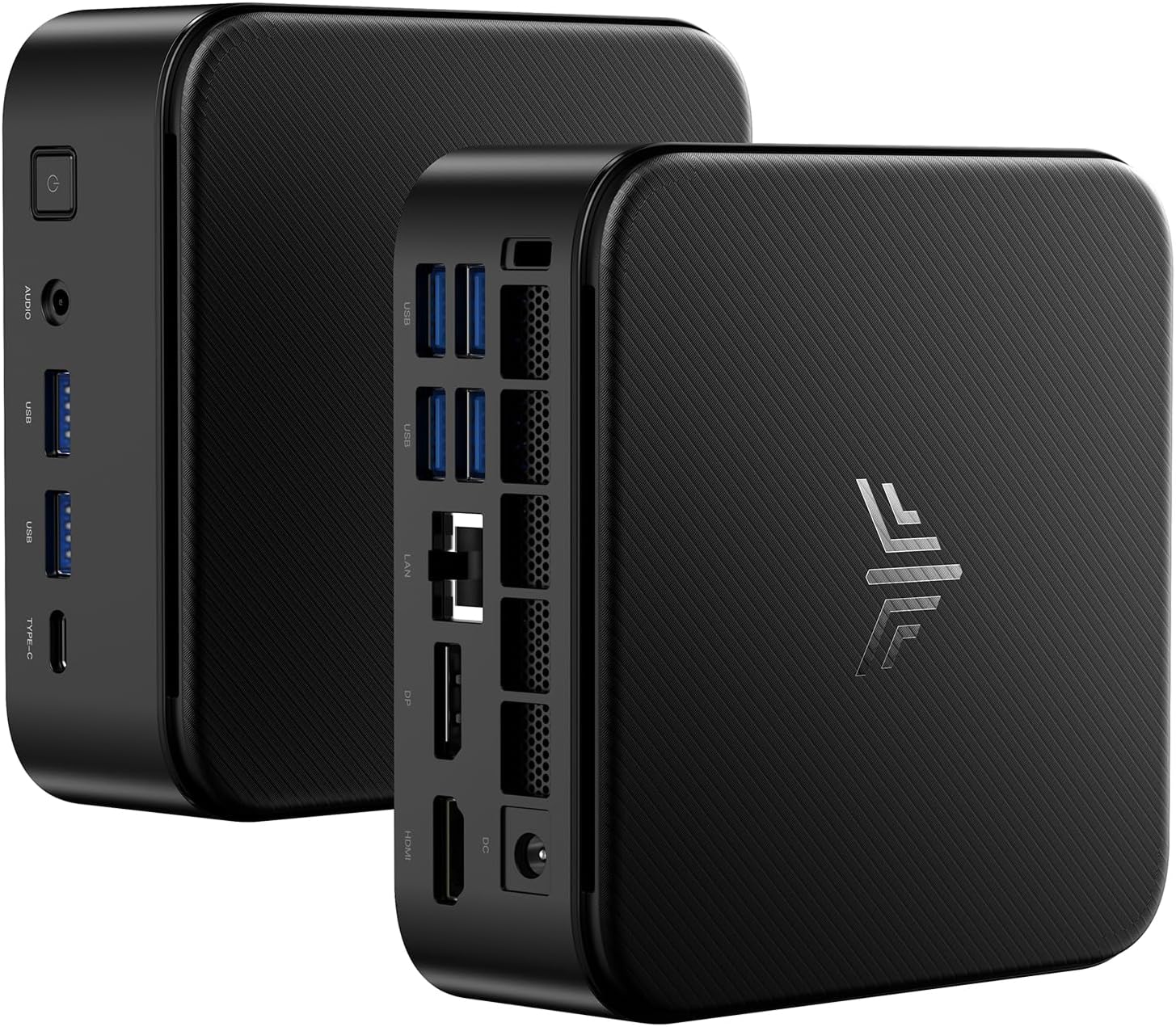
Image 2.1: KAMRUI E3B Mini PC Ports Overview
2.2 Power Connection
Connect the power adapter to the DC-in port on the Mini PC, then plug the power cable into a wall outlet.
2.3 First Boot
Press the power button located on the front of the Mini PC. The system will boot up. Follow the on-screen instructions to complete the initial Windows 11 setup (if pre-installed) or your preferred operating system installation.
3. Operating Instructions
3.1 Power On/Off
- Power On: Press the power button once.
- Power Off: From the operating system, select 'Shut Down'. Alternatively, press and hold the power button for 5-7 seconds for a forced shutdown (use only when necessary).
3.2 Network Connectivity
- Wired (LAN): Connect an Ethernet cable to the RJ45 port for a stable wired internet connection.
- Wireless (WiFi 6): The Mini PC supports WiFi 6 for faster and more stable wireless connections. Access network settings in your operating system to connect to a WiFi network.
- Bluetooth 5.2: Enable Bluetooth in your operating system settings to pair with compatible devices such as keyboards, mice, and headphones.

Image 3.1: Wireless Connection Features
3.3 Triple Display Setup
The KAMRUI E3B Mini PC supports simultaneous output to three 4K@60Hz displays via its HDMI, DisplayPort (DP), and USB-C ports. This allows for an extended desktop environment, enhancing productivity.
- Connect your primary monitor to the HDMI port.
- Connect a second monitor to the DisplayPort (DP).
- Connect a third monitor to the USB-C port (ensure your USB-C monitor supports video input).
- Adjust display settings within your operating system to extend or duplicate your desktop across the connected monitors.

Image 3.2: Triple 4K Display Configuration
4. Storage and Memory Expansion
The Mini PC comes equipped with 32GB DDR4 RAM and a 1TB M.2 2280 SSD. For users requiring additional capacity or performance, expansion options are available.
4.1 RAM Expansion
The device features two SO-DIMM slots, allowing for RAM expansion up to 64GB (2x32GB DDR4 SO-DIMM modules).
4.2 SSD Expansion
The Mini PC includes two M.2 2280 slots for storage expansion:
- One slot supports NVMe PCIe 3.0 SSD or SATA SSD.
- One slot supports SATA SSD only.
Each M.2 slot can support up to 2TB, providing a total potential storage of 4TB (excluding the pre-installed SSD).
Note: Opening the device for upgrades may require specific tools and technical knowledge. Refer to the manufacturer's website for detailed upgrade guides or seek professional assistance.
5. Maintenance Guidelines
5.1 Cleaning
To maintain optimal performance and prevent overheating, regularly clean the exterior of the Mini PC and ensure ventilation openings are free from dust. Use a soft, dry cloth for cleaning. For dust accumulation in vents, a can of compressed air can be used.
5.2 Cooling System
The KAMRUI E3B Mini PC features a quiet and efficient cooling fan system with dual air vents and a large heat dissipation area. Ensure the device is placed in a well-ventilated area and that the vents are not obstructed.

Image 5.1: Internal Cooling System Diagram
6. Troubleshooting Common Issues
This section addresses common issues you might encounter with your Mini PC.
- No Power:
Ensure the power adapter is securely connected to both the Mini PC and a working power outlet. Test the outlet with another device. - No Display:
Verify that the monitor is powered on and correctly connected to the Mini PC's video output ports (HDMI, DP, USB-C). Try a different cable or monitor if possible. Ensure the correct input source is selected on your monitor. - No Internet Connection (Wired):
Check if the Ethernet cable is securely plugged into both the Mini PC and your router/modem. Verify your router/modem is working correctly. - No Internet Connection (Wireless):
Ensure WiFi is enabled in your operating system settings. Check if the correct WiFi network is selected and the password is entered correctly. Restart your router/modem. - Bluetooth Device Not Connecting:
Ensure Bluetooth is enabled on both the Mini PC and the device you are trying to pair. Make sure the device is in pairing mode and within range. Remove and re-add the device in Bluetooth settings. - System Slowdown:
Check for excessive background applications or processes. Ensure sufficient free storage space. Consider updating drivers or performing a system scan for malware. - Overheating:
Ensure the Mini PC's vents are not blocked and it is placed in a well-ventilated area. Clean any dust from the vents.
7. Technical Specifications
| Feature | Specification |
|---|---|
| Processor | AMD Ryzen 7 5700U (8 Cores/16 Threads, up to 4.3GHz) |
| Graphics | AMD Radeon Graphics (8 Cores, 1900MHz) |
| RAM | 32GB DDR4 SO-DIMM (Expandable to 64GB) |
| Storage | 1TB M.2 2280 SSD (Expandable up to 4TB via 2 M.2 slots) |
| Video Output | 1x HDMI 2.0 (4K@60Hz), 1x DisplayPort 1.4 (4K@60Hz), 1x USB 3.2 Type-C (4K@60Hz) |
| USB Ports | 6x USB 3.2 Gen2, 1x USB 3.2 Type-C (Data/Video/PD) |
| Network | WiFi 6, Bluetooth 5.2, 1x RJ45 Gigabit Ethernet |
| Audio | 1x 3.5mm Audio Jack |
| Operating System | Pre-installed OS (e.g., Windows 11) |
| Dimensions | Approximately 5.04 x 5.04 x 1.63 inches |
| Weight | Approximately 2.63 pounds |
8. Warranty and Customer Support
8.1 Warranty Information
KAMRUI is committed to providing quality products. We offer maintenance points to exchange or repair your KAMRUI Mini PC during the warranty period. Please retain your proof of purchase for warranty claims.
8.2 Customer Support
For any questions, technical assistance, or support needs, please contact KAMRUI customer service. We provide 24/7 after-sales service and lifelong technical support.
- Email: support@kamrui.com
- Phone (US): +1-833-670-1528 (Mon-Fri 9am-5pm EST)
- Online Support: You can also reach out via your Amazon account: "Login Amazon" → "Your Account" → "Your orders" → "Ask Product Question".

Image 8.1: KAMRUI Customer Support Contact Information


