
1. Introduction
Welcome to the PRITOM M10 Android 15 Kids Tablet user manual. This guide provides essential information for setting up, operating, and maintaining your new tablet. Designed for children aged 3 to 12, this tablet offers a safe and engaging environment for learning and entertainment, featuring robust parental controls and a durable protective case.
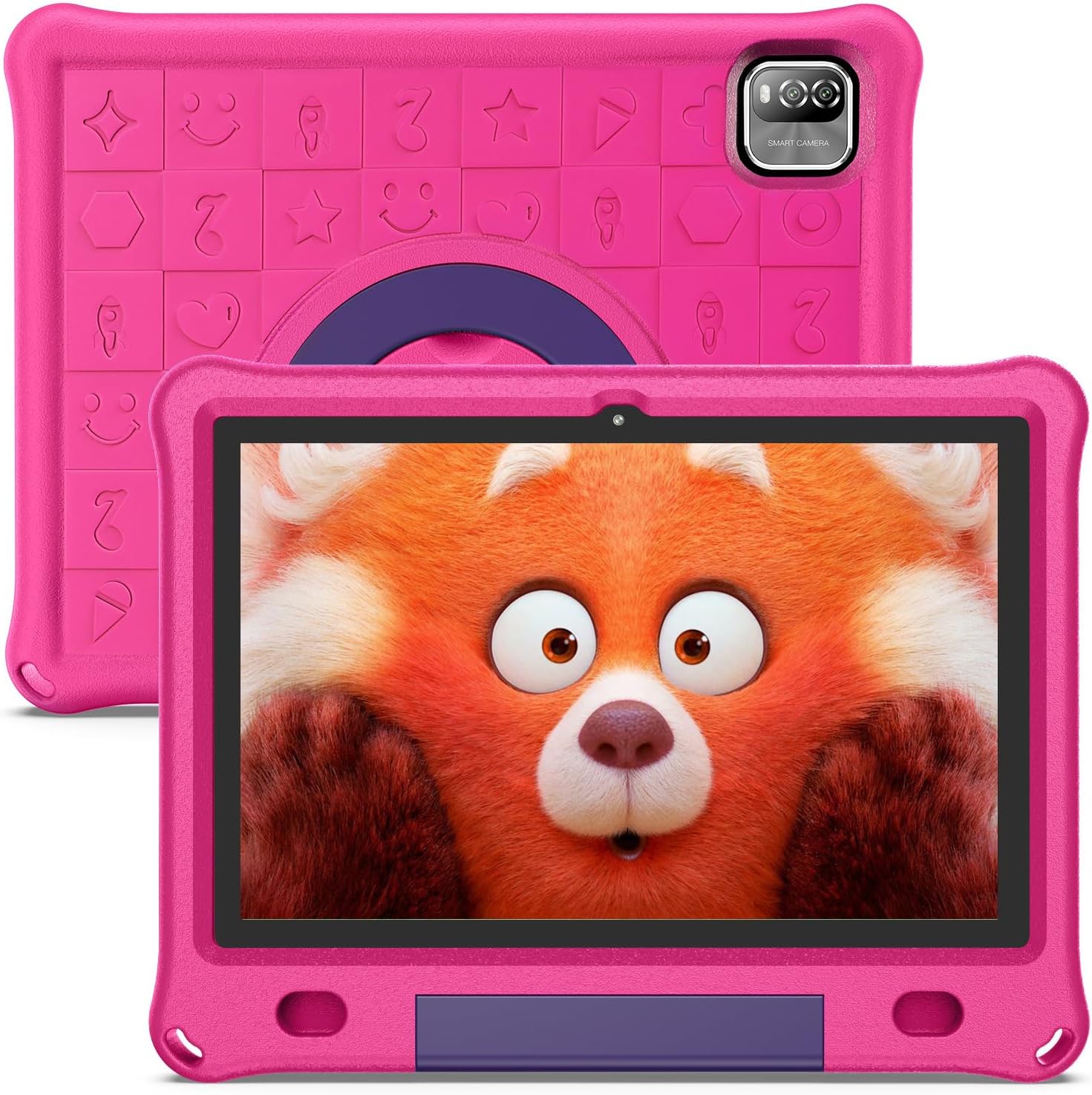
Image 1.1: The PRITOM M10 Kids Tablet, showcasing its vibrant pink protective EVA case and the tablet's display.
2. Product Overview and Key Features
The PRITOM M10 Kids Tablet is equipped with features designed for a child-friendly experience while offering powerful performance for various tasks.
2.1 Core Performance
- Operating System: Latest Android 15.
- Processor: Quad-core for smooth operation.
- Display: 10.1-inch 1280x800 HD IPS display for clear visuals.
- Memory: 12GB RAM (+9GB extension) for efficient multitasking.
- Storage: 64GB internal storage, expandable up to 1TB with a TF card.
- Connectivity: Stable WiFi6 module for reliable internet access.
- Cameras: Dual cameras for photos and video calls.
2.2 Child-Friendly Design and Software
- Pre-installed Kids Software: Access to a safe and fun iWawa kids store with numerous free educational apps and games.
- Parental Control: Comprehensive features including child lock, whitelists for apps and websites, age-based accounts, screen time limits, and content management.
- Durable EVA Case: Lightweight, kid-friendly, impact-resistant soft silicone material protects against scratches, dirt, and drops.
- Integrated Stand: The EVA case includes a 90-degree swingable stand for hands-free viewing and interaction.
- Eye Comfort: Designed with features to promote comfortable viewing for children.

Image 2.1: The tablet's home screen displaying various pre-installed educational and entertainment applications for children.

Image 2.2: Visual representation of the tablet's key features, including WiFi6 connectivity, dedicated Kids Mode, camera functionality, eye comfort settings, and Google Play access.
3. Getting Started: Initial Setup
3.1 Charging the Tablet
Before first use, fully charge the tablet. Connect the provided USB-C charging cable to the tablet's charging port and the other end to a compatible power adapter. The tablet features a 6000mAh battery for extended use.

Image 3.1: Children engaging with the tablet, illustrating its long-lasting 6000mAh battery capacity for extended play and learning.
3.2 Powering On/Off
- To Power On: Press and hold the Power button located on the side of the tablet until the screen lights up.
- To Power Off: Press and hold the Power button, then select 'Power Off' from the options that appear on the screen.
- To Restart: Press and hold the Power button, then select 'Restart' from the options.
3.3 Initial Setup Wizard
Upon first power-on, follow the on-screen instructions to complete the initial setup. This typically includes selecting your language, connecting to a Wi-Fi network, and setting up basic device preferences.
4. Operating Your Tablet
4.1 Parental Control and Kids Software (iWawa)
The PRITOM M10 tablet is pre-installed with a dedicated Kids Software (iWawa) and robust parental control features to ensure a safe digital environment for your child.
- Accessing Parental Controls: Navigate to the dedicated parental control application or settings menu.
- Creating Child Accounts: Set up personalized profiles for each child, allowing for age-appropriate content and settings.
- App and Website Whitelisting: Manually approve or restrict access to specific applications and websites.
- Screen Time Limits: Set daily usage limits and specific play times to manage your child's screen exposure.
- Content Management: The iWawa store offers a curated selection of educational and entertaining apps. Parents can add or remove content as needed.
- Exiting Kids Mode: The tablet can be used as a standard Android tablet when exiting the Kids Mode, providing versatility for adult use.

Image 4.1: An illustration of the advanced parental control features available on the tablet, including child lock, whitelisting, age accounts, website filtering, application management, and time limits.
4.2 Wi-Fi Connectivity
The tablet supports Wi-Fi 6 (802.11ax, 802.11b, 802.11g, 802.11n) for fast and stable internet connection.
- Connecting to Wi-Fi: Go to Settings > Network & internet > Wi-Fi. Turn on Wi-Fi, select your desired network, and enter the password if prompted.
4.3 Storage Expansion
The tablet comes with 64GB of internal storage. You can expand this by inserting a TF (microSD) card into the designated slot, supporting up to 1TB of additional storage for photos, videos, and apps.
4.4 Using the Camera
The tablet features dual cameras. Open the Camera app to take photos or record videos. The interface is designed to be simple and intuitive for children.
4.5 Protective EVA Case
The included EVA case is designed to protect the tablet from everyday bumps and drops. It also features a built-in stand that can be adjusted to a 90-degree angle for comfortable viewing.
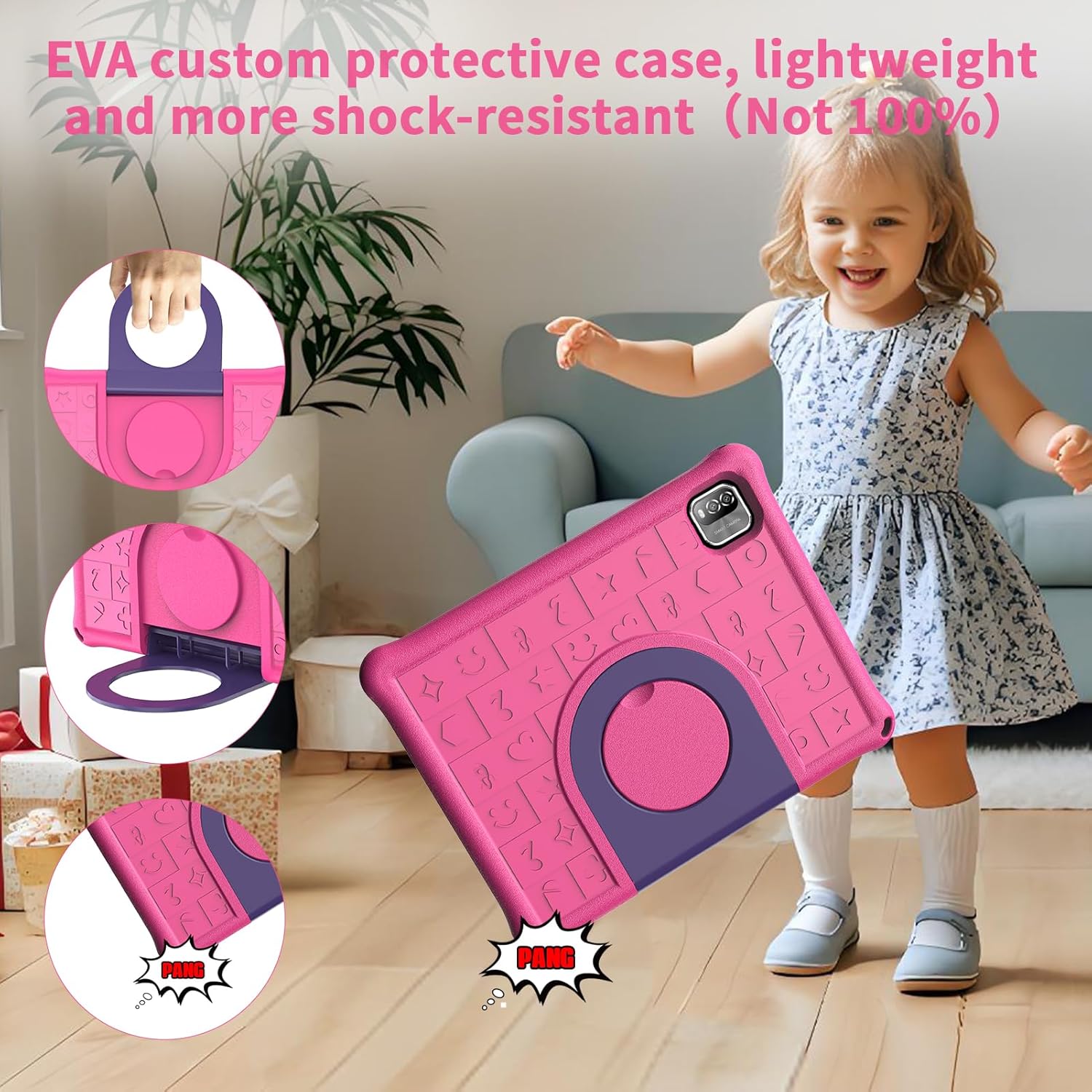
Image 4.2: A child using the tablet, demonstrating the lightweight and shock-resistant EVA custom protective case with its integrated swingable stand.
5. Maintenance
- Cleaning: Use a soft, lint-free cloth to clean the screen and tablet body. Avoid abrasive cleaners or solvents.
- Battery Care: To prolong battery life, avoid fully discharging the tablet frequently. Store the tablet in a cool, dry place when not in use for extended periods.
- Case Care: The EVA case can be wiped clean with a damp cloth.
6. Troubleshooting
If you encounter issues with your PRITOM M10 tablet, refer to the following common solutions:
- Tablet Not Turning On: Ensure the tablet is charged. Connect it to a power source and wait a few minutes before attempting to power it on again.
- Screen Unresponsive: Try restarting the tablet by holding down the power button for approximately 10-15 seconds until it powers off, then power it on again.
- Wi-Fi Connection Issues: Check if other devices can connect to your Wi-Fi network. Restart your router and the tablet. Ensure the Wi-Fi password is entered correctly.
- Apps Crashing/Freezing: Close and reopen the app. If the issue persists, clear the app's cache (Settings > Apps > [App Name] > Storage > Clear cache) or uninstall and reinstall the app.
- Slow Performance: Close unnecessary background apps. Clear cached data regularly. Consider reducing the number of installed apps if storage is nearly full.
7. Specifications
| Feature | Specification |
|---|---|
| Brand | PRITOM |
| Model Name | M10 |
| Operating System | Android 15 |
| Screen Size | 10.1 Inches |
| Screen Resolution | 1280 x 800 Pixels (HD IPS) |
| Processor | Quad-core, 2 GHz (Rockchip) |
| RAM | 12GB (+9GB Extension) |
| Flash Memory Size | 64 GB |
| Expandable Storage | Up to 1TB via TF Card |
| Wireless Type | 802.11ax (WiFi6), 802.11b, 802.11g, 802.11n |
| Average Battery Life | 8 Hours (6000mAh) |
| Item Weight | 2.4 pounds |
| Product Dimensions | 10.7 x 8.3 x 1 inches |
| Color | Pink |
8. Warranty and Support
For warranty information or technical support, please refer to the documentation included with your purchase or visit the official PRITOM website. If you encounter any issues not covered in this manual, please contact PRITOM customer service for assistance.

Image 8.1: A family enjoying the PRITOM M10 Kids Tablet, illustrating its use in a home setting.


