
1. Introduction
Thank you for purchasing the Inwa USB Computer Monitor Speaker (Model MZ-631). This instruction manual provides detailed information on how to set up, operate, and maintain your new speaker. Please read this manual thoroughly before use to ensure optimal performance and longevity of your device.
2. Package Contents
Please check the package for the following items:
- 1 x Inwa Clip-on Computer Speaker (Model MZ-631)
- 1 x USB-C to USB Adapter
- 1 x User Manual (this document)
3. Product Features
- Stereo Sound & Enhanced Bass: Equipped with dual 10W high-sensitive drivers and a passive radiator for rich, powerful audio output.
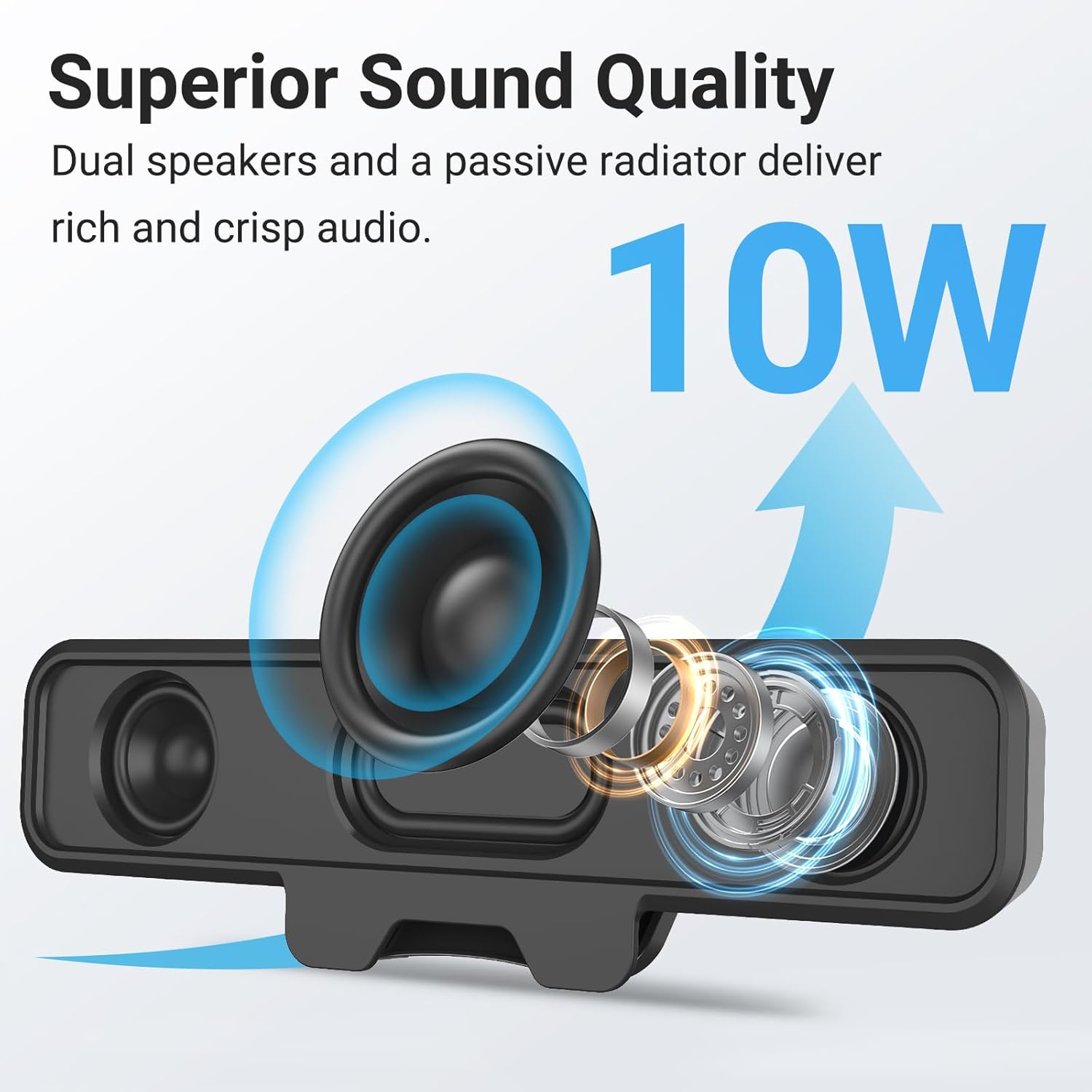
Image: Internal components of the speaker, illustrating the dual 10W drivers and passive radiator responsible for superior sound quality.
- Upgraded Monitor Clip: Features a robust spring clip designed for secure attachment to the top, sides, or bottom of monitors up to 1 inch thick. This design saves desk space and maintains a tidy workspace. The speaker can also be placed independently on a desktop. Silicone pads on the clip provide protection for your monitor.

Image: Detail of the upgraded monitor clip, demonstrating its secure grip and compatibility with monitors up to 1 inch in thickness.
- Plug and Play Connectivity: A single USB cable provides both audio and power, eliminating the need for 3.5mm AUX cables, additional software, or batteries. This simplifies setup and reduces cable clutter. A USB-C to USB adapter is included for broad compatibility.
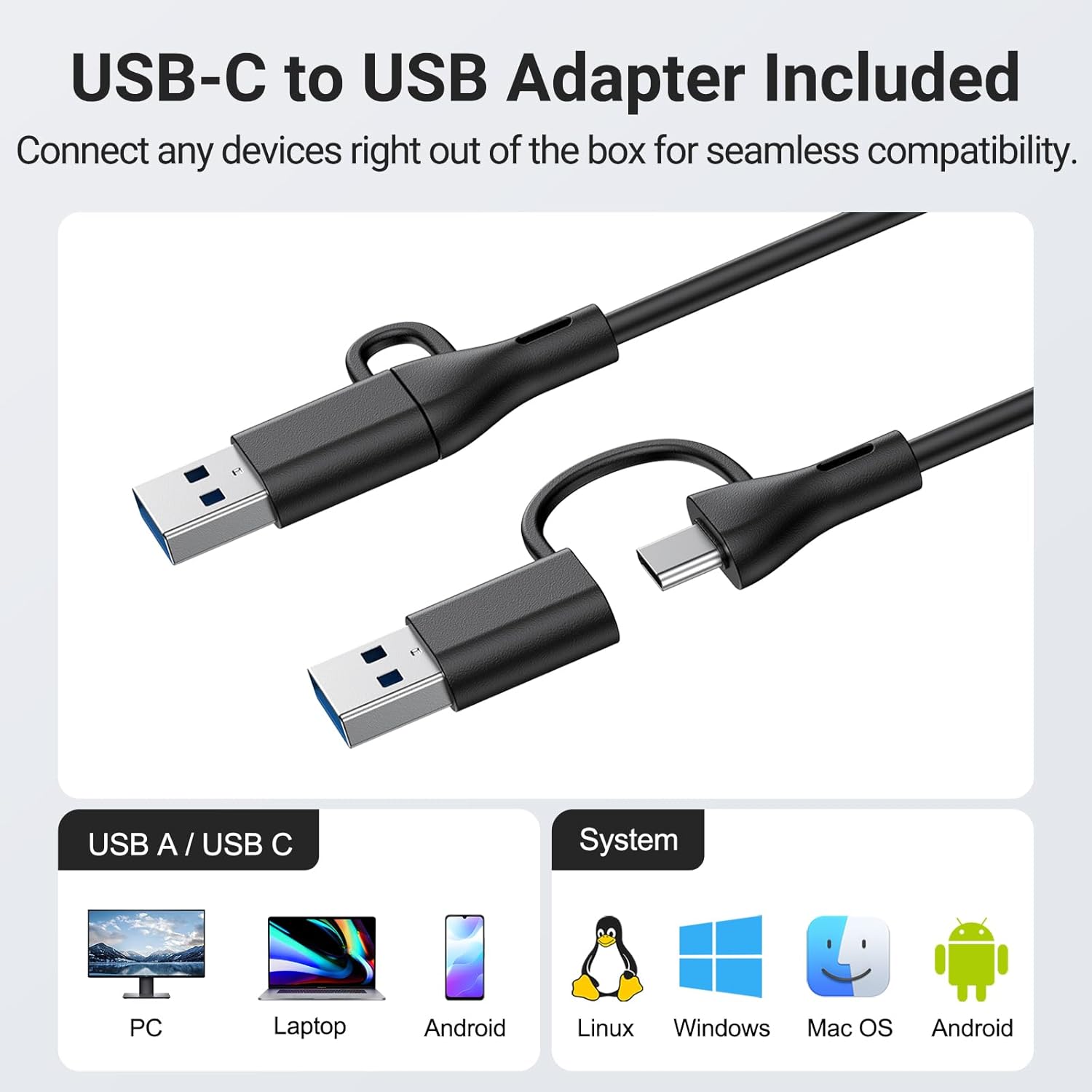
Image: The USB-C to USB adapter, ensuring compatibility with a wide range of devices including PCs, laptops, and mobile devices running Linux, Windows, or Mac OS.
- Convenient Controls: Easily adjust volume and mute audio using the three intuitive buttons located on the top of the speaker.
4. Setup Guide
- Choose Placement: Decide whether to clip the speaker to your monitor or place it on your desktop.
- Monitor Mounting: Gently open the spring clip and attach the speaker to the top, side, or bottom edge of your monitor. Ensure the monitor thickness is no more than 1 inch for a secure fit. The silicone pads will protect your screen.
- Desktop Placement: Place the speaker on a flat, stable surface on your desk.
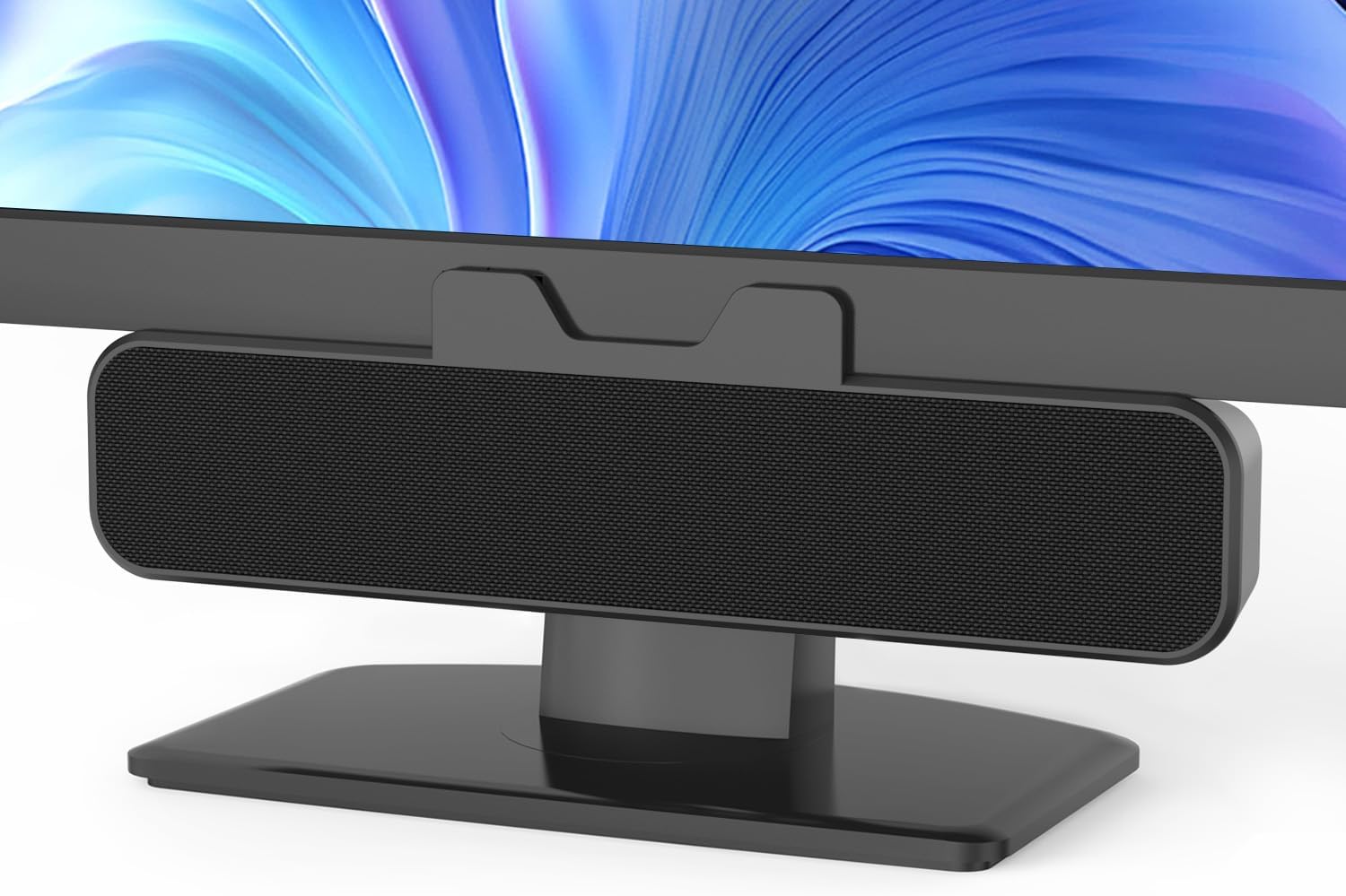
Image: The Inwa speaker mounted on top of a monitor, demonstrating its space-saving design.
- Connect to Power and Audio:
- Locate the integrated USB cable extending from the speaker.
- If your computer has a standard USB-A port, plug the USB cable directly into it.
- If your computer has a USB-C port, use the included USB-C to USB adapter. Connect the speaker's USB-A end to the adapter, then plug the adapter into your computer's USB-C port.
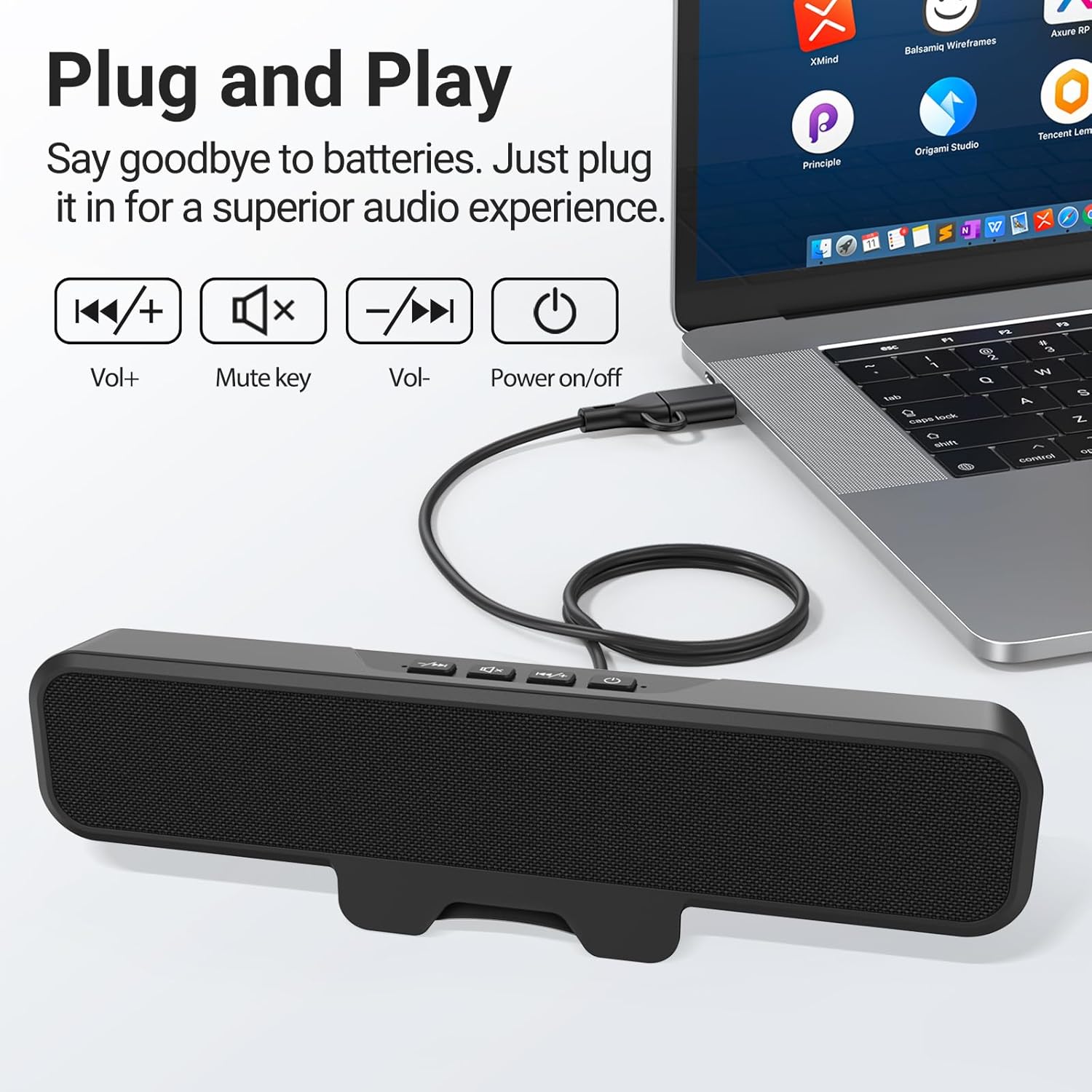
Image: The speaker connected to a laptop, illustrating the simple plug-and-play USB connection.
- Power On: Press the power button located on the top of the speaker. A green indicator light will illuminate, confirming the speaker is active.
- System Recognition: Your computer should automatically recognize the speaker as an audio output device. If not, navigate to your operating system's sound settings and select the Inwa speaker as the default output device.
5. Operating Instructions
The Inwa speaker features intuitive controls on its top panel:
- Power Button (⏻): Press to turn the speaker on or off.
- Volume Up Button (+): Press to increase the audio volume.
- Volume Down Button (-): Press to decrease the audio volume.
- Mute Button (🔇): Press to mute or unmute the audio.
When adjusting volume or muting, an on-screen panel may appear on your computer monitor, providing visual feedback of the changes.
6. Maintenance
- Cleaning: Use a soft, dry cloth to wipe the speaker's surface. Avoid using liquid cleaners or abrasive materials.
- Storage: When not in use for extended periods, store the speaker in a cool, dry place away from direct sunlight and extreme temperatures.
- Handling: Handle the speaker with care. Avoid dropping it or subjecting it to strong impacts.
7. Troubleshooting
| Problem | Possible Cause | Solution |
|---|---|---|
| No sound from speaker. | Speaker is off or muted. Incorrect audio output selected on computer. Loose USB connection. | Ensure speaker is powered on and not muted. Check computer's sound settings and select "Inwa Speaker" as the output device. Reconnect the USB cable securely. |
| Low volume. | Speaker volume is low. Computer volume is low. | Increase volume using the speaker's volume up button. Increase volume on your computer's operating system. |
| Speaker not recognized by computer. | Faulty USB port. Driver issue (rare for plug-and-play). | Try a different USB port on your computer. Restart your computer. If issues persist, contact customer support. |
8. Specifications
| Model Name | MZ-631 |
| Brand | Inwa |
| Speaker Type | Monitor Speaker |
| Connectivity Technology | USB (USB-A, USB-C compatible with adapter) |
| Audio Output Mode | Stereo (2.0 Channel) |
| Speaker Maximum Output Power | 10 Watts |
| Control Method | Push Button |
| Mounting Type | Clip-on / Desktop |
| Product Dimensions | 8"D x 2"W x 3"H |
| Item Weight | 12.6 ounces |
| Color | Black |
| Included Components | 1 * Clip-on Computer Speaker, Manual, USB-C to USB Adapter |
| Special Features | Bass Boost, Clip-on, Hi Res Audio, Portable |
| Compatible Devices | Computer, PC, Desktop, Laptop, Smartphone, Tablet |
| Indoor/Outdoor Usage | Indoor |
9. Warranty and Support
Inwa provides lifetime technical support for this product. If you encounter any issues or have questions, please contact our Customer Service team. We are committed to resolving your concerns within 24 hours.
For warranty claims or technical assistance, please refer to the contact information provided on the product packaging or visit the official Inwa website.