
1. Introduction
The Tukio Air Tracker Tag is an Apple MFi Certified Bluetooth tracker designed to help you locate your valuable items using the Apple Find My network. This device is compatible exclusively with iOS devices (iPhone, iPad, Mac) and offers features such as real-time tracking, left-behind reminders, and a lost mode. Its compact design and replaceable battery ensure convenience and long-term usability.
Privacy Protection: The MFi certified chip ensures all communication with the Find My network is anonymous and encrypted. Location data and history are never stored on the tracker tag, safeguarding your privacy.

Figure 1: Tukio Air Tracker Tag (Model TX02) with included accessories.
2. What's in the Box
Your Tukio Air Tracker Tags package includes the following items:
- 2 x Smart Tracker Tags
- 2 x Protective Silicone Cases
- 2 x Key Rings
- 2 x Lanyards
- 1 x User Manual
- 2 x CR2032 Batteries (pre-installed)
Note: Replacement batteries are not included.
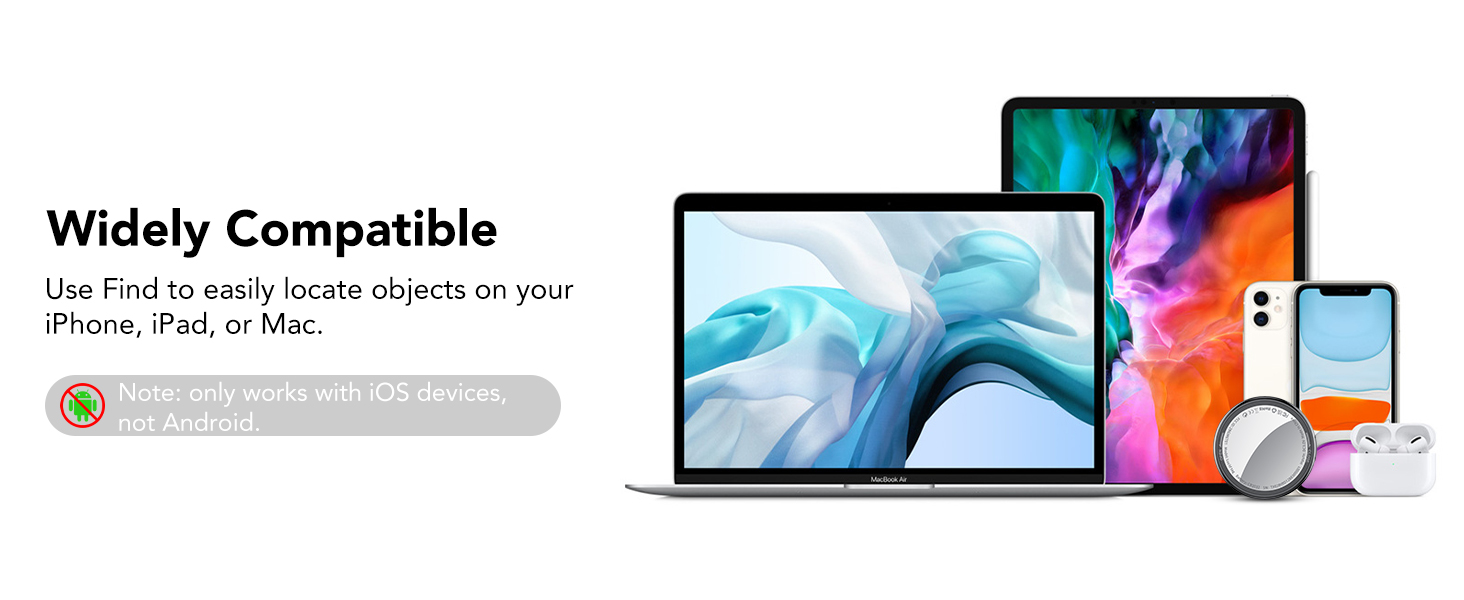
Figure 2: Package contents for Tukio Air Tracker Tags.
3. Setup
3.1 Initial Activation and Pairing
To begin using your Tukio Air Tracker Tag, follow these steps to pair it with your iOS device:
- Ensure your iOS device (iPhone, iPad, or Mac) is updated to iOS 14.5/iPadOS 14.5/macOS 11.3 or later.
- Open the Find My application on your iOS device.
- Enable Bluetooth and network functions on your iOS device.
- In the Find My app, navigate to the Items tab.
- Tap Add New Item, then select Other Supported Item. (Note: This is not for "Add AirTag".)
- Hold the function button on your Tukio Air Tracker Tag for 2 seconds until you hear a "Di" sound, confirming activation and readiness for connection.
- Place the tracker tag close to your iPhone. The app will search for and display "Lucid tag."
- Tap Connect and follow the on-screen prompts, tapping Continue until you reach Finish.

Figure 3: Pairing your Tukio Air Tracker Tag with the Find My app.
3.2 Resetting the Tracker
To restore the tracker to factory settings, press the function button 11 times. You will hear a long beep, indicating a successful reset.
4. Operation
4.1 Locating Items
Once paired, you can track your items using the Apple Find My app:
- Within Bluetooth Range (up to 200 feet): Open the Find My app, select your tracker tag, and tap the "Play Sound" option. The tracker will emit an 80-100dB beep to help you pinpoint its location. You can also ask Siri for assistance by saying, for example, "Hey Siri, where are my keys?"
- Outside Bluetooth Range: The Find My network, composed of hundreds of millions of Apple devices worldwide, can help locate your item. The app will display the last known location of your tracker tag on a map.

Figure 4: Locating items using the Find My app's sound and map features.
4.2 Left-Behind Reminders
If you leave an item with a Tukio Air Tracker Tag behind, your iOS device will send you a notification with the last known location. This feature helps prevent loss by alerting you when the tracker moves out of Bluetooth range from your device.

Figure 5: Example of a Left-Behind Reminder notification.
4.3 Lost Mode Activation
In the event of a lost item, you can activate Lost Mode in the Find My app. This feature allows anyone who finds your tag to securely access your contact information (if provided) and remotely provide you with the item's location. You will receive a notification when the item's location becomes available.
- In the Find My app, select the lost item.
- Scroll down and select Lost Mode.
- Follow the prompts to enable Lost Mode and enter your contact information.
- Confirm the activation.

Figure 6: Steps to activate Lost Mode for your tracker tag.
4.4 Sharing Items
With iOS 17 or later, you can share the location of your Tukio Air Tracker Tags with up to 5 other individuals in the Find My app. This allows family and friends to also track items that are commonly used or shared. Borrowers will not receive tracking notifications when the item moves with them.
Note: Both parties must be using iOS 17/iPadOS 17/macOS 14 or above for this feature.
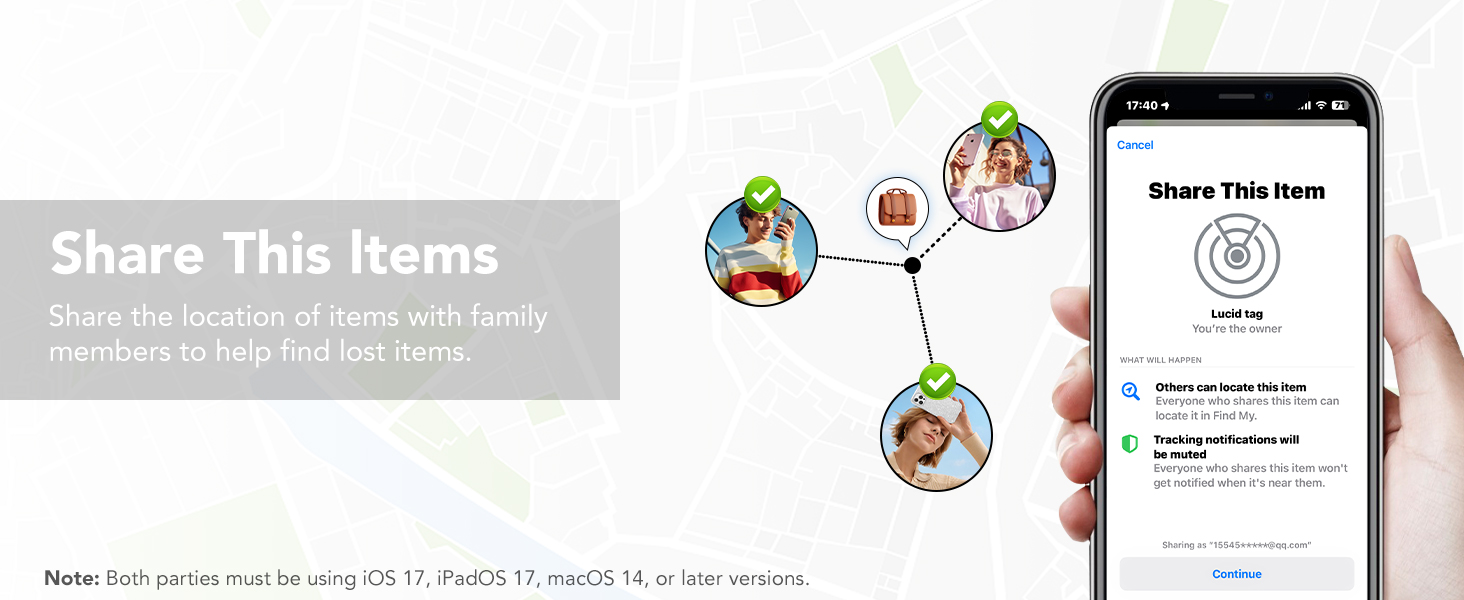
Figure 7: Sharing your tracker tag with family and friends.
5. Maintenance
5.1 Battery Replacement
Each Tukio Air Tracker Tag uses a CR2032 coin cell battery, providing up to 1 year of continuous use. The Find My app will notify you when the battery level is low, prompting you to replace it.
To replace the battery:
- Turn the stainless steel battery cover counter-clockwise to remove it.
- Remove the old CR2032 battery.
- Insert a new CR2032 battery with the positive (+) side facing up.
- Align the battery cover and press it gently.
- Rotate the battery cover clockwise to tighten it securely.
The unique cover design helps prevent accidental opening by children.

Figure 8: Battery replacement steps.
5.2 Water and Dust Resistance
The Tukio Air Tracker Tag features an IP67 rating, meaning it can withstand immersion in water up to 3 feet (1 meter) for 30 minutes. This makes it suitable for various outdoor activities and provides protection against dust and splashes.
6. Troubleshooting
If you encounter issues with your Tukio Air Tracker Tag, consider the following:
- Tracker Not Connecting: Ensure Bluetooth is enabled on your iOS device and the tracker is within range. Try resetting the tracker (refer to Section 3.2).
- Inaccurate Location: Ensure your iOS device has a stable internet connection and location services are enabled for the Find My app. Location accuracy can be affected by environmental factors and the density of the Find My network in your area.
- No Sound from Tracker: Check the battery level in the Find My app. If low, replace the battery (refer to Section 5.1). Ensure the volume on your iOS device is not muted.
- Left-Behind Reminders Not Working: Verify that Left-Behind Reminders are enabled for your tracker in the Find My app settings. Ensure your iOS device is updated to the latest version.
For further assistance, please contact our customer support team.
7. Specifications
| Feature | Specification |
|---|---|
| Model Number | TX02 |
| Dimensions | 1.22" L x 1.22" W x 0.35" Th (30.9mm x 30.9mm x 8.3mm) |
| Weight | 0.494 ounces (approximately 14g) |
| Battery Type | CR2032 (replaceable) |
| Battery Life | Up to 1 year |
| Connectivity | Bluetooth 5.3 |
| Compatibility | iOS devices only (iOS 14.5/iPadOS 14.5/macOS 11.3 or later) |
| Sound Level | 80-100dB |
| Water Resistance | IP67 (up to 3 feet for 30 minutes) |
| Material | Plastic |
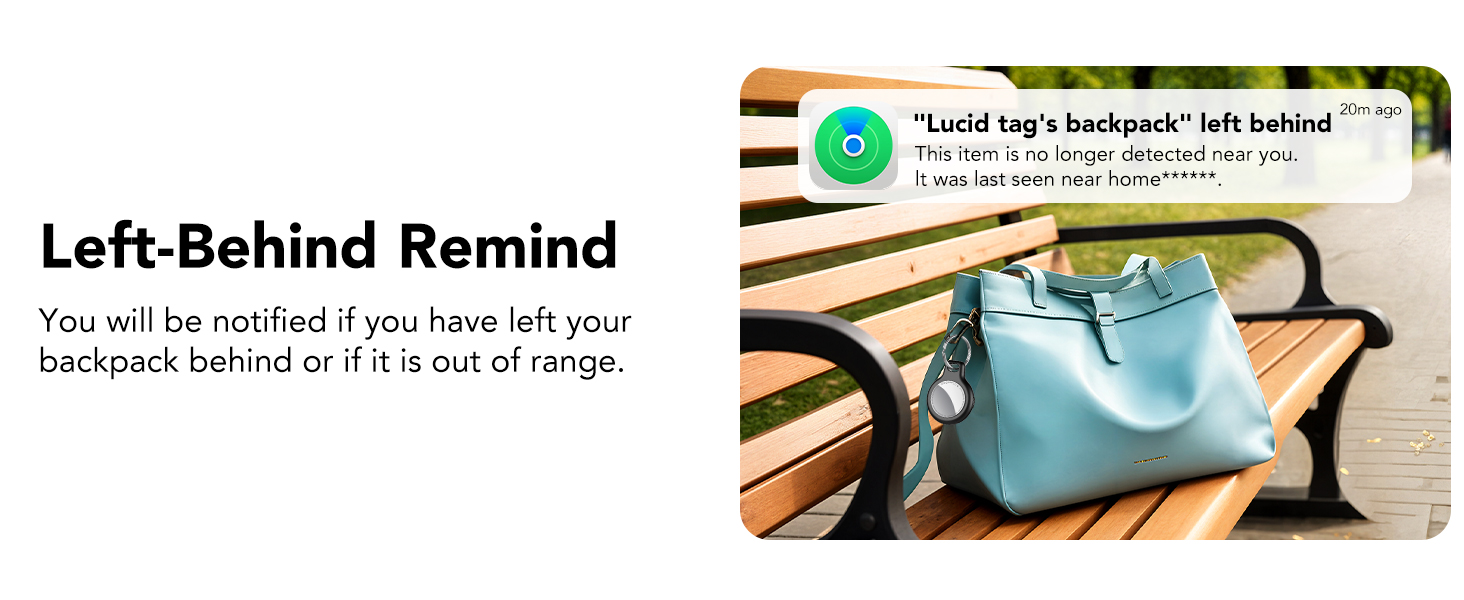
Figure 9: Physical dimensions and key features of the tracker tag.
8. Warranty and Support
Tukio provides a 2-year warranty for the Air Tracker Tags. Our dedicated customer service team is available to assist you with any questions or issues you may encounter, offering a 24-hour response time.
Contacting Support: For prompt assistance, please go to your order page, locate the order number for your product, and use the "Contact Seller" option. Our team is always available to help.


