
GL.iNet GL-BE9300 (Flint 3) & GL-SFT1200 (Opal)
Contents
User Manual: GL.iNet GL-BE9300 (Flint 3) & GL-SFT1200 (Opal) Routers
Your comprehensive guide to setup, operation, and maintenance.
1. Introduction
This manual provides detailed instructions for setting up, operating, and maintaining your GL.iNet GL-BE9300 (Flint 3) Tri-Band WiFi 7 Router and GL.iNet GL-SFT1200 (Opal) Secure Travel WiFi Router. These devices are designed to provide robust and secure network connectivity for both home and on-the-go use.

Image: The GL.iNet GL-BE9300 (Flint 3) router (left) and the GL-SFT1200 (Opal) travel router (right), showcasing their distinct designs and sizes.
2. Package Contents
Please verify that all items are present in your package:
- GL.iNet GL-BE9300 (Flint 3) Tri-Band WiFi 7 Router
- GL.iNet GL-SFT1200 (Opal) Secure Travel WiFi Router
- Power Adapters (one for each router)
- Ethernet Cables
- Quick Start Guides
3. Initial Setup
3.1. GL-BE9300 (Flint 3) Router Setup
- Connect Power: Plug the power adapter into the router's DC 12V port and then into a power outlet.
- Connect to Internet: Connect your modem's Ethernet cable to the 2.5Gbps WAN port (blue) on the GL-BE9300.
- Connect Devices: Connect your computer or other devices to one of the 2.5Gbps LAN ports (yellow) using an Ethernet cable, or connect wirelessly using the default Wi-Fi name (SSID) and password found on the router's label.
- Access Web Interface: Open a web browser and navigate to http://192.168.8.1. Follow the on-screen instructions to set up your new administrator password and configure your Wi-Fi network.
3.2. GL-SFT1200 (Opal) Router Setup
- Connect Power: Plug the USB Type-C power cable into the router's power port and then into a power source (e.g., USB wall adapter, power bank).
- Connect to Internet: Connect an Ethernet cable from your main router or modem to the WAN port on the Opal router. Alternatively, you can use Wi-Fi Repeater or Tethering modes for internet access.
- Connect Devices: Connect your computer or mobile device to the Opal router via Wi-Fi using the default SSID and password printed on the router's bottom label.
- Access Web Interface: Open a web browser and go to http://192.168.8.1. Complete the initial setup by creating a new administrator password and configuring your Wi-Fi settings.
4. Operating Your Routers
4.1. GL-BE9300 (Flint 3) Features
The GL-BE9300 is a high-performance Tri-Band Wi-Fi 7 router designed for demanding home network environments.

Image: An overview of the GL-BE9300 (Flint 3) router's key features, including Tri-Band Wi-Fi 7, Multi-WAN, 2.5Gbps Ethernet Ports, OpenWrt Pre-Installed, VPN Client/Server, Multi-Link Operation (MLO), AdGuard Home, and Parental Controls.
- Wi-Fi 7 Tri-Band Performance: Supports 2.4GHz, 5GHz, and 6GHz bands with speeds up to 9300Mbps. This allows for ultra-fast connections and reduced latency, ideal for gaming and 4K/8K streaming.
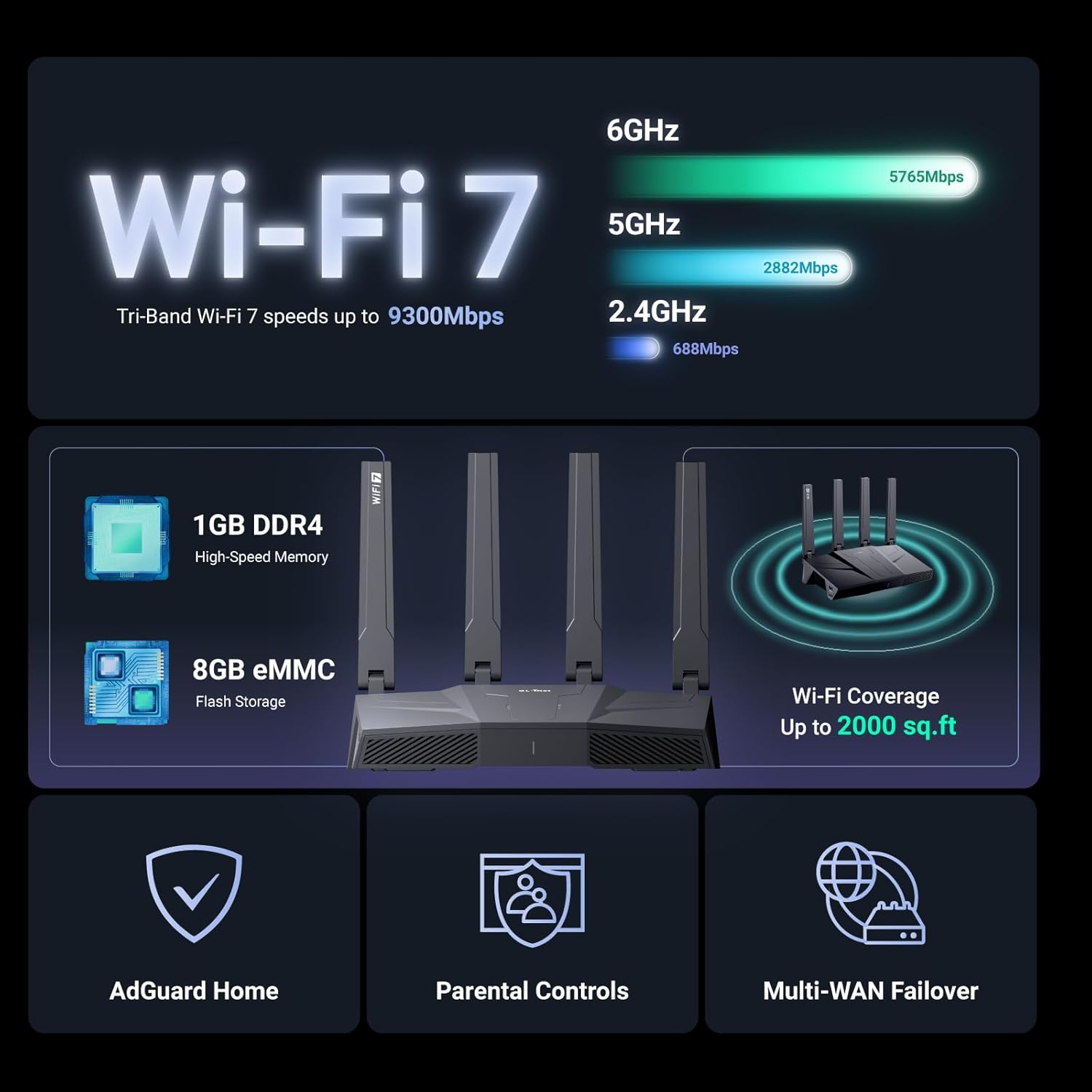
Image: Visual representation of Wi-Fi 7 speeds across 2.4GHz (688Mbps), 5GHz (2882Mbps), and 6GHz (5765Mbps) bands, along with 1GB DDR4 memory, 8GB eMMC flash storage, and Wi-Fi coverage up to 2000 sq.ft.
- Multi-Link Operation (MLO) Technology: MLO aggregates multiple frequency bands (2.4GHz, 5GHz, 6GHz) to create a single, faster, and more reliable connection, improving throughput and reducing latency.
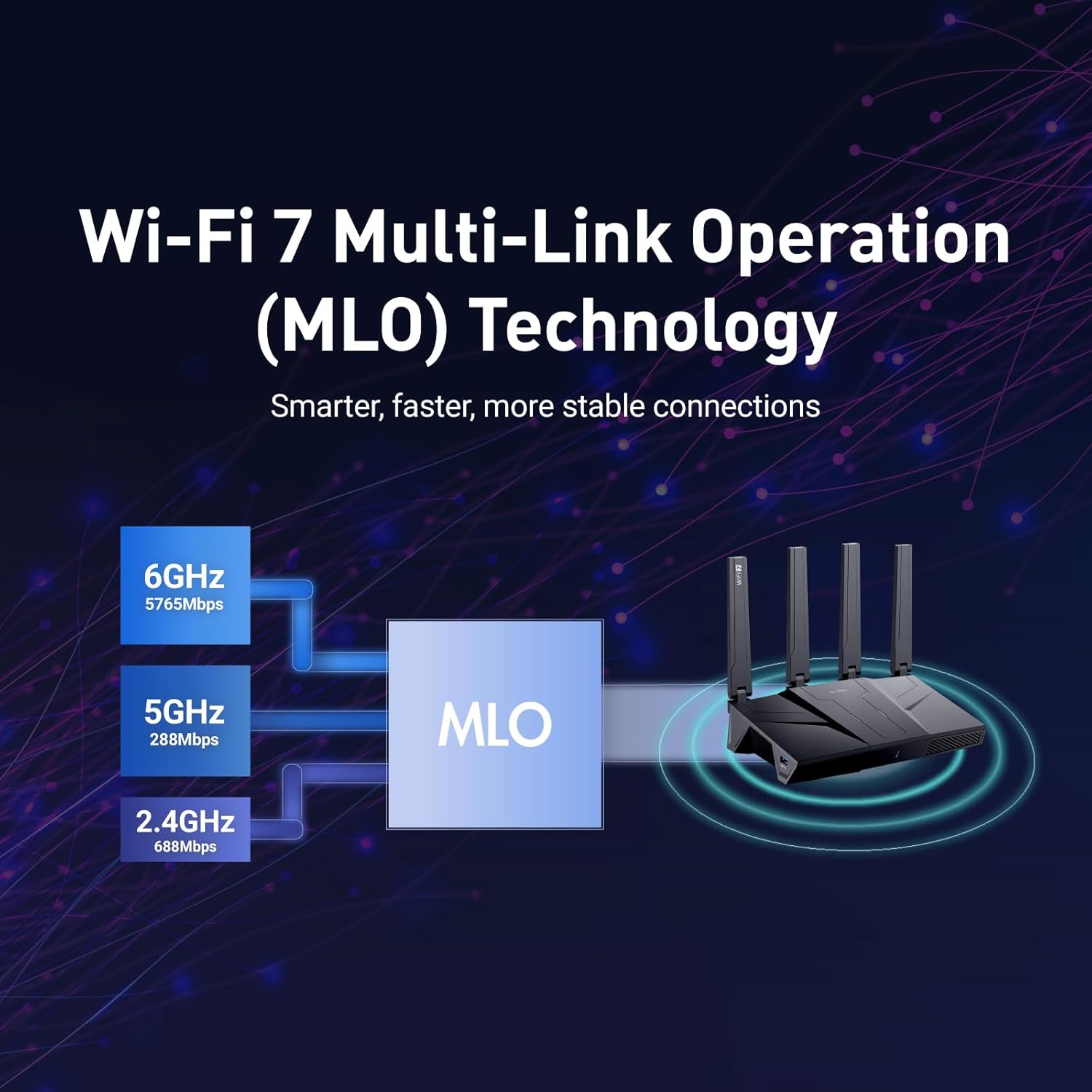
Image: Diagram illustrating Multi-Link Operation (MLO) technology, showing how 2.4GHz, 5GHz, and 6GHz bands are combined to provide smarter, faster, and more stable connections.
- 2.5G Ethernet Ports: Equipped with five 2.5Gbps Ethernet ports, including one WAN, one switchable WAN/LAN, and three LAN ports, providing high-speed wired connectivity for devices like NAS, gaming PCs, and servers.

Image: Rear view of the GL-BE9300 (Flint 3) router, highlighting its five 2.5G Ethernet ports: DC 12V power, Reset button, 2.5Gbps WAN, 2.5Gbps WAN/LAN (LAN1 can be switched to WAN), and three 2.5Gbps LAN ports.
- Advanced Security & Control: Features OpenWrt pre-installed, offering extensive customization. Includes built-in OpenVPN & WireGuard client/server for secure browsing, AdGuard Home for ad-blocking, and comprehensive Parental Controls.
- Extensive Coverage: Designed to provide strong, reliable Wi-Fi signal across up to 2,000 square feet, ensuring seamless connectivity throughout your home.
4.2. GL-SFT1200 (Opal) Features
The GL-SFT1200 (Opal) is a compact and secure travel router, ideal for on-the-go connectivity.

Image: The GL-SFT1200 (Opal) travel router being placed into a travel bag, demonstrating its portability and compatibility with GL.iNet travel accessories.
- AC1200 Dual-Band Performance: Offers simultaneous dual-band Wi-Fi with speeds up to 300 Mbps (2.4GHz) and 867 Mbps (5GHz), suitable for various tasks from web browsing to 4K video streaming.
- Compact Design & Portability: Its small size makes it easy to carry, fitting into pockets or small bags, perfect for travel.
- Connectivity: Features three Gigabit Ethernet ports (1 WAN, 2 LAN), a USB 2.0 port for external storage or tethering, and a Type-C power port.

Image: A hand holding the GL-SFT1200 (Opal) router, highlighting its ports (Type-C power, USB 2.0, 3 Gigabit ports: WAN, LAN, LAN) and indicating its 5GHz (867 Mbps) and 2.4GHz (300 Mbps) band speeds.
- Quality of Service (QoS): Allows you to prioritize network traffic for specific applications or devices, ensuring critical activities like gaming or video calls receive sufficient bandwidth.

Image: A diagram illustrating the Quality of Service (QoS) feature on the GL-SFT1200 (Opal) router, showing how users can set upload and download speed limits to prioritize traffic for activities like gaming (Upstream QoS) or video streaming (Downstream QoS).
- VPN & Security: Pre-installed OpenVPN & WireGuard clients, compatible with over 30 VPN service providers. Supports Cloudflare encryption to enhance online privacy and security.
- Device Capacity: Capable of supporting up to 52 connected wireless devices simultaneously, making it suitable for small offices or multiple users.

Image: The GL-SFT1200 (Opal) router surrounded by various connected devices such as smartphones, tablets, and smart speakers, illustrating its capability to connect up to 52 wireless devices simultaneously.
5. Maintenance
- Firmware Updates: Regularly check for and install firmware updates via the router's web interface. Updates often include security patches, bug fixes, and performance improvements.
- Physical Cleaning: Keep the routers clean and free from dust. Use a soft, dry cloth to wipe the exterior. Ensure ventilation holes are not blocked.
- Optimal Placement: Place the routers in a central location, away from obstructions, large metal objects, and interference sources (e.g., microwaves, cordless phones) to maximize Wi-Fi coverage and performance.
- Regular Reboot: Periodically reboot your routers (unplug power for 10 seconds, then plug back in) to refresh their network connections and clear temporary issues.
6. Troubleshooting
6.1. No Internet Connection
- Check if the modem is working correctly.
- Ensure the Ethernet cable from the modem is securely connected to the router's WAN port.
- Reboot both the modem and the router.
- Verify your internet settings in the router's web interface (e.g., DHCP, PPPoE).
6.2. Slow Wi-Fi Speed
- Move closer to the router to improve signal strength.
- Reduce interference by moving the router away from other electronic devices.
- Check for firmware updates.
- Ensure you are connected to the appropriate Wi-Fi band (5GHz or 6GHz for faster speeds on Flint 3, 5GHz for Opal).
- Limit the number of connected devices or bandwidth-intensive activities.
6.3. Cannot Access Web Interface (192.168.8.1)
- Ensure your device is connected to the router's Wi-Fi or via an Ethernet cable to a LAN port.
- Clear your browser's cache or try a different browser.
- Temporarily disable any VPN or proxy settings on your device.
- If issues persist, perform a factory reset (see below).
6.4. Factory Reset
To perform a factory reset:
- With the router powered on, press and hold the Reset button (usually located in a small pinhole) for about 5-10 seconds until the LED lights flash.
- Release the button and wait for the router to restart. All settings will be restored to their factory defaults.
7. Specifications
7.1. GL-BE9300 (Flint 3) Tri-Band WiFi 7 Router
| Feature | Description |
|---|---|
| Wi-Fi Standard | Wi-Fi 7 (802.11be) |
| Wi-Fi Bands | Tri-Band (2.4GHz, 5GHz, 6GHz) |
| Max Wi-Fi Speed | Up to 9300Mbps (688Mbps on 2.4GHz, 2882Mbps on 5GHz, 5765Mbps on 6GHz) |
| Ethernet Ports | 1x 2.5Gbps WAN, 1x 2.5Gbps WAN/LAN, 3x 2.5Gbps LAN |
| Memory | 1GB DDR4 RAM, 8GB eMMC Flash Storage |
| VPN Speed (WireGuard) | Up to 644Mbps |
| VPN Speed (OpenVPN) | Up to 142Mbps |
| Coverage | Up to 2,000 sq.ft. |
| Operating System | OpenWrt pre-installed |
| Advanced Features | MLO, AdGuard Home, Parental Controls, Multi-WAN Failover, IPv6 Support |
7.2. GL-SFT1200 (Opal) Secure Travel WiFi Router
| Feature | Description |
|---|---|
| Wi-Fi Standard | Wi-Fi 5 (802.11ac) |
| Wi-Fi Bands | Dual-Band (2.4GHz, 5GHz) |
| Max Wi-Fi Speed | Up to 1200Mbps (300Mbps on 2.4GHz, 867Mbps on 5GHz) |
| Ethernet Ports | 1x Gigabit WAN, 2x Gigabit LAN |
| USB Port | 1x USB 2.0 (for external storage/tethering) |
| Power Input | USB Type-C |
| Max Connected Devices | Up to 52 |
| Operating System | OpenWrt pre-installed |
| Advanced Features | QoS, OpenVPN & WireGuard, Cloudflare encryption, IPv6 Support |
8. Warranty and Support
GL.iNet products typically come with a limited manufacturer's warranty. For specific warranty terms and conditions, please refer to the warranty card included with your product or visit the official GL.iNet website.
For technical support, firmware downloads, and frequently asked questions, please visit the GL.iNet support portal:
You can also find community forums and additional resources on their website.
Ask a question about this manual
Ask about setup, troubleshooting, compatibility, parts, safety, or missing instructions. Manuals+ will review the question and use this page’s manual context to help answer it.