
1. Introduction
Thank you for choosing the Fuluku 4+64GB 9" Android 15 Carplay Car Radio. This advanced in-dash navigation system is designed specifically for Kia Rio models from 2012 to 2014, offering a seamless integration of modern technology into your vehicle. Featuring a 9-inch In-cell touch screen, wireless CarPlay and Android Auto, GPS navigation, Bluetooth, FM/RDS radio, and support for a backup camera, this unit enhances your driving experience with convenience and entertainment.
This manual provides detailed instructions for installation, operation, maintenance, and troubleshooting to ensure optimal performance and longevity of your car radio. Please read this manual thoroughly before installation and use.

Image: The Fuluku 9-inch Android Car Radio seamlessly integrated into a Kia Rio dashboard.
2. Safety Information
- Professional Installation Recommended: Due to the complexity of car electrical systems, professional installation is highly recommended to prevent damage to the unit or your vehicle.
- Power Supply: Ensure the unit is connected to a 12V DC power supply with a negative ground. Incorrect voltage can cause damage.
- Wiring: Carefully follow all wiring diagrams. Incorrect wiring can lead to malfunctions, electrical shorts, or fire.
- Driving Safety: Do not operate the unit in a way that distracts you from driving. Always prioritize road safety.
- Temperature: Avoid exposing the unit to extreme temperatures or direct sunlight for prolonged periods.
- Moisture: Keep the unit away from water and excessive moisture to prevent electrical hazards.
3. Package Contents
Verify that all components are present in the package:
- Android Car Radio Unit
- GPS Antenna
- AHD Rear View Camera
- Microphone
- Power Cable
- USB Cable (x2)
- Camera Input Cable
- RCA Cable
- Installation Tool
- User Manual
- Additional Accessories (as pictured)

Image: Product dimensions and a visual representation of all included accessories: power cable, GPS antenna, RCA cable, microphone, USB cables, camera input cable, installation tool, rear camera, and other accessories.
4. Setup and Installation
This car stereo is designed for plug-and-play installation in Kia Rio models from 2012 to 2014. No additional accessories are typically required beyond what is included. Before proceeding, confirm that the center console of your vehicle matches the compatible design.
4.1 Pre-Installation Check
- Disconnect the vehicle's battery to prevent electrical shorts.
- Carefully remove the existing car radio and trim panels.
- Inspect the vehicle's wiring harness for any damage.
4.2 Wiring Connection
Connect the provided wiring harness to the car radio and the vehicle's factory harness. Ensure all connections are secure. Refer to the diagram below for typical connections:

Image: A detailed diagram showing the connection points for the power cable, RCA cable, USB cable, camera input, and GPS antenna to the car radio unit.
- Power Cable: Connect the main power harness.
- RCA Cable: For audio/video output to external amplifiers or monitors.
- USB Cable: For connecting USB devices or for MirrorLink functionality.
- Camera Input: Connect the AHD rear view camera cable.
- GPS Antenna: Mount the GPS antenna in a location with a clear view of the sky, typically on the dashboard.
- Microphone: Connect the external microphone for clearer hands-free calls.
4.3 Unit Installation
Once all wiring is connected, carefully slide the car radio unit into the dashboard opening. Secure it using the provided mounting brackets and screws. Reinstall any trim panels removed earlier.

Image: A visual comparison showing the original Kia Rio dashboard and the same dashboard with the Fuluku 9-inch Android Car Radio successfully installed.
4.4 Initial Power-Up
Reconnect the vehicle's battery. Turn on the ignition and power on the car radio. Follow any on-screen prompts for initial setup, such as language selection and time zone.
5. Operating Instructions
The Fuluku car radio operates on an Android 15 system, providing a user-friendly interface similar to a smartphone or tablet.
5.1 Touch Screen Operation
The 9-inch In-cell touch screen offers responsive and precise control. Tap to select, swipe to navigate, and pinch to zoom, similar to a mobile device.

Image: An illustration detailing the advantages of the In-cell screen, including thinner design, better color accuracy, higher contrast, 178-degree viewing angles, and improved brightness with 68% light transmittance.
5.2 Wireless CarPlay and Android Auto
Connect your iPhone or Android device wirelessly via Bluetooth to access CarPlay or Android Auto. This allows you to use navigation, make calls, send messages, and listen to music directly from your phone's interface displayed on the car radio screen.
- Pairing: Enable Bluetooth on your phone and the car radio. Search for the car radio's Bluetooth name on your phone and pair.
- Activation: Once paired, CarPlay or Android Auto should automatically launch. Follow any on-screen prompts.
- MirrorLink: For devices not supporting CarPlay/Android Auto, MirrorLink allows screen sharing via WiFi or USB cable.

Image: Examples of the Wireless CarPlay interface showing various apps like navigation, music, and communication, and the Wireless Android Auto interface with similar functionalities.
5.3 GPS Navigation
The unit supports both online and offline GPS navigation. Pre-installed maps for North America and worldwide are available. Connect to WiFi for real-time traffic updates and online map services.
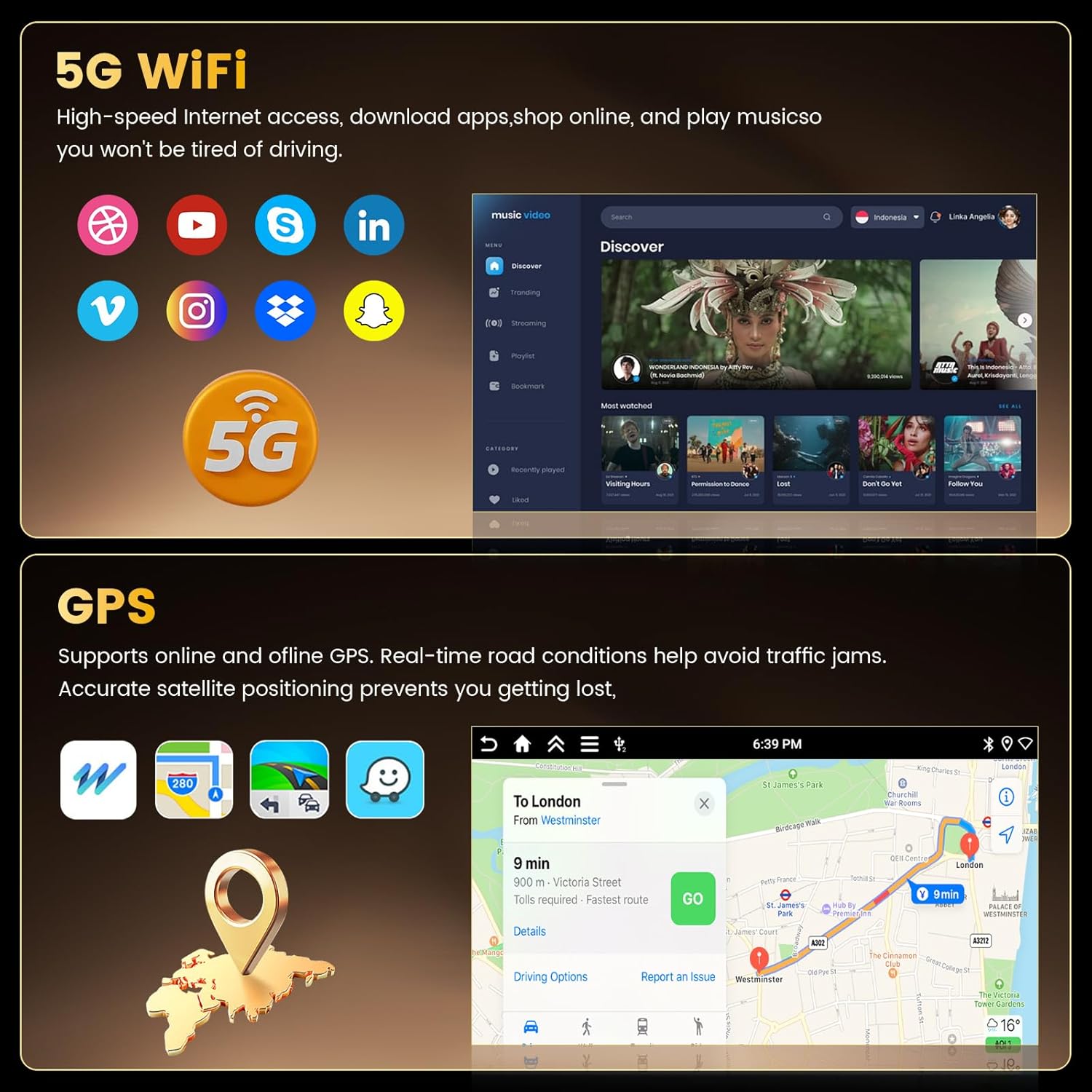
Image: A visual representation of 5G WiFi capability for high-speed internet access and app downloads, alongside a GPS navigation screen displaying a route with real-time road conditions.
5.4 Bluetooth Connectivity
Connect your smartphone via Bluetooth for hands-free calling and audio streaming. This feature allows you to make and receive calls safely while driving and play music from your device.
5.5 FM/RDS Radio
Tune into your favorite FM radio stations. The RDS (Radio Data System) feature provides additional information such as station name, song title, and traffic updates where available.
5.6 Built-in EQ (Equalizer)
Customize your audio experience with the built-in equalizer. Adjust bass, midrange, and treble settings to match your preferences and enhance sound quality through digital signal processing.

Image: Displays of the Bluetooth call interface, the graphical equalizer (EQ) settings for sound customization, and the FM RDS radio interface showing station frequencies and information.
5.7 AHD Backup Camera
When the vehicle is shifted into reverse gear, the car radio automatically displays the feed from the AHD rear view camera, providing a clear view of the area behind your vehicle for safer parking and maneuvering.
5.8 Steering Wheel Control (SWC)
The unit supports integration with your vehicle's factory steering wheel controls. This allows you to manage functions such as volume, track skipping, and mode selection without taking your hands off the steering wheel.

Image: A visual representation of the AHD backup camera view with parking guidelines, and the on-screen interface for configuring steering wheel controls to various functions.
5.9 Split Screen Functionality
Utilize the split-screen feature to run two applications simultaneously, such as navigation on one side and music playback on the other, for enhanced multitasking.
5.10 Multiple UI Themes
Customize the appearance of your car radio with various user interface themes to suit your personal style.

Image: Examples of different user interface themes available for the car radio, and a demonstration of the split-screen feature running navigation and a music player simultaneously.
6. Maintenance
- Screen Cleaning: Use a soft, lint-free cloth to gently wipe the screen. For stubborn smudges, slightly dampen the cloth with water or a screen-safe cleaner. Avoid harsh chemicals.
- Software Updates: Periodically check for software updates through the unit's settings menu or the manufacturer's website to ensure optimal performance and access to new features.
- Ventilation: Ensure the unit's ventilation openings are not blocked to prevent overheating.
- Environmental Conditions: Avoid exposing the unit to extreme temperatures, direct sunlight, or high humidity for extended periods.
7. Troubleshooting
If you encounter issues with your Fuluku car radio, refer to the following common problems and solutions:
| Problem | Possible Cause | Solution |
|---|---|---|
| No Power | Loose power connection, blown fuse, vehicle battery issue. | Check power cable connections. Inspect vehicle fuses. Ensure battery is charged. |
| No Sound | Volume too low, incorrect audio source, loose speaker wires, amplifier issue. | Increase volume. Select correct audio source. Check speaker wire connections. Verify external amplifier (if used) is powered. |
| GPS Not Working / Inaccurate | GPS antenna not properly connected or positioned, outdated maps, no internet connection for online maps. | Ensure GPS antenna is securely connected and has a clear view of the sky. Update maps if necessary. Connect to WiFi for online services. |
| Bluetooth Connectivity Issues | Device not in pairing mode, incorrect pairing process, interference. | Ensure both devices are in pairing mode. Delete previous pairings and try again. Move closer to the unit. |
| CarPlay/Android Auto Not Connecting | Bluetooth not enabled, phone software outdated, app issues. | Ensure Bluetooth is on and paired. Update phone's operating system and CarPlay/Android Auto apps. Restart phone and car radio. |
| Backup Camera Not Displaying | Camera input cable loose, camera faulty, reverse trigger wire not connected. | Check camera input cable connection. Verify reverse trigger wire is correctly connected to the vehicle's reverse light signal. |
If the problem persists after trying these solutions, please contact Fuluku customer support.
8. Specifications
| Feature | Description |
|---|---|
| Brand | Fuluku |
| Model Name | A7980A4291H6MI2 |
| Vehicle Service Type | Car (Kia Rio 2012-2014) |
| Screen Size | 9 inches |
| Special Features | Carplay, Android Auto, GPS Navi, WiFi, Bluetooth, EQ, FM RDS |
| Connectivity Technology | Bluetooth, Ethernet, USB, Wi-Fi |
| Map Type | North America, Worldwide |
| Operating System | Android |
| Memory Storage Capacity | 64 GB |
| Touch Screen Type | Capacitive |
| Display Type | LCD (In-cell) |
| Human-Interface Input | Microphone, Touchscreen |
| Compatible Devices | Amplifier, Camera, Smartphone, Speaker |
| Control Method | App, Remote, Touch, Voice |
| Supported Satellite Navigation System | GPS |
| Model Number | A7980A4291H6MI2-US62 |
9. Warranty and Support
9.1 Manufacturer's Warranty
This Fuluku car radio is covered by a 2-Year Manufacturer's Warranty from the date of purchase. This warranty covers defects in materials and workmanship under normal use. Please retain your proof of purchase for warranty claims.
9.2 Customer Support
For technical assistance, troubleshooting, or warranty inquiries, please contact Fuluku Customer Support:
- Email: fulukusupports@126.com
- Response Time: 24 Hours Quick Reply
- Replacement: 365 Days Replacement Available
- Returns: 60 Days No Worry to Return
- Support: Lifetime Technical Support

Image: A visual summary of Fuluku's customer support offerings, including 24-hour quick reply, 60-day return policy, 365-day replacement, and lifetime technical support, with the support email address.