
Introduction
This manual provides comprehensive instructions for the setup, operation, and maintenance of your GL.iNet GL-BE9300 (Flint 3) Tri-Band WiFi 7 Router and GL.iNet GL-BE3600 (Slate 7) Portable Travel Router. Please read this manual carefully before using your devices to ensure proper functionality and to maximize your network experience.

Image: The GL.iNet GL-BE9300 (Flint 3) home router on the top left and the GL-BE3600 (Slate 7) portable travel router on the bottom right, showcasing their distinct designs.
Product Overview
GL-BE9300 (Flint 3) Tri-Band WiFi 7 Home Router
The Flint 3 is a high-performance Tri-Band WiFi 7 router designed for extensive home network coverage and advanced features.
- Tri-Band Wi-Fi 7: Supports 2.4GHz, 5GHz, and 6GHz bands for speeds up to 9300Mbps.
- MLO Technology: Multi-Link Operation for smarter, faster, and more stable connections.
- Extensive Coverage: Designed to provide strong, reliable signal strength across up to 2,000 square feet.
- 2.5G Ethernet Ports: Features five 2.5Gbps Ethernet ports (1x WAN, 4x LAN, with one LAN port switchable to WAN).
- OpenWrt Pre-Installed: Runs on OpenWrt 23.05 (Kernel 5.4.213) for customization and plugin installation.
- VPN Client/Server: Rapid OpenVPN and WireGuard speeds for secure network access.
- AdGuard Home & Parental Controls: Integrated features for network security and management.

Image: Visual representation of the GL-BE9300 (Flint 3) router highlighting its key features including Tri-Band Wi-Fi 7, Multi-WAN, 2.5Gbps Ethernet Ports, OpenWrt, VPN Client/Server, MLO, AdGuard Home, and Parental Controls.
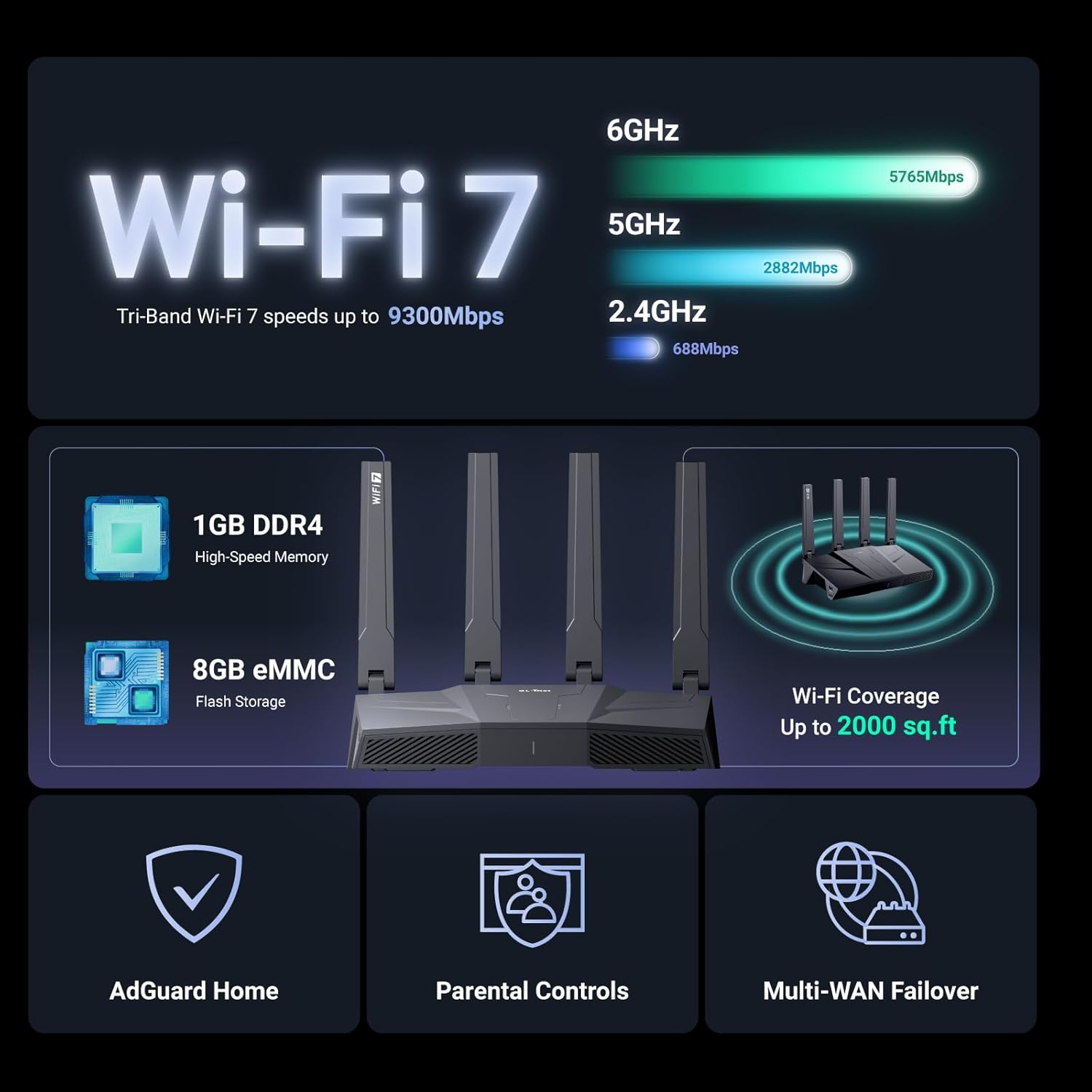
Image: Diagram illustrating the Wi-Fi 7 speeds of the GL-BE9300 (Flint 3) across 6GHz (5765Mbps), 5GHz (2882Mbps), and 2.4GHz (688Mbps) bands, along with its 1GB DDR4 memory, 8GB eMMC storage, and up to 2000 sq. ft. Wi-Fi coverage.

Image: Rear view of the GL-BE9300 (Flint 3) router, detailing its five 2.5G Ethernet ports: one 2.5Gbps WAN port, one 2.5Gbps WAN/LAN port (LAN1), and three 2.5Gbps LAN ports.
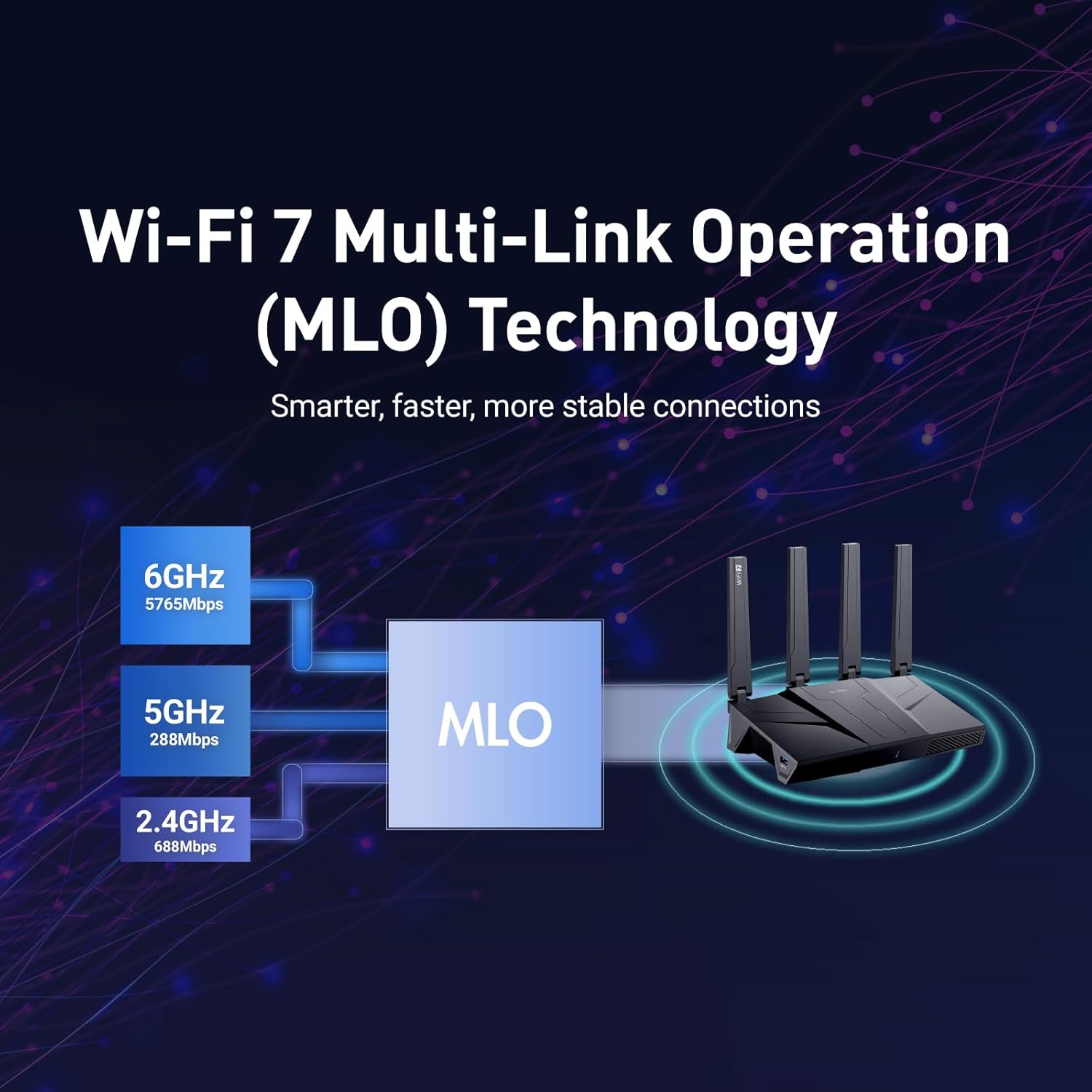
Image: Diagram explaining Multi-Link Operation (MLO) technology for the GL-BE9300 (Flint 3), showing how 6GHz, 5GHz, and 2.4GHz bands combine for smarter, faster, and more stable connections.
GL-BE3600 (Slate 7) Portable Travel Router
The Slate 7 is a compact and versatile Dual-Band WiFi 7 travel router, ideal for connectivity on the go.
- Dual-Band Wi-Fi 7: Blazing-fast speeds up to 688Mbps (2.4G) + 2882Mbps (5G).
- Global Compatibility: Includes US, UK, EU, AU plugs.
- Dual 2.5G Ethernet Ports: One WAN and one LAN port for versatile connectivity.
- USB 3.0 Port: Enables file and USB internet sharing.
- Intuitive Touchscreen: Allows for instant Wi-Fi setup via QR codes, real-time speed monitoring, VPN toggling, and provider switching.
- Color-Coded Indicators: Shows status for Ethernet, Tethering, Repeater, and Cellular modes.
- VPN Support: Supports OpenVPN and WireGuard with over 30 service providers.

Image: A hand interacting with the touchscreen of the GL-BE3600 (Slate 7) router, displaying real-time network information, Wi-Fi QR code for easy connection, and VPN status, emphasizing effortless network control.

Image: Infographic detailing the GL-BE3600 (Slate 7)'s Wi-Fi 7 capabilities, including 3600Mbps total speed, OpenWrt 23.05, VPN Client/Server, PD Power Port, Multi-Link Operation, and support for over 120 devices, OFDMA, Preamble Puncture, and 4K QAM.

Image: The GL-BE3600 (Slate 7) router on a table, illustrating its fast and secure web browsing capabilities with support for over 30 VPN service providers, including OpenVPN, WireGuard, Cloudflare, and IPv6. Performance metrics for WireGuard (Max. 490Mbps) and OpenVPN-DCO (Max. 385Mbps) are also shown.

Image: Detailed view of the GL-BE3600 (Slate 7) router, showing its compact dimensions (91mm x 130mm x 34mm) and port layout: PD Power Port (5V/3A, 9V/3A, 12V/2.5A), 2.5G LAN Port, 2.5G WAN Port, USB 3.0 Port, and Toggle/Reset Button.
Setup Guide
Follow these steps to set up your GL.iNet router.
1. Unboxing and Initial Inspection
- Carefully remove the router and all accessories from the packaging.
- Verify that all components are present: router unit, power adapter, Ethernet cable, and quick start guide.
- Inspect the router for any physical damage.
2. Powering On
- GL-BE9300 (Flint 3): Connect the provided power adapter to the router's DC 12V port and plug it into a power outlet.
- GL-BE3600 (Slate 7): Connect the provided power adapter to the router's PD Power Port (Type-C) and plug it into a power outlet.
- Wait for the power indicator light to stabilize, indicating the router is ready.
3. Connecting to the Internet
- Wired Connection (WAN):
- Connect one end of the Ethernet cable to your modem's LAN port or your main router's LAN port.
- Connect the other end of the Ethernet cable to the WAN port of your GL.iNet router.
- For GL-BE9300 (Flint 3): Use the dedicated 2.5Gbps WAN port.
- For GL-BE3600 (Slate 7): Use the 2.5G WAN port.
- Wireless Connection (Repeater/Tethering - for GL-BE3600):
- The GL-BE3600 (Slate 7) can connect to an existing Wi-Fi network as a repeater or use USB tethering from a smartphone. Refer to the "Operating" section for detailed instructions.
4. Initial Access to the Admin Panel
- Connect to the Router's Wi-Fi:
- On your computer or mobile device, search for the Wi-Fi network name (SSID) broadcast by your GL.iNet router. The default SSID is usually printed on a sticker on the bottom of the router.
- Connect to this network using the default Wi-Fi password (also on the sticker).
- For GL-BE3600 (Slate 7), you can also scan the QR code displayed on the touchscreen for instant Wi-Fi setup. Example QR code content: WIFI:T:WPA;S:ABCDEFGHIJKLMNOPQRSTUVWXYZ0123;P:ABCDEFGHIJKLMNOPQRSTUVWXYZ0123ABCDEFGHIJKLMNOPQRSTUVWXYZ0123;H:TURE; (Note: Actual SSID and password will vary).
- Access the Web Interface:
- Open a web browser (e.g., Chrome, Firefox, Edge).
- In the address bar, type http://192.168.8.1 and press Enter.
- Follow the on-screen prompts to set up a new administrator password and configure your basic network settings.
Operating Your Router
Basic Wi-Fi Configuration
- Log in to the web admin panel (http://192.168.8.1).
- Navigate to the "Wireless" or "Wi-Fi" settings.
- Change the default Wi-Fi name (SSID) and password for security.
- For GL-BE9300 (Flint 3), configure settings for 2.4GHz, 5GHz, and 6GHz bands.
VPN Setup (OpenVPN & WireGuard)
Both routers support VPN client and server functionalities for secure browsing and remote access.
- From the admin panel, go to the "VPN" section.
- Select your preferred VPN protocol (OpenVPN or WireGuard).
- Follow the instructions to import your VPN configuration file or manually enter server details.
- Enable the VPN connection.
- Note: Actual VPN speeds may vary depending on your internet service provider, network environment, VPN server location, and VPN service provider.
Multi-Link Operation (MLO) - GL-BE9300 (Flint 3)
MLO technology allows the router to simultaneously transmit and receive data over multiple frequency bands (2.4GHz, 5GHz, 6GHz) to a single client device. This results in increased throughput, reduced latency, and improved reliability.
- Ensure your client devices support Wi-Fi 7 and MLO for optimal performance.
- MLO is typically enabled by default in the Wi-Fi 7 settings.
AdGuard Home & Parental Controls
These features enhance network security and allow for content filtering.
- Access "Applications" or "Security" section in the admin panel.
- AdGuard Home: Enable to block ads and trackers across your network.
- Parental Controls: Set up time limits, block specific websites, or filter content for connected devices.
GL-BE3600 (Slate 7) Touchscreen Operation
The Slate 7 features an intuitive touchscreen for quick control and monitoring.
- Wi-Fi Setup: Scan the QR code on the screen with your smartphone for instant connection.
- Real-time Speeds: Monitor upload and download speeds directly on the display.
- VPN Toggle: Quickly enable or disable your VPN connection.
- Provider Switch: Change between different internet connection modes (Ethernet, Tethering, Repeater, Cellular).
- Status Indicators: Color-coded icons provide a quick overview of the router's operational status.
Maintenance
Regular maintenance ensures optimal performance and security for your router.
- Firmware Updates:
- Periodically check for firmware updates via the router's admin panel (System -> Firmware Upgrade).
- Updating firmware can improve performance, add new features, and fix security vulnerabilities.
- Always back up your configuration before performing a firmware upgrade.
- Factory Reset:
- If you encounter persistent issues or forget your admin password, a factory reset may be necessary.
- Locate the reset button on your router (usually a small pinhole button).
- With the router powered on, press and hold the reset button for 5-10 seconds until the indicator lights flash.
- Warning: A factory reset will erase all custom settings and revert the router to its default configuration.
- Physical Care:
- Keep the router in a well-ventilated area, away from direct sunlight, heat sources, and moisture.
- Clean the router's exterior with a soft, dry cloth. Avoid using liquid cleaners.
Troubleshooting
This section addresses common issues you might encounter.
- No Internet Connection:
- Check if the WAN port cable is securely connected to your modem/main router.
- Verify that your modem is working correctly.
- Restart both your modem and GL.iNet router.
- Check the internet status in the router's admin panel.
- Cannot Access Admin Panel:
- Ensure your device is connected to the router's Wi-Fi or via an Ethernet cable to a LAN port.
- Verify you are typing http://192.168.8.1 correctly in the browser.
- Try clearing your browser's cache or using a different browser.
- If you forgot the password, perform a factory reset (see Maintenance section).
- Slow Wi-Fi Speed:
- Ensure your devices are connected to the appropriate Wi-Fi band (5GHz or 6GHz for faster speeds, if supported).
- Reduce interference by moving the router away from other electronic devices.
- Check for firmware updates.
- Consider the number of connected devices and your internet plan speed.
- VPN Not Connecting:
- Verify your VPN configuration details (server address, username, password, protocol).
- Ensure your VPN service subscription is active.
- Try a different VPN server location.
- Check your internet connection without the VPN enabled.
Specifications
Detailed technical specifications for the GL.iNet GL-BE9300 (Flint 3) and GL-BE3600 (Slate 7) routers.
GL-BE9300 (Flint 3)
| Feature | Detail |
|---|---|
| Wi-Fi Standard | Wi-Fi 7 (802.11be) |
| Wi-Fi Speed | Up to 9300Mbps (6GHz: 5765Mbps, 5GHz: 2882Mbps, 2.4GHz: 688Mbps) |
| Ethernet Ports | 1x 2.5Gbps WAN, 1x 2.5Gbps WAN/LAN, 3x 2.5Gbps LAN |
| Memory | 1GB DDR4 |
| Storage | 8GB eMMC Flash |
| Coverage | Up to 2,000 sq. ft. |
| Operating System | OpenWrt 23.05 (Kernel 5.4.213) |
| VPN Speed (WireGuard) | Up to 644Mbps |
| VPN Speed (OpenVPN) | Up to 142Mbps |
GL-BE3600 (Slate 7)
| Feature | Detail |
|---|---|
| Wi-Fi Standard | Wi-Fi 7 (802.11be) |
| Wi-Fi Speed | Up to 3600Mbps (5GHz: 2882Mbps, 2.4GHz: 688Mbps) |
| Ethernet Ports | 1x 2.5G WAN, 1x 2.5G LAN |
| USB Port | 1x USB 3.0 (for file sharing, USB internet tethering) |
| Power Input | PD Power Port (Type-C): 5V/3A, 9V/3A, 12V/2.5A |
| Dimensions | 130mm x 91mm x 34mm |
| Display | Touchscreen |
| Operating System | OpenWrt 23.05 (Kernel 5.4.213) |
| VPN Speed (WireGuard) | Max. 490Mbps (Via Ethernet) |
| VPN Speed (OpenVPN-DCO) | Max. 385Mbps (Via Ethernet) |
Warranty and Support
GL.iNet products typically come with a standard manufacturer's warranty. For specific warranty terms, duration, and support options, please refer to the official GL.iNet website or the warranty card included with your product.
For technical assistance, troubleshooting, or further inquiries, please visit the official GL.iNet support page:
- GL.iNet Official Support
- You can also find community forums and detailed documentation on their website.