1. Introduction
This manual provides essential information for the setup, operation, and maintenance of your ASUS ROG Xbox Ally Z2 - 2025 gaming handheld. The ROG Xbox Ally Z2 combines the versatility of Windows with the robust design of ROG and the gaming ecosystem of Xbox, offering a portable and powerful gaming experience.
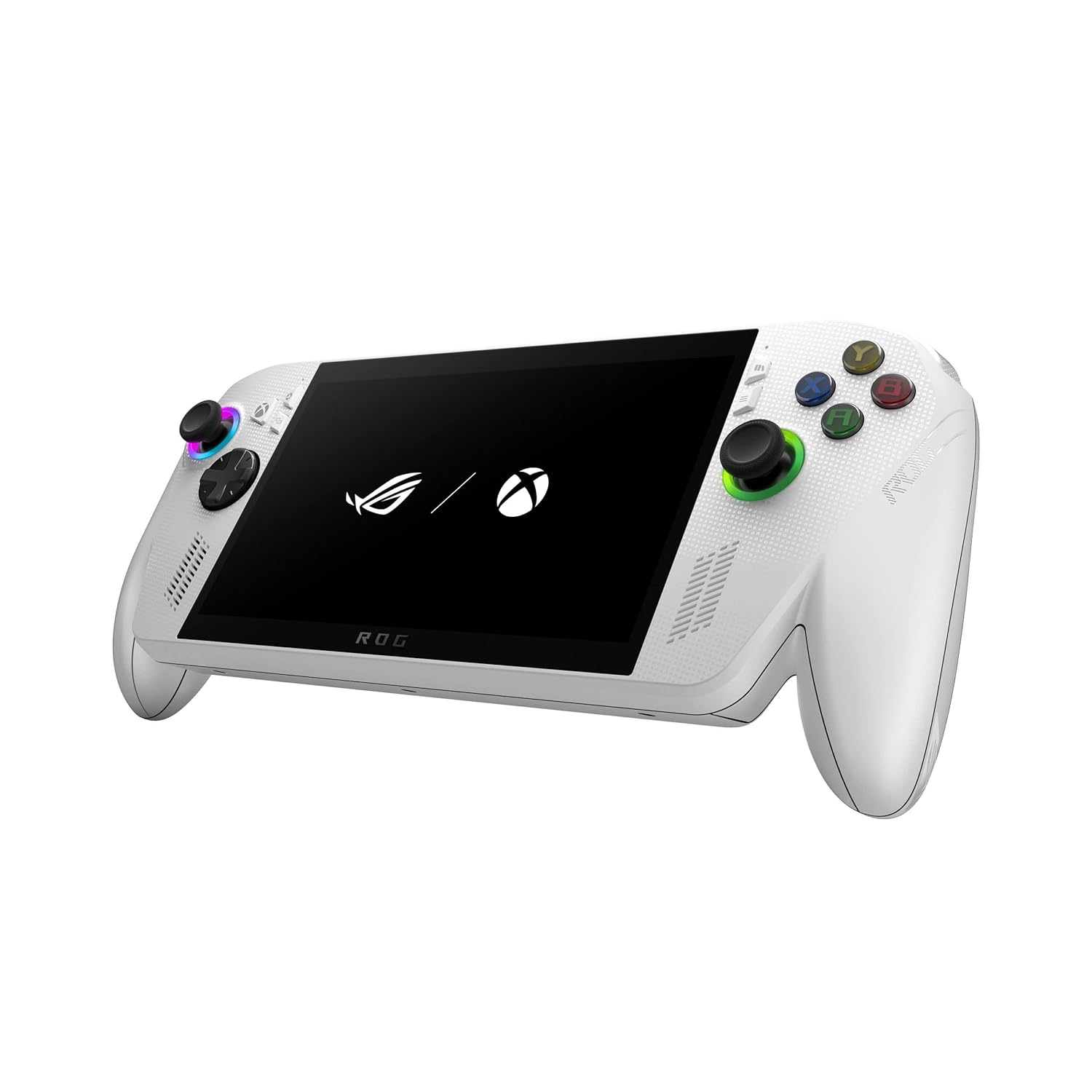
Image 1.1: The ASUS ROG Xbox Ally Z2 - 2025 gaming handheld.
2. What's in the Box
Verify that all items are present in the packaging:
- ASUS ROG Xbox Ally Z2 - 2025 Handheld (Model: RC73YA-XB_ALLY.Z2A.16)
- Power Cord
- User Guide

Image 2.1: Included items: the handheld device, power cord, and user guide.
3. Device Overview
The ROG Xbox Ally Z2 features a 7-inch Full HD 120Hz touchscreen display and an ergonomic design inspired by Xbox Wireless Controllers for comfortable extended play sessions.
3.1 Front View
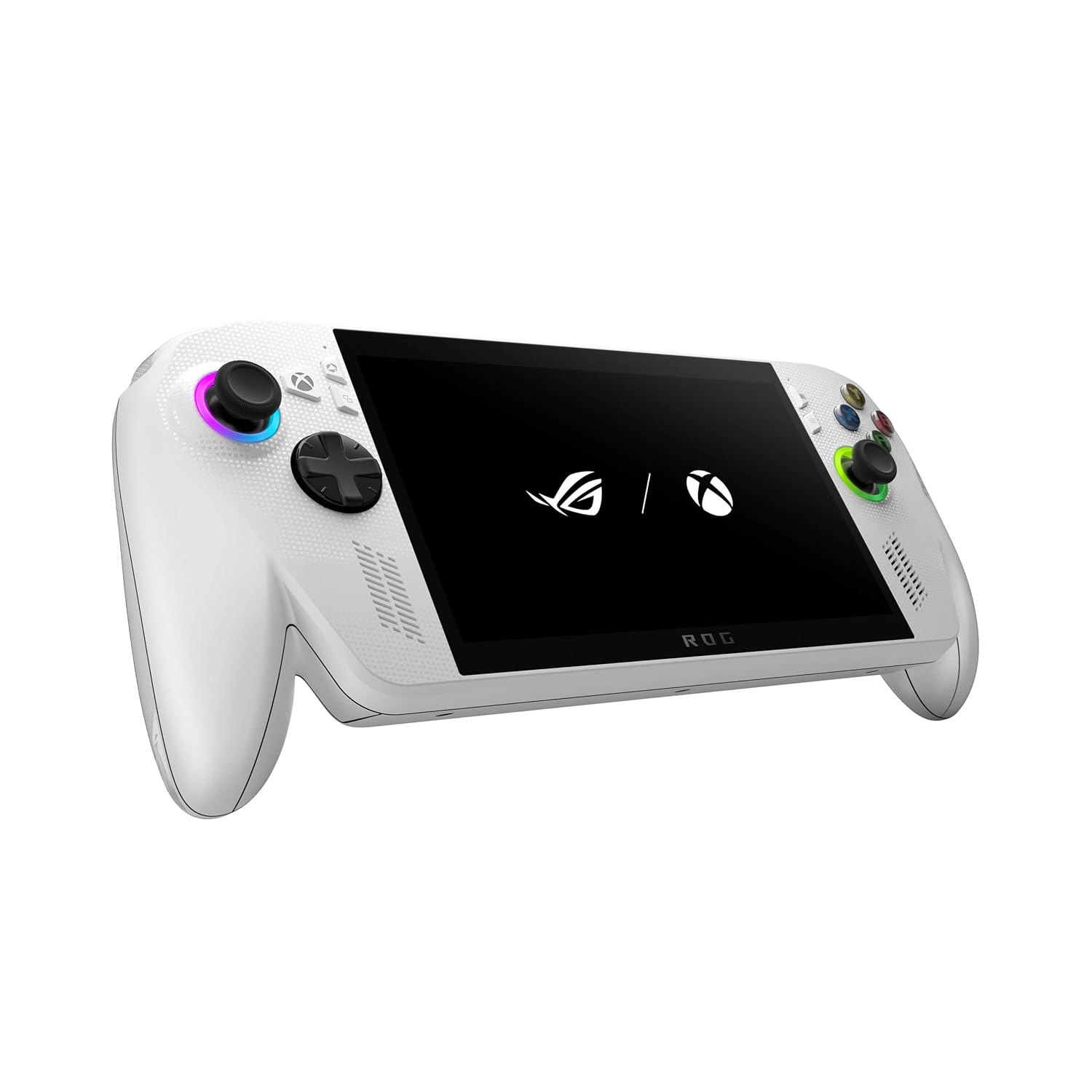
Image 3.1: The front of the device showing the screen, joysticks, D-pad, and action buttons.
3.2 Rear View

Image 3.2: The back of the device, highlighting the textured grips and ventilation.
3.3 Top and Side Views
The top of the device includes essential ports and controls, while the sides feature comfortable grips.

Image 3.3: Top view, displaying the power button, volume controls, USB-C ports, and headphone jack.

Image 3.4: Left side view, showing the ergonomic grip.

Image 3.5: Right side view, showing the ergonomic grip.
4. Initial Setup
To begin using your ROG Xbox Ally Z2, follow these steps:
- Power On: Press and hold the power button located on the top edge of the device until the screen illuminates.
- Initial Windows Configuration: Follow the on-screen prompts to complete the Windows 11 setup. This includes selecting your language, region, and connecting to a Wi-Fi network.
- Xbox Account Login: Log in with your Microsoft/Xbox account to access your game library and services.
- Software Updates: Ensure your device's operating system and drivers are up to date for optimal performance. Access the Armoury Crate SE for system updates.
5. Operating Your Device
The ROG Xbox Ally Z2 is designed for intuitive gaming and navigation.
5.1 Xbox Full Screen Experience
The device boots directly into an Xbox full screen experience, providing a console-like interface for easy game access.
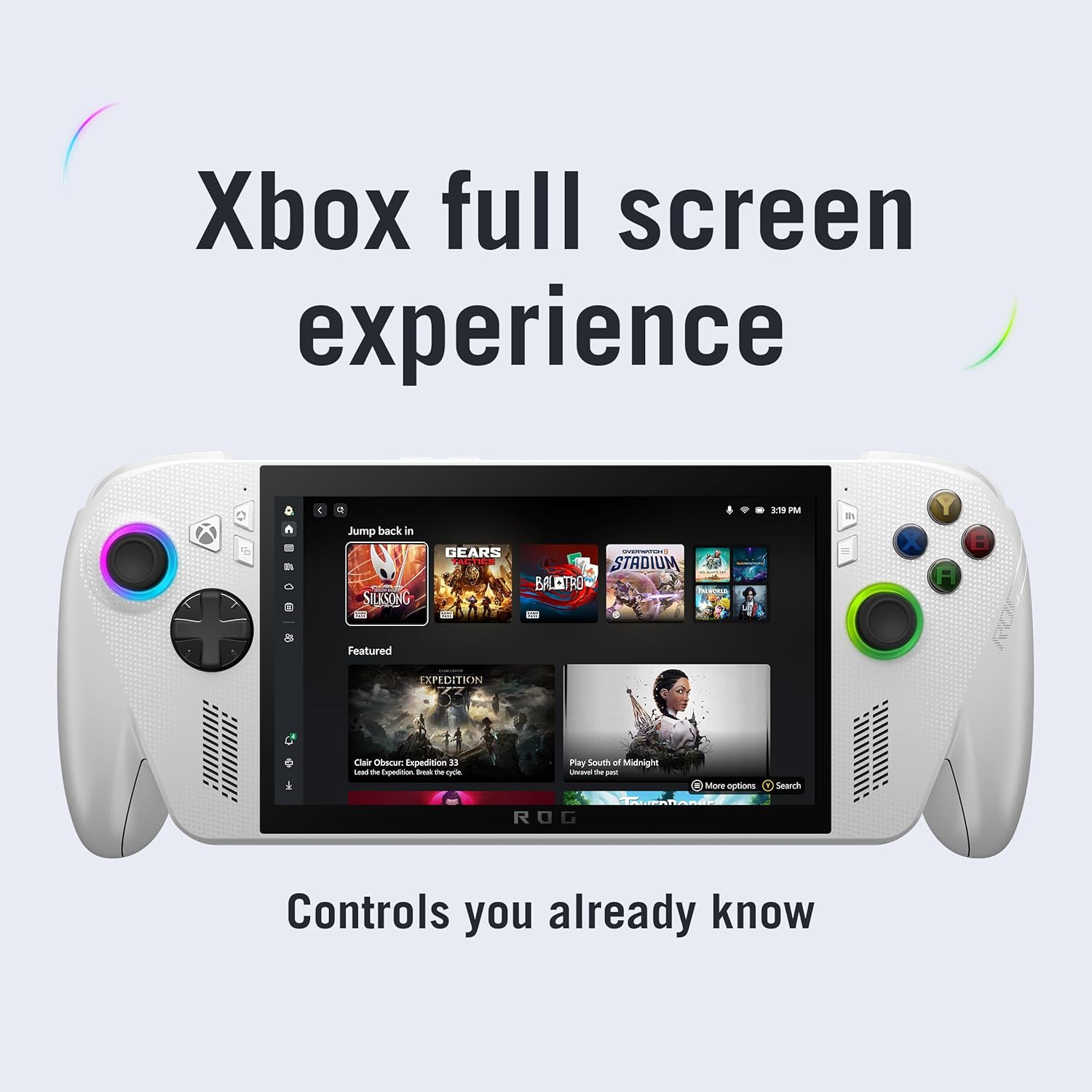
Image 5.1: The Xbox full screen interface, optimized for handheld use.
5.2 Xbox Button and Game Bar
A dedicated Xbox button allows for instant access to the Xbox Game Bar, enabling quick launches of games, performance adjustments, and other settings without exiting your current application.

Image 5.2: The Xbox button on the device, providing one-tap access to the Game Bar and Command Center.
5.3 Multi-Platform Game Access
The ROG Xbox Ally Z2 supports a wide range of PC game launchers, including Xbox Game Pass, Steam, Epic Games, and more, allowing you to play your entire PC game library.

Image 5.3: Access to multiple game launchers like Xbox, Steam, Epic Games, and Battle.net.
5.4 Armoury Crate SE
Armoury Crate SE is the central hub for managing your device settings, performance modes, and game profiles. It allows you to customize your gaming experience.
- Operating Modes: Switch between Windows, Silent, Performance, and Turbo modes to balance power consumption and performance.
- Game Profiles: Create custom profiles for individual games to optimize settings.
- System Monitoring: Monitor real-time performance metrics.
6. Key Features
The ROG Xbox Ally Z2 is engineered with several features to enhance your portable gaming.
6.1 Performance
Powered by the AMD Ryzen™ Z2 A processor, 16GB of LPDDR5 6400MHz RAM, and a 512GB M.2 2280 SSD, the device delivers smooth and responsive gameplay for a wide range of titles.

Image 6.1: Internal components highlighting the AMD Ryzen Z2 A processor, 16GB LPDDR5 RAM, and 512GB SSD.
6.2 Display
Experience crisp, fluid visuals on the 7-inch Full HD 120Hz display with FreeSync™ Premium. The screen offers 500 nits of brightness and is protected by Gorilla Glass.

Image 6.2: The 7-inch FHD 120Hz display in action, showcasing vibrant graphics.
6.3 Battery and Charging
The device features a 60Whr battery for extended play sessions and supports fast charging, reaching 50% charge in approximately 30 minutes.

Image 6.3: A user enjoying the handheld, emphasizing the 60Whr battery capacity.
6.4 Ergonomics
The redesigned chassis with contoured grips, inspired by Xbox Wireless Controllers, ensures comfort during long gaming sessions. The balanced 1.47lbs weight distribution minimizes fatigue.

Image 6.4: A user holding the device, illustrating the comfortable, Xbox-inspired grips.
7. Maintenance
To ensure the longevity and optimal performance of your ROG Xbox Ally Z2, consider the following maintenance tips:
- Software Updates: Regularly check for and install system and driver updates via Armoury Crate SE to benefit from performance improvements and bug fixes.
- Cleaning: Use a soft, dry cloth to clean the screen and exterior. Avoid abrasive materials or harsh chemicals. Ensure vents are clear of dust and debris.
- Storage: Store the device in a cool, dry place away from direct sunlight and extreme temperatures.
- Battery Care: For optimal battery health, avoid fully discharging the device frequently. If storing for extended periods, charge the battery to around 50-60%.
8. Troubleshooting
This section addresses common issues you might encounter with your ROG Xbox Ally Z2.
8.1 Performance Issues (Frame Drops, Lag)
If you experience frame drops or lag during gameplay, consider the following:
- Adjust Operating Mode: In Armoury Crate SE, switch to 'Performance' or 'Turbo' mode for increased power allocation.
- Plug In: For demanding games, connecting the device to power can provide a significant performance boost by allowing higher wattage (TDP) to the processor.
- Close Background Applications: Ensure no unnecessary applications are running in the background, consuming system resources.
- Game-Specific Settings: Lower in-game graphics settings or resolution if performance remains an issue.
8.2 PIN/Fingerprint Not Working
If your PIN or fingerprint authentication stops working, a factory reset may resolve the issue. Ensure you back up any important data before proceeding with a factory reset.
8.3 Device Overheating
While the device is designed for efficient cooling, prolonged high-performance gaming can generate heat. Ensure the ventilation vents are unobstructed. If the device feels excessively hot, consider switching to a lower operating mode or taking a break to allow it to cool down.
9. Specifications
| Feature | Detail |
|---|---|
| Model Number | 1.99291E+11 |
| Processor | AMD Ryzen™ Z2 A |
| RAM | 16GB LPDDR5 6400MHz |
| Storage | 512GB SSD |
| Display | 7" 1080p 120Hz Touchscreen with FreeSync™ Premium |
| Battery | 60Whr |
| Dimensions | 6.1 x 12.5 x 5.1 inches |
| Weight | 3.5 pounds |
| Release Date | October 16, 2025 |
10. Warranty and Support
For warranty information, technical support, and additional resources, please refer to the official ASUS support website or the detailed user guide included in your product packaging. Keep your purchase receipt for warranty claims.


