
J-Tech Digital JTECH-8KSW21AE
J-Tech Digital 8K HDMI Switch 2 in 1 Out User Manual
Model: JTECH-8KSW21AE
Introduction
This user manual provides detailed instructions for the J-Tech Digital 8K HDMI Switch 2 in 1 Out (Model: JTECH-8KSW21AE). This device allows you to connect two HDMI source devices to a single display, supporting high-resolution video up to 8K@60Hz and 4K@120Hz, along with advanced audio extraction capabilities. Please read this manual thoroughly before operation to ensure proper setup and optimal performance.
Package Contents
Verify that all items listed below are included in your package:
- 1 × J-Tech Digital 8K HDMI Switch 2 in 1 Out (JTECH-8KSW21AE)
- 1 × 5V 1A DC Power Adapter
- 1 × Remote Control
- 1 × User Manual
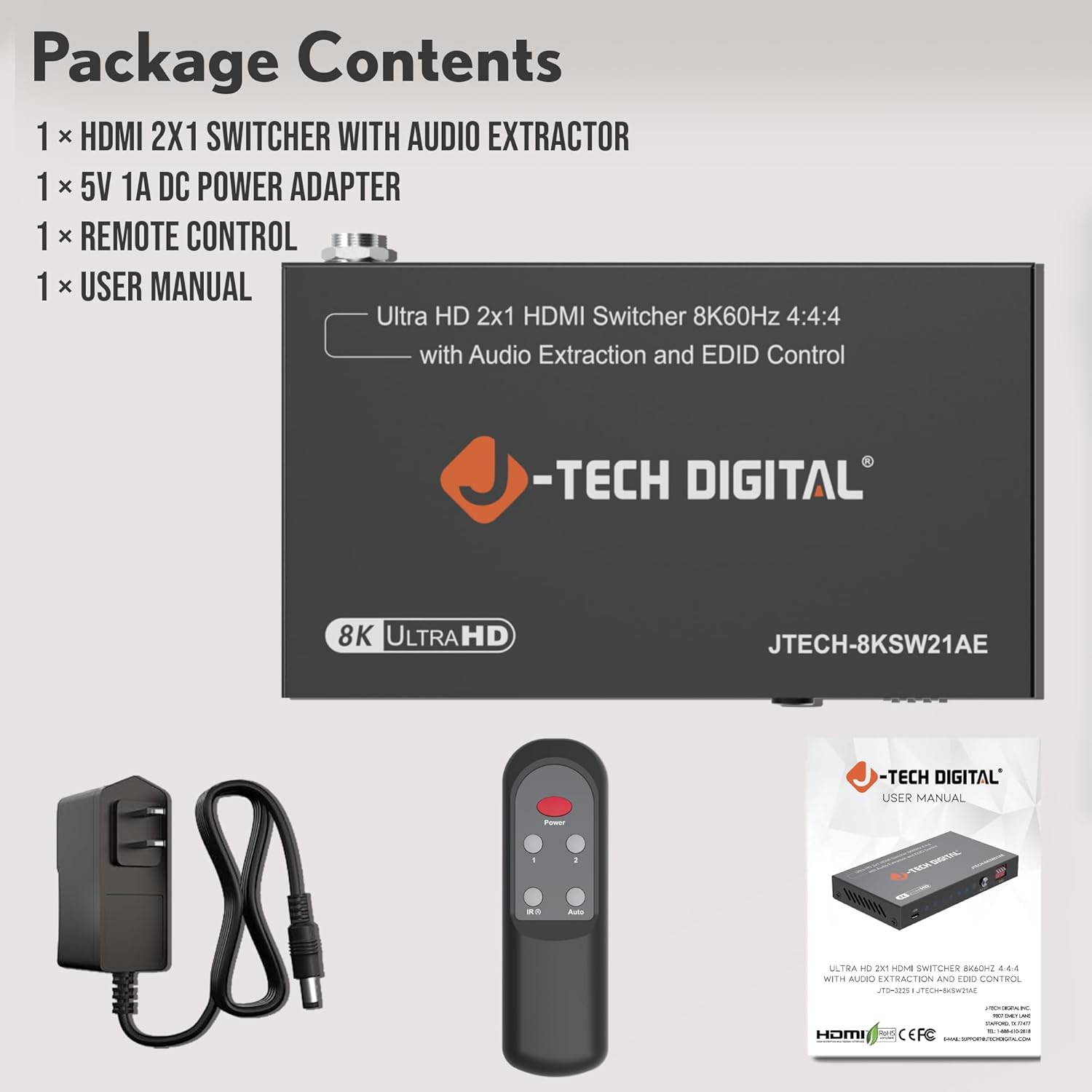
Image: Contents of the JTECH-8KSW21AE package, including the main unit, power supply, remote, and manual.
Product Overview
The JTECH-8KSW21AE is designed for seamless integration into your home theater or gaming setup. It features two HDMI inputs and one HDMI output, along with audio extraction ports.

Image: Front and top view of the JTECH-8KSW21AE unit, highlighting its compact design and port layout.
Front Panel Features:
- USB Port: For firmware updates (service use only).
- Power LED: Indicates power status.
- Input 1/2 LEDs: Indicate which HDMI input is currently selected.
- Auto Switch LED: Indicates if auto-switching is enabled.
- Select Button: Manually switches between HDMI inputs.
- EDID Dip Switches: Configures EDID settings for optimal compatibility.
Rear Panel Features:
- HDMI Input 1 & 2: Connect your HDMI source devices (e.g., PS5, Xbox, Blu-ray player).
- HDMI Output: Connect to your display (TV, projector, monitor).
- Audio Out (3.5mm): Connect to stereo speakers or headphones.
- SPDIF Out (Optical): Connect to soundbars or AV receivers for digital audio.
- DC 5V: Power input port.
Setup Instructions
- Power Off Devices: Ensure all source devices (gaming consoles, Blu-ray players) and your display are powered off before making connections.
- Connect HDMI Sources: Connect your HDMI source devices to the "INPUT 1" and "INPUT 2" ports on the JTECH-8KSW21AE using high-quality HDMI 2.1 cables.
- Connect HDMI Display: Connect your display (TV, monitor, projector) to the "OUTPUT" port on the JTECH-8KSW21AE using a high-quality HDMI 2.1 cable.
- Connect Audio Output (Optional):
- For stereo audio, connect a 3.5mm audio cable from the "Audio Out" port to your speakers or headphones.
- For digital audio, connect an optical cable from the "SPDIF Out" port to your soundbar or AV receiver.
- Connect Power: Plug the included 5V 1A DC power adapter into the "DC 5V" port on the switch, then plug the adapter into a power outlet. The Power LED on the switch will illuminate.
- Power On Devices: Power on your display and then your HDMI source devices.

Image: Connection diagram for the JTECH-8KSW21AE, showing how to connect input sources, a display, and audio output devices.
Operating Instructions
Switching HDMI Inputs:
The JTECH-8KSW21AE offers three methods for switching between HDMI inputs:
- Manual Switching: Press the "SELECT" button on the front panel of the switch to cycle between Input 1 and Input 2. The corresponding LED will illuminate.
- Remote Control: Use the included remote control to directly select Input 1 or Input 2, or use the "Select" button on the remote.
- Auto Switching: The switch can automatically detect and switch to a newly active HDMI source. If both inputs are active, it will remain on the currently selected input until one is powered off or disconnected.

Image: Demonstrates the three methods for switching HDMI inputs on the JTECH-8KSW21AE: remote control, manual button, and auto-switching.
Audio Extraction:
The switch can extract audio from the HDMI signal and output it via the Optical (SPDIF) or 3.5mm analog ports. This allows you to send audio to external sound systems independently of your display's audio.
- Supports Dolby TrueHD, DTS-HD Master Audio, Dolby Digital, and uncompressed LPCM.
- Ideal for connecting to soundbars, AV receivers, or stereo speakers.
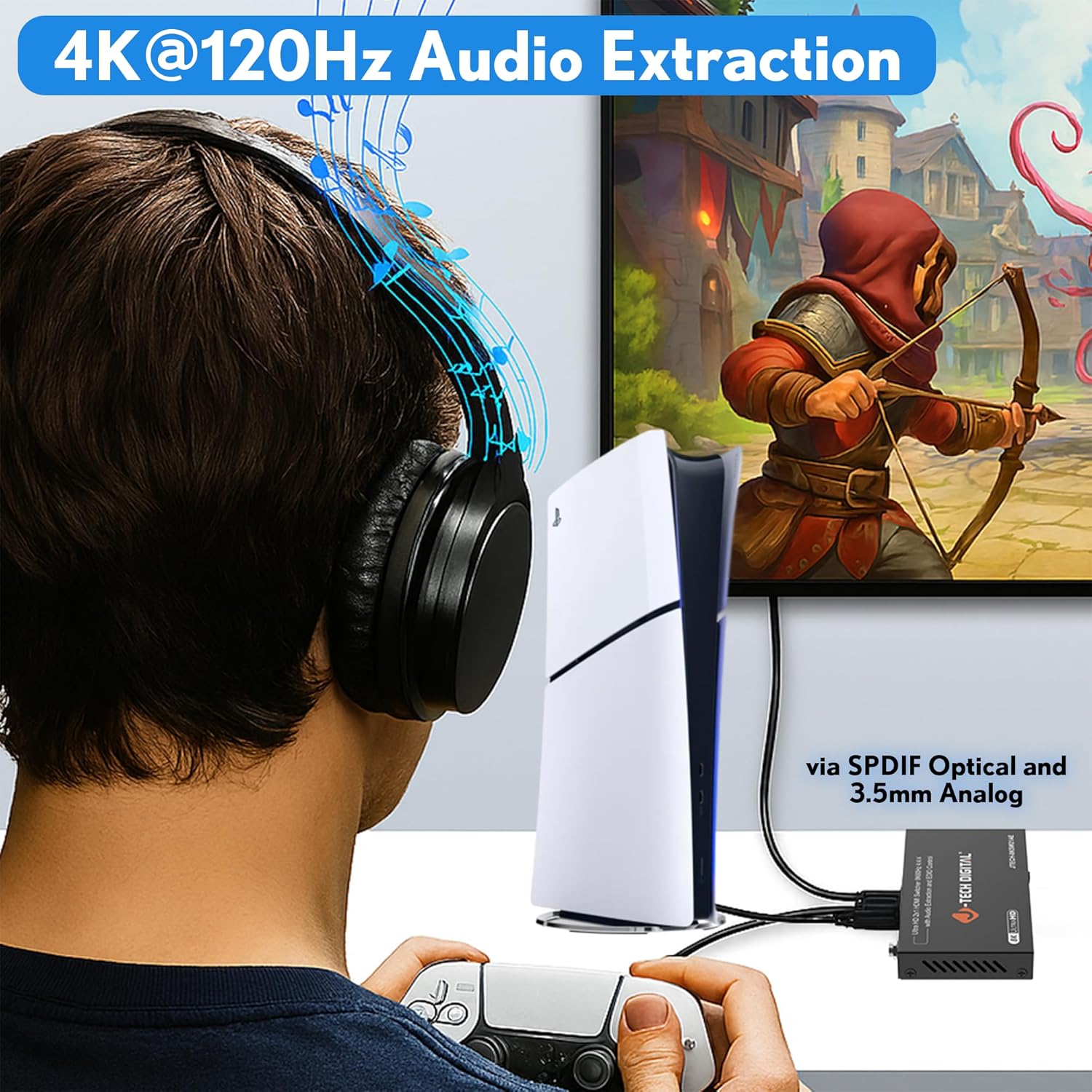
Image: Example of audio extraction in use, with a user enjoying audio through headphones connected to the switch while gaming.
EDID Management:
The EDID (Extended Display Identification Data) settings on the switch help ensure optimal compatibility between your source devices and display. Use the EDID dip switches on the front panel to select the desired mode. Refer to the table below for common settings. More detailed EDID settings are available in the full user manual (if applicable).
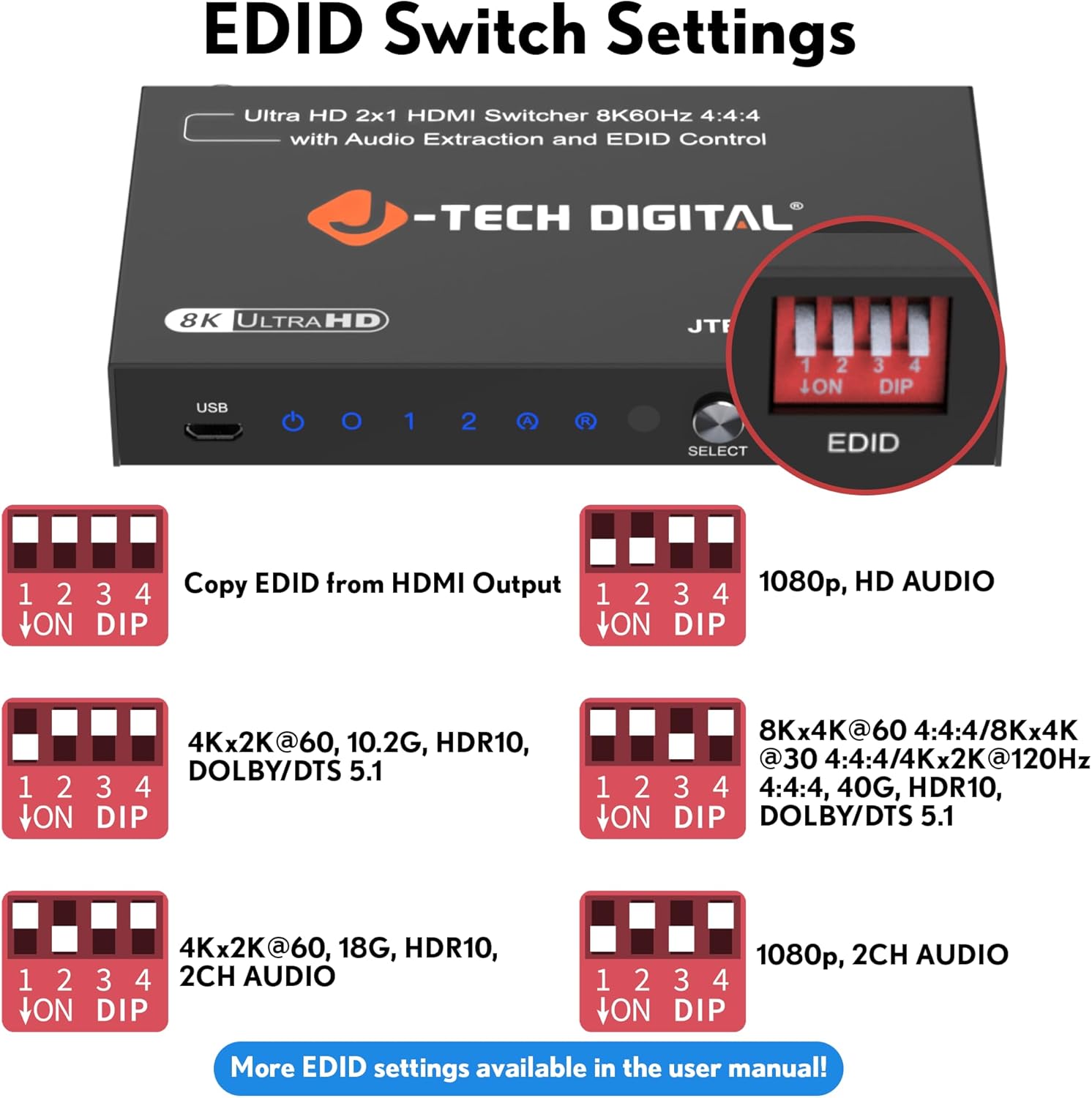
Image: Visual guide to EDID dip switch settings and their corresponding video and audio output modes.
| Dip Switch Setting (1 2 3 4) | Description |
|---|---|
| ON DIP (all ON) | Copy EDID from HDMI Output (Bypass) |
| 1 ON, others OFF | 1080p, HD AUDIO |
| 2 ON, others OFF | 4Kx2K@60, 10.2G, HDR10, DOLBY/DTS 5.1 |
| 3 ON, others OFF | 8Kx4K@60 4:4:4 / 8Kx4K@30 4:4:4 / 4Kx2K@120Hz 4:4:4, 40G, HDR10, DOLBY/DTS 5.1 |
| 4 ON, others OFF | 4Kx2K@60, 18G, HDR10, 2CH AUDIO |
| 1 & 2 ON, others OFF | 1080p, 2CH AUDIO |
Note: For specific EDID configurations not listed, please consult the comprehensive user manual or J-Tech Digital support.
Maintenance
To ensure the longevity and optimal performance of your J-Tech Digital 8K HDMI Switch, follow these maintenance guidelines:
- Cleaning: Use a soft, dry cloth to clean the exterior of the unit. Do not use liquid cleaners or aerosol sprays, as they may damage the device.
- Ventilation: Ensure the unit is placed in a well-ventilated area to prevent overheating. Do not block the ventilation slots.
- Power: Always use the provided 5V 1A DC power adapter. Using an incorrect power supply may damage the unit and void the warranty.
- Cable Management: Keep HDMI and audio cables neatly organized to prevent strain on ports and accidental disconnections.
- Storage: If storing the device for an extended period, disconnect it from power and store it in a cool, dry place away from direct sunlight and extreme temperatures.
Troubleshooting
If you encounter issues with your J-Tech Digital 8K HDMI Switch, please refer to the following common problems and solutions:
| Problem | Possible Cause / Solution |
|---|---|
| No video output on display. |
|
| No audio output from external audio device. |
|
| Intermittent video/audio. |
|
| Remote control not working. |
|
If the problem persists after trying these solutions, please contact J-Tech Digital Technical Support for further assistance.
Specifications
| Feature | Detail |
|---|---|
| Model Number | JTECH-8KSW21AE |
| HDMI Version | HDMI 2.1 |
| HDCP Version | HDCP 2.3 |
| Video Resolution Support | 8K@60Hz (4:4:4), 4K@120Hz, 1080P@240Hz |
| HDR Support | HDR10, HDR10+, Dolby Vision |
| Audio Extraction | Optical (SPDIF) and 3.5mm Analog |
| Supported Audio Formats | Dolby TrueHD, DTS-HD Master Audio, Dolby Digital, LPCM |
| EDID Management | 15 preset modes, EDID bypass function |
| CEC Support | Yes |
| Compatible Devices | PS5, Xbox Series X, Apple TV, Roku, Fire Stick, Blu-ray players, PCs, Home Theater Systems |
| Product Dimensions | 8 x 7.5 x 2 inches |
| Item Weight | 14.4 ounces |
| Color | Black |
| Power Supply | DC 5V 1A |
Warranty and Technical Support
All J-Tech Digital products are backed by a commitment to quality and customer satisfaction.
- Manufacturer Replacement Warranty: Your JTECH-8KSW21AE includes a one-year manufacturer replacement warranty from the date of purchase.
- Lifetime Technical Support: J-Tech Digital provides free lifetime technical support for all its products. Our customer support team is based in Stafford, TX, USA.
- Support Hours: Support is available from 9 AM – 6 PM CST, Monday – Friday.
- Contact Information: For technical assistance or warranty claims, please refer to the contact information provided on the J-Tech Digital seller page or official website.
Related documentsJTECH-8KSW21AE


Ask a question about this manual
Ask about setup, troubleshooting, compatibility, parts, safety, or missing instructions. Manuals+ will review the question and use this page’s manual context to help answer it.