
1. Introduction
This manual provides instructions for the WatchGuard Firebox T115-W, a Wi-Fi 7 tabletop firewall. It is designed to offer robust protection and performance for solo professionals and micro-offices, particularly in low-traffic environments. The T115-W includes essential security features, secure boot, and a quiet, fanless design, making it suitable for space-constrained setups.
2. Product Overview
The WatchGuard Firebox T115-W combines Wi-Fi 7 connectivity with advanced security features. It is equipped with 3x 1Gb Ethernet ports for flexible network connections and supports up to 280 Mbps UTM throughput. Its fanless design ensures silent operation, ideal for quiet office environments.
2.1. Device Features

Figure 1: Rear Panel Connections
This image displays the rear panel of the Firebox T115-W, highlighting its connectivity options. From left to right, you can see a security lock slot, a reset button, two LAN ports (labeled 1/LAN and 2), a USB port, a WAN port (labeled 0/WAN), and the 12VDC 2.5A power input with an on/off switch. The Ethernet ports support 10/100/1000 Mbps speeds.

Figure 2: Front Panel LED Indicators
The front panel of the Firebox T115-W features LED indicators for 2.4GHz and 5GHz Wi-Fi activity, Ethernet port status (1000 Mbps and 10/100 Mbps for ports 1 and 2), Status, Attention (Attn), and Mode. These LEDs provide visual feedback on the device's operational status and network activity.
2.2. Product Overview Video
Video 1: WatchGuard T115-W Product Overview
This video provides a visual overview of the WatchGuard Firebox T115-W, demonstrating its physical features, connectivity options, and highlighting key functionalities such as Zero-Touch Deployment, local or cloud management, SD-WAN Network Adaptation, Wi-Fi 7, 1 Gbps interfaces, 4GB RAM, silent fanless design, and sturdy construction.
3. Setup Instructions
Follow these steps to set up your WatchGuard Firebox T115-W:
- Unpack the Device: Carefully remove the Firebox T115-W and all accessories from its packaging.
- Connect Power: Connect the provided power adapter to the 12VDC 2.5A power input on the rear panel of the device. Plug the adapter into a power outlet.
- Connect WAN (Internet) Port: Connect your internet service provider's modem or router to the 0/WAN port on the Firebox T115-W using an Ethernet cable.
- Connect LAN (Local Network) Ports: Connect your local network devices (e.g., computers, switches) to the 1/LAN or 2 ports using Ethernet cables.
- Initial Configuration: Power on the device using the switch next to the power input. The Firebox T115-W supports Zero-Touch Deployment and can be managed locally or through WatchGuard Cloud. Refer to the WatchGuard documentation for detailed initial configuration steps, including setting up Wi-Fi 7 and security policies.
- Wi-Fi Antennas: Ensure external Wi-Fi antennas (if provided) are securely attached to the designated connectors.
4. Operating Instructions
Once set up, the Firebox T115-W operates as your network's security gateway and Wi-Fi access point. Monitor the front panel LED indicators (Figure 2) for operational status:
- 2.4GHz/5GHz LEDs: Indicate Wi-Fi activity on respective bands.
- 1000/10/100 LEDs: Indicate connection speed and activity for Ethernet ports.
- Status LED: Provides general device status (e.g., booting, operational, error).
- Attn (Attention) LED: Illuminates to indicate a warning or error condition.
- Mode LED: Indicates the current operating mode of the device.
For detailed management and configuration, access the device's web interface or WatchGuard Cloud portal using a web browser on a connected computer.
5. Maintenance
Regular maintenance ensures optimal performance and security for your Firebox T115-W:
- Firmware Updates: Regularly check for and apply the latest firmware updates from WatchGuard to ensure you have the most current security features and bug fixes.
- Physical Cleaning: Keep the device free from dust and debris. Use a soft, dry cloth to clean the exterior. Ensure ventilation openings are not obstructed.
- Configuration Backups: Periodically back up your device configuration to prevent data loss in case of an unexpected issue.
- Security Monitoring: Regularly review logs and alerts through WatchGuard Cloud or the local management interface to identify and address potential security threats.
6. Troubleshooting
If you encounter issues with your Firebox T115-W, consider the following troubleshooting steps:
- No Power: Ensure the power adapter is securely connected to both the device and a working power outlet. Check the power switch on the rear panel.
- No Internet Connection: Verify that your modem or upstream router is working correctly. Check the Ethernet cable connection to the 0/WAN port. Confirm your internet service is active.
- No Local Network Access: Check Ethernet cable connections to LAN ports. Ensure connected devices are configured for DHCP or have correct static IP settings.
- Wi-Fi Issues: Verify Wi-Fi is enabled in the device configuration. Check Wi-Fi LED indicators. Ensure correct SSID and password are being used by client devices.
- Slow Performance: Check network traffic logs for unusual activity. Ensure the device firmware is up-to-date. Consider if your internet plan meets your usage demands.
- Reset Button: The reset button can be used to restore factory default settings. Use this with caution as it will erase your configuration. Refer to WatchGuard documentation for the correct reset procedure.
For persistent issues, consult the WatchGuard support resources or contact technical support.
7. Specifications
The following table outlines the key specifications for the WatchGuard Firebox T115-W:
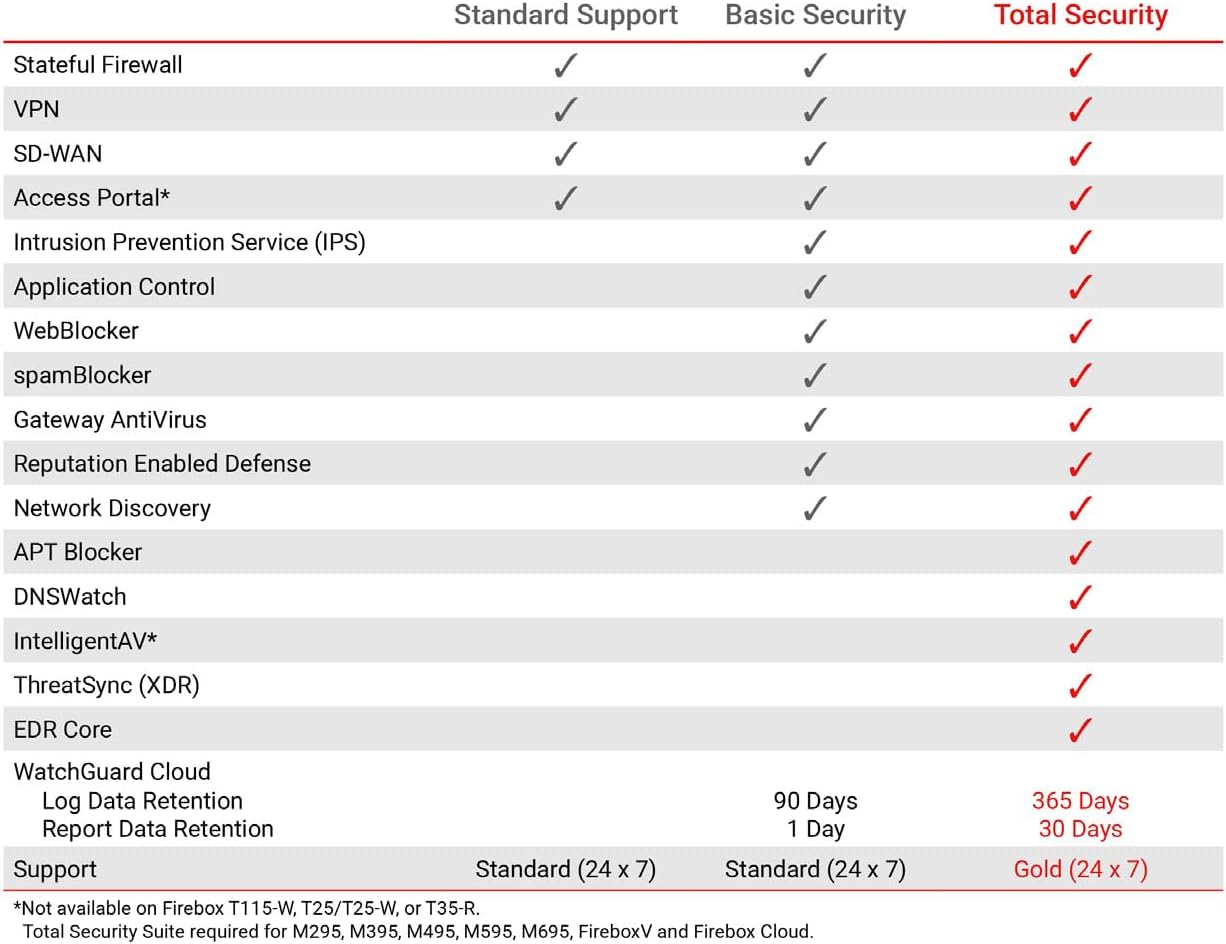
Figure 3: WatchGuard T115-W Performance Specifications
This image presents a table detailing the performance specifications of the WatchGuard Firebox T115-W, including IPS Throughput (full scan) at 375 Mbps, Firewall Throughput (IMIX) at 320 Mbps, VPN Throughput (IMIX) at 210 Mbps, and HTTPS (IPS enabled, full scan) at 140 Mbps. It also lists 3 Network Interfaces and 1 Serial/1 USB-A 3.2 I/O interfaces.
| Feature | Specification |
|---|---|
| Brand | WatchGuard |
| Model Name | WatchGuard Firebox T115-W with 3-yr Standard Support |
| Special Features | Intrusion Prevention, VPN Support, Wi-Fi 7 Connectivity, Firewall |
| Frequency Band Class | Quad-Band |
| Wireless Communication Standard | 802.11ax (Wi-Fi 6, compatible with Wi-Fi 7) |
| Recommended Uses | Small Office, Home Office (SOHO) |
| Connectivity Technology | Wi-Fi 7, Ethernet |
| Item Weight | 1.05 Pounds |
| Operating System | Fireware OS |
| Number of Ports | 3 (1 WAN, 2 LAN) |
| Data Transfer Rate | 280 Megabits Per Second (UTM throughput) |
| LAN Port Bandwidth | 1000 Mbps |
| Model Number | T115-W |
| UPC | 654522612380 |
8. Warranty and Support
The WatchGuard Firebox T115-W includes a 3-Year Standard Support license (WGT116003). This Standard Support package provides:
- Software Updates: Access to the latest software and firmware updates.
- Technical Assistance: Round-the-clock emergency help (24x7) and business-hours support for routine inquiries.
For enhanced security features such as IPS, gateway antivirus, and web filtering, consider adding a Basic or Total Security Suite. These suites activate additional protections that block threats before they reach users.

Figure 4: WatchGuard Security Suite Feature Comparison
This image displays a comparison table of features included with Standard Support, Basic Security, and Total Security suites. It shows that while Standard Support covers Stateful Firewall, VPN, SD-WAN, and Access Portal, Basic Security adds Intrusion Prevention Service (IPS), Application Control, WebBlocker, spamBlocker, Gateway AntiVirus, Reputation Enabled Defense, and Network Discovery. Total Security further enhances protection with APT Blocker, DNSWatch, IntelligentAV, ThreatSync (XDR), and EDR Core, along with extended log and report data retention.
For more information on support options or to access WatchGuard's knowledge base, visit the official WatchGuard website or contact their customer service.


