
Havit Fuxi-H6
Contents
Havit Fuxi-H6 Wireless Gaming Headset User Manual
Model: Fuxi-H6
Introduction
Thank you for choosing the Havit Fuxi-H6 Wireless Gaming Headset. This headset offers versatile connectivity options including 2.4GHz wireless, Bluetooth, and wired USB-C, providing a seamless audio experience across various platforms. This manual will guide you through the setup, operation, and maintenance of your new headset.
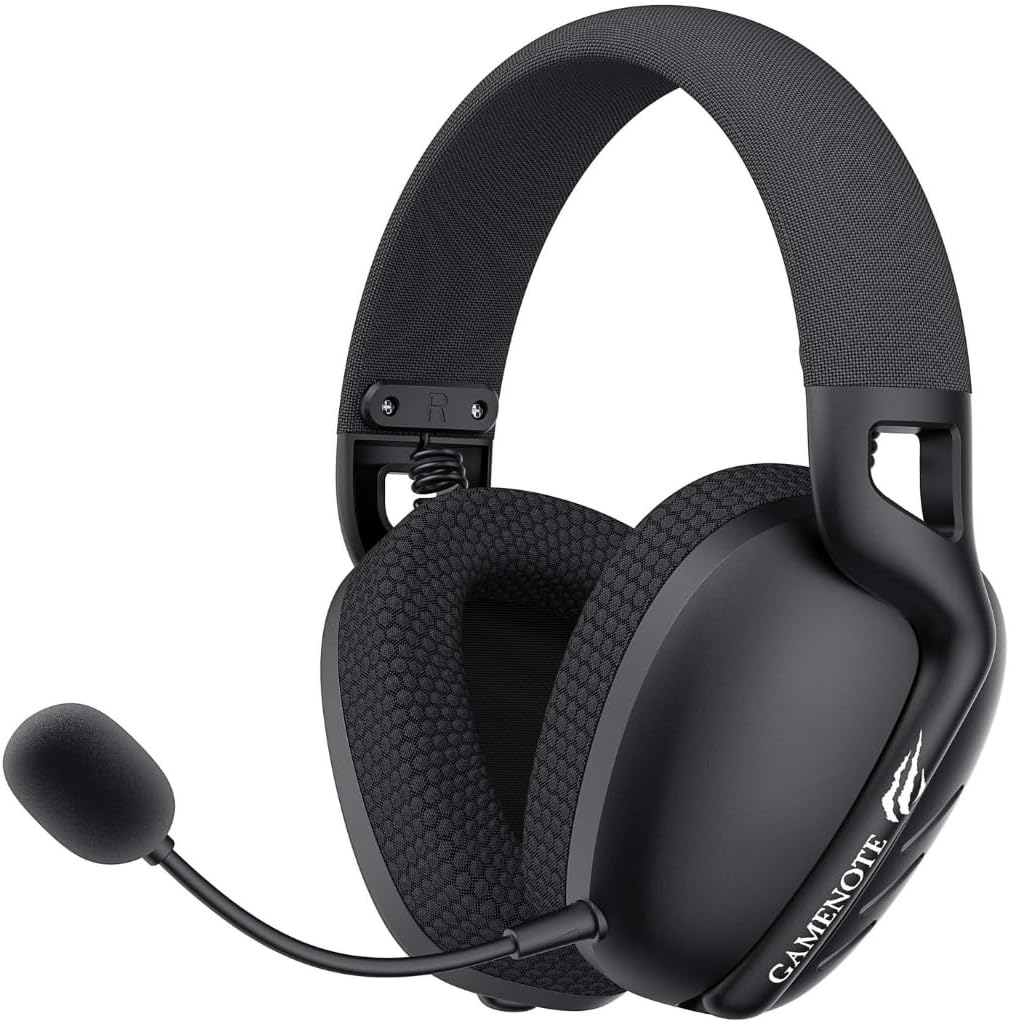
Image: Havit Fuxi-H6 Wireless Gaming Headset, showcasing its design with the microphone extended.
Package Contents
- Havit Fuxi-H6 Wireless Gaming Headset
- 2.4GHz USB Wireless Dongle
- USB-C Charging/Data Cable
- User Manual
Product Overview
Familiarize yourself with the various components and controls of your Havit Fuxi-H6 headset.

Image: Side view of the Havit Fuxi-H6 headset, highlighting the location of the control buttons, volume wheel, and ports on the left earcup.
Controls and Indicators:
- Power Button: Press and hold to power on/off. Short press to switch modes (2.4GHz/Bluetooth).
- Volume Wheel: Scroll up or down to adjust audio volume.
- Microphone Mute Button: Press to mute or unmute the microphone.
- USB-C Port: For charging and wired connection.
- LED Indicator: Displays connection status, charging status, and battery level.
- Flexible Microphone: Adjustable boom microphone.
Setup
1. Charging the Headset
Before first use, fully charge the headset. Connect the supplied USB-C cable to the headset's USB-C port and the other end to a USB power source (e.g., computer USB port, wall adapter). The LED indicator will show charging status and turn off or change color when fully charged.
2. 2.4GHz Wireless Connection
- Insert the 2.4GHz USB wireless dongle into an available USB port on your PC, PlayStation console, or other compatible device.
- Power on the Havit Fuxi-H6 headset by pressing and holding the Power Button.
- Ensure the headset is in 2.4GHz wireless mode. If not, short press the Power Button to cycle through modes until the LED indicator shows 2.4GHz mode (refer to LED indicator section for specific light patterns).
- The headset and dongle should automatically pair. The LED indicator will show a solid light when connected.
- Adjust your device's audio output settings to "Havit Fuxi-H6" or similar if necessary.
3. Bluetooth Connection
- Power on the Havit Fuxi-H6 headset.
- Short press the Power Button to switch to Bluetooth mode. The LED indicator will flash, indicating pairing mode.
- On your device (smartphone, tablet, PC), go to Bluetooth settings and enable Bluetooth.
- Search for available devices and select "Havit Fuxi-H6" from the list.
- Once connected, the LED indicator on the headset will show a solid light.
4. Wired USB-C Connection
Connect the supplied USB-C cable directly from the headset's USB-C port to a compatible USB-C port on your device. The headset will function as a wired audio device. No battery power is consumed in this mode.
Operating Instructions
Power On/Off
- To Power On: Press and hold the Power Button for approximately 3 seconds until the LED indicator lights up.
- To Power Off: Press and hold the Power Button for approximately 3 seconds until the LED indicator turns off.
Volume Adjustment
Rotate the Volume Wheel located on the earcup upwards to increase volume and downwards to decrease volume.
Microphone Usage
- To Mute/Unmute: Press the Microphone Mute Button on the earcup. A specific LED indicator or audio cue may confirm the mute status.
- Positioning: Adjust the flexible microphone boom for optimal voice pickup, positioning it close to your mouth.
Mode Switching
Short press the Power Button to cycle between 2.4GHz wireless mode and Bluetooth mode. The LED indicator will change to reflect the active mode. Wired USB-C connection automatically takes precedence when connected.
LED Indicator Guide
- Solid Blue: Connected via Bluetooth.
- Flashing Blue: Bluetooth pairing mode.
- Solid Green: Connected via 2.4GHz wireless.
- Flashing Green: 2.4GHz wireless pairing mode.
- Solid Red: Charging.
- Red (Off/Change): Fully charged.
- Flashing Red: Low battery.
Maintenance
- Cleaning: Use a soft, dry cloth to clean the headset. Do not use harsh chemicals or abrasive materials.
- Storage: Store the headset in a cool, dry place away from direct sunlight and extreme temperatures.
- Battery Care: To prolong battery life, avoid fully discharging the headset frequently. Charge it regularly, even if not in use for extended periods.
Troubleshooting
| Problem | Solution |
|---|---|
| No sound from headset. |
|
| Microphone not working. |
|
| Headset not connecting wirelessly. |
|
| Short battery life. |
|
Specifications
| Feature | Detail |
|---|---|
| Brand | Havit |
| Model | Fuxi-H6 |
| Connectivity | 2.4GHz Wireless, Bluetooth, USB-C Wired |
| Ear Placement | Over-Ear |
| Headphone Form Factor | Over-Ear |
| Impedance | 17 Ohm |
| Noise Control | Adaptive Noise Cancellation |
| Product Weight | 400 g |
| Product Dimensions | 10 x 5 x 5.99 cm |
Warranty and Support
Havit products are designed to provide reliable performance. For warranty information, technical support, or customer service inquiries, please refer to the warranty card included in your package or visit the official Havit website. Keep your proof of purchase for warranty claims.
Ask a question about this manual
Ask about setup, troubleshooting, compatibility, parts, safety, or missing instructions. Manuals+ will review the question and use this page’s manual context to help answer it.