1. Introduction
This manual provides essential information for setting up, operating, and maintaining your ACEMAGIC TX15 Laptop, Model N150. Please read this guide thoroughly to ensure optimal performance and longevity of your device.

Figure 1: ACEMAGIC TX15 Laptop featuring Windows 11, 16GB RAM, and 512GB storage.
2. Package Contents
Verify that all items are present in your product packaging:
- ACEMAGIC TX15 Laptop (Model N150)
- Power Adapter
- User Manual (this document)
3. Product Overview
3.1 Key Features
- Processor: Intel N150 Processor (up to 3.6GHz)
- Memory: 16GB DDR4 RAM
- Storage: 512GB NVMe SSD (expandable up to 2TB)
- Display: 15.6-inch Full HD (1920x1080) IPS Display
- Operating System: Windows 11 Pro
- Connectivity: Wi-Fi 5, Bluetooth 5.2
- Ports: USB 3.2, HDMI, USB-C (Data), 3.5mm Headphone Jack, TF Card Socket, DC Jack, Security Lock
- Camera: 720p HD Front Webcam
- Design: Metal Shell, Lightweight and Portable (approximately 1.65kg / 3.64 lbs)

Figure 2: The laptop is equipped with an Intel N150 processor, designed for efficient performance.

Figure 3: The laptop's 16GB RAM and 512GB SSD facilitate smooth multitasking and fast data access.
3.2 Ports and Connectors
The ACEMAGIC TX15 Laptop offers a variety of ports for connectivity and expansion:
- Left Side: Security lock slot, DC power input, USB-C (Data), HDMI, USB 3.2 port.
- Right Side: TF Card Socket, two USB 3.2 ports, 3.5mm Headphone Jack.

Figure 4: Left side ports including Security lock, DC jack, Type-C (Data), HDMI, and USB 3.2.

Figure 5: Right side ports including TF Card Socket, two USB 3.2 ports, and 3.5mm Headphone Jack.
4. Setup
4.1 Initial Power On
- Connect the power adapter to the DC jack on the left side of the laptop and plug it into a power outlet.
- Open the laptop lid.
- Press the power button, typically located on the top right of the keyboard, to turn on the device.
- Follow the on-screen instructions to complete the Windows 11 setup process.
4.2 Connecting to Wi-Fi
- Once Windows 11 setup is complete, click on the Wi-Fi icon in the taskbar.
- Select your desired Wi-Fi network from the list.
- Enter the network password if prompted and click 'Connect'.
5. Operating Instructions
5.1 Keyboard and Touchpad
The laptop features a full-size keyboard and a responsive touchpad for navigation. Ensure the touchpad is not locked (Fn+F11 on some models) if you experience issues.

Figure 6: The full-size keyboard and large touchpad provide comfortable input.
5.2 Display and Visuals
The 15.6-inch Full HD IPS display offers clear and vibrant visuals. You can adjust brightness and display settings through Windows settings.

Figure 7: The 1920x1080 Full HD IPS display provides a clear and comfortable viewing experience.
5.3 Audio and Webcam
The laptop includes integrated speakers for audio output and a 720p HD front webcam for video calls.

Figure 8: The laptop offers engaging visuals and stereo sound, supported by Wi-Fi 5, Bluetooth 5.2, and a 720p HD camera.
5.4 Battery Life
The laptop is designed for extended use with its large battery capacity, making it suitable for mobile work and entertainment.

Figure 9: The laptop's large battery capacity supports extended use, ideal for travel.
6. Maintenance
6.1 Cleaning
- Use a soft, lint-free cloth to clean the screen and exterior.
- Avoid using harsh chemicals or abrasive materials.
- For stubborn marks, lightly dampen the cloth with water or a screen-safe cleaner.
6.2 Storage
Store the laptop in a cool, dry place away from direct sunlight and extreme temperatures. When not in use for extended periods, ensure the battery is charged to approximately 50% to prolong its lifespan.
6.3 Software Updates
Regularly update your Windows operating system and drivers to ensure optimal performance and security. These updates often include bug fixes and performance enhancements.
7. Troubleshooting
7.1 Power Issues
- Laptop not turning on: Ensure the power adapter is securely connected to both the laptop and a working power outlet. Check if the power adapter's indicator light is on.
- Battery not charging: Verify the power adapter connection. Try a different power outlet. If the issue persists, contact support.
7.2 Display Problems
- No display: Connect an external monitor to the HDMI port to check if the issue is with the laptop's internal display.
- Dim screen: Adjust the brightness settings using the function keys (e.g., Fn + F5/F6) or through Windows display settings.
7.3 Connectivity Issues
- Wi-Fi not connecting: Restart your router and the laptop. Ensure Wi-Fi is enabled in Windows settings.
- Bluetooth device not pairing: Ensure the Bluetooth device is in pairing mode and within range. Check Bluetooth settings on the laptop.
8. Specifications
| Feature | Detail |
|---|---|
| Standing screen display size | 15.6 Inches |
| Screen Resolution | 1920 x 1080 pixels |
| Max Screen Resolution | 1920x1080 |
| Wireless Type | 802.11ac (Wi-Fi 5) |
| Brand | ACEMAGIC |
| Item model number | N150 |
| Item Weight | 5.1 pounds (2.32 Kilograms) |
| Product Dimensions | 14.52 x 9.19 x 0.74 inches |
| Computer Memory Type | DDR4 SDRAM |
| Flash Memory Size | 16 GB |
| Connectivity Technology | Bluetooth, HDMI, USB, Wi-Fi |
| Has webcam capability? | Yes (720p HD) |
| Human Interface Input | Touch Pad |
| Wireless Communication Standard | 802.11ac |
| Display Type | LCD |
9. Warranty and Support
9.1 Product Warranty
ACEMAGIC provides a one-year effective warranty period for this product, including free return or exchange services. Offline maintenance services are available for products beyond this period.
9.2 Customer Support
For any product-related inquiries or support, please use the following contact methods:
- Email: service@acemagic.com
- Phone (US): +1 833 988 3568 (Monday-Friday, 9am-5pm EST)
- Amazon Support: Log in to your Amazon account, navigate to 'Your orders', and select 'Ask Product Question'.
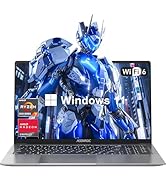
Figure 10: ACEMAGIC customer support details for assistance.
10. Product Video Overview
Watch this video for a brief overview of the ACEMAGIC TX15 Laptop's features and design.
Video 1: An overview of the ACEMAGIC TX15 Laptop, highlighting its N150 processor, 16GB RAM, and 512GB NVMe storage.


