
1. Introduction
This manual provides essential information for setting up, operating, maintaining, and troubleshooting your TCL 55C6K 55-inch 4K QD-Mini LED Google TV. Please read this manual thoroughly before using your television to ensure proper and safe operation.

Figure 1.1: Front view of the TCL 55C6K 55-inch TV.
2. What's in the Box
Verify that all components are present in the packaging:
- 1N LED TV (TCL 55C6K)
- 1N Audio Cable
- 1N Stand (Table Top Stand)
- 1N User Manual
- 1N Warranty Card
- 1N Power Cord
- 1N Remote Control
- 2N AAA Batteries
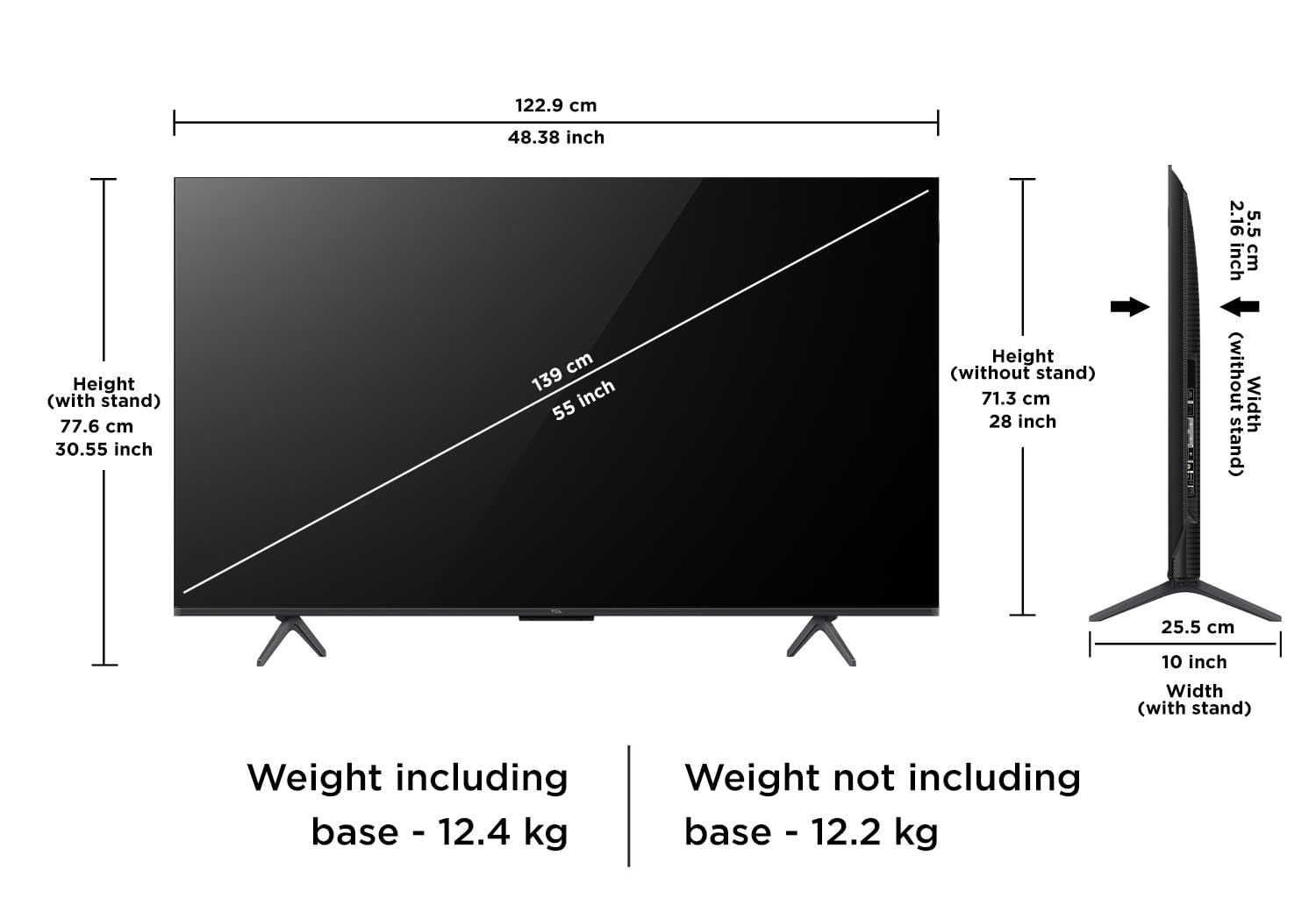
Figure 2.1: Included items in the TCL 55C6K TV box. Note that a fixed wall mount is not included and must be purchased separately.
3. Setup
3.1. Installing the Stand or Wall Mount
Your TCL 55C6K TV comes with a table top stand. Follow the instructions provided in the separate stand assembly guide to attach it securely. If you prefer wall mounting, a compatible wall mount kit must be purchased separately. Ensure the wall mount is installed by a qualified professional to prevent damage or injury.
3.2. Connecting Peripherals
Connect your external devices such as set-top boxes, gaming consoles, or sound systems to the appropriate ports on the TV. Refer to the port diagram below for connection points.

Figure 3.1: Connectivity ports on the TCL 55C6K TV, including USB 3.0, LAN, HDMI, and Audio Out.
- HDMI Ports: Connect high-definition devices. This TV features 3 HDMI ports, including one with eARC support.
- USB Port: For connecting USB storage devices.
- LAN Port: For wired internet connection.
- Antenna/Satellite Input: For connecting an antenna or satellite dish.
- Digital Audio Out (Optical): For connecting to external audio receivers.
3.3. Power Connection
After connecting all necessary cables, plug the power cord into the TV and then into a wall outlet. The TV will enter standby mode.
3.4. Initial Setup
Press the power button on the remote control to turn on the TV. Follow the on-screen instructions to complete the initial setup, which includes language selection, network connection (Wi-Fi or Ethernet), and Google account sign-in for Google TV features.
4. Operating Your TV
4.1. Remote Control Functions
The included smart remote provides access to all TV functions. Insert the two AAA batteries into the remote control, ensuring correct polarity.
Figure 4.1: The TCL 55C6K remote control, featuring dedicated hotkeys for popular streaming services and Google Assistant access.
- Power Button: Turns the TV on or off.
- Navigation Pad: For menu navigation.
- OK Button: Confirms selections.
- Back Button: Returns to the previous screen.
- Home Button: Accesses the Google TV home screen.
- Volume Buttons: Adjusts volume.
- Google Assistant Button: Activates voice commands.
- Dedicated App Buttons: Quick access to streaming services like Netflix, Prime Video, etc.
4.2. Google TV Interface
Your TV runs on Google TV, offering a personalized content experience. The home screen provides access to streaming apps, live TV, and personalized recommendations.

Figure 4.2: The Google TV interface on the TCL 55C6K, showing various streaming applications.
- App Access: Navigate to the 'Apps' section to download and manage your favorite streaming applications.
- Google Assistant: Use voice commands via the remote to search for content, control smart home devices, or get information.
- Screen Mirroring: Cast content from compatible smartphones or tablets to your TV.
4.3. Display Settings
The TCL 55C6K features a QD-Mini LED panel with 4K resolution and a 144Hz refresh rate. You can adjust picture settings to optimize your viewing experience.

Figure 4.3: Key display features of the TCL 55C6K TV, including QD-Mini LED and 144Hz refresh rate.
- Picture Modes: Select from various preset picture modes (e.g., Standard, Vivid, Movie, Game) or customize settings like brightness, contrast, and color.
- HDR 10: The TV supports HDR10 for enhanced contrast and color in compatible content.
- 144Hz Native Refresh Rate: Provides smoother motion, especially beneficial for gaming.
- Micro Dimming: Enhances contrast by analyzing and adjusting brightness in different zones of the screen.
4.4. Audio Settings
The TV features 40 Watts output with Dolby Audio and ONKYO 2.1ch Hi-Fi System for an immersive sound experience.
- Sound Modes: Choose from various sound modes (e.g., Standard, Music, Movie, Voice) or adjust equalizer settings.
- Dolby Atmos: Experience immersive, multi-dimensional sound with compatible content.
- External Audio: Connect external sound systems via HDMI (eARC) or Digital Audio Out for enhanced audio.
5. Maintenance
5.1. Cleaning the TV
- Always unplug the TV before cleaning.
- Use a soft, dry cloth to wipe the screen and cabinet. For stubborn marks, lightly dampen the cloth with water or a mild, non-abrasive screen cleaner.
- Never spray cleaner directly onto the screen.
5.2. General Care
- Avoid placing the TV in direct sunlight or near heat sources.
- Ensure adequate ventilation around the TV.
- Do not block ventilation openings.
6. Troubleshooting
If you encounter issues with your TV, refer to the following common problems and solutions:
| Problem | Possible Solution |
|---|---|
| No power | Check if the power cord is securely plugged into the TV and the wall outlet. Ensure the wall outlet is functioning. |
| No picture, but sound is present | Check the input source. Ensure external devices are properly connected and powered on. |
| No sound, but picture is present | Check the volume level and mute status. Verify audio cable connections for external devices. Check TV audio output settings. |
| Remote control not working | Replace the batteries. Ensure there are no obstructions between the remote and the TV's IR sensor. |
| Wi-Fi connection issues | Restart your router and the TV. Check Wi-Fi password. Ensure the TV is within range of the router. |
| Picture quality issues (e.g., blurry, distorted) | Adjust picture settings. Check the quality of the input signal or source content. |
For further assistance, refer to the full troubleshooting section in the digital user manual available on the TCL support website or contact customer support.
7. Specifications
Detailed technical specifications for the TCL 55C6K 55-inch 4K QD-Mini LED Google TV:
| Feature | Specification |
|---|---|
| Brand | TCL |
| Model | 55C6K |
| Screen Size | 55 Inches (139 cm) |
| Display Technology | QD-Mini LED |
| Resolution | 4K Ultra HD (3840 x 2160) |
| Refresh Rate | 144 Hz |
| Operating System | Google TV |
| RAM | 3 GB |
| Internal Storage (ROM) | 32 GB |
| Processor | 64-bit Quad Core Processor (AiPQ Processor) |
| Connectivity | Wi-Fi 5, Ethernet, Bluetooth, 3 HDMI Ports (1 with eARC), 1 USB Port |
| Sound Output | 40 Watts (ONKYO 2.1ch Hi-Fi System) |
| Audio Technology | Dolby Audio, Dolby Atmos |
| Special Features | QD-Mini LED, 512+ Local Dimming Zones, HDR 10, AiPQ Processor, 100% Color Volume Plus, 178 Degree Wide Viewing Angle, Micro Dimming, Metallic Bezel-Less Design, Google Assistant, Prime Video, Netflix, Hotstar, Zee5, Web Browser, Screen Mirroring, Works with Alexa, Multiple Eye Care |
| Product Dimensions (LxWxH) | 122.9 x 29.7 x 77.6 cm (with stand) |
| Item Weight | 12.2 kg (without stand), 12.4 kg (with stand) |
| Power Source | AC 240 Volts |
| Energy Rating | 2 Star (Annual Energy Consumption: 229 kWh/Year) |

Figure 7.1: Dimensions and weight specifications for the TCL 55C6K TV.

Figure 7.2: Energy label for the TCL 55C6K TV, indicating its 2-star rating and annual energy consumption.
8. Warranty and Support
8.1. Warranty Information
The manufacturer provides a 2-year warranty from the date of purchase for the television unit and a 6-month warranty for the remote control. Warranty claims can be processed using your Amazon e-invoice.
8.2. Customer Support
For any technical assistance, service requests, or further inquiries, please refer to the official TCL India website or contact their customer service. The user manual can also be accessed from the brand website under the 'About this item' or 'Product details' section.


