
1. Introduction
This manual provides detailed instructions for the operation and maintenance of your Tengsen MP3 Player. Please read it thoroughly to ensure proper usage and to maximize your device's potential.

Image: Front and back view of the Tengsen MP3 Player.
2. Package Contents
Verify that all items are present in your package:
- 1 x Bluetooth MP3 Player
- 1 x USB Charging Cable
- 1 x Earphones
- 1 x User Manual
3. Product Overview & Key Functions
Familiarize yourself with the device's layout and button functions:

Image: Detailed diagram illustrating the MP3 player's buttons and ports.
| No. | Function | Description |
|---|---|---|
| 1 | Return | Go back / Exit current screen |
| 2 | Up (Previous) | Move up / Previous item |
| 3 | Left (Fast Rewind) | Previous song/page; Long press = Rewind |
| 4 | Down (Next) | Move down / Next item |
| 5 | Menu Key | Open submenu/options (only in supported interfaces) |
| 6 | Volume + | Short press = Adjust volume step by step; Long press = Continuous volume adjustment |
| 7 | Right (Fast Forward) | Next song/page; Long press = Fast forward |
| 8 | Volume - | Short press = Adjust volume step by step; Long press = Continuous volume adjustment |
| 9 | Confirm/Play/Pause | Play / Pause / Confirm / Open file |
| 10 | Headphone Jack | Connect wired headphones |
| 11 | Power/Wake/Lock/Reset Key | Long press (3s) = Power on/off; Short press = Lock / Wake screen; Long press (10s) = Force restart if frozen |
| 12 | Charging Port | Connect USB cable for charging and data transfer |
Video: How to use the keys of MP3 player better

Video Description: This video demonstrates the functions of each button on the MP3 player, including power, volume, navigation, and menu access.
4. Setup
4.1. Charging the Device
Connect the provided USB cable to the MP3 player's charging port and a power source (e.g., computer USB port, USB wall adapter). The device will indicate charging status.
4.2. Connecting to a Computer & Transferring Music
To transfer music files to your MP3 player:
- Preparation: Download music files to your computer (supported formats: MP3, WMA, APE, FLAC, WAV, AAC-LC, M4A). Ensure you use the original USB cable for both charging and data transfer.
- Connect the Player: Turn on your computer. Plug the larger end of the USB cable into your computer's USB port and the smaller end into the MP3 player's charging port.
- Select Transmission: Once connected, the MP3 player's screen will show "Charge / Transmission". Use the Left (<) / Right (>) buttons to select "Transmission". If nothing appears, unplug and reconnect the cable.
- Transfer Music: On your computer, open the new removable disk that represents your MP3 player. Find or create a "Music" folder. Copy and paste your music files from your computer into this folder.
- Finish: After transfer, right-click the disk on your computer and select "Eject", then unplug the cable. On the player, go to Music/Songs and refresh the playlist.
Important Tip:
- Do not move the device or cable frequently during transfer to avoid interruption.
- If the computer does not recognize the player, try reconnecting, changing the USB port, or restarting the computer.
- Playback quality depends on the earphones/speakers used and the file format of the music.
Video: How do I connect my MP3 player to my computer

Video Description: This video demonstrates the process of connecting the MP3 player to a computer and transferring files.
4.3. Inserting/Removing a TF Memory Card
The device supports up to 128GB Micro TF card (not included).
- Inserting: Hold the device at a slight angle, align the TF card with the card slot, and keep it parallel to the body. Slowly push it in. When the card is about 70% in, you will feel the spring inside the slot. Gently press until you hear a "click", which means the card is fully inserted. Once inserted, a card icon will appear at the top right of the screen, and a pop-up will ask "Update playlist?". Tap Yes to refresh immediately, or wait a few seconds for the system to refresh automatically.
- Removing: Press the middle of the TF card with your finger and push it inwards with a slight force. When you hear a "click" sound, the card will pop out automatically.
Reminder: Be sure to insert the TF card in the correct direction to avoid damaging the internal springs of the TF card slot, which could prevent the card from being read or cause permanent damage to the TF card or slot.
Video: How to use an MP3 player for TF memory card

Video Description: This video illustrates the correct method for inserting and removing a TF memory card from the MP3 player.
5. Operating Instructions
5.1. Music Playback
Navigate to the "Music" icon on the main menu and press the Confirm/Play/Pause button to enter. You can browse by All Songs, Disc Contents, Card Folder, Artist, Album, Style, or Favorites. Supported audio formats include MP3, WMA, APE, FLAC, WAV, AAC-LC, and M4A.

Image: MP3 player showing music playback and listing supported audio formats.
5.2. Bluetooth Connection
To connect your MP3 player to Bluetooth speakers or headphones:
- Disconnect Other Connections: Before use, ensure that the Bluetooth headset or speaker is not connected to other devices, or that the pairing record has been deleted from the original device.
- Turn on the Bluetooth Speaker/Headphones: Turn on the speaker/headphone power and enter pairing mode (the Bluetooth indicator light will usually flash quickly). Refer to the speaker/headphone manual for specific operations.
- Turn on Player Bluetooth: Enter "Bluetooth Settings" in the MP3 player and turn on the Bluetooth function.
- Search and Connect: Find the speaker/headphone name in the Bluetooth device list and click to connect.
- Connect Successfully: After successful pairing, the speaker/headphone will start playing audio content (if the player is playing).
- Turn off Bluetooth or Cancel Pairing (Recommended): When no longer using Bluetooth, turn off the player's Bluetooth function to avoid battery consumption and extend battery life. Alternatively, cancel pairing in the device list.
Reminder: The MP3 player can connect to Bluetooth speakers and Bluetooth headphones, but does not support Bluetooth connections with computers or mobile phones.
Video: How to connect MP3 player to Bluetooth speakers & headphones
Video Description: This video guides you through the steps to connect your MP3 player to Bluetooth speakers or headphones.
5.3. FM Radio
To use the FM Radio, navigate to the "FM Radio" icon on the main menu. Wired earphones are required as they act as the antenna.
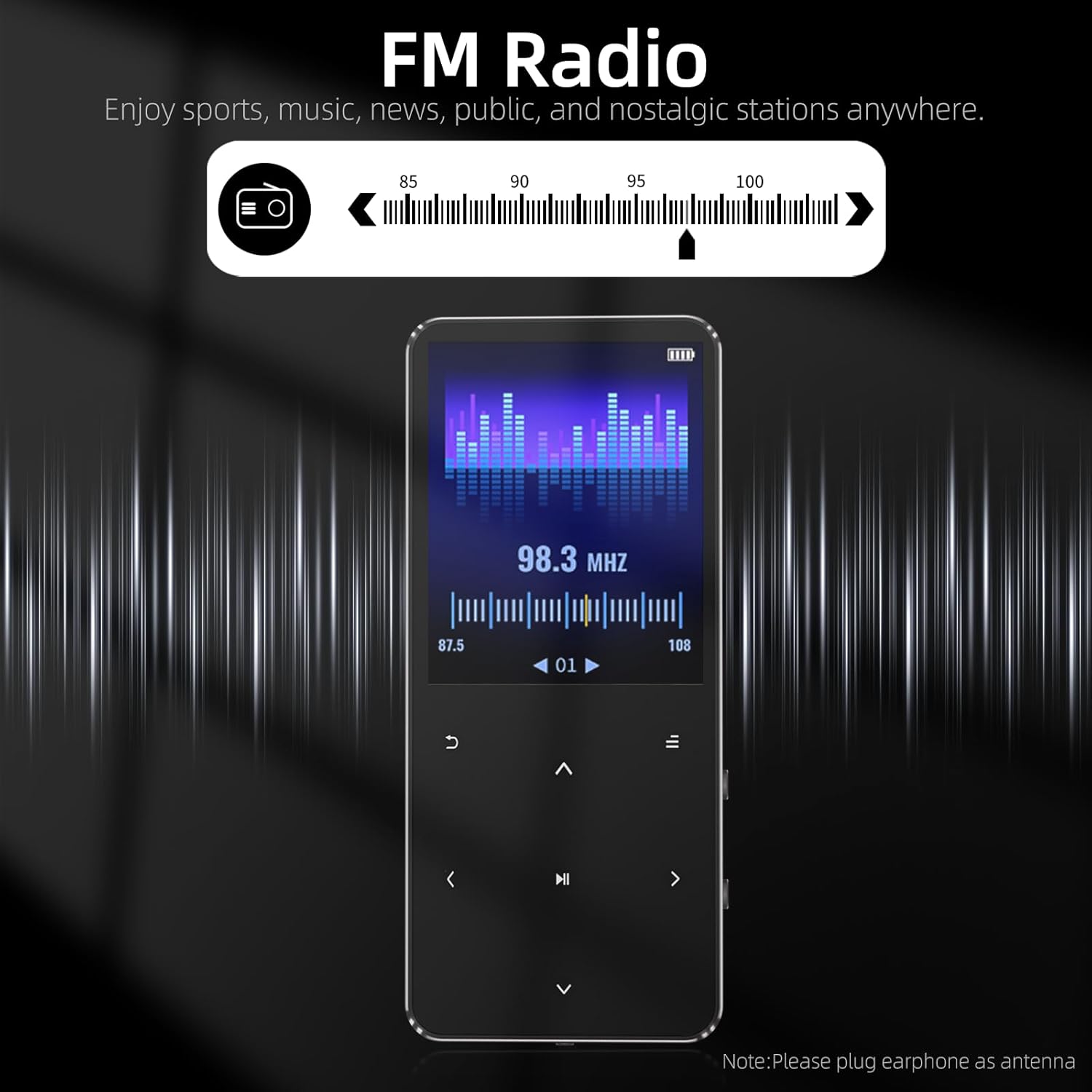
Image: MP3 player showing the FM Radio interface.
5.4. Voice Recorder
To record audio:
- Navigate to the "Record" icon on the main menu and press Confirm/Play/Pause to enter.
- Press the Confirm/Play/Pause button to start or pause recording.
- Press the Return button or Down button to save the recording.
- You can access recording settings (Recording Library, Storage, Recording File Format, Recording Bitrate, Segment Record) by pressing the Menu key.
Video: How do you record on an MP3 player

Video Description: This video demonstrates how to use the voice recording function on the MP3 player, including starting, pausing, saving, and adjusting recording settings.
5.5. E-Book
The device supports TXT format e-books with bookmark functionality. Navigate to the "E-Book" icon to access your stored text files.
5.6. Video Playback
The device supports AVI video playback. You must use the built-in MovieConvertTool on your computer to convert videos to 128 x 160 AVI format for playback. A video conversion tool operation guide is included at the end of the video.
Video: How do you watch videos on an MP3 player

Video Description: This video demonstrates how to play videos on the MP3 player, including navigation and basic controls.
5.7. File Management
To manage files on your MP3 player:
- Navigate to the "File Browser" icon on the main menu.
- If a TF card is inserted, it will be categorized as "Disc contents" and "Card folder".
- When downloading files or music to your computer, create folders and name them clearly. This will keep your files organized and make them easier to find and use.
- To quickly clear all files, you can connect the device to the computer and delete them directly from the corresponding disk; you can also select "Format device" in "Settings".
Video: How do you use the file management on an MP3 player

Video Description: This video demonstrates how to navigate and manage files and folders on the MP3 player.
6. Settings
In the main menu, choose the "Setting" icon to access various device configurations:
- Language: Supports 12 languages including Simplified Chinese, English, Japanese, German, Spanish, French, Italian, Hebrew, Polish, Portuguese, and Russian.
- Display Settings: Adjust brightness (levels 1-10), backlight timer (10s, 20s, 30s, Always On), and screen saver (Nothing, Digital Clock).
- Power Saving Shutdown: Set the auto-off time from 0-99 minutes. The factory default setting is 3 minutes.
- Timing Shutdown: Set the shutdown timer from 0-99 minutes. This function is single-use only and must be reset each time.
- Date and Time: Configure time and date settings, including time format (12h/24h), time adjustment, date format, and date adjustment.
- Information: View device information, including player information, disk space, and Bluetooth information.
- Formatting Equipment: This will erase all data on the device. Proceed with caution.
- Factory Setting: Restore to factory default settings. No user data will be deleted, only default parameter settings will be reset.
Video: How to troubleshoot minor issues with an MP3 player (Settings section)

Video Description: This video demonstrates how to access and adjust various settings on the MP3 player, including language, display, and time.
7. Troubleshooting
If you encounter any issues with your MP3 player, refer to the following common solutions:
7.1. Device Freezes, Won't Power On, or Cannot Be Charged
- Reset Instructions: If the device is frozen, press and hold the power button for 10 seconds to force a reset. Resetting will not delete any data; it only restarts the device.
- Check Settings: If a reset doesn't work, check the following settings:
- Screensaver Time (Backlight Timer): Path: Setting > Display Settings > Backlight Timer (10s / 20s / 30s / Always On). The screen will enter screensaver mode after the set time, but background programs will still be running. Simply press the power button to wake the screen.
- Timing Shutdown: Path: Setting > Timing Shutdown (On: 1-99 minutes / Off: 0 minutes). The device will automatically shut down at the set time, regardless of usage. This function is single-use only and must be reset each time.
- Power Saving Shutdown: Path: Setting > Power Saving Shutdown (On: 1-99 minutes / Off: 0 minutes). When the device is idle, it will automatically shut down after the set time. The factory default setting is 3 minutes. Exception: In the recording interface (paused), the device is still considered running and will not shut down automatically. Other interfaces (e.g., paused music or recording playback) will shut down after the set time if idle.
- If the Problem Still Persists: You can try formatting the device to eliminate potential system errors. Path: Setting > Formatting equipment. Warning: Formatting will erase all data. Please proceed with caution.
7.2. Device Is On but Buttons Are Unresponsive
- Screen Protector: Upon receiving the product, please remove the protective film from the screen.
- Screen Protector Status: If the screen remains on and the buttons are unresponsive after being left idle for an extended period, this indicates the screen is in the screen protector status. Simply press the power button to wake the screen.
- Cleaning and Maintenance: If the screen area around the buttons becomes dirty during use, gently wipe it with a clean cloth.
Video: Tips for Self-Solving Minor MP3 Player Malfunction

Video Description: This video provides guidance on how to troubleshoot common minor issues with the MP3 player, such as freezing or unresponsiveness.
8. Specifications
- Product Dimensions: 3.72 x 1.61 x 0.32 inches
- Item Weight: 1.48 ounces
- Manufacturer: Tengsen
- ASIN: B0FM3Z7DP7
- Batteries: 1 Lithium Ion battery required (included)
- Model Name: X1
- Special Feature: Built-In Speaker, Equalizer, FM Radio, Hi-Res Audio, Voice Recorder
- Connectivity Technology: Bluetooth, USB
- Memory Storage Capacity: 32 GB (supports up to 128GB Micro TF card)
- Color: Black
- Screen Size: 1.8 Inches
- Compatible Devices: Headphone
- Media Type: Flash, Micro SD
9. Warranty and Support
Your Tengsen MP3 Player comes with a reliable product experience. For further assistance or detailed instructions, please:
- Refer to the full user manual included with your product.
- Click "Contact Seller" on your order page for direct support.
- Contact Amazon Customer Service for support.
- For technical inquiries, you may also reach out via email: tengsen2009@hotmail.com