
1. Introduction
The KINGBOLEN Ediag Elite is a Bluetooth-enabled OBD2 diagnostic scanner designed for comprehensive vehicle analysis. This tool connects wirelessly to your iOS or Android device, providing access to full system diagnostics, various reset services, and bidirectional control functions. It supports CANFD and FCA AutoAuth protocols, offering broad compatibility with modern vehicles.
What's in the Box:
- KINGBOLEN Ediag Elite Bluetooth OBD2 Scanner
- User Manual (this document)
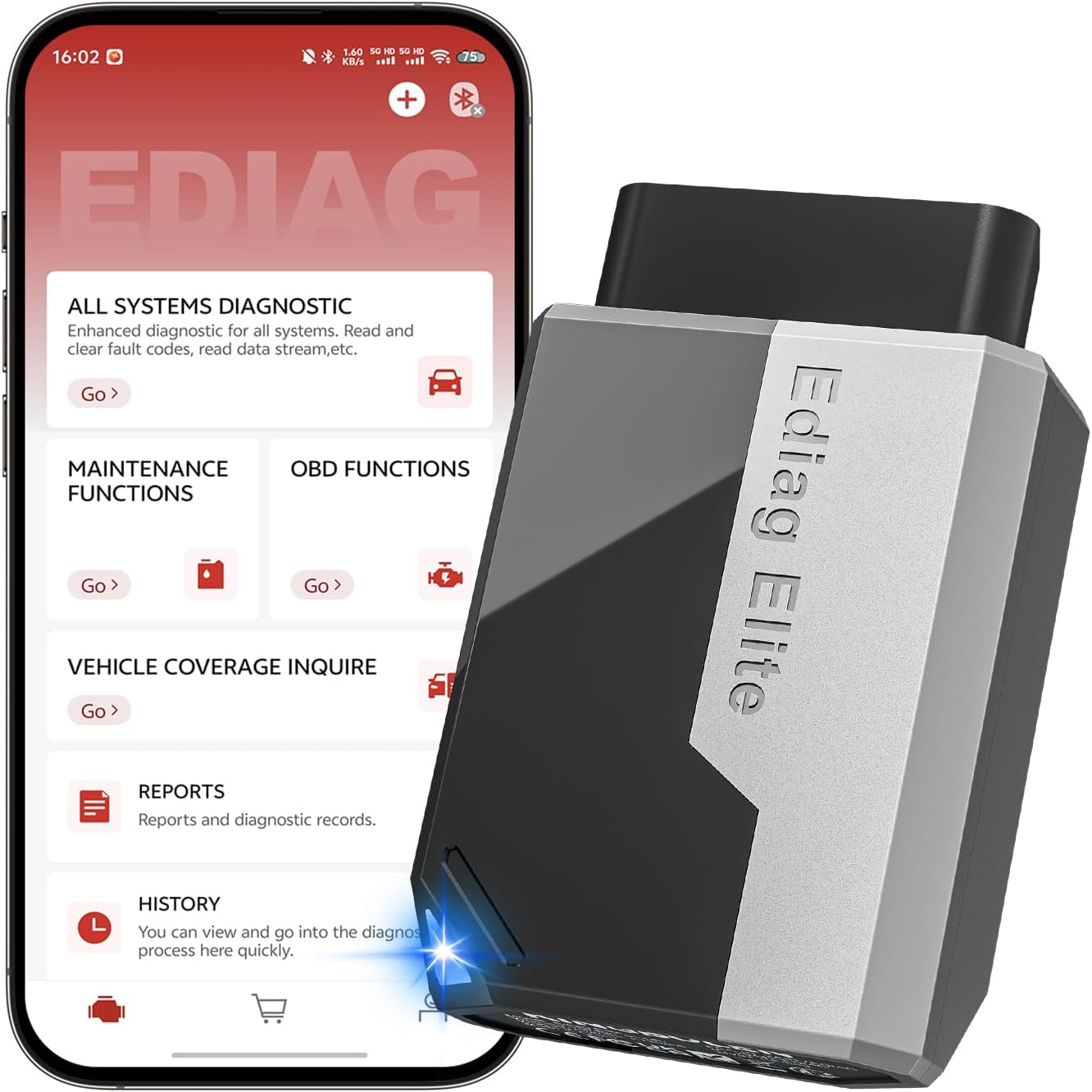
Image 1.1: The KINGBOLEN Ediag Elite scanner and its accompanying mobile application interface.
2. Product Features
The Ediag Elite scanner offers a range of advanced features for vehicle diagnostics and maintenance:
- Lifetime Free Updates: Ensures the software remains current without additional subscription fees.
- Full System Diagnostics: Capable of in-depth scanning of all available vehicle systems (e.g., Engine, ABS, SRS, Transmission, TPMS).
- 15+ Reset Services: Includes essential maintenance functions such as Oil Reset, ABS Bleeding, Injector Coding, SAS Reset, TPMS Reset, BMS Reset, AFS Reset, Sunroof Calibration, and Brake Reset.
- Bidirectional Control (Active Test): Allows sending commands to vehicle ECUs to test components directly.
- CANFD & FCA AutoAuth Support: Compatible with newer GM vehicles (CANFD) and provides access to protected functions on FCA vehicles (Chrysler, Dodge, Jeep, Alfa Romeo, Fiat) with an existing FCA account.
- Wireless Bluetooth 5.2 Connectivity: Provides stable and fast communication with your mobile device.
- Wide Vehicle Coverage: Supports over 150 global car brands manufactured after 1996.
- Multi-language Support: Operates in 22 global languages.
- 4-in-1 Data Stream: Visualizes real-time data in multiple formats for detailed analysis.

Image 2.1: Overview of the KINGBOLEN Ediag Elite's primary features.
3. Setup Guide
Follow these steps to set up your KINGBOLEN Ediag Elite scanner:
- Download the App: Scan the QR code provided in the product packaging or search for "Ediag" in the Apple App Store (for iOS) or Google Play Store (for Android) to download the official application.
- Create an Account and Register: Open the Ediag app. You will be prompted to create a user account and register your Ediag Elite device. Follow the on-screen instructions to complete this process.
- Connect to Vehicle: Locate your vehicle's OBD2 port, typically found under the dashboard on the driver's side. Plug the Ediag Elite scanner firmly into the OBD2 port. The device will power on automatically.
- Pair via Bluetooth: Ensure Bluetooth is enabled on your smartphone or tablet. Open the Ediag app, and it should automatically detect and connect to the Ediag Elite scanner.
- Download Vehicle Software: Within the app, you may need to download specific diagnostic software packages for your vehicle's make and model. This ensures comprehensive diagnostic capabilities.

Image 3.1: App download and connectivity overview for the Ediag Elite.
4. Operating Instructions
Once set up, the Ediag Elite provides various diagnostic and maintenance functions through its mobile application.
4.1 Full System Diagnostic
This function allows you to perform a comprehensive scan of all electronic control units (ECUs) in your vehicle. It can read and clear fault codes, display live data streams, and view freeze frame data for systems such as the Engine Control Module (ECM), Anti-lock Braking System (ABS), Supplemental Restraint System (SRS), Transmission Control Module (TCM), and more.

Image 4.1: Full system diagnostic capabilities and vehicle coverage.
4.2 15+ Reset Services
The scanner includes over 15 special reset and maintenance functions to address common service needs:
- Oil Reset: Resets the oil life reminder after an oil change.
- ABS Bleeding: Performs bleeding procedures for the anti-lock braking system.
- Injector Coding: Codes new injector numbers into the ECU.
- SAS Reset: Resets the steering angle sensor.
- TPMS Reset: Resets the Tire Pressure Monitoring System.
- BMS Reset: Resets the Battery Management System.
- AFS Reset: Resets the Adaptive Front-lighting System.
- Sunroof Calibration: Initializes the sunroof system.
- Brake Reset: Resets the electronic parking brake (EPB) system.
- Gearbox Learn: Adapts transmission control module.
- Throttle Calibration: Relearns throttle body position.

Image 4.2: Examples of the 15+ available reset and maintenance services.
4.3 Bidirectional Control (Active Test)
This advanced function allows you to send commands from the app to the vehicle's ECUs to activate or test specific components. For example, you can turn on the radiator fan, modulate the throttle, operate windows, or test fuel pump and valve functions. This helps in quickly identifying faulty components.

Image 4.3: Bidirectional control and active test capabilities.
4.4 Full OBD2 Modes
The Ediag Elite supports all 10 standard OBD2 test modes, enabling you to perform essential emission-related diagnostics:
- Read Codes: Retrieves generic (P0, P2, P3, U0) and manufacturer-specific (P1, P3, U1) codes.
- Clear Codes: Clears diagnostic trouble codes (DTCs) and turns off the Check Engine Light (MIL).
- Live Data Stream: Displays real-time data from vehicle sensors in text or graph format.
- Freeze Frame: Stores a snapshot of operating conditions at the time an emission-related fault occurred.
- Vehicle Information: Retrieves vehicle identification number (VIN), calibration ID (CALID), and calibration verification number (CVN).
- O2 Sensor Test: Retrieves O2 sensor monitor test results.
- EVAP System Test: Initiates a test of the evaporative emission system.
- DTC Lookup: Provides definitions for diagnostic trouble codes.
- On-Board Monitor Test: Retrieves results for emission-related powertrain components and systems.
- Smog Check (I/M Readiness): Checks the readiness of the emission monitoring systems.

Image 4.4: Overview of standard OBD2 diagnostic modes.
4.5 FCA AutoAuth & CANFD Compatibility
The Ediag Elite supports the CANFD protocol, enabling high-speed diagnostic communication and data transfer for GM vehicles produced after 2020. It also offers support for FCA Gateway Access, allowing you to perform protected functions on FCA vehicles (Chrysler, Dodge, Jeep, Alfa Romeo, Fiat) provided you have an active FCA account.

Image 4.5: FCA AutoAuth and CANFD protocol support.
4.6 Data Stream Monitoring
The device allows for efficient 4-in-1 data stream monitoring. You can view real-time performance data from your car in various formats, including graphs, numerical displays, and instrument gauges. The data recording feature allows for playback and further analysis.

Image 4.6: 4-in-1 data stream graphing and analysis features.
5. Maintenance
To ensure the longevity and optimal performance of your KINGBOLEN Ediag Elite scanner, follow these maintenance guidelines:
- Keep Clean: Wipe the device with a soft, dry cloth. Avoid using harsh chemicals or abrasive cleaners.
- Storage: Store the scanner in its protective case when not in use to prevent damage and keep the OBD2 connector pins clean.
- Software Updates: Regularly check the Ediag app for available software updates. The device offers lifetime free updates, which provide new features, bug fixes, and expanded vehicle coverage. Ensure your device is connected to the internet via your smartphone during updates.
- Avoid Extreme Conditions: Do not expose the device to extreme temperatures, direct sunlight for prolonged periods, or excessive moisture.

Image 5.1: Lifetime update benefits for the Ediag Elite.
6. Troubleshooting
If you encounter issues while using your Ediag Elite scanner, consider the following common solutions:
- Device Not Powering On: Ensure the scanner is firmly plugged into the vehicle's OBD2 port. Verify the vehicle's ignition is on (or in the accessory position, depending on the vehicle).
- Bluetooth Connection Issues: Make sure Bluetooth is enabled on your smartphone/tablet. Close and reopen the Ediag app. If the issue persists, try restarting your mobile device and the vehicle.
- Unable to Connect to Vehicle ECU: Confirm the vehicle's ignition is on. Ensure you have downloaded the correct diagnostic software package for your specific vehicle make and model within the app. Some older vehicles may have communication protocols that are slower to establish a connection.
- App Functionality Problems: Ensure your Ediag app is updated to the latest version. Clear the app's cache or reinstall the app if necessary.
- Inaccurate Readings/Codes: Verify that the vehicle's VIN was correctly identified by the AutoVIN function. If manually entered, double-check the VIN. Ensure the diagnostic software for your vehicle is up-to-date.
- FCA AutoAuth Access: Remember that FCA AutoAuth requires an active, separate account. The Ediag Elite provides the gateway access, but the account itself must be managed independently.
If these steps do not resolve the issue, please refer to the support section for further assistance.
7. Specifications
| Specification | Detail |
|---|---|
| Model Number | KBLJ05 |
| Item Weight | 6 ounces |
| Package Dimensions | 4.21 x 3.19 x 1.65 inches |
| Connectivity | Bluetooth 5.2 |
| Operating System Compatibility | Android 5.0 and iOS 9.0 or higher |
| Vehicle Coverage | 150+ global brands, vehicles after 1996 |
| Update Policy | Lifetime Free Updates |
8. Warranty and Support
The KINGBOLEN Ediag Elite Bluetooth OBD2 Scanner comes with lifetime free software updates, ensuring continuous improvement and expanded vehicle compatibility. For technical support, troubleshooting assistance, or warranty inquiries, please refer to the contact information provided with your product packaging or visit the official KINGBOLEN website.
Always ensure you are using the latest version of the Ediag application for optimal performance and access to the most current features and vehicle data.


