1. Introduction
The GEEKOM GT1 Mega AI Mini PC is a compact, high-performance computing solution designed for a wide range of tasks, from daily productivity to demanding creative work and gaming. Powered by the Intel 14th Gen Core Ultra 9 185H processor and Intel Arc Graphics, it offers advanced features for efficiency and versatility. This manual provides essential information for setting up, operating, maintaining, and troubleshooting your device.

Figure 1: GEEKOM GT1 Mega AI Mini PC
2. What's in the Box
Verify that all items are present in the package:
- 1 x GT1 Mega Mini PC
- 1 x Power Adapter
- 1 x HDMI Cable
- 1 x VESA Mount and Screws
- 1 x User Manual

Figure 2: Package Contents
3. Product Overview
3.1 Front Panel

Figure 3: Front Panel
- USB 3.2 Gen2 Type-A Ports (x4): For connecting peripherals such as keyboards, mice, and external storage. One port supports 'Always On' functionality.
- 3.5mm Stereo Headset Jack: For audio output to headphones or speakers.
- Power Button: To power on/off or put the device to sleep.
3.2 Rear Panel
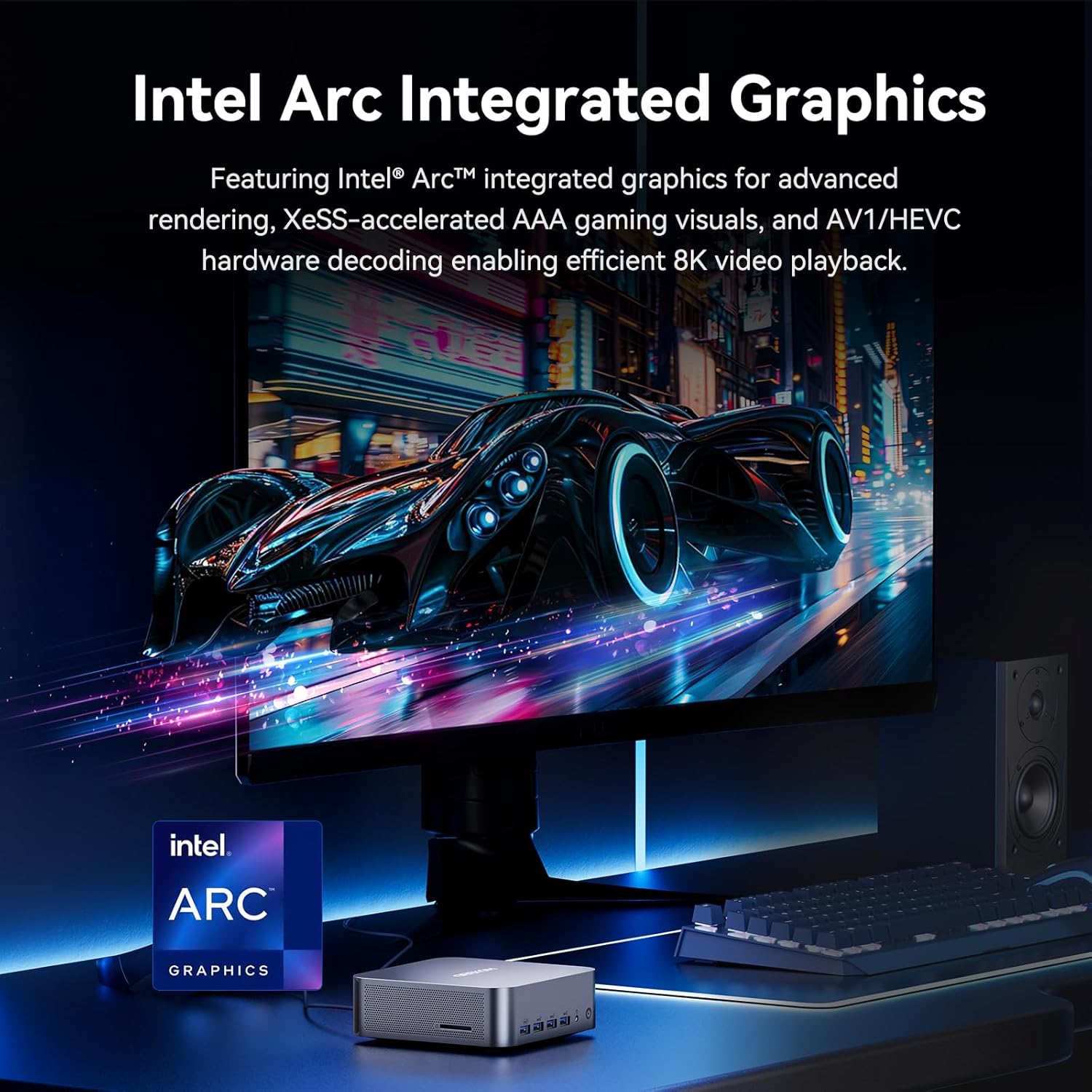
Figure 4: Rear Panel
- DC-in Port: Connects to the power adapter.
- HDMI 2.0 Ports (x2): For connecting displays.
- RJ45 2.5 Gbps Ethernet Ports (x2): For wired network connection, supporting link aggregation.
- USB 3.2 Gen2 Type-A Port (x1): For connecting peripherals.
- USB 2.0 Type-A Port (x1): For connecting peripherals.
- USB4 Ports (x2): Supports ultra-high-speed data transfer (up to 40Gbps), 8K display output, and power delivery (PD3.0 up to 15W). One port supports Power On (adapter in).
- SD Card Reader: For inserting SD 4.0 cards (up to 1TB).
- Kensington Lock Slot: For security locking.

Figure 5: All-in-One Connectivity Hub
4. Setup
4.1 Initial Connection
- Connect your monitor(s) to the HDMI 2.0 or USB4 ports using appropriate cables.
- Connect your keyboard and mouse to the USB-A ports.
- Connect the power adapter to the DC-in port on the rear panel and then plug it into a power outlet.
- Press the power button on the front panel to turn on the Mini PC.
4.2 Operating System Setup
The GEEKOM GT1 Mega comes with Windows 11 Pro preinstalled. Follow the on-screen instructions to complete the initial Windows setup, including language, region, network connection, and user account creation.
Video 1: GEEKOM GT1 Mega Mini PC in an office setting, demonstrating quick setup and AI assistant features. This video highlights the ease of use and productivity benefits of the mini PC.
5. Operating Your Mini PC
5.1 Performance Modes
The GT1 Mega offers adjustable performance modes to suit your workload. These modes can be configured in the BIOS settings:
- Silent Mode (35W): Optimized for quiet operation and light tasks.
- Normal Mode (Default, 54W): Balanced performance for everyday use.
- Performance Mode (Maximum 65W): Delivers full power for demanding applications and gaming.

Figure 6: Performance Modes
5.2 AI Performance
The integrated Intel AI Boost NPU supports over 500 AI models, accelerating heavy workloads and boosting productivity in AI-driven applications. The Intel Arc graphics also feature AI-enhanced graphics and Intel XeSS technology for improved visual performance.

Figure 7: AI PC Computing Powerhouse

Figure 8: Dedicated AI Chip (NPU)
6. Storage and Memory
The GEEKOM GT1 Mega is designed for speed and flexibility in storage and memory configurations.
- RAM: Comes with 32GB DDR5 RAM, upgradable up to 128GB (via SODIMMs).
- Primary Storage: Features an M.2 2280 NVMe PCIe Gen4 x4 slot, supporting up to 4TB SSDs (backward compatible with Gen3/SATA III).
- Secondary Storage: Includes an M.2 2242 SATA III slot, supporting up to 2TB SSDs.
- Expandable Storage: An SD 4.0 card reader supports up to 1TB for easy expansion.

Figure 9: Performance-Optimized Storage
7. Connectivity
The GT1 Mega offers robust and high-speed connectivity options:
- Wired Network: Dual 2.5G Ethernet ports with link aggregation for increased bandwidth and reliability.
- Wireless Network: Cutting-edge WiFi 7 for blazing-fast wireless speeds and stable connections.
- Bluetooth: Bluetooth 5.4 for effortless connection to wireless accessories.
- USB4: Two advanced USB4 ports provide ultra-high-speed data transfer (up to 40Gbps), 8K display output, and power delivery.

Figure 10: Ultra-Fast Connectivity
8. Multi-Monitor Setup
The GEEKOM GT1 Mega supports a massive quad-monitor workspace, enhancing productivity and immersive experiences:
- Supports dual 8K displays via USB4 ports.
- Supports dual 4K@120Hz displays via HDMI 2.0 ports.
- Total of four displays can be connected simultaneously.

Figure 11: Quad Display Support
Video 2: Demonstrates the Intel Arc Graphics capabilities for gaming and creative work, including ray tracing and XeSS technology. This video highlights the visual performance of the mini PC.
9. Cooling System
The GEEKOM GT1 Mega features the advanced IceBlast 2.0 cooling system, designed for efficient heat dissipation and quiet operation:
- Upgraded heat pipes and a larger fan for enhanced cooling performance.
- Up to 40% quieter operation compared to previous models.
- Fan speed can be adjusted via BIOS and system settings.

Figure 12: IceBlast 2.0 Heat Dissipation System
Video 3: Shows the newly upgraded IceBlast 2.0 Cooling System in action, emphasizing its efficiency.
10. Specifications
| Feature | Specification |
|---|---|
| Processor | Intel Core Ultra 9 185H (16 Cores, 22 Threads, up to 5.1GHz) |
| Graphics | Intel Arc Graphics (8 Xe-cores at 2.35GHz, DirectX 12 Ultimate, XeSS) |
| RAM | 32GB DDR5 (upgradable to 128GB) |
| Storage | 1TB NVMe PCIe Gen4 x4 SSD (up to 4TB), M.2 2242 SATA III slot (up to 2TB) |
| Operating System | Windows 11 Pro |
| Wireless Connectivity | WiFi 7, Bluetooth 5.4 |
| Ethernet | Dual 2.5G LAN |
| Display Output | 2x HDMI 2.0 (4K@60Hz), 2x USB4 (8K@30Hz) - Quad Display Support |
| USB Ports | 4x USB 3.2 Gen2 Type-A, 1x USB 2.0 Type-A, 2x USB4 |
| Card Reader | SD 4.0 (up to 1TB) |
| Cooling System | IceBlast 2.0 |
| Dimensions (LxWxH) | 8.94 x 6.92 x 5.27 inches |
| Weight | 3.56 pounds |
11. Troubleshooting
11.1 No Power
- Ensure the power adapter is securely connected to the Mini PC and a working power outlet.
- Verify the power outlet is functional by plugging in another device.
- Try a different power outlet if available.
11.2 No Display
- Check that the monitor is powered on and the correct input source is selected.
- Ensure display cables (HDMI, USB4) are securely connected to both the Mini PC and the monitor.
- Try connecting to a different display port on the Mini PC or using a different cable.
11.3 Slow Performance
- Check Task Manager (Ctrl+Shift+Esc) for high CPU, RAM, or disk usage by specific applications. Close unnecessary programs.
- Ensure the Mini PC is in an appropriate performance mode (Normal or Performance) for your tasks. Adjust in BIOS if needed.
- Verify that the cooling system is not obstructed and the fan is operating correctly.
12. Maintenance
12.1 Cleaning
- Regularly clean the exterior of the Mini PC with a soft, dry cloth.
- Use compressed air to clear dust from ventilation grilles and ports to maintain optimal airflow.
12.2 Software Updates
- Keep your Windows 11 Pro operating system updated to ensure the latest security patches and performance improvements.
- Regularly check for driver updates for Intel components (graphics, chipset) from the GEEKOM website or Intel's official support pages.
13. Warranty and Support
The GEEKOM GT1 Mega is backed by a 3-year limited warranty from the date of purchase, covering defects in materials and workmanship. This commitment reflects GEEKOM's confidence in the product's quality and durability.
13.1 Contact Support
For extended support or any inquiries, please contact the GEEKOM Technical Team:
- Via Amazon Messages (for purchases made on Amazon).
- Refer to the user manual or the back of the product box for additional contact information.
Video 4: A brand story video celebrating GEEKOM's 22nd anniversary, highlighting their dedication to innovation and quality in mini PCs.


