1. Introduction
This manual provides detailed instructions for the setup, operation, and maintenance of your LEMEGA M5P Internet Radio with CD Player. Please read this manual thoroughly before using the device to ensure proper functionality and to maximize your listening experience.
2. What's in the Box
Verify that all components are present in the package:
- 1 x LEMEGA M5P Stereo System
- 1 x Remote Control
- 1 x Mains Power Cable
- 1 x User Manual (this document)

Image: Package contents of the LEMEGA M5P, showing the main unit, remote, power cable, and manual.
3. Product Overview
3.1 Front Panel and Controls

Image: Front view of the LEMEGA M5P unit, highlighting the display, CD slot, and main control knob.
- Display Screen: Shows station information, track details, and menu options.
- CD Slot: For inserting audio CDs.
- Control Knob: Multi-function knob for navigation, volume, and selection.
- Speakers: Integrated stereo speakers.
- Headphone Jack: For private listening.
3.2 Rear Panel and Connections

Image: Rear panel of the LEMEGA M5P, detailing the various input and output ports.
- Power Input: Connect the provided mains power cable.
- USB Port: For MP3 playback from USB storage devices.
- AUX Input: Connect external audio sources via a 3.5mm cable.
- Line Out (RCA): Connect to external amplifiers or powered speakers.
- Antenna Connection: For FM radio reception.
3.3 Key Technologies

Image: The Frontier Venice X chipset, which powers the unit's advanced features like Wi-Fi Internet Radio and Spotify HiFi.
The LEMEGA M5P is powered by the advanced Frontier Venice X chipset, enabling robust Wi-Fi Internet Radio, Spotify HiFi, and Podcast Player functionalities, along with exclusive OKTIV App control.
4. Setup
4.1 Initial Power-Up
- Connect the mains power cable to the Power Input on the rear of the unit.
- Plug the power cable into a wall outlet.
- Extend the FM antenna for optimal reception.
- The unit will power on and guide you through the initial setup wizard.
4.2 Network Connection (Wi-Fi)
To access Internet Radio and Spotify, a Wi-Fi connection is required.
- During the initial setup, select "Wi-Fi Setup".
- The device will scan for available Wi-Fi networks.
- Select your network from the list.
- Enter your Wi-Fi password using the control knob and display.
- Confirm the connection. Once connected, the Wi-Fi icon will appear on the display.
5. Operating Instructions
5.1 Basic Operation
- Power On/Off: Press and hold the main control knob.
- Volume Control: Rotate the main control knob.
- Menu Navigation: Rotate the control knob to scroll, press to select.
- Remote Control: Use the provided remote for convenient operation.
5.2 Internet Radio
Access thousands of global digital radio stations via Wi-Fi.
- Select "Internet Radio" from the main menu.
- Browse stations by location, genre, or search by name.
- Select a station to begin playback.
- To save a station as a preset, refer to the "Presets" section.
5.3 FM Radio
Tune into local FM broadcasts.
- Select "FM Radio" from the main menu.
- Use the control knob to manually tune or perform an auto-scan for available stations.
- Ensure the antenna is fully extended for best reception.
5.4 CD Player
Play audio CDs from your collection.
- Select "CD Player" from the main menu.
- Gently insert an audio CD into the CD slot with the label facing up. The unit will automatically load the CD.
- Playback will begin automatically or you can select tracks from the display.

Image: The LEMEGA M5P unit with a CD being inserted into its front-loading slot.
5.5 Bluetooth Connectivity
Stream audio wirelessly from your smartphone or other Bluetooth-enabled devices.
- Select "Bluetooth" from the main menu. The unit will enter pairing mode.
- On your external device, enable Bluetooth and search for "LEMEGA M5P".
- Select the device to pair. Once connected, you can stream audio.
- The M5P also supports Bluetooth headphone connection for personal listening.
5.6 Spotify HiFi
Connect your Spotify account for high-fidelity audio streaming.
- Select "Spotify" from the main menu.
- Follow the on-screen instructions to link your Spotify account. This typically involves using the Spotify app on your phone or tablet.
- Once linked, you can browse and play your Spotify library directly from the M5P.

Image: The LEMEGA M5P display showing Spotify playback, with a smartphone nearby illustrating the OKTIV app control.
5.7 Podcast Player
Listen to your favorite podcasts with bookmarking features.
- Select "Podcasts" from the main menu.
- Browse or search for podcasts.
- The player includes features to bookmark episodes and follow shows.
5.8 USB Playback
Play MP3 audio files from a USB storage device.
- Insert a USB drive containing MP3 files into the USB port on the rear panel.
- Select "USB" from the main menu.
- Navigate through your files and select an MP3 to play.
5.9 AUX Input
Connect external audio devices using a 3.5mm audio cable.
- Connect your external audio device to the AUX Input on the rear panel.
- Select "AUX" from the main menu.
- Control playback from your external device.
5.10 OKTIV App Control
Control your M5P wirelessly using the OKTIV app on your smartphone or tablet.
- Download the "OKTIV" app from your device's app store.
- Ensure your smartphone/tablet is connected to the same Wi-Fi network as your M5P.
- Open the app and follow the instructions to connect to your M5P.
- The app allows control of all settings, modes, presets, and music library.

Image: A smartphone showing the OKTIV app, demonstrating remote control capabilities for the LEMEGA M5P.
5.11 Presets
Save up to 50 radio stations or podcast episodes for quick access.
- While listening to a station or podcast, press and hold the "Preset" button on the remote or unit.
- Select an empty preset slot to save.
- To recall a preset, press the "Preset" button and select the desired saved item.
6. Maintenance
6.1 Cleaning
- Always unplug the unit from the power outlet before cleaning.
- Use a soft, dry cloth to wipe the exterior surfaces.
- Do not use abrasive cleaners, waxes, or solvents as they may damage the finish.
- For the CD slot, use a specialized CD lens cleaner if playback issues occur.
6.2 Storage
If storing the unit for an extended period, ensure it is unplugged and kept in a cool, dry place away from direct sunlight and extreme temperatures.
7. Troubleshooting
| Problem | Possible Cause | Solution |
|---|---|---|
| No power | Power cable not connected; Power outlet not active. | Ensure power cable is securely connected and the outlet is functional. |
| No sound | Volume too low; Mute activated; Incorrect source selected. | Increase volume; Deactivate mute; Select the correct input source (e.g., Internet Radio, CD, Bluetooth). |
| Cannot connect to Wi-Fi | Incorrect password; Router issues; Out of range. | Verify Wi-Fi password; Restart your router; Move the unit closer to the router. |
| CD not playing | CD inserted incorrectly; CD is scratched/damaged; Non-audio CD. | Re-insert CD correctly (label up); Try a different CD; Ensure it is an audio CD. |
| Poor FM reception | Antenna not extended; Weak signal. | Fully extend the FM antenna; Reposition the unit for better signal. |
| Remote control not working | Batteries depleted; Obstruction between remote and unit. | Replace remote batteries; Ensure clear line of sight to the unit's sensor. |
8. Specifications
| Feature | Detail |
|---|---|
| Model | M5P |
| Brand | LEMEGA |
| Product Dimensions | 11.99"L x 9"W x 5"H (30.45 cm x 22.86 cm x 12.7 cm) |
| Item Weight | 12 pounds (5.44 kg) |
| Speaker Output Power | 135 Watts (2.1 Stereo System with built-in subwoofer) |
| Connectivity Technology | Wi-Fi, Bluetooth |
| Tuner Technology | Internet Radio, FM Radio |
| Special Features | CD Player, Spotify HiFi, Podcast Player, OKTIV App Control, 50 Presets, USB Playback (MP3), AUX Input, Line Out (RCA), Headphone Jack, Built-In Clock |
| Display | 2.8" Full Color Display |
| Voltage | 100 Volts |
| Compatible Devices | Smartphone, Tablet |
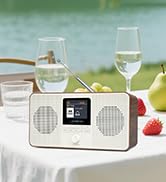
Image: Dimensional drawing of the LEMEGA M5P, indicating its width, depth, and height.
9. Warranty and Support
LEMEGA products are designed for reliability and performance. For warranty information and technical support, please refer to the official LEMEGA website or contact their customer service directly.
- Official Website: www.lemegaaudio.com
- Customer Service: Refer to the contact information provided on the official website or in your product packaging.
Please retain your proof of purchase for warranty claims.


