
Introduction
Thank you for choosing the Womier VK66 PRO Green Mechanical Gaming Keyboard. This 60% layout keyboard is designed for optimal desk space utilization while retaining essential functionality. It features a gasket-mounted design, hot-swappable switches, QMK/VIA programmability, and customizable RGB backlighting. This manual provides detailed instructions for setup, operation, maintenance, and troubleshooting to ensure you get the most out of your keyboard.
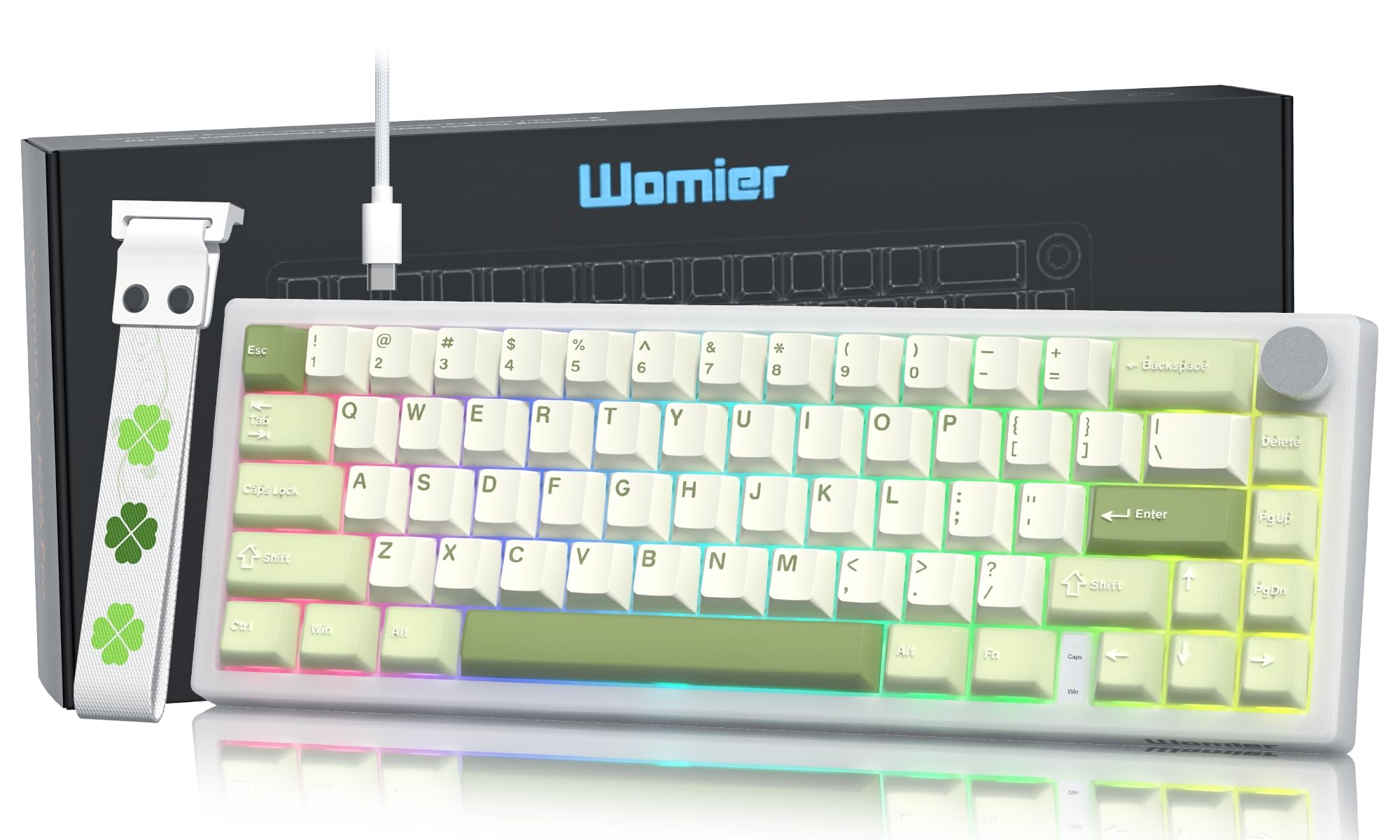
The Womier VK66 PRO Green Mechanical Gaming Keyboard, showcasing its compact 60% layout and vibrant green keycaps.
Package Contents
Before you begin, please verify that all items are present in your package:
- 1 x VK66 PRO Keyboard
- 1 x USB-A to USB Type-C Cable
- 1 x 2-in-1 Keycap & Switch Puller
- 1 x User Manual
- 3 x Extra POM Switches

An overview of the items included in the Womier VK66 PRO keyboard package.
Setup Instructions
- Connect the Keyboard: Use the provided USB Type-C cable to connect the keyboard to an available USB port on your computer (Laptop or PC). The keyboard is plug-and-play and should be recognized automatically by your operating system (macOS, Windows, or Linux).
- Adjust Keyboard Feet: The keyboard features a 2-stage kickstand design. Adjust the feet on the underside of the keyboard to your preferred typing angle for ergonomic comfort.
- Attach Keyboard Strap (Optional): The detachable keyboard strap can be installed or removed based on your preference. Note that the strap is primarily for aesthetic purposes and should not be used to carry the keyboard due to its adhesive attachment.

The Womier VK66 PRO keyboard connected to a computer via its USB-C cable.
Operating Instructions
Multimedia Control Knob
The metal control knob located on the top right of the keyboard provides convenient multimedia control:
- Rotate Clockwise: Increase volume.
- Rotate Counter-clockwise: Decrease volume.
- Short Press: Mute/unmute audio.
RGB Backlighting
The keyboard features dynamic 16.8 million-color RGB backlighting with various effects. Specific key combinations for changing lighting modes and brightness are typically detailed in the included user manual or can be customized via VIA software.
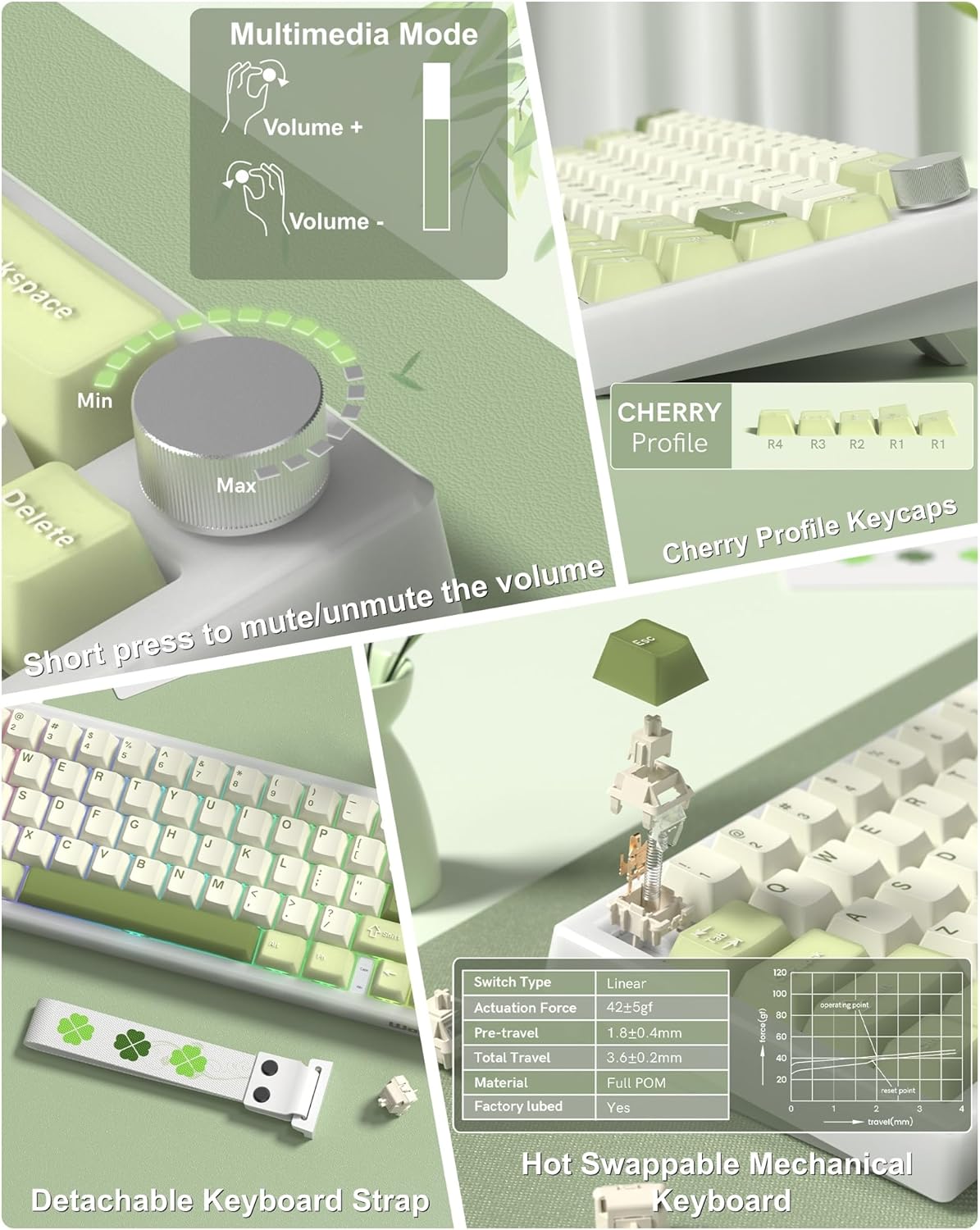
Close-up view of the multimedia control knob and PBT keycaps on the Womier VK66 PRO keyboard.

Various RGB backlighting effects displayed on the Womier VK66 PRO keyboard.
Customization with QMK/VIA
The Womier VK66 PRO keyboard supports QMK/VIA open-source software, allowing extensive customization of key layouts, macros, and lighting effects across macOS, Windows, and Linux systems.
Accessing VIA Software
- Download the VIA software from the official Womier website or the VIA GitHub repository.
- Since the VK66 PRO does not have native VIA compatibility, you will need to download the specific .JSON keymap file for your keyboard model from the Womier website.
- Launch the VIA software (desktop application or web version).
- Navigate to the 'Design' tab within VIA and use the 'Upload' button to load the downloaded .JSON file for your VK66 PRO keyboard.
- Once loaded, you can remap keys, create macros, and adjust RGB lighting settings. Changes are applied in real-time to the keyboard.

The Womier VK66 PRO keyboard shown with an overlay of the QMK/VIA customization software interface.

A visual representation of the QMK/VIA software interface, highlighting options for key redefinition, macro editing, and RGB backlight adjustments.
Hot-Swappable Switches
The VK66 PRO keyboard is equipped with a hot-swappable PCB, allowing for easy replacement of 3-pin and 5-pin mechanical switches without soldering. This feature enables users to customize their typing experience with different switch types.
Replacing Switches
- Remove Keycap: Use the provided keycap puller to gently remove the desired keycap.
- Remove Switch: Use the switch puller to carefully grip the switch and pull it straight up from the PCB. Avoid wiggling to prevent damage to the switch pins or PCB socket.
- Insert New Switch: Align the pins of the new switch with the holes on the PCB. Press the switch firmly until it clicks into place. Ensure the pins are straight before insertion to prevent bending.
- Replace Keycap: Place the keycap back onto the new switch stem.
The keyboard comes with pre-lubed POM linear switches, known for their smooth and consistent keystrokes and an 80 million keystroke lifespan.

A detailed view of the hot-swappable switches and PBT keycaps on the Womier VK66 PRO keyboard.
The hot-swappable feature of the Womier VK66 PRO, demonstrating the ease of switch replacement with a switch puller.
Gasket Mount Design
The VK66 PRO utilizes a gasket-mounted structure with multiple layers of sound-dampening material between the PCB, positioning plate, and switches. This design enhances typing feel by providing a softer, more elastic keypress and significantly reduces acoustic resonance for a quieter typing experience.

An exploded view illustrating the multi-layer gasket-mounted structure of the Womier VK66 PRO keyboard.

The Womier VK66 PRO highlighting its gasket-mounted design, which optimizes elasticity and stability for a softer typing feel.
Maintenance
- Cleaning: Regularly clean the keyboard with a soft, dry cloth. For deeper cleaning, remove keycaps using the provided puller and use compressed air to clear debris from between switches.
- Keycap Care: The PBT keycaps are durable. Avoid using harsh chemicals for cleaning. A damp cloth with mild soap and water can be used if necessary, ensuring keycaps are completely dry before reattaching.
- Switch Longevity: While switches have an 80 million keystroke lifespan, proper handling during hot-swapping will prevent damage to the switch pins and PCB sockets.
Troubleshooting
- Keyboard Not Responding:
- Ensure the USB-C cable is securely connected to both the keyboard and the computer. Try a different USB port or cable. Restart your computer.
- RGB Lights Not Working/Incorrect:
- Check if the lighting is turned off or set to a very low brightness. Use the keyboard's built-in lighting controls (if any) or the VIA software to adjust settings. Ensure the VIA .JSON file is correctly loaded.
- Specific Keys Not Working:
- If a single key is not responding, the switch might be faulty or not seated correctly. Use the switch puller to remove and re-insert the switch. If the issue persists, try replacing it with one of the extra POM switches provided.
- VIA Software Not Detecting Keyboard:
- Ensure the keyboard is connected and recognized by your operating system. Verify that you have downloaded and loaded the correct .JSON file for the VK66 PRO model in the VIA software's 'Design' tab.
Specifications
| Feature | Detail |
|---|---|
| Brand | Womier |
| Model Name | V-K66PRO |
| Model Number | TC-VK66PRO-Green |
| Connectivity Technology | USB-C (Wired) |
| Keyboard Description | Wired Mechanical Gaming Keyboard |
| Number of Keys | 67 |
| Switch Type | Mechanical (POM Linear) |
| Special Features | Backlit (RGB), Control Knob, Hot-Swappable, Keyboard Strap, QMK/VIA Programmable, Gasket Mount |
| Material | Plastic, PBT (Keycaps), POM (Switches) |
| Color | Green |
| Compatible Devices | Laptop, PC |
| Power Source | USB Powered |
| Keyboard Layout | QWERTY |
Warranty and Support
Warranty Information
The Womier VK66 PRO keyboard comes with a 1-year warranty from the date of purchase. This warranty covers manufacturing defects under normal use. Please retain your proof of purchase for warranty claims.
Customer Support
For technical assistance, troubleshooting, or warranty inquiries, please contact Womier customer support through the seller's contact information on the platform where the product was purchased, or visit the official Womier website for support resources.


