
LEFFOT 2GB/16GB
LEFFOT RK3518 Android 14.0 TV Box User Manual
Model: 2GB/16GB | Brand: LEFFOT
1. Introduction
Thank you for choosing the LEFFOT RK3518 Android 14.0 TV Box. This device transforms your television into a smart entertainment hub, offering 4K Ultra HD streaming, access to a vast array of applications, and seamless connectivity. This manual provides detailed instructions to help you set up, operate, and maintain your new TV box, ensuring an optimal user experience.
2. What's in the Box
Please check the contents of your package to ensure all items are present:
- LEFFOT RK3518 Android TV Box
- BT Voice Remote Control
- HDMI Cable
- Power Adapter
- User Manual (this document)

Image: The LEFFOT RK3518 Android TV Box and its accompanying voice remote control, showcasing the compact design of the main unit and the ergonomic layout of the remote.
3. Product Overview and Features
The LEFFOT RK3518 TV Box is designed for high-performance media consumption. Key features include:
- Ultra HD 4K Streaming: Supports 4K@60fps resolution with HDR10 for vibrant colors and sharp details.
- Powerful Quad-Core Performance: Equipped with RK3518 Quad-Core ARM Cortex-A53 CPU and Mali-450 GPU for smooth streaming and gaming.
- Dual-Band WiFi 6 & Ethernet: Features 2.4G/5G WiFi 6 (802.11ax) and a 100M Ethernet port for stable, high-speed network connectivity.
- Voice Remote with BT 5.4: Control your TV effortlessly using Google Assistant voice commands.
- 2GB RAM & 16GB Storage: Ample memory for multitasking and internal storage for apps and content.
- Latest Android 14 OS: Access to Google Play Store for thousands of apps.
- Wireless Screen Mirroring: Supports AirPlay, DLNA, and WiFiDisplay for casting content from your phone.
- Versatile Connectivity: Includes USB 2.0/3.0, HDMI 4K, TF card slot (up to 64GB), AV audio, and BT 5.4.
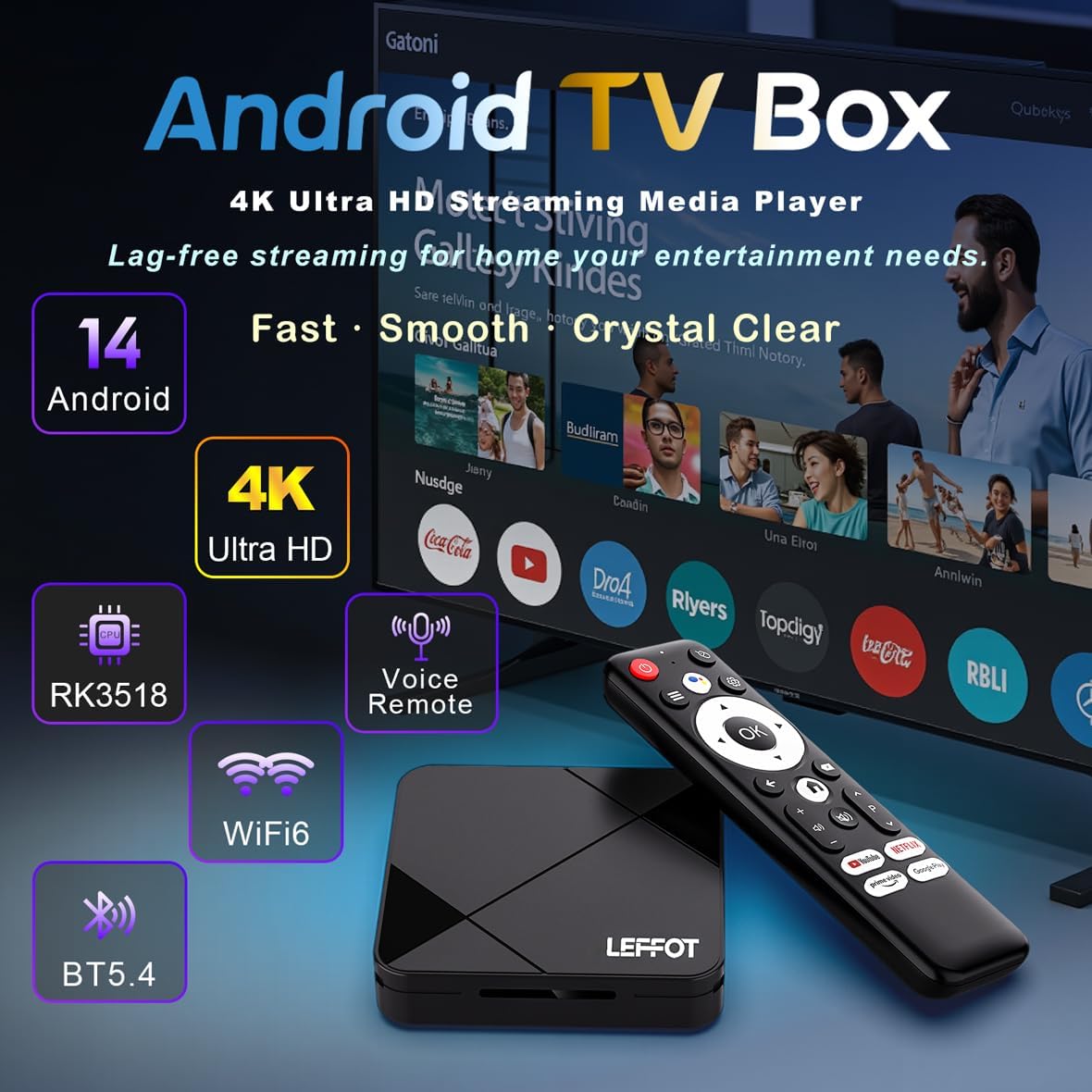
Image: An overview graphic highlighting the key features of the Android TV Box, including Android 14, 4K Ultra HD, RK3518 processor, Voice Remote, WiFi 6, and BT 5.4.

Image: A visual representation emphasizing the 4K Ultra HD decoding capabilities and HDR10 support, showing a vibrant image on a TV screen with the TV box and remote in the foreground.

Image: Demonstrates the convenience of the Bluetooth voice remote, showing a user interacting with the Google Assistant button to issue voice commands for navigation and content search.
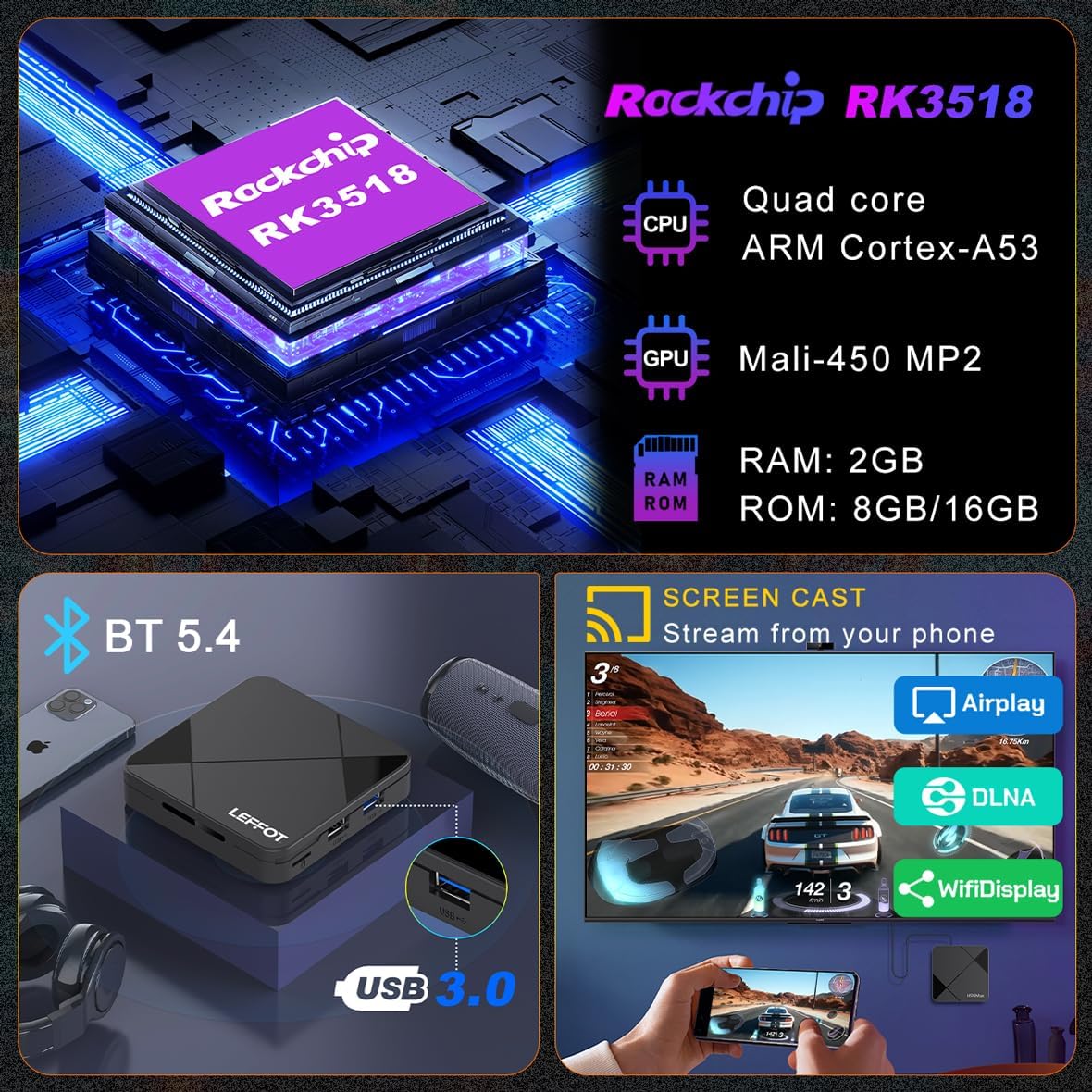
Image: Details the internal components like the Rockchip RK3518 CPU and Mali-450 GPU, along with external features such as BT 5.4, USB 3.0 port, and screen casting capabilities (Airplay, DLNA, WiFiDisplay).

Image: Highlights the advanced network connectivity options, including 2.4G and 5G dual-band WiFi 6 for faster speeds and lower latency, and a 100M Ethernet port for wired connections.

Image: A diagram illustrating the compact dimensions of the TV box (90mm x 90mm x 18.8mm) and labeling its various interface ports, including TF card slot, USB, USB 3.0, AV, HD (HDMI), Ethernet, and DC power input.
4. Setup Guide
4.1 Connecting Your TV Box
- Connect HDMI Cable: Insert one end of the HDMI cable into the HDMI port on the TV box and the other end into an available HDMI input on your television. Note the HDMI input number (e.g., HDMI 1, HDMI 2).
- Connect Power Adapter: Plug the DC power adapter into the 'DC 5V' port on the TV box, then plug the other end into a wall outlet.
- Connect to Network (Optional): For a wired connection, connect an Ethernet cable from your router to the 'Ethernet' port on the TV box. For Wi-Fi, you will configure this after initial power on.
- Connect USB Devices (Optional): You can connect USB storage devices, keyboards, or mice to the USB 2.0 or USB 3.0 ports.
4.2 Initial Power On
- Turn on your television and select the correct HDMI input source using your TV remote.
- The TV box will automatically power on and display the LEFFOT logo, followed by the Android boot animation.
- Follow the on-screen prompts for initial setup, including language selection, time zone, and network configuration (if not using wired Ethernet).
4.3 Remote Control Pairing
The included BT Voice Remote Control typically pairs automatically. If it does not, or if you experience issues:
- Ensure the remote has fresh batteries.
- Go to the Android TV Box settings menu (usually represented by a gear icon).
- Navigate to 'Connected devices' or 'Bluetooth & devices'.
- Select 'Add accessory' or 'Pair new device'.
- Follow the on-screen instructions, which may involve holding down specific buttons on the remote (e.g., 'OK' and 'Volume Down') until it appears in the list of discoverable devices. Select it to complete pairing.
5. Operating Instructions
5.1 Navigating the Interface
- Use the directional pad (up, down, left, right) on the remote to move between icons and options.
- Press the 'OK' button to select an item or confirm an action.
- The 'Back' button returns to the previous screen.
- The 'Home' button takes you directly to the main Android TV home screen.
5.2 Using Voice Remote
The voice remote allows for hands-free control:
- Press the 'Google Assistant' button (microphone icon) on the remote.
- Speak clearly into the remote's microphone. You can ask it to:
- "Open Netflix"
- "Search for action movies"
- "Play [song name] on YouTube"
- "What's the weather like?"
5.3 Screen Mirroring
The TV box supports AirPlay, DLNA, and WiFiDisplay for casting content from your mobile devices:
- Ensure your mobile device and the TV box are connected to the same Wi-Fi network.
- On your mobile device, open the content you wish to cast (e.g., photos, videos, music).
- Look for the casting icon (often a rectangle with a Wi-Fi symbol or an upward arrow) within the app.
- Select your TV box from the list of available devices.
5.4 Installing Applications
Access the Google Play Store from the home screen to download and install your favorite streaming apps, games, and utilities.
- Navigate to the 'Google Play Store' icon and press 'OK'.
- Use the search function or browse categories to find apps.
- Select an app and choose 'Install'.
- Once installed, the app will appear on your home screen or in the 'Apps' section.
6. Specifications
Detailed technical specifications for the LEFFOT RK3518 Android TV Box:
| Feature | Description |
|---|---|
| Product Name | RK3518 Android TV Box |
| CPU | RK3518 Quad Core ARM Cortex A53 |
| GPU | Mali-450 |
| Operating System | Android 14.0 |
| RAM | 2GB |
| ROM | 16GB |
| Wi-Fi | 2.4G & 5G Dual Band WiFi6 IEEE 802.11 a/b/g/n/ac/ax |
| Bluetooth | BT 5.4 |
| Image Support | HD JPEG, BMP, GIF, PNG, TIF |
| Audio Support | MP3, AAC, WMA, RM, FLAC |
| Screen Mirroring | DLNA, Airplay, WiFi Display |
| Interfaces | HDMI, USB 2.0, USB 3.0, TF Card Slot, AV, Ethernet, DC Power |
| Video Decoders | H.264/AVC, H.265/HEVC, AVS2, MPEG-1/2/4, AVS, VC-1 |
| Resolution | Up to 4Kx2K @ 60fps |
| Product Dimensions | 3.54 x 3.54 x 0.74 inches (90 x 90 x 18.8 mm) |
| Item Weight | 3.28 ounces |
7. Maintenance
To ensure the longevity and optimal performance of your TV box, follow these maintenance guidelines:
- Cleaning: Use a soft, dry cloth to wipe the exterior of the device. Do not use liquid cleaners or abrasive materials.
- Ventilation: Ensure the TV box is placed in a well-ventilated area. Do not cover ventilation openings.
- Power Off: If you will not be using the device for an extended period, it is recommended to power it off and unplug the power adapter.
- Software Updates: Periodically check for system updates in the settings menu to ensure you have the latest features and security patches.
8. Troubleshooting
If you encounter issues with your LEFFOT RK3518 TV Box, refer to the following common problems and solutions:
| Problem | Possible Solution |
|---|---|
| No power / Device not turning on | Ensure the power adapter is securely connected to the TV box and a working power outlet. Try a different outlet. |
| No display on TV / Black screen | Verify the HDMI cable is securely connected to both the TV box and the TV. Ensure your TV is set to the correct HDMI input source. Try a different HDMI cable or port. |
| Remote control not responding | Check the remote's batteries and replace them if necessary. Re-pair the remote control following the instructions in Section 4.3. |
| Wi-Fi connection issues | Ensure your Wi-Fi router is on and working. Restart the TV box and your router. Check Wi-Fi settings on the TV box to ensure the correct network is selected and password entered. Move the TV box closer to the router if signal is weak. |
| Apps crashing or freezing | Close and restart the app. Clear the app's cache and data in Settings > Apps. Ensure the TV box has enough free storage. Restart the TV box. |
| Poor video quality / Buffering | Check your internet speed. For 4K content, a stable and fast connection is required. Use a wired Ethernet connection if possible. Reduce video quality settings in the streaming app. Close other applications running in the background. |
9. Warranty and Support
The LEFFOT RK3518 Android TV Box comes with a standard manufacturer's warranty. Please refer to the warranty card included in your product packaging or contact the seller directly for specific warranty terms and conditions.
For technical support, troubleshooting assistance beyond this manual, or warranty claims, please contact LEFFOT customer service through the retailer where you purchased the product. Keep your purchase receipt or order number handy as proof of purchase.
We are committed to providing you with a high-quality product and excellent support.
Related documents2GB/16GB


Ask a question about this manual
Ask about setup, troubleshooting, compatibility, parts, safety, or missing instructions. Manuals+ will review the question and use this page’s manual context to help answer it.