1. Product Overview
The TEKXDD Smart Lock offers advanced security and convenience with multiple unlocking methods. This manual provides detailed instructions for installation, operation, and maintenance of your smart lock.
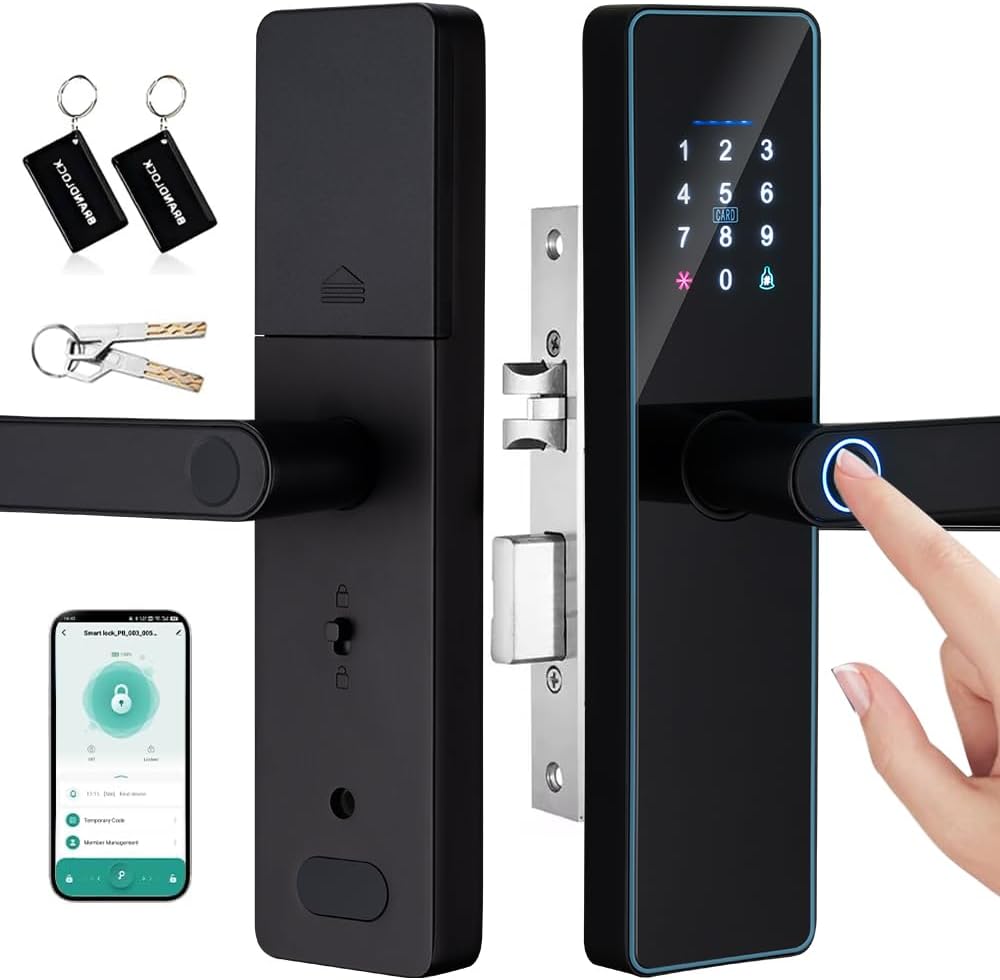
Image 1.1: Overview of the TEKXDD Smart Lock and its included components.
Key Features:
- 5-in-1 Unlocking Methods: Fingerprint, Password, IC Card, Tuya APP (Wi-Fi), and Mechanical Key.
- Biometric Fingerprint Recognition: Secure and rapid unlocking.
- Tuya APP Integration: Remote control, temporary password generation, and event history viewing via Wi-Fi (Bluetooth not supported).
- Virtual Password Protection: Enter random digits before and after your actual password to prevent peeping.
- Automatic Locking: Enhances security by locking automatically after closing.
- Emergency Power: USB interface for temporary power supply in case of battery depletion.
- Durable Construction: Made with a robust aluminum alloy and plastic components.

Image 1.2: Visual representation of the multiple unlocking methods available with the smart lock.
2. Installation Guide
This section outlines the steps for installing your TEKXDD Smart Lock. A screwdriver is the only tool required for installation.
2.1 Preparation
- Ensure your door thickness is between 30mm and 60mm.
- Verify the existing lock body dimensions. The smart lock includes a 50x50mm (22x175mm) lock body. If your door requires a different size, adjustments or a compatible lock body may be needed.
- Review the provided cutting template (if applicable) to ensure proper hole alignment.
2.2 Installation Steps

Image 2.1: Step-by-step visual guide for installing the TEKXDD Smart Lock.
- Install the 5050 Lock Body:
Insert the mortise lock body into the door edge. Ensure the latch bolt direction matches your door's opening direction (left or right, inward or outward swing). Secure it with the provided screws.
- Install the Front Panel:
Align the front panel with the mortise lock and door holes. Pass the connecting cables through the door. Secure the front panel using the appropriate screws.
- Install the Rear Panel and Batteries:
Connect the cables from the front panel to the rear panel. Align the rear panel and secure it with screws. Insert 4 AAA batteries (not included) into the battery compartment. Close the battery cover.
3. Operating Instructions
This section details how to use the various unlocking methods and features of your smart lock.
3.1 Unlocking Methods
- Fingerprint: Place your registered finger on the fingerprint sensor. The lock will unlock upon successful recognition.
- Password: Enter your registered password on the keypad, followed by the '#' key. For enhanced security, utilize the virtual password feature by entering random digits before and after your actual password.
- IC Card: Present your registered IC card to the card reader area on the lock. The lock will unlock.
- Tuya APP (Wi-Fi): Open the Tuya Smart app on your smartphone. Ensure your lock is connected to Wi-Fi. You can remotely unlock the door through the app interface.
- Mechanical Key: In case of emergency or battery failure, insert the mechanical key into the keyhole and turn to unlock.

Image 3.1: Demonstrates virtual password input and IC card usage for unlocking.
3.2 Tuya APP Features
- Remote Unlocking: Unlock your door from anywhere using the app, provided the lock has a stable Wi-Fi connection.
- Temporary Passwords: Generate one-time or time-limited passwords for guests, service providers, or deliveries. These passwords can be sent remotely and expire automatically.
- Event History: View a log of all lock activities, including successful and failed unlock attempts, and by which method.
- User Management: Add, modify, or delete fingerprints, passwords, and IC cards for different users.

Image 3.2: The Tuya APP displaying the local event history of the smart lock.
3.3 Security Features
- Administrator Security Switch: A physical switch on the rear panel allows for enhanced security, restricting access to only administrator passwords or mechanical keys when activated.
- Automatic Lockout: After multiple incorrect password or fingerprint attempts, the lock will temporarily disable access to prevent unauthorized entry.
- Low Battery Alert: The lock will provide a visual or audible alert when batteries are low, prompting replacement.

Image 3.3: Location and function of the administrator security switch.
4. Maintenance
Proper maintenance ensures the longevity and optimal performance of your TEKXDD Smart Lock.
4.1 Battery Replacement
The smart lock is powered by 4 AAA batteries (not included) and typically lasts for six months. When the low battery alert is activated, replace all four batteries promptly. To replace, open the battery compartment on the rear panel, remove old batteries, and insert new ones, ensuring correct polarity.
4.2 Cleaning
Wipe the lock's exterior surfaces with a soft, dry cloth. Avoid using abrasive cleaners, solvents, or harsh chemicals, as these can damage the finish and electronic components.
5. Troubleshooting
This section addresses common issues you might encounter with your smart lock.
5.1 Lock Not Responding
- Check Batteries: If the lock is unresponsive, the batteries may be depleted. Replace the 4 AAA batteries.
- Emergency Power: If batteries are completely dead, connect a power bank via the USB interface for temporary power to unlock the door.
- Mechanical Key: Use the mechanical key as an override in case of electronic failure.

Image 5.1: Emergency power options: USB interface and mechanical key.
5.2 Fingerprint/Password Not Recognized
- Clean Sensor/Keypad: Ensure the fingerprint sensor and keypad are clean and free of dirt or moisture.
- Correct Entry: Double-check that you are using a registered fingerprint or entering the correct password.
- Security Lockout: If multiple incorrect attempts are made, the lock may enter a temporary lockout state. Wait for the lockout period to expire before trying again.
- Administrator Switch: Verify the administrator security switch is in the correct position if you are experiencing issues with non-admin access.
5.3 App Connectivity Issues
- Wi-Fi Connection: Ensure your smart lock is within range of your Wi-Fi router and has a stable connection.
- App Permissions: Check that the Tuya Smart app has all necessary permissions on your smartphone.
- Router Settings: Confirm your Wi-Fi router settings are compatible with the smart lock (e.g., 2.4GHz network).
6. Specifications
| Brand | TEKXDD |
| Model | Cerradura Inteligente |
| Color | Black |
| Material | Durable Aluminum Alloy and Plastic components |
| Unlocking Methods | Fingerprint, Password, IC Card, Tuya APP (Wi-Fi), Mechanical Key |
| Lock Type | Biometric |
| Power Supply | 4 x AAA Batteries (not included) |
| Battery Life | Approximately 6 months |
| Emergency Power | USB Interface |
| Door Thickness Compatibility | 30mm - 60mm |
| Lock Body Dimensions | 50x50mm (22x175mm) |
| Product Dimensions (L x W) | 25.9 cm x 6.4 cm (10.2 inches x 2.5 inches) |
7. Warranty and Support
For warranty information, please refer to the product packaging or contact your retailer. For technical support or further assistance, please reach out to TEKXDD customer service through the contact information provided at the point of purchase or on the official TEKXDD website.