
1. Introduction
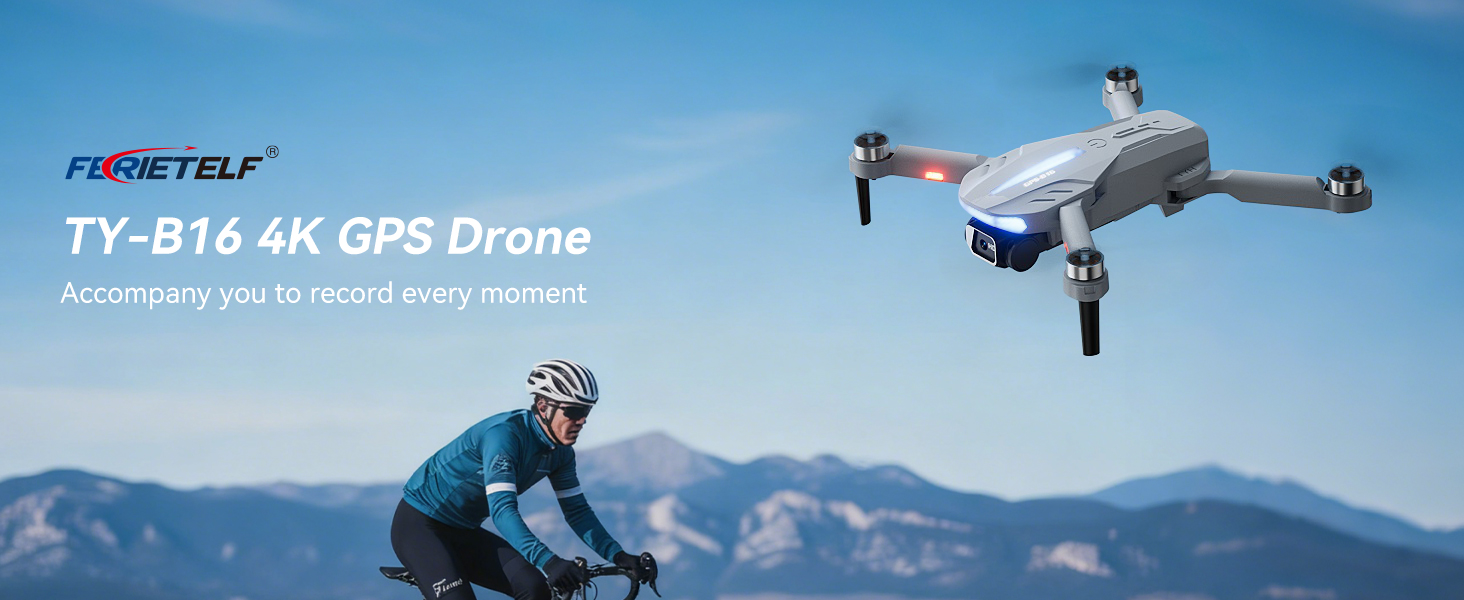
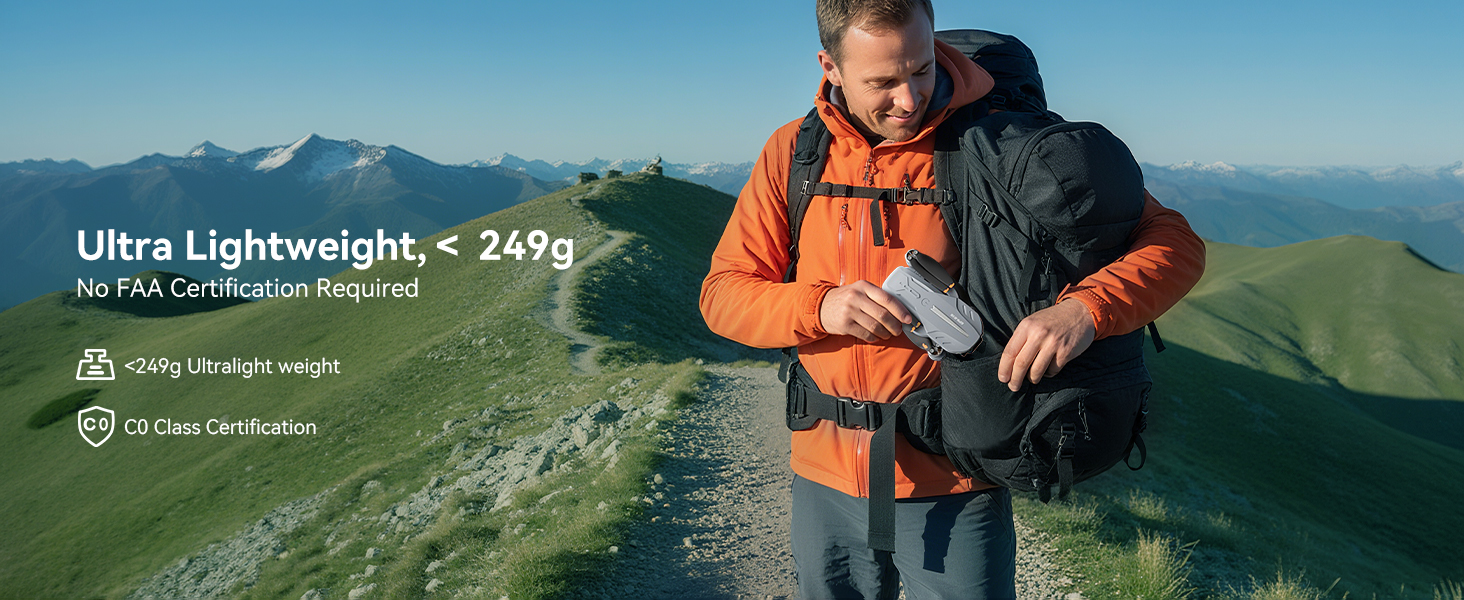
This manual provides essential instructions for the safe operation and maintenance of your FERIETELF B16 GPS Drone with Camera 4K. Please read this guide thoroughly before first use to ensure proper setup and optimal flight experience. The B16 drone is designed for ease of use, featuring a lightweight, foldable design and advanced flight capabilities.
2. Package Contents
Verify that all items listed below are included in your package. If any items are missing or damaged, please contact customer support.
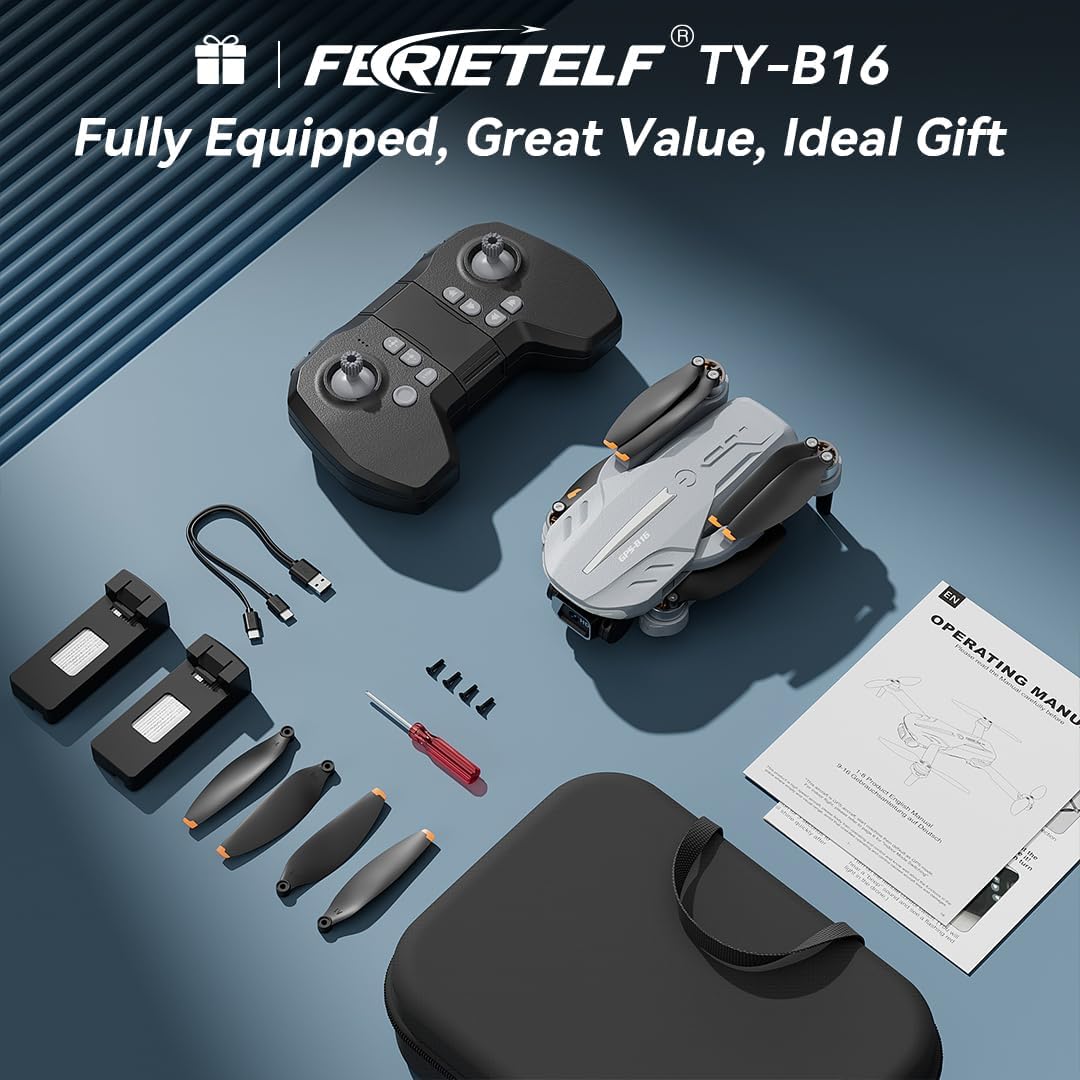
- FERIETELF B16 Drone x 1
- Remote Control x 1
- Battery x 2
- Portable Storage Bag x 1
- USB Cable x 1
- Propeller x 4 (spare)
- Screwdriver x 1
- User Manual x 1
- App Manual x 1
- Spare screws x 4

3. Setup
3.1. Drone Preparation
- Unfold the Drone: Carefully unfold the front arms of the drone, followed by the rear arms, until they lock into position.
- Remove Protective Film: Gently peel off any protective film from the camera lens.
- Insert Battery: Insert a fully charged battery into the drone's battery compartment until it clicks securely into place.
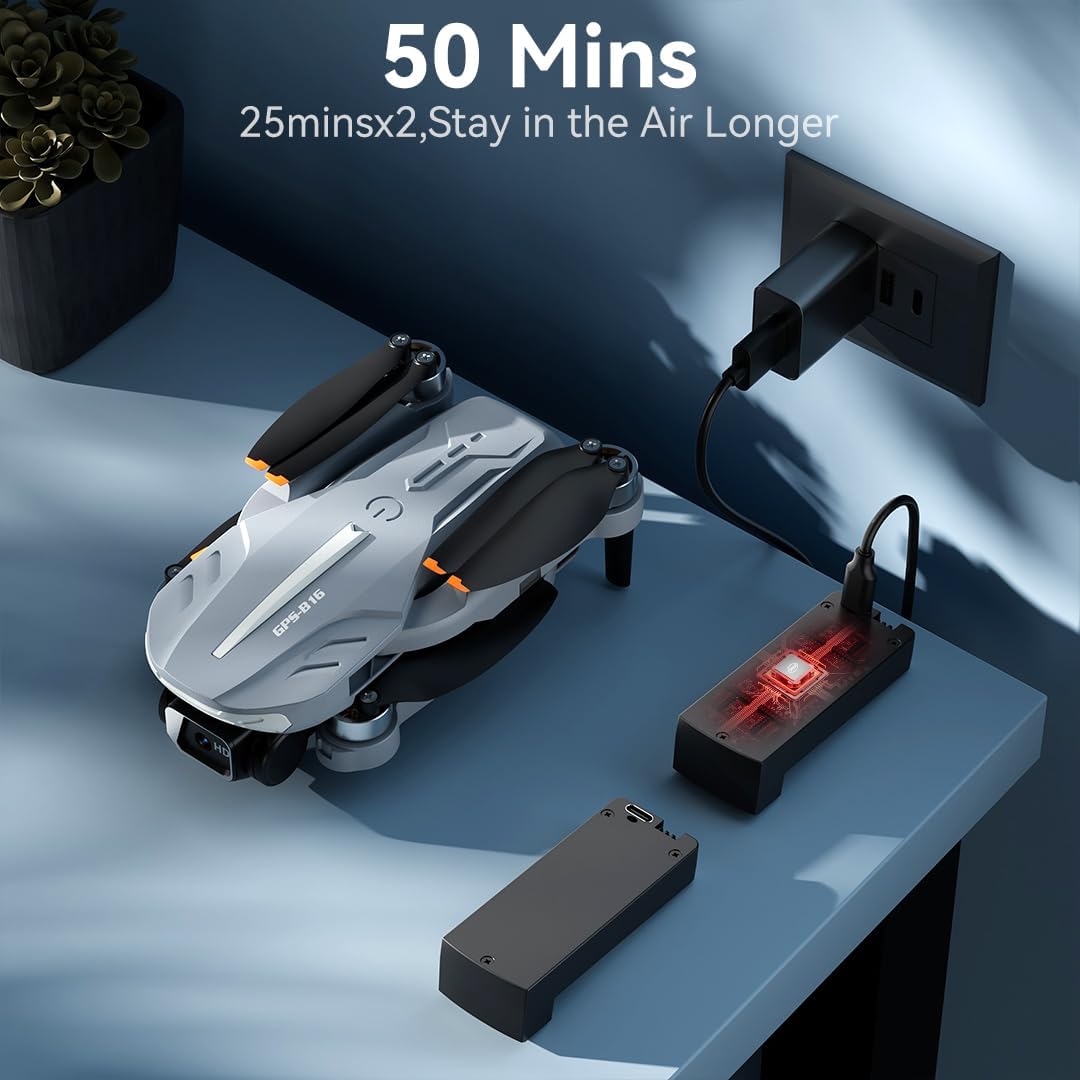
- Charge Battery: Use the provided USB charging cable to charge the drone batteries. The cable connects to a 5V/2A plug. The indicator light on the drone changes from red (below 30%) to green (30% or more) and solid green when fully charged.
- Insert Memory Card: Insert a compatible memory card (FAT32 or EXFAT format, up to 128GB, purchased separately) into the memory card slot on the drone.
3.2. Remote Controller Preparation
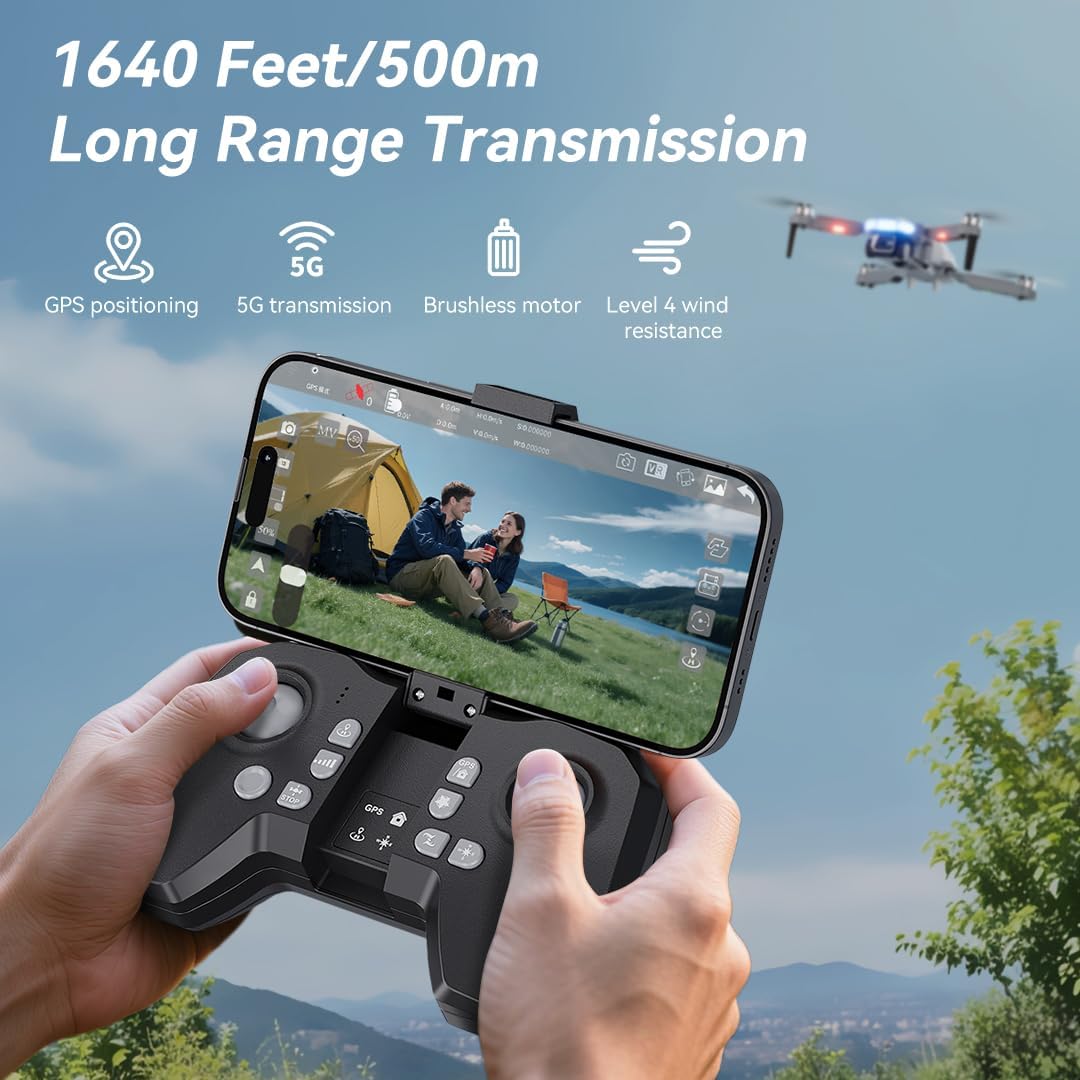
- Install Batteries: Use a screwdriver to open the battery compartment on the remote controller. Insert three AAA batteries (not included, purchased separately), ensuring correct polarity. Close the compartment and tighten the screw.
- Unfold Phone Holder: Unfold the phone holder and handles on the remote controller.
- Mount Mobile Phone: Mount your mobile phone onto the phone holder. The holder accommodates smartphones up to 80.01 mm (3.15 inches) wide.
3.3. Power On & Pairing
- Power On Drone: Place the drone on a flat, level surface. Press and hold the power button on the drone for 2 seconds to power it on.
- Power On Remote: Press and hold the power button on the remote controller for 2 seconds to power it on. The drone and remote will automatically attempt to pair.
- Pairing Indication: During pairing, the status indicators on the drone's arms will flash red rapidly. Once successfully paired, the indicators will show two quick green flashes in a loop.
3.4. App Download and Connection
- Download App: Download and install the "AMETA Drone" app from your mobile phone's app store (Google Play or App Store).
- Connect Wi-Fi: Navigate to your mobile phone's Wi-Fi settings. Search for and connect to the Wi-Fi network named "Ameta S20-XXXXXX" (where XXXXXX is a unique identifier).
- Launch App: Launch the "AMETA Drone" app and tap "Start" to enter the main interface and view the live camera feed.

4. Calibration
For the first-time use, it is recommended to calibrate the drone for stable flight.
4.1. Compass Calibration
- Using Remote: Press and hold the Compass Calibration button on the remote for 3 seconds.
- Using App: Launch the app, go to "Control" and tap "Calibrate Compass." Follow the on-screen instructions to perform horizontal and vertical rotations of the drone. Ensure you are away from metal or electric objects during calibration.
4.2. Gyroscope Calibration
- Using Remote: Simultaneously push the left control stick to the lower-left corner and the right control stick to the upper-right corner.
- Using App: Tap "Gyroscope Calibration" in the app and follow the on-screen instructions.
5. GPS Signal Acquisition
For optimal performance and intelligent flight features, ensure the drone acquires a strong GPS signal before takeoff. This function cannot be activated indoors.
- Outdoor Use: Always operate the drone outdoors in an open area with a clear view of the sky.
- Wait for GPS Lock: After powering on and pairing, wait for the drone to search for GPS signals. The drone will enter GPS mode once a sufficient number of satellites are detected. The app will indicate "GPS located, ready for flight."
6. Operating the Drone
6.1. Takeoff
Ensure the drone is on a level surface before attempting takeoff.
- Manual Takeoff: Push both control sticks inward at a 45-degree angle to unlock the motors. Then, push the left control stick forward to ascend.
- One-Key Takeoff: Press and hold the One-Key Takeoff button on the remote for 1 second. The drone will automatically ascend and hover at a height of approximately 1.2 meters.
6.2. Flight Directions
- Left Control Stick: Adjusts flight altitude (up/down) and nose direction (rotate left/right).
- Right Control Stick: Controls forward, backward, left, and right movement.

6.3. Speed Adjustment
Toggle the speed switch on the remote controller to select between two speed levels (Speed I for slower, Speed II for faster) to match your flying skill and environmental conditions.
7. Camera Operation
The FERIETELF B16 is equipped with a 4K HD camera for capturing high-quality photos and videos.
7.1. Taking Photos and Videos
- Photo Button: Press the photo button on the top-left of the remote controller, or tap the camera icon in the app, to take a photo.
- Video Button: Press the video button on the top-left of the remote controller, or tap the video icon in the app, to start recording. Press again to stop.
- Shooting Modes: Tap the left shooting menu in the app to choose from multiple smart shooting modes, or swipe the shooting menu on the right to explore more options.

7.2. Adjusting Camera Angle
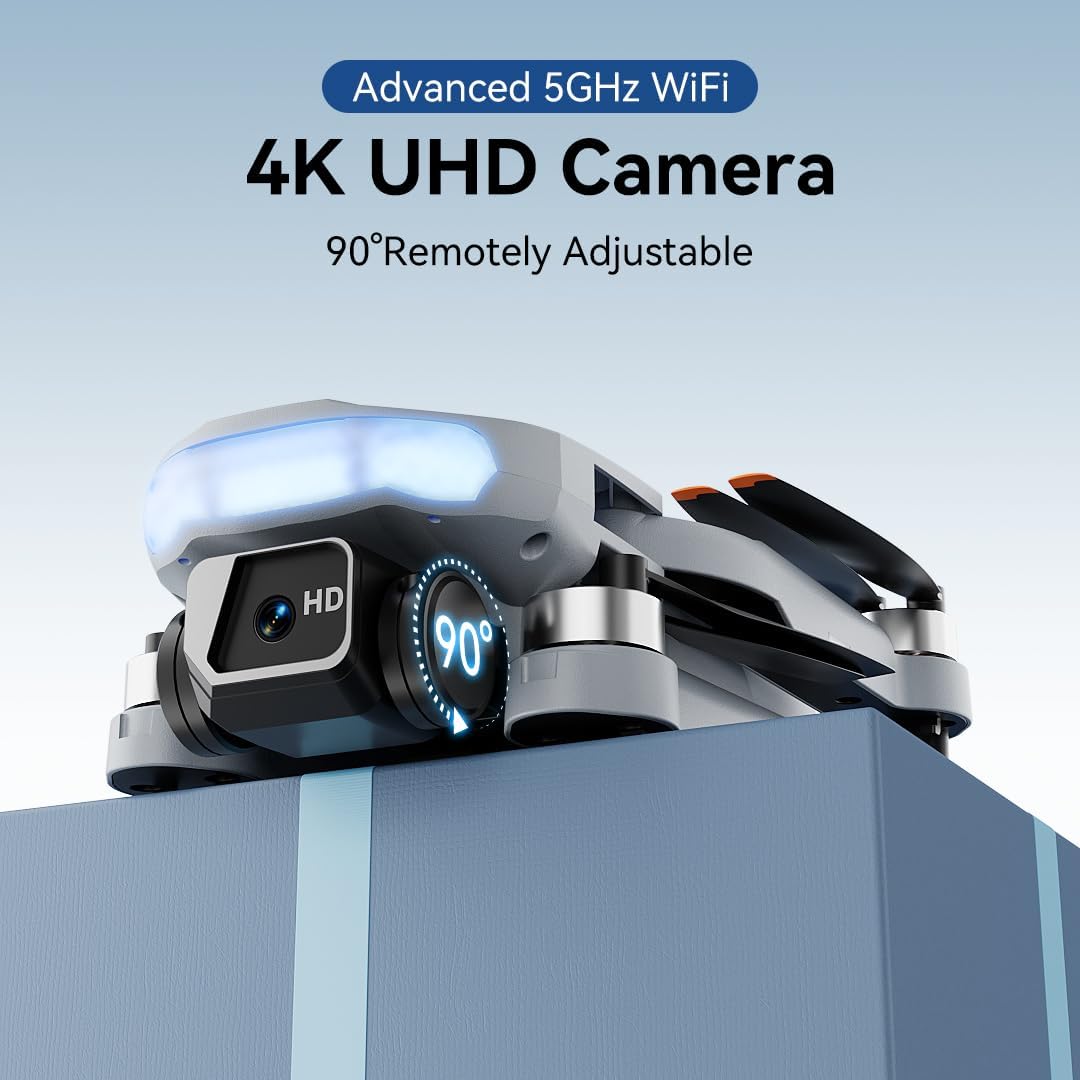
Use the camera up/down buttons located at the top-right corner of the remote controller to tilt the camera between 0 and 90 degrees during flight.
7.3. Viewing Media
Tap the album icon in the app to view your captured photos and videos. Media will be saved on both your mobile phone and the inserted memory card.
8. Intelligent Flight Modes
The B16 drone offers several intelligent flight modes for enhanced user experience and creative possibilities.
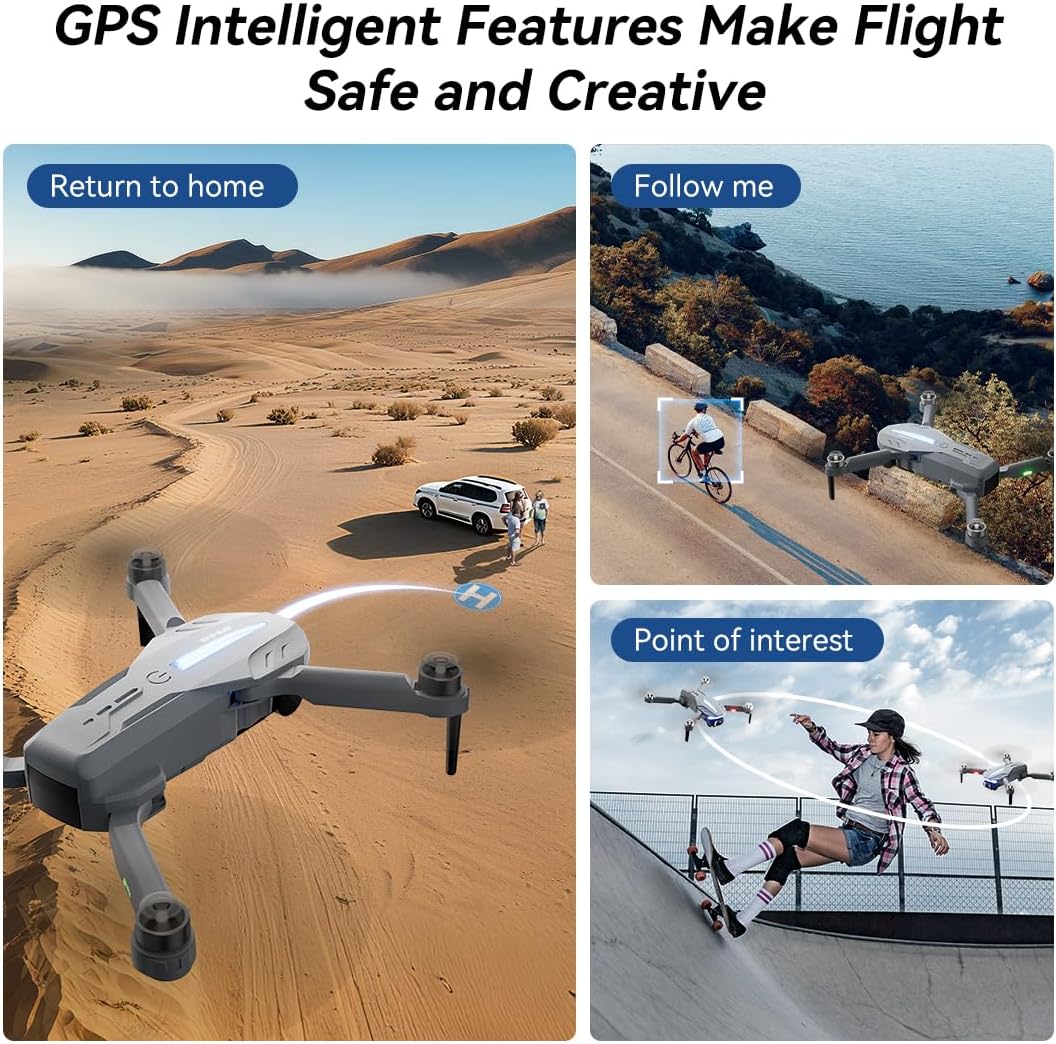
- GPS Auto Return: In GPS mode, the drone automatically returns to its takeoff point if the signal is lost, battery is low, or the "One-Key Return" button is pressed.
- Follow Me: Engage Follow Me mode to have the drone automatically track and follow you, freeing your hands for other activities.
- Point of Interest: Set a point of interest, and the drone will orbit around it, capturing dynamic footage.
- Triple-Stable Hover: Built with GPS, barometric pressure, and optical flow systems, the drone ensures steady hovering for stable shots.


9. Landing
Ensure the landing area is clear of obstacles.
- Manual Landing: Push the left control stick backward to make the drone descend and land.
- One-Key Landing: Press and hold the Landing button on the remote for 1 second. The drone will automatically descend and land until the propellers stop rotating.
10. Storage
Proper storage helps maintain the drone's longevity.
- Power Off: Press and hold the power button on both the drone and the remote controller to turn them off.
- Remove Battery: Remove the drone battery for better storage and to prevent discharge.
- Fold Arms: Fold the drone arms inward to their compact position.
- Pack Away: Place the drone and remote controller into the portable storage bag.
11. Specifications
| Feature | Specification |
|---|---|
| Brand | FERIETELF |
| Model | B16 |
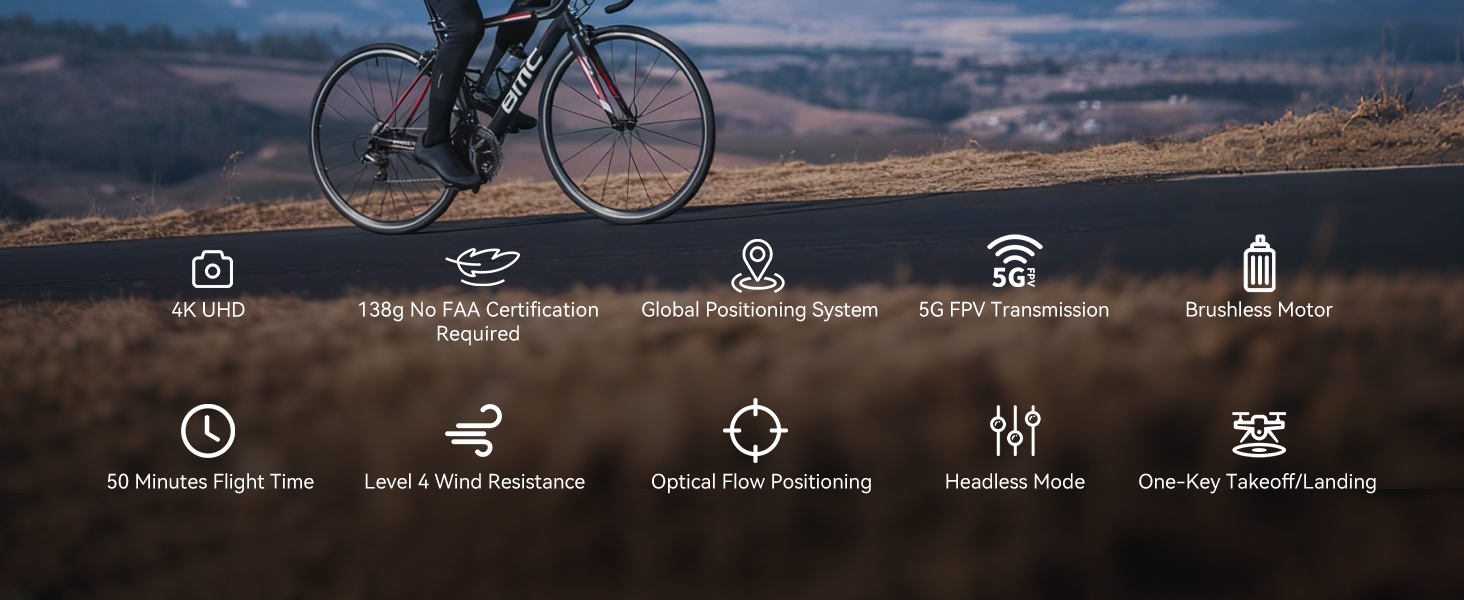
| Weight | 150 g (Under 249g) |
| Dimensions | 19.5 x 18.8 x 5 cm |
| Camera | 4K HD, 120° Wide-Angle, 90° Motorized Adjustment |
| Transmission | 5GHz FPV Real-Time Transmission (up to 1640 feet/500m) |
| Motor Type | Brushless Motor |
| Flight Time | Up to 50 minutes (with 2 batteries, 20-25 mins each) |
| Positioning System | GPS & Optical Flow Dual Positioning |
| Wind Resistance | Level 4 |
| Control Modes | Button Control, App Control, Gravity Control, Voice Control |


12. Troubleshooting
- Drone not powering on: Ensure the battery is fully charged and correctly inserted.
- Remote not pairing: Ensure both the drone and remote are powered on and within range. Re-attempt the pairing process.
- No GPS signal: Fly the drone outdoors in an open area with a clear view of the sky. GPS function cannot be activated indoors.
- Unstable flight: Perform compass and gyroscope calibration as described in Section 4. Ensure propellers are correctly installed and undamaged.
- App connection issues: Ensure your phone is connected to the drone's Wi-Fi network and the app is updated to the latest version.
- Short flight time: Ensure batteries are fully charged. Flight time can be affected by wind conditions and aggressive flying.
13. Safety Guidelines
- Always fly in open areas, away from people, animals, buildings, and trees.
- Do not fly in strong winds or adverse weather conditions.
- Maintain a safe distance from high-voltage wires and other obstacles.
- Ensure the drone is always within your line of sight.
- Regularly check the drone and its components for any damage before and after each flight.
- Do not operate the drone under the influence of drugs or alcohol.
- Follow all local regulations and laws regarding drone operation.
14. Official Product Videos
Watch the official first-use guide for the Ameta S20 drone, which shares similar operational principles with the FERIETELF B16, to assist with initial setup and flight.
