
1. Introduction
Thank you for choosing the NEWFAST NF-RE516 WiFi Range Extender. This device is designed to expand your existing wireless network coverage, eliminate Wi-Fi dead zones, and provide a stable internet connection throughout your home or office. With its easy setup and reliable performance, you can enjoy seamless streaming, gaming, and browsing.
This manual provides detailed instructions on how to set up, operate, and maintain your NEWFAST NF-RE516 WiFi Range Extender. Please read it carefully before using the device.
2. Safety Information
Please observe the following safety guidelines to prevent damage to the device or injury to yourself:
- Do not expose the device to water, fire, humidity, or hot environments.
- Do not attempt to disassemble, repair, or modify the device.
- Use only the power adapter provided with the device.
- Keep the device away from children.
- Ensure proper ventilation around the device to prevent overheating.
3. Product Overview
The NEWFAST NF-RE516 WiFi Range Extender is a compact and powerful device designed to seamlessly integrate into your existing network. It features multiple antennas for enhanced signal strength and coverage.
3.1 Package Contents
- NEWFAST NF-RE516 WiFi Range Extender
- Quick Installation Guide
3.2 Device Layout
Familiarize yourself with the ports and indicators on your extender:
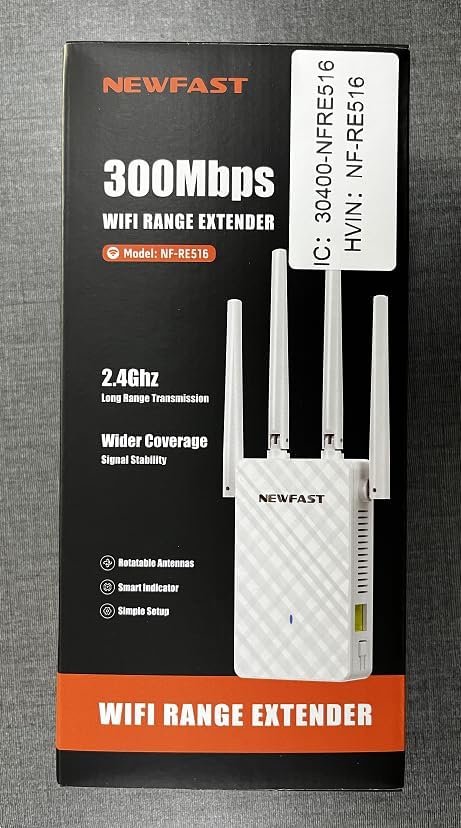
Image: Front view of the NEWFAST NF-RE516 WiFi Range Extender, showing its compact design and four adjustable external antennas.

Image: Rear view of the NEWFAST NF-RE516 WiFi Range Extender, displaying the power prongs and regulatory labels.

Image: A visual representation of the NEWFAST WiFi Extender providing signal to various devices within a multi-room home, highlighting its ability to boost WiFi coverage.
4. Setup Instructions
Follow these steps to set up your NEWFAST NF-RE516 WiFi Range Extender:
4.1 Power On
- Plug the extender into a power outlet near your existing Wi-Fi router.
- Wait for the Power LED to turn solid blue.
4.2 Connect to Your WiFi Router (WPS Method)
The WPS (Wi-Fi Protected Setup) method is the quickest way to connect your extender to your router.
- Press the WPS button on your existing Wi-Fi router.
- Within 2 minutes, press the WPS button on your NEWFAST NF-RE516 extender.
- The Wi-Fi LED on the extender should change from blinking to solid, indicating a successful connection.
If your router does not support WPS, or if you encounter issues, please refer to the Web UI/App setup method in the Quick Installation Guide.
Video: A seller-provided video demonstrating the setup process for the NEWFAST NF-RE516 WiFi Range Extender, including connection to the router and initial power-on steps.
5. Operating Modes
The NEWFAST NF-RE516 typically operates in Repeater Mode, extending the range of your existing Wi-Fi network. It can also function as an Access Point (AP) if connected to your router via an Ethernet cable, creating a new Wi-Fi hotspot.
5.1 Repeater Mode
In Repeater Mode, the extender wirelessly connects to your router and amplifies its signal, extending coverage to areas with weak or no Wi-Fi. This is the default and most common operating mode.
5.2 Access Point (AP) Mode
To use AP Mode, connect the extender to your router using an Ethernet cable. The extender will then create a new wireless network, converting your wired connection into a Wi-Fi hotspot.
6. Maintenance
To ensure optimal performance and longevity of your NEWFAST NF-RE516 WiFi Range Extender, follow these maintenance tips:
- Cleaning: Use a soft, dry cloth to clean the device. Do not use liquid or aerosol cleaners.
- Ventilation: Ensure the device is placed in a well-ventilated area and that its ventilation holes are not blocked.
- Firmware Updates: Regularly check for and install firmware updates from the NEWFAST official website to ensure the best performance and security.
- Relocation: If you need to move the extender, ensure it is powered off before unplugging and replugging it into a new location.
7. Troubleshooting
If you encounter issues with your NEWFAST NF-RE516, try the following solutions:
- No Power: Ensure the extender is securely plugged into a working power outlet. Check if the Power LED is solid blue.
- No Internet Connection: Verify that your main router has an active internet connection. Restart both your router and the extender.
- Weak Signal: Relocate the extender closer to your main router. Ensure there are no major obstructions (e.g., thick walls, large metal objects) between the extender and your devices.
- Connection Drops: Check for interference from other electronic devices. Try changing the Wi-Fi channel on your router if possible.
- Forgot Password: If you forget the extender's Wi-Fi password, you may need to reset the device to factory defaults and set it up again.
- Reset to Factory Defaults: To reset the extender, use a paperclip to press and hold the Reset button (usually a small pinhole) for about 5-10 seconds until the LEDs flash.
8. Specifications
| Feature | Detail |
|---|---|
| Brand | NEWFAST |
| Model | NF-RE516 (also known as 1111111) |
| Wireless Standard | 2.4 GHz Radio Frequency |
| Data Transfer Rate | Up to 300 Mbps (as per product title) |
| Frequency Band Class | Tri-Band (Note: Wireless Standard only mentions 2.4GHz, please verify with product packaging) |
| Range | Up to 98,000 cubic feet |
| Color | White |
| Power Source | AC Plug |
| Antennas | Multiple external antennas (adjustable) |
9. Warranty and Support
NEWFAST products come with a standard manufacturer's warranty. For specific warranty terms and conditions, please refer to the warranty card included in your product packaging or visit the official NEWFAST website.
If you require technical assistance or have any questions about your NEWFAST NF-RE516 WiFi Range Extender, please contact our customer support team:
- Email: shenhuadianzi@outlook.com
- Online Support: Visit the NEWFAST official website for FAQs and support resources.
Our support team is dedicated to providing prompt and helpful assistance.


