1. Introduction
Thank you for purchasing the ORDRO M5 Handheld Pocket Camera. This manual provides essential information for the safe and effective use of your device. Please read it thoroughly before operation and retain it for future reference.
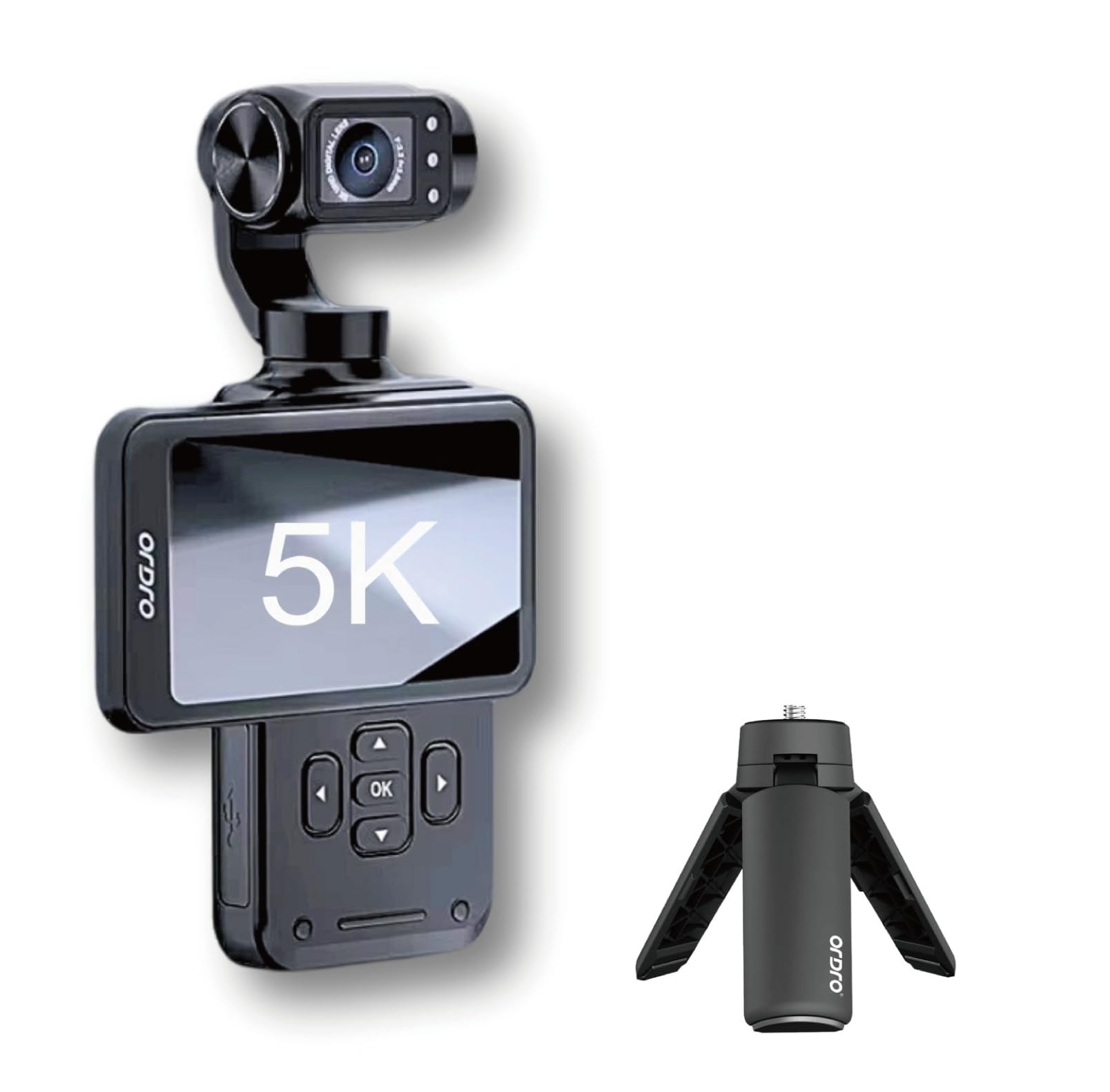
Figure 1: ORDRO M5 Handheld Pocket Camera and accessories.
2. Package Contents
Verify that all items are present in your package:
- ORDRO M5 Camera
- USB Cable
- Lanyard
- Carrying Bag
- User Manual (this document)
- 64GB Memory Card
- Mini Tripod
- Wrist Remote Control
3. Setup
3.1. Battery Installation and Charging
The ORDRO M5 camera requires one 12V battery, which is included. Ensure the battery is fully charged before first use.
- Locate the battery compartment on the device.
- Insert the battery according to the polarity indicators.
- Close the battery compartment securely.
- Connect the camera to a power source using the provided USB cable to charge. The charging indicator will show the status.

Figure 2: Charging the ORDRO M5 camera. A full charge provides approximately 160 minutes of operation.
3.2. Micro SD Card Insertion
The camera supports Micro SD cards up to 512GB. A 64GB memory card is included.
- Locate the Micro SD card slot on the side of the camera.
- Insert the Micro SD card with the gold contacts facing down until it clicks into place.
- To remove, gently push the card in until it springs out.
4. Operating Instructions
4.1. Power On/Off
Press and hold the power button to turn the camera on or off.
4.2. Using the 3.5-inch Rotating Touch Screen
The camera features a 3.5-inch rotating touch screen for easy framing and navigation.
- Rotation: The screen can be rotated for various shooting angles, including vertical and horizontal orientations, ideal for vlogging and selfies.
- Touch Control: Tap the screen to access menus, adjust settings, and initiate recording.

Figure 3: The 3.5-inch rotating touch screen in action.
4.3. Recording Video and Photos
The ORDRO M5 supports 5K and 4K video resolutions.
- Video Recording: Press the record button to start and stop video recording.
- Photo Capture: Press the photo button to take still images.
4.4. Stabilization Features
The camera is equipped with 3-axis gimbal stabilization for smooth footage.

Figure 4: The 3-axis gimbal provides enhanced stability.
4.5. Special Features
- IR Night Vision: Activate IR Night Vision for recording in low-light or dark conditions.
- WDR (Wide Dynamic Range): Enables the camera to capture more detail in both bright and dark areas of a scene.
- Face Tracking: The camera can automatically detect and follow faces, keeping subjects in focus.
- 120-degree Wide Angle: Capture a broader field of view with the wide-angle lens.
- Digital Zoom: Use the digital zoom function to get closer to your subject.
- Slow Motion: Record videos in slow motion for dramatic effects.
- Distortion Correction: Corrects lens distortion for a more natural image.

Figure 5: IR Night Vision capability.

Figure 6: WDR function for improved image quality.

Figure 7: Face Tracking in operation.
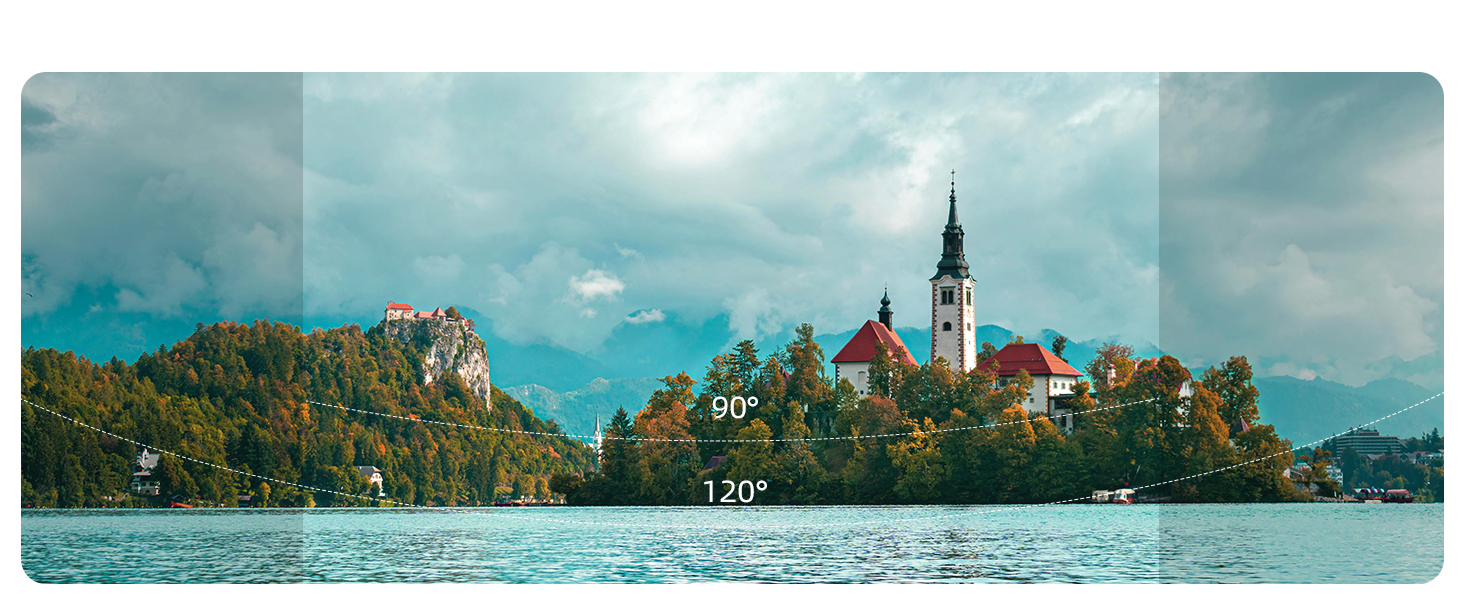
Figure 8: Wide-angle view comparison.
4.6. Remote Control and App Connectivity
The ORDRO M5 can be controlled remotely using the included wrist remote control or a dedicated smartphone application.
- Wrist Remote Control: Pair the remote control with the camera as per the instructions in the remote's separate manual (if applicable).
- Smartphone App: Download the official ORDRO app from your device's app store. Follow the in-app instructions to connect your camera for remote operation and live view.

Figure 9: Remote operation via smartphone app.
5. Maintenance
- Cleaning: Use a soft, dry cloth to clean the camera body. For the lens and screen, use a specialized lens cleaning cloth and solution. Avoid abrasive materials.
- Storage: Store the camera in a cool, dry place away from direct sunlight and extreme temperatures. Remove the battery if storing for extended periods.
- Battery Care: Do not expose batteries to high temperatures or dispose of them in fire. Recycle used batteries according to local regulations.
6. Troubleshooting
| Problem | Possible Cause | Solution |
|---|---|---|
| Camera does not power on | Low battery; Battery incorrectly inserted | Charge the battery; Reinsert battery correctly |
| Cannot record video/take photos | No SD card; SD card full; SD card error | Insert SD card; Delete files or use new SD card; Format SD card (backup data first) |
| Poor image/video quality | Dirty lens; Insufficient lighting; Incorrect settings | Clean the lens; Use IR Night Vision or adjust lighting; Check resolution and exposure settings |
| Remote control not working | Remote battery low; Not paired correctly | Replace remote battery; Re-pair remote control with camera |
7. Specifications
| Feature | Detail |
|---|---|
| Brand | ORDRO |
| Model Number | M5 |
| Item Weight | 1.1 pounds |
| Product Dimensions | 2.2 x 1.7 x 6.1 inches |
| Batteries | 1 x 12V battery (included) |
| Photo Sensor Technology | CMOS |
| Video Capture Resolution | 5K, 4K |
| Maximum Focal Length | 30 Millimeters |
| Maximum Aperture | 2.2 f |
| Flash Memory Type | Micro SD (up to 512GB) |
| Video Capture Format | MP4 |
| Screen Size | 3.5 Inches |
| Special Features | 3-Axis Stabilization, 5K, Face Tracking, Night Vision, WDR, 120-degree Wide Angle, Digital Zoom, Slow Motion, Distortion Correction |
| Camcorder Type | Action Camera |
8. Warranty and Support
8.1. Warranty Information
The ORDRO M5 Handheld Pocket Camera comes with a one-year warranty from the date of purchase. Please retain your proof of purchase for warranty claims. The warranty covers manufacturing defects but does not cover damage caused by misuse, accidents, or unauthorized modifications.
8.2. Customer Support
For technical assistance, troubleshooting, or warranty inquiries, please contact ORDRO customer support through the official website or the contact information provided with your purchase. You may also find helpful resources and FAQs on the ORDRO brand store page on Amazon.
ORDRO Brand Store: Visit ORDRO Store on Amazon