
1. Introduction
This manual provides instructions for the setup, operation, maintenance, and troubleshooting of your TYPONOS PM290 Mini Sticker Printer. Please read this manual thoroughly before using the device to ensure proper function and longevity.
2. What's in the Box
Verify that all items are present in the package:
- 1 x Sticker Printer
- 3 x Rolls of Sticker Paper (54mm x 3.2m, white/pink/green adhesive)
- 1 x USB Cable
- 1 x User Manual
- 1 x Guide Card
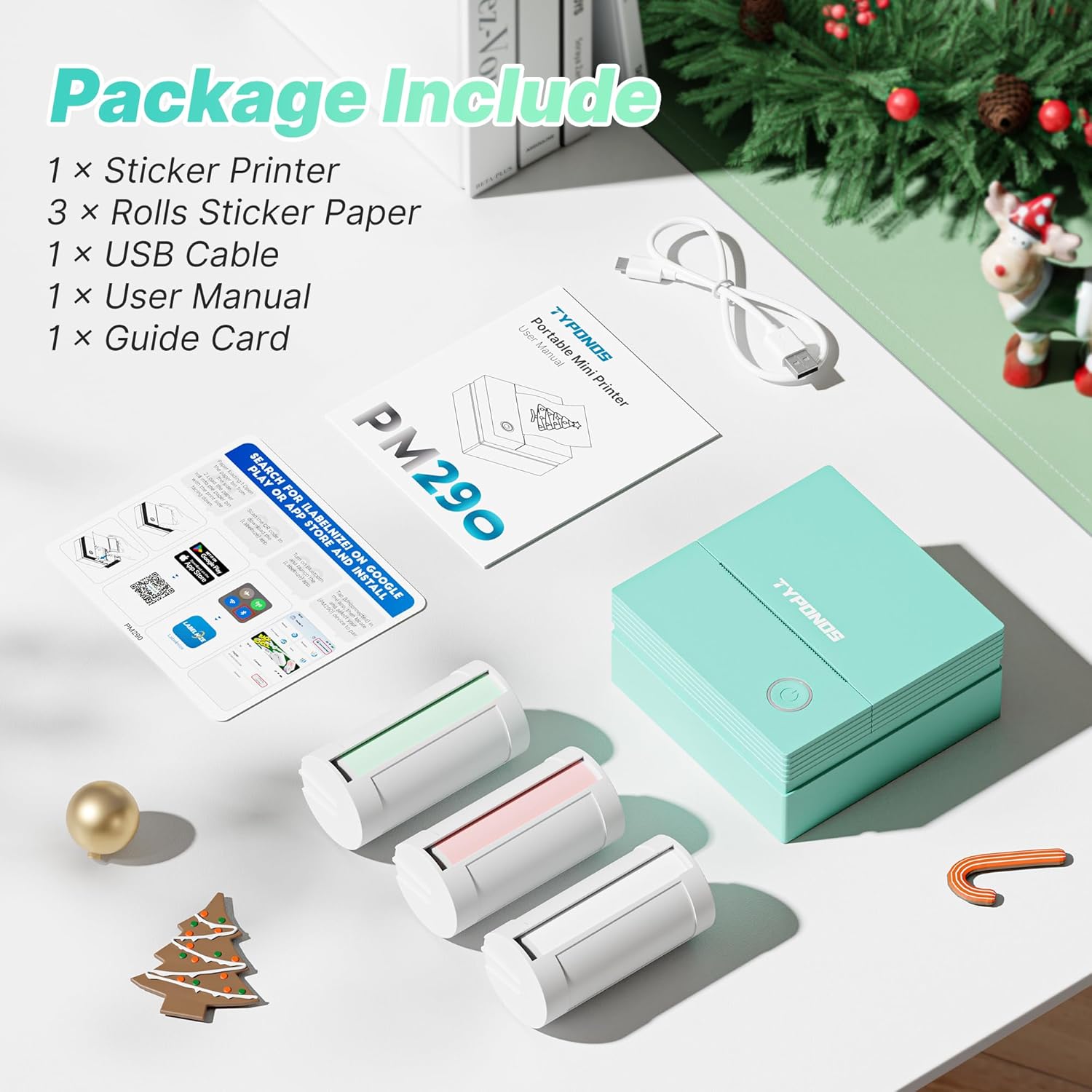
Image: Package contents of the TYPONOS PM290 Mini Sticker Printer.
3. Setup
3.1. Charging the Printer
Before initial use, ensure the printer is fully charged. Connect the provided USB cable to the printer and a compatible USB power adapter (not included). The indicator light will show charging status.
3.2. Loading Paper Rolls
- Open the printer cover by gently pushing the top part upwards.
- Insert a sticker paper roll into the paper bin. Ensure the smooth side of the paper is facing upwards and the paper feeds out from the top.
- Close the printer cover firmly until it clicks into place. Leave approximately 0.5 inches of paper exposed from the output slot.

Image: Steps for loading sticker paper into the printer.
3.3. App Installation and Bluetooth Connection
The PM290 printer connects via the "Labelnize" app, available for iOS (13 or later) and Android devices. It does not support direct Bluetooth connection from your phone's settings or computer printing.
- Download the "Labelnize" app from the Apple App Store or Google Play Store.
- Press and hold the power button on the printer until the green indicator light flashes. This indicates the printer is in pairing mode.
- Enable Bluetooth on your mobile device.
- Open the "Labelnize" app and grant any necessary permissions.
- Within the app, select "PM290" from the list of available devices to establish a connection.

Image: Bluetooth connection process using the Labelnize app.

Video: Instructions on how to use the Labelnize app for printing.
4. Operating the Printer
4.1. Basic Printing
Once connected to the Labelnize app, you can select images, text, or templates to print. The printer supports one-click printing for convenience. Output is monochrome (black and white) only.

Image: Example of good quality monochrome printing from the PM290.
4.2. Labelnize App Features
The Labelnize app offers various features to enhance your printing experience:
- Image Editing: Crop or rotate images before printing.
- Templates and Fonts: Access a variety of pre-designed templates and fonts for notes, journals, lists, and DIY projects.
- AI Capabilities:
- AI Text-to-Image: Generate images from text descriptions.
- One-Click Background Removal: Simplify images for clearer prints.
- OCR Text Recognition: Convert scanned text into editable digital format.

Image: The Labelnize app interface showing various templates and fonts.

Image: AI capabilities within the Labelnize app, including text-to-image and background removal.

Image: Examples of customized labels printed with the PM290 printer.

Image: Using printed stickers for creative activities.
5. Maintenance
5.1. Paper Handling
After printing, you can tear the paper using the tooth marks on the printer's output slot. For transparent paper, scissors may be required for a clean cut.

Image: Instructions for tearing printed paper.
5.2. Cleaning
To maintain optimal print quality, periodically clean the print head with a soft, lint-free cloth. Ensure the printer is turned off before cleaning.
6. Troubleshooting
6.1. Printer Prints Blank
If the printer produces blank output, check the following:
- Ensure the paper roll is inserted with the smooth, printable side facing upwards.
- If the paper is inserted incorrectly, open the paper roll cover, remove the roll, flip the paper so the smooth side is facing upward, and reinsert it.

Image: Troubleshooting steps for blank prints.
6.2. Connectivity Issues
If you experience difficulty connecting the printer to the app:
- Ensure the printer is powered on and the green light is flashing.
- Verify Bluetooth is enabled on your mobile device.
- Close and reopen the Labelnize app.
- Restart both your mobile device and the printer.
- Ensure the app has necessary Bluetooth permissions.

Video: Frequently Asked Questions for the PM290 Mini Sticker Printer, which may include troubleshooting tips.
7. Specifications
| Brand | TYPONOS |
| Model Name | PM290 |
| Connectivity Technology | Bluetooth, USB |
| Printing Technology | Thermal |
| Printer Output | Monochrome (Black and White) |
| Max Print Speed Monochrome | 48 pages per minute |
| Resolution | 203 dpi |
| Item Weight | 0.3 kg |
| Product Dimensions | 5.04"D x 3.94"W x 3.5"H |
| Compatible Devices | iOS 13 or later, Android |
| Print Media | Labels |
| Maximum Media Size | 54 millimeters |
8. Warranty and Support
The product comes with a limited warranty. For detailed warranty information and customer support, please refer to the documentation included in your package or contact TYPONOS customer service directly. Contact information can typically be found on the manufacturer's official website or the product packaging.