
1. Product Overview
This manual provides detailed instructions for the Roinvou 4+64G Android 15 Car Stereo, designed specifically for Fiat 500X models manufactured between 2014 and 2020. This unit features a 9-inch Incell touchscreen, Wireless CarPlay and Android Auto, 5GHz WiFi, Bluetooth 5.0, EQ sound customization, GPS navigation, and includes a backup camera for enhanced safety.
Key Features:
- Vehicle Compatibility: Designed for Fiat 500X 2014-2020 models.
- Upgraded Incell Touch Screen: Seamless fully laminated 1280*720 display with fast response, true color, and high saturation.
- Wireless CarPlay & Android Auto: Seamless smartphone integration for navigation, calls, messages, and music.
- Powerful Performance: Android 15, 4-core processor, 4GB RAM + 64GB storage for stable operation.
- Enhanced Audio: EQ settings and FM/RDS radio for customizable sound.
- User-Friendly UI: Supports split-screen functionality and steering wheel control.
- Safety Features: Equipped with a backup camera for safer parking and reversing.
Installation Effect

Image: Comparison of the car stereo before and after installation in a Fiat 500X.
2. What's in the Box
Verify that all components are present before beginning installation.
- 1 x for Fiat 500X Car Stereo
- 1 x Power Cable
- 1 x Original USB Cable
- 1 x Canbus
- 1 x Radio Antenna
- 1 x Small Microphone
- 2 x RCA Harness
- 1 x Radio Adapter Cable
- 1 x GPS Antenna
- 1 x AHD Backup Camera
- 1 x External Microphone
- 1 x Rear Camera Input Cable
- 2 x USB Cable
- 1 x Installation Tool & Accessories

Image: Package List of the Roinvou Car Stereo.
3. Installation Guide
Professional installation is recommended. Ensure the vehicle's power is disconnected before starting installation. Verify all cable connections are secure and correct for your specific Fiat 500X model (2014-2020).
Wiring Diagram

Image: Main wiring harness connections for the car stereo.
Backup Camera Wiring

Image: Wiring instructions for the included AHD backup camera.
4. Initial Setup & Configuration
Language Settings
To adjust the system language: Go to Settings > More Settings > Language & input > Language Settings > Add a language. Select your desired language from the list.
Time Settings
To configure time settings: Navigate to Settings > More Settings > Date and time. You can choose to use network time or GPS to provide time.
Wi-Fi Connection
To connect to Wi-Fi: Go to Settings > Wi-Fi. Turn on Wi-Fi, select your network, and enter the password. Once connected, you can use online applications like YouTube and Google Maps.
Screen Brightness Adjustment
To adjust screen brightness: Access Settings > Display > Day/Night. Adjust the slider as needed. You can also swipe down the status bar to make quick adjustments.
Touch Calibration (Five-Point Calibration)
For touch screen calibration: Go to Settings > Factory Setup (password: 1234) > Touch Calibration. Follow the on-screen prompts to complete the five-point calibration. Place all five fingers on the screen simultaneously to activate touch calibration.
Touch Button Learning
To program touch buttons: Go to Settings > Factory Setup (password: 1234) > Touch Button Learning. Follow the on-screen instructions to assign functions to the touch buttons.
Steering Wheel Control Learning
To configure steering wheel controls: Access Settings > SteeringWheelKey > Steering Wheel Control Learning. Follow the on-screen instructions to map your steering wheel buttons to the stereo functions.
CAN Settings
To adjust CAN settings: Go to Settings > Factory Setup (password: 1234) > Can Settings. Select the appropriate brand, model, year, and configuration for your vehicle.
Backcar Source Settings
To configure backcar source settings: Navigate to Settings > Factory Setup (password: 1234) > Backcar Source Settings. Adjust settings for your backup camera input as needed.
5. Operating Instructions
Display and Interface
The unit features an upgraded Incell Touch Screen with 1280*720 resolution, offering fast response, true color, and high saturation for a smooth user experience.

Image: Incell Touchscreen features.
Split Screen Technology & Multiple UI Options
The user interface supports split-screen functionality, allowing you to run two applications side-by-side, such as navigation and music. Multiple UI themes are available for customization.

Image: Split Screen Technology and Customizable UI Options.
Connectivity
Wireless CarPlay & Android Auto
Enjoy effortless connectivity with Wireless CarPlay and Android Auto. Mirror your iPhone or Android phone seamlessly to access navigation, calls, messages, and music directly on the car radio. Connect your mobile phone to the car infotainment system via Bluetooth.

Image: Wireless CarPlay, Android Auto, and Mirror Link features.
Video: Demonstrates Wireless CarPlay and Android Auto connection and functionality.
5GHz WiFi
The unit supports both 2.4GHz and 5GHz Wi-Fi bands, providing faster speed and flexibility for online applications.

Image: Fast Internet 5G WiFi and supported applications.
Bluetooth 5.0
Connect your mobile phone via Bluetooth 5.0 for hands-free calls, access to your phone book, call logs, and music streaming with improved sound quality.
Audio Features
EQ Settings
Fine-tune your listening experience with the built-in EQ settings. Customize sound with preset or manual equalizer settings.
FM/RDS Radio
The built-in FM/RDS radio allows you to listen to broadcasts, real-time traffic, and weather forecasts. Adjust radio bands, frequencies, and search for stations as needed.
Navigation
The unit supports various Android navigation software, including Sygic, IGO, Waze, and Google Maps, keeping you on track wherever you go.
Safety Features
Backup Camera
The included AHD backup camera provides a clear, wide-angle view for safer parking and reversing, with both day and night vision capabilities.
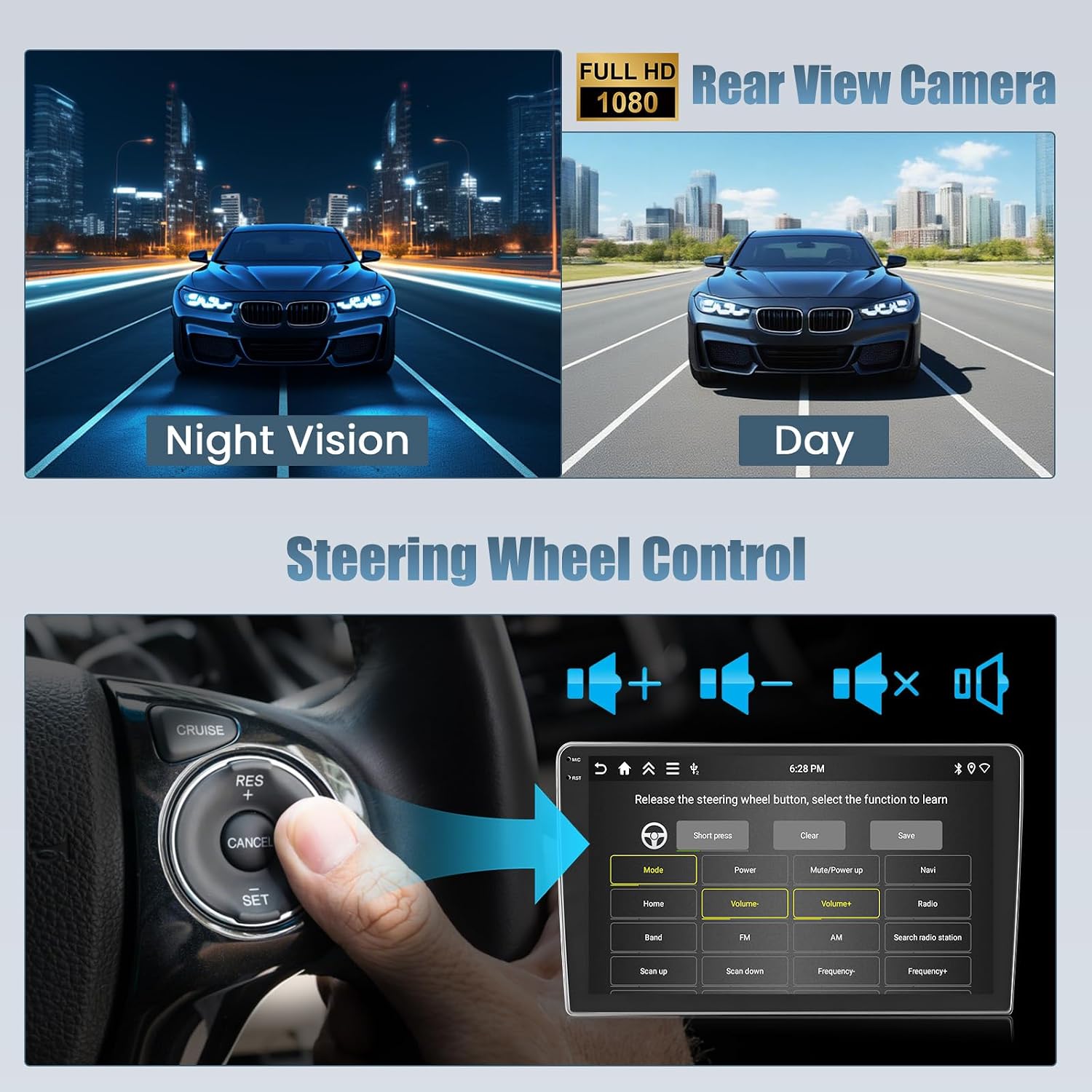
Image: Rear View Camera with Night and Day Vision, and Steering Wheel Control.
6. Advanced Features
Video: Demonstrates various advanced features of the car stereo.
PIP Mode (Picture-in-Picture)
The PIP (Picture-in-Picture) mode allows you to watch videos in a floating window while using other applications, enabling multitasking.
Multi-window View
Run two applications on screen side by side. For example, you can open a navigation map on the left while using a music app on the right.
OBD2 Support (Optional)
With the optional OBD2 function, you can retrieve real-time data and trouble codes from your vehicle's computer.
DAB+ Tuner Ready (Optional)
The unit is DAB+ tuner ready, allowing you to enjoy digital audio broadcasting with an optional USB DAB radio receiver stick.
7. Specifications
| Item Weight | 3.96 pounds |
| Package Dimensions | 12.99 x 8.27 x 3.15 inches |
| Display Size | 9 Inches |
| Screen Size | 9 Inches |
| Operating System | Android 15 |
| Memory Storage Capacity | 64 GB |
| RAM | 4GB |
| Processor | 4-core processor |
| Resolution | 1280 * 720 |
| Connectivity Technology | Bluetooth, USB, Wi-Fi (5GHz) |
| Special Features | Wireless Carplay Android Auto, Wireless&Wired Mirror Link, HD Incell Touchscreen, FM/RDS, EQ Settings, GPS Navigation, UI Display, Split Screen, SWC |
| Map Type | North America |
| Audio Output Mode | Stereo |
8. Troubleshooting
Common Issues:
- Connectivity Issues (CarPlay/Android Auto): If Apple CarPlay or Android Auto fails to connect or disconnects frequently, ensure your phone's Bluetooth and Wi-Fi are enabled and properly paired. Try unpairing and re-pairing the device. Ensure the S-Play application is open on the car stereo.
- Radio Signal Breakdown: If the radio signal frequently breaks down, especially in certain areas, check the radio antenna connection. Ensure it is securely attached and not obstructed.
- Audio Cuts Out During Reversing: If audio completely cuts out when reversing, check the system settings for backup camera audio options. Some units have a feature to disable this behavior, which might be grayed out or inaccessible if not properly configured. Consult the 'Backcar Source Settings' in the Factory Setup.
- Slow Performance/Buffering: If streaming apps like Netflix or YouTube buffer frequently or the system is slow, ensure a strong 5GHz Wi-Fi connection. Close unnecessary background applications to free up RAM.
- Missing Components: If any parts are missing from the package, contact customer support immediately.
9. Warranty and Support
Warranty:
This Roinvou car stereo comes with a 1 Year Warranty from the date of purchase. Please retain your proof of purchase for warranty claims.
Customer Support:
For any questions, technical assistance, or warranty claims, please contact Roinvou customer service:
- Via Amazon Chat: Send a message to the seller through the Amazon platform.
- Email: roinvouservices@163.com
All inquiries will be responded to within 24 hours, excluding holidays.

Image: Steps to contact Roinvou customer support.


