1. Product Overview
The YUNZII C75 is a 75% layout wireless mechanical keyboard designed for versatile use across multiple operating systems and devices. It features a gasket-mounted structure, hot-swappable switches, Dye-Sub PBT MOA keycaps, and vibrant RGB lighting. The keyboard supports three connectivity modes: Bluetooth 5.0, 2.4GHz wireless, and USB-C wired.

Figure 1: YUNZII C75 Wireless Mechanical Keyboard (Beige, Candy Switch) with colorful keycaps and RGB lighting.
2. Package Contents
Verify that all items are present in your package:
- 1 x YUNZII C75 Keyboard
- 1 x USB Cable (Type-C)
- 1 x Switch and Keycap Puller
- 1 x User Manual / Function Card
- 1 x 2.4G Wireless Dongle
- 1 x Dust Cover
- 1 x Mouse Pad
- 1 x Greeting Card
- Extra Keycaps and Switches

Figure 2: All items included in the YUNZII C75 keyboard package.
3. Setup
3.1 Connectivity Modes
The YUNZII C75 supports three connection methods:
- Bluetooth 5.0: For wireless connection to up to 3 devices.
- 2.4GHz Wireless: For wireless connection via the included USB dongle.
- USB-C Wired: For direct connection and charging via the USB-C cable.
3.2 Connecting Your Keyboard
- Power On: Locate the power switch on the side of the keyboard and slide it to the ON position.
- Select Mode: Use the mode switch (usually next to the power switch) to select your desired connection mode:
- Bluetooth: Press Fn + 1/2/3 to select a Bluetooth channel. The indicator light will flash, indicating pairing mode. Search for 'YUNZII C75' on your device and connect.
- 2.4GHz Wireless: Press Fn + 4. The indicator light will flash. Retrieve the 2.4GHz USB dongle from its storage slot (underneath one of the paw feet on the keyboard's base) and plug it into your computer's USB port. The keyboard will automatically connect.
- USB-C Wired: Connect the provided USB-C cable to the keyboard's USB-C port and the other end to your computer. The keyboard will automatically switch to wired mode and begin charging.
- System Compatibility: The keyboard is compatible with Windows, macOS, Android, and iOS. Use Fn + A for Windows and Fn + S for macOS to optimize key functions for your operating system.

Figure 3: Tri-mode connectivity options for the YUNZII C75 keyboard.
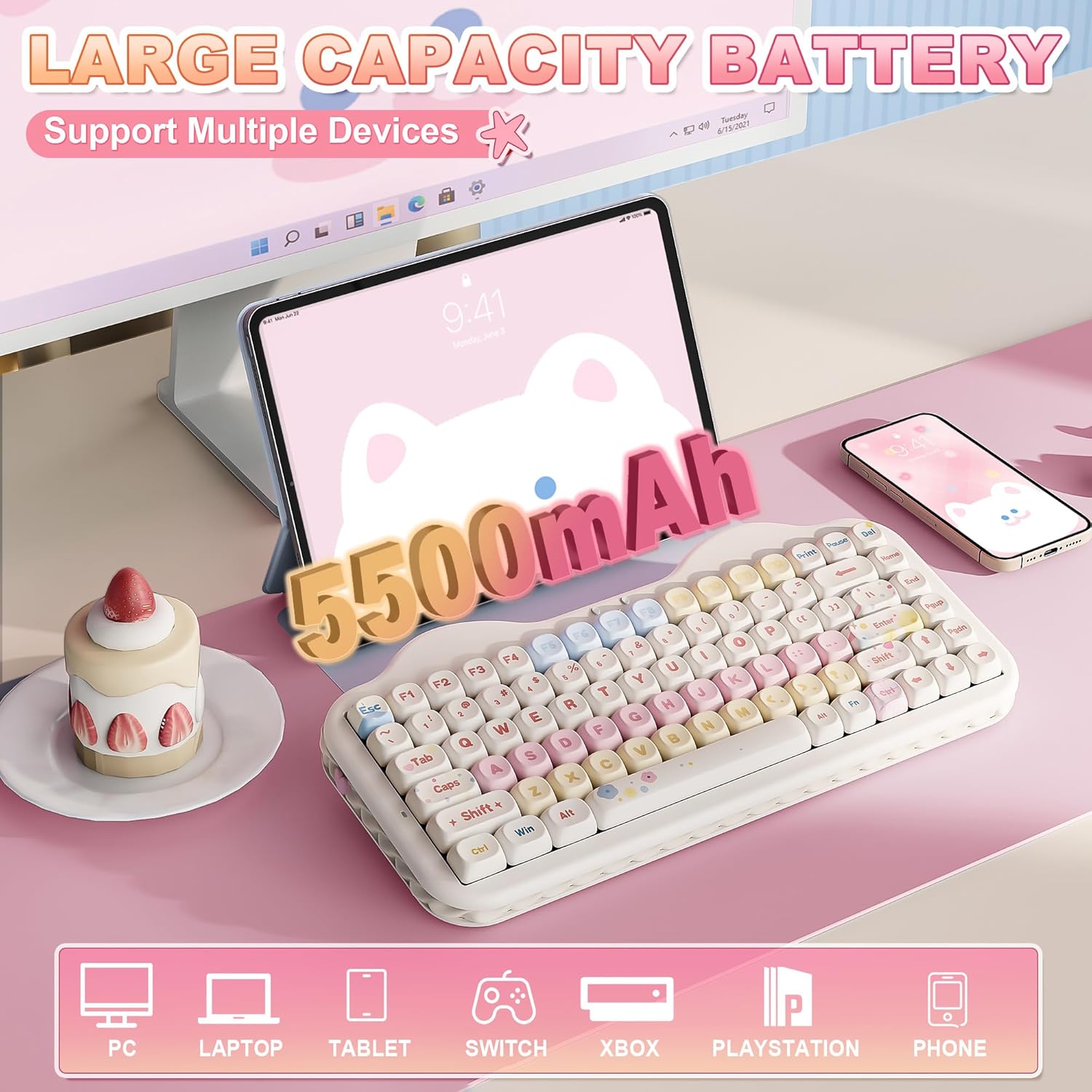
Figure 4: The 2.4GHz wireless dongle is conveniently stored under one of the keyboard's paw feet.
3.3 Charging
The keyboard is equipped with a 5500mAh battery. Connect the USB-C cable to charge. The indicator lights will show charging status (e.g., flashing red for low battery, solid red for charging, solid green for full charge).
4. Operating Instructions
4.1 RGB Lighting Control
The YUNZII C75 features customizable RGB backlighting and side-lighting. Use the following Fn key combinations to adjust settings:
- Fn + Backspace: Backlight ON/OFF
- Fn + Enter: Change Backlight Color
- Fn + Up Arrow: Brightness Up
- Fn + Down Arrow: Brightness Down
- Fn + Right Arrow: Blinking Speed Up
- Fn + Left Arrow: Blinking Speed Down
- Fn + \|: Change Backlight Effect
- Fn + Del: Side-Light ON/OFF
- Fn + Home: Change Side-Light Effect
- Fn + End: Change Side-Light Color
- Fn + PgUp: Side-Light Brightness Up
- Fn + PgDn: Side-Light Brightness Down
- Fn + , <: Side-Light Speed Down
- Fn + . >: Side-Light Speed Up
- Fn + Pause: Smiley Light ON/OFF
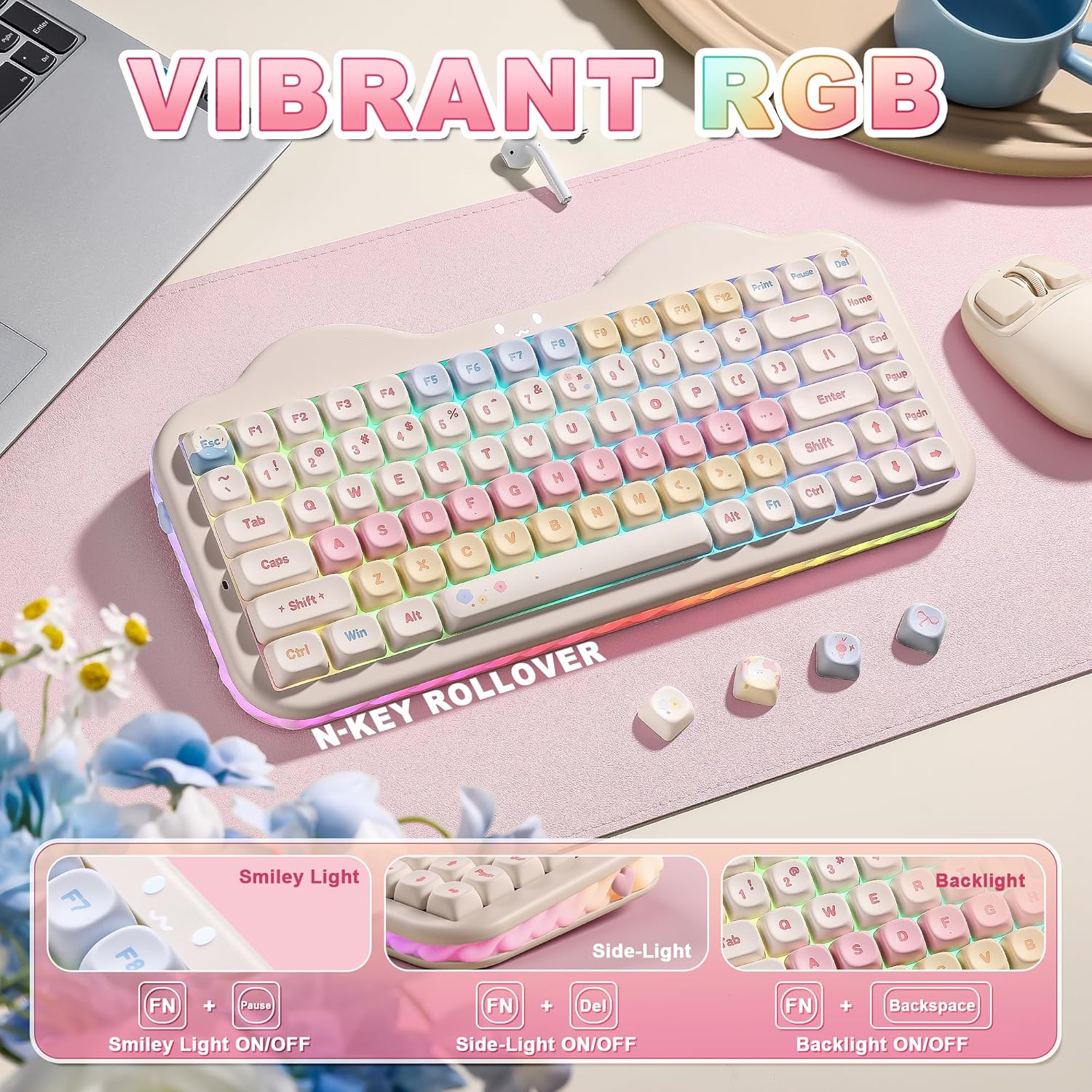
Figure 5: RGB lighting controls and Fn key shortcuts.
Video 1: Demonstration of how to change RGB side-light settings on the YUNZII C75 keyboard.
4.2 Hot-Swappable Switches
The YUNZII C75 features a hot-swappable PCB, allowing you to easily change mechanical switches without soldering. It supports both 3-pin and 5-pin switches. Use the included switch puller to remove and install switches.

Figure 6: Hot-swappable switch functionality and tools.
4.3 Customization Software
The keyboard offers limitless customization through programmable software. This allows you to remap keys, create complex macros, and personalize RGB backlighting for both Windows and Mac systems. Refer to the official YUNZII website for software download and instructions.
4.4 Function Key Shortcuts
Utilize the Fn key in combination with other keys for various shortcuts:
- Windows (Fn + A):
- Fn+F1=Computer
- Fn+F2=Browser
- Fn+F3=Email
- Fn+F4=Calculator
- Fn+F5=Player
- Fn+F6=Stop
- Fn+F7=Previous Track
- Fn+F8=Play/Pause
- Fn+F9=Next Track
- Fn+F10=Mute
- Fn+F11=Volume Down
- Fn+F12=Volume Up
- macOS (Fn + S):
- F1=Screen Brightness Down
- F2=Screen Brightness Up
- F3=Mission Control
- F4=Launchpad
- F5=No Function
- F6=No Function
- F7=Previous Track
- F8=Play/Pause
- F9=Next Track
- F10=Mute
- F11=Volume Down
- F12=Volume Up
5. Maintenance
5.1 Cleaning
Use the provided dust cover when the keyboard is not in use to prevent dust accumulation. For cleaning, gently wipe the keycaps and keyboard surface with a soft, dry cloth. Avoid using harsh chemicals or abrasive materials.
5.2 Switch and Keycap Replacement
To replace a keycap, use the keycap puller to gently lift the keycap straight up. To replace a switch, first remove the keycap, then use the switch puller to carefully grip the switch and pull it straight out. Align the pins of the new switch with the sockets on the PCB and press firmly until it clicks into place. Ensure pins are not bent before insertion.
6. Troubleshooting
- Keyboard not connecting: Ensure the keyboard is powered on and the correct mode (Bluetooth, 2.4GHz, or wired) is selected. For Bluetooth, ensure your device's Bluetooth is enabled and the keyboard is in pairing mode. For 2.4GHz, ensure the dongle is securely plugged in. For wired, check the USB-C cable connection.
- RGB lights not working: Check the Fn key combinations for turning lights on/off and adjusting brightness/effects. Ensure the keyboard has sufficient battery charge.
- Keys not responding: If individual keys are not responding, try replacing the switch using the hot-swap feature. Ensure the switch pins are straight and properly seated.
- Lag or intermittent connection: For wireless modes, ensure there are no strong interferences (e.g., other 2.4GHz devices, large metal objects) between the keyboard and your device. Try moving closer to the receiver or switching to wired mode.
7. Specifications
| Feature | Detail |
|---|---|
| Model Number | C75 |
| Product Dimensions | 13.22 x 6.38 x 1.73 inches |
| Item Weight | 2.22 pounds |
| Connectivity Technology | Bluetooth 5.0, 2.4GHz Wireless, USB-C Wired |
| Battery Capacity | 5500mAh |
| Keyboard Description | Mechanical |
| Keycap Material | Dye-Sub PBT MOA Keycaps |
| Backlighting | RGB |
| Special Features | Backlit, Ergonomic, 3 Modes, Customizable Display Keys, Hot-Swappable |
| Compatible Devices | Laptop, PC, Smartphone |
8. Warranty
Specific warranty information is not provided in the product details. Please refer to the product packaging or contact YUNZII customer support for warranty details.
9. Support
For further assistance or inquiries, please contact YUNZII Keyboard directly through Amazon. You can typically find a 'Contact Seller' option on the product page or within your order details after purchase.
Figure 7: Steps to contact YUNZII customer support via Amazon.


