
1. Introduction
Welcome to your new Tibuta Smartpad A10_M 10.1-inch Android 15 Tablet. This manual provides essential information for setting up, operating, maintaining, and troubleshooting your device. Please read this guide thoroughly to ensure optimal performance and a satisfying user experience.

Image 1.1: Tibuta Smartpad A10_M Tablet showcasing its multitasking features with 8GB RAM, 64GB ROM, and 1TB expandable storage.
2. What's in the Box
Upon unpacking your Tibuta Smartpad A10_M, please verify that all the following items are included:
- Tibuta Smartpad A10_M Tablet
- Protective Case
- USB-C Charging Cable
- Power Adapter
- User Manual (this document)

Image 2.1: The Tibuta Smartpad A10_M Tablet, charger, USB cable, and manual, as typically found in the product box.
3. Product Overview
The Tibuta Smartpad A10_M is designed for versatile use, offering a balance of performance and portability. Key features include:
- Display: 10.1-inch IPS HD (1280x800 pixels) with eye protection technology.
- Operating System: Android 15 for optimized performance and user experience.
- Performance: Quad-Core processor with 8GB RAM (3GB + 5GB expandable) for smooth multitasking.
- Storage: 64GB internal storage, expandable up to 1TB via Micro SD card.
- Cameras: 5MP rear camera and 8MP front camera for photos and video calls.
- Connectivity: Dual-band Wi-Fi (2.4G+5G) and Bluetooth 5.4 for fast and stable wireless connections.
- Battery: 5000mAh high-capacity battery for extended use.
- Audio: Dual speakers and a 3.5mm headphone jack.
3.1 Display Features
Experience clear and vibrant visuals on the 10.1-inch IPS HD screen. The display incorporates low blue light technology to reduce eye strain during prolonged use.

Image 3.1: The tablet's HD Eyes Protection Display, featuring 1280x800 resolution, IPS technology, and a 16:10 aspect ratio.
3.2 Performance and Storage
Powered by Android 15 and a Quad-Core processor, the tablet offers smooth performance for various applications. With 64GB of internal storage and support for up to 1TB via a Micro SD card, you have ample space for your files.

Image 3.2: The tablet displaying multiple applications, illustrating its large storage capacity and expandability for media and documents.
3.3 Connectivity
Stay connected with dual-band Wi-Fi (2.4G+5G) and Bluetooth 5.4. The USB-C port allows for quick charging and data transfer.

Image 3.3: The tablet highlighting its 5G/2.4G Wi-Fi and Bluetooth 5.0 capabilities, demonstrating compatibility with various peripherals like game controllers, headphones, and keyboards.
3.4 Battery Life
The 5000mAh battery provides up to 8 hours of average use, ensuring you can enjoy your content for longer periods.

Image 3.4: The tablet emphasizing its 5000mAh battery, USB-C interface, and estimated usage times for gaming, video watching, and standby.
3.5 Physical Dimensions
The tablet's compact design makes it easy to handle and carry.
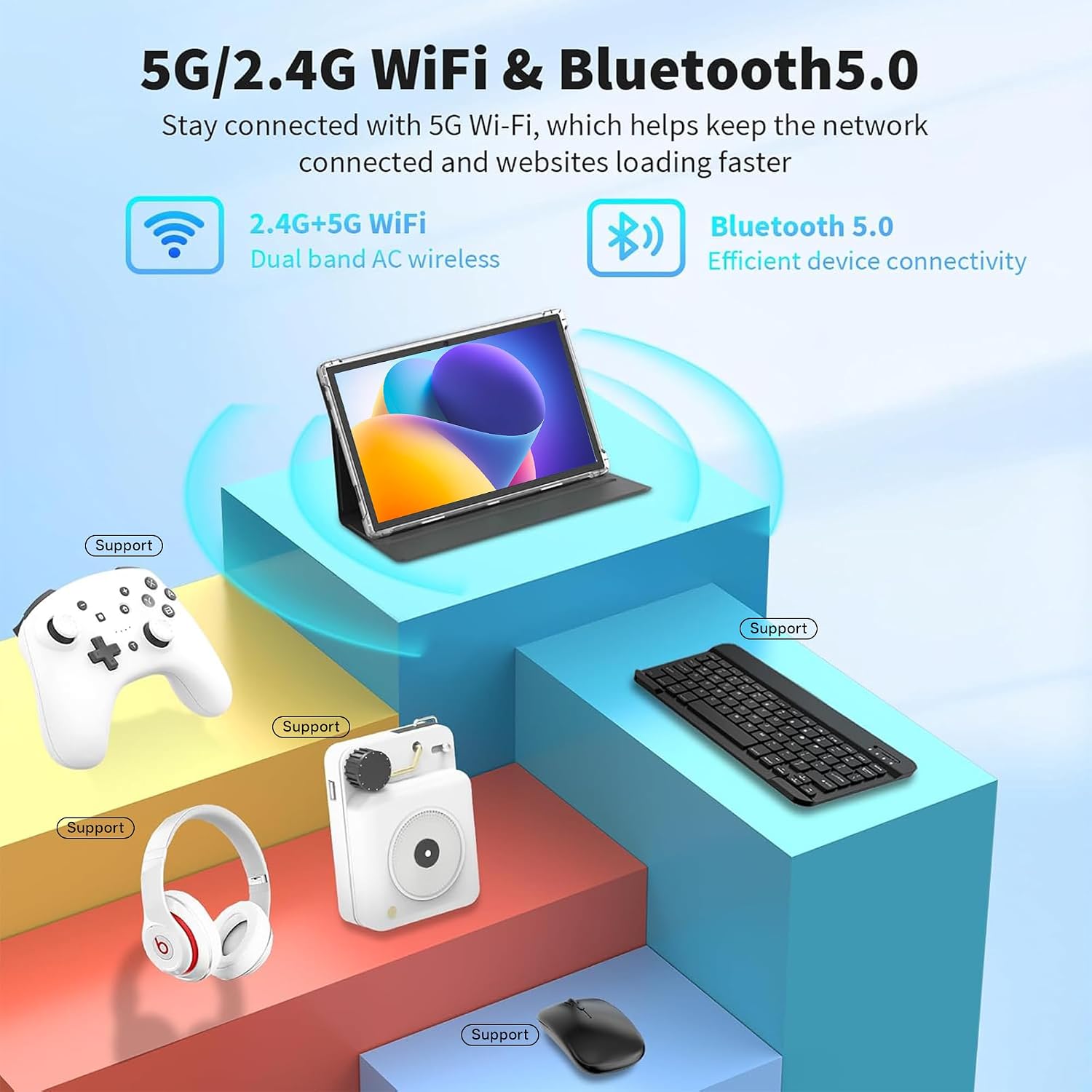
Image 3.5: Detailed diagram illustrating the length (24.39cm/9.60inch), width (16.25cm/6.39inch), and thickness (0.82cm/0.32inch) of the tablet.
4. Setup
4.1 Initial Charging
Before first use, fully charge your tablet. Connect the USB-C cable to the tablet's charging port and the power adapter to a wall outlet. The charging indicator will show the charging status.
4.2 Powering On/Off
- To Power On: Press and hold the Power button (usually located on the side or top edge) until the Tibuta logo appears on the screen.
- To Power Off: Press and hold the Power button until a power menu appears. Select "Power off" from the options.
- To Restart: From the power menu, select "Restart".
4.3 Initial Setup Wizard
The first time you power on the tablet, you will be guided through an initial setup process. This includes selecting your language, connecting to a Wi-Fi network, setting up your Google account, and configuring basic security settings. Follow the on-screen prompts to complete the setup.
5. Operating Instructions
5.1 Basic Touchscreen Gestures
- Tap: Touch the screen once to open an app, select an item, or press a button.
- Touch & Hold: Press and hold an item to access contextual menus or drag items.
- Swipe: Drag your finger across the screen to scroll through pages, lists, or switch between home screens.
- Pinch-to-Zoom: Place two fingers on the screen and move them apart to zoom in, or together to zoom out.
5.2 Connecting to Wi-Fi
- Go to Settings > Network & internet > Wi-Fi.
- Toggle Wi-Fi On.
- Select your desired Wi-Fi network from the list.
- Enter the network password if prompted, then tap Connect.
5.3 Pairing Bluetooth Devices
- Go to Settings > Connected devices > Bluetooth.
- Toggle Bluetooth On.
- Ensure your Bluetooth device is in pairing mode.
- Select the device from the list of available devices and follow any on-screen prompts to complete pairing.
5.4 Installing and Managing Applications
- Install Apps: Open the Google Play Store app, search for your desired app, and tap Install.
- Uninstall Apps: Touch and hold the app icon on the home screen or app drawer, then drag it to "Uninstall" or select "App info" and choose "Uninstall". Alternatively, go to Settings > Apps > See all apps, select the app, and tap Uninstall.
5.5 Using the Cameras
The tablet features a 5MP rear camera and an 8MP front camera. Open the Camera app to take photos or record videos. You can switch between front and rear cameras within the app interface.
5.6 Expanding Storage
To expand storage, insert a Micro SD card (up to 1TB, not included) into the designated slot on the tablet. The tablet will prompt you to format the card for use as portable or internal storage.

Image 5.1: The tablet being used for various activities including work, entertainment, and creative tasks.
6. Maintenance
- Cleaning: Use a soft, lint-free cloth to clean the screen and body of the tablet. Avoid using harsh chemicals or abrasive materials.
- Software Updates: Regularly check for and install system updates to ensure your tablet has the latest features and security patches. Go to Settings > System > System update.
- Storage Management: Periodically clear unnecessary files and uninstall unused apps to free up storage space and maintain optimal performance.
- Battery Care: Avoid extreme temperatures and do not let the battery fully discharge frequently. For long-term storage, charge the battery to about 50%.
7. Troubleshooting
| Problem | Solution |
|---|---|
| Tablet does not turn on. | Ensure the battery is charged. Connect the charger and wait a few minutes before attempting to power on again. If unresponsive, press and hold the Power button for 10-15 seconds to force a restart. |
| Wi-Fi connection issues. | Check if Wi-Fi is enabled in Settings. Restart your Wi-Fi router. Forget the network and reconnect. Ensure you are within range of the Wi-Fi signal. |
| Slow performance or apps crashing. | Close unused apps. Clear app caches (Settings > Apps > [App Name] > Storage & cache > Clear cache). Restart the tablet. Ensure sufficient free storage space. |
| Battery drains quickly. | Reduce screen brightness. Turn off Wi-Fi, Bluetooth, and GPS when not in use. Close background apps. Check battery usage in Settings to identify power-hungry apps. |
If you encounter issues not listed here or require further assistance, please contact Tibuta customer support.
8. Specifications
| Feature | Detail |
|---|---|
| Brand | Tibuta |
| Model Name | A10_M-EU |
| Operating System | Android 15 |
| Screen Size | 10.1 Inches |
| Display Resolution | 1280 x 800 Pixels (IPS HD) |
| Processor | Quad-Core (Intel Integrated) |
| RAM | 8 GB (3GB + 5GB expandable) |
| Internal Storage | 64 GB |
| Expandable Storage | Up to 1 TB via Micro SD card |
| Rear Camera | 5 MP |
| Front Camera | 8 MP |
| Battery Capacity | 5000 mAh (Lithium-ion) |
| Average Battery Life | 8 hours |
| Connectivity | Wi-Fi (802.11n, 2.4G+5G), Bluetooth 5.4 |
| Ports | USB-C, 3.5mm Headphone Jack |
| Dimensions (L x W x H) | 33L x 26W x 5H cm (Package) |
| Item Weight | 1.01 kilograms (Package) |
| Color | Grey |
| Model Year | 2025 |
9. Warranty and Support
Tibuta Android tablets come with a 2-year warranty. We also provide 24/7 customer support to assist you with any technical issues or questions regarding the installation and use of your device.
For warranty claims, technical assistance, or general inquiries, please refer to the contact information provided on the Tibuta official website or the warranty card included with your product.
Note: Video content for this product was not available or did not meet embedding criteria.