
Introduction
Thank you for choosing the Redragon Cragblade H541 Gaming Headset. This manual provides essential information for setting up, operating, maintaining, and troubleshooting your new headset. Please read it carefully to ensure optimal performance and longevity of your device.
The Redragon Cragblade H541 is a wired gaming headset designed for immersive audio experiences. It features 53mm drivers for clear sound, a detachable microphone for versatile communication, and comfortable sports mesh ear cushions for extended use.
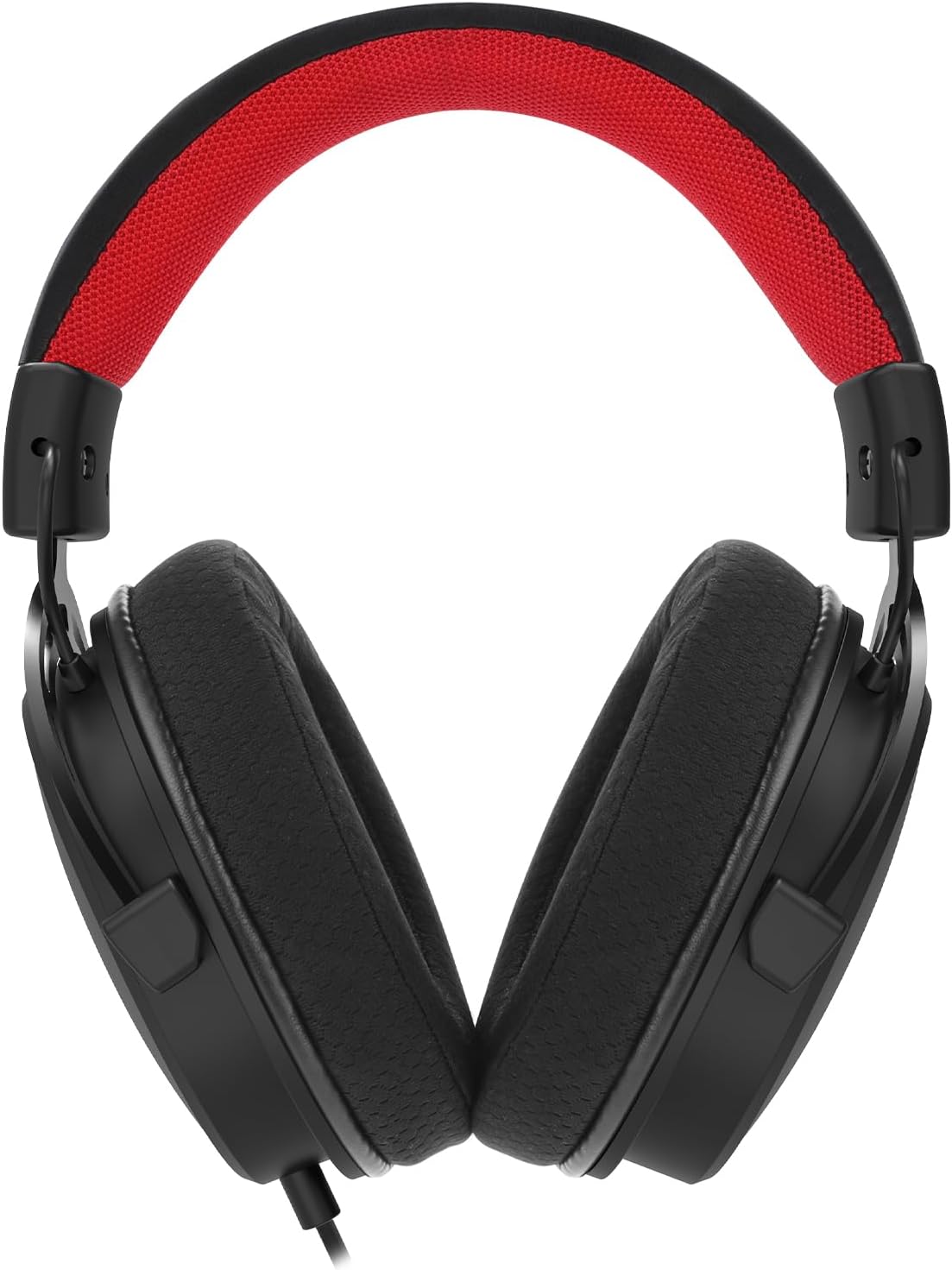
Figure 1: Front view of the Redragon Cragblade H541 Gaming Headset.
Setup
Follow these steps to set up your Redragon Cragblade H541 Gaming Headset:
- Connect the Headset: Plug the 3.5mm audio jack from the headset into the corresponding audio port on your device (PC, console controller, etc.).
- Attach the Microphone: Insert the detachable microphone into the microphone port located on the left earcup until it clicks securely into place. Ensure the microphone is oriented correctly for optimal voice pickup.
- Use the Y-Splitter (if needed): If your device has separate 3.5mm ports for audio output and microphone input, use the included Y-splitter cable. Connect the headset's 3.5mm jack to the female end of the Y-splitter, then plug the two male ends of the splitter into the respective audio and microphone ports on your device.
- Adjust for Comfort: Extend or retract the headband to fit your head comfortably. Position the earcups over your ears, ensuring a snug but not overly tight fit. Adjust the flexible microphone boom to bring the microphone close to your mouth for clear communication.

Figure 2: The Redragon Cragblade H541 headset with its detachable microphone and 3.5mm Y-splitter cable.
Operating Instructions
The Redragon Cragblade H541 features convenient in-line controls for easy audio management:
- Volume Control: Locate the in-line control unit on the headset cable. Use the scroll wheel or slider to increase or decrease the audio volume.
- Microphone Mute: The in-line control unit also includes a switch to mute or unmute the microphone. Flip the switch to the 'Mute' position to disable the microphone, and flip it back to 'Unmute' to enable it.
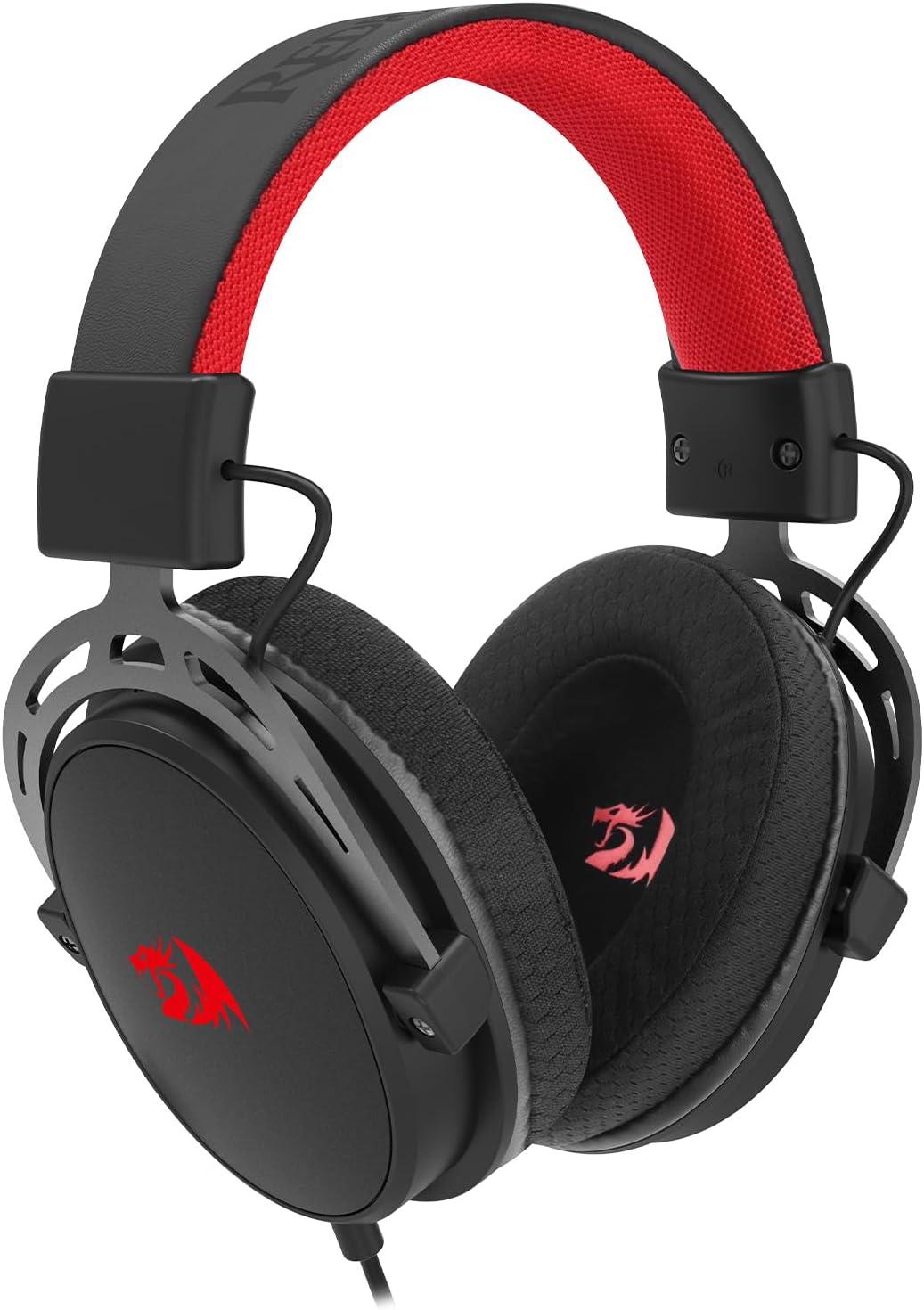
Figure 3: Close-up of the Redragon Cragblade H541 headset, highlighting the in-line volume and microphone mute controls.
Maintenance
Proper care will extend the life of your headset:
- Cleaning Ear Cushions: Gently wipe the sports mesh ear cushions with a soft, damp cloth. Avoid using harsh chemicals or abrasive materials. Allow them to air dry completely before use.
- Cable Care: Avoid sharp bends or excessive pulling on the cable. Store the cable neatly when not in use to prevent tangling and damage.
- Storage: Store the headset in a clean, dry place away from extreme temperatures and direct sunlight.

Figure 4: Detail of the comfortable sports mesh earcup on the Redragon Cragblade H541 headset.
Troubleshooting
If you encounter issues with your headset, refer to the following common solutions:
- No Sound:
- Ensure the 3.5mm jack is fully inserted into the audio port of your device.
- Check the volume control on the in-line unit and your device to ensure it is not muted or set too low.
- Test the headset with another device to rule out a device-specific issue.
- Microphone Not Working:
- Verify that the detachable microphone is securely attached to the headset.
- Ensure the microphone mute switch on the in-line control is in the 'Unmute' position.
- Check your device's audio settings to ensure the correct microphone input device is selected and its volume is not muted.
- If using the Y-splitter, ensure both plugs are correctly inserted into the audio and microphone ports.
- Sound Distortion or Poor Quality:
- Ensure all connections are secure.
- Try adjusting the volume on both the headset and your device.
- Test the headset with another audio source to determine if the issue is with the headset or the source device.
Specifications
| Model | H541 |
| Driver Diameter | 53 mm |
| Frequency Response | 20 Hz - 20 kHz |
| Impedance | 32 Ω ± 15% |
| Microphone Sensitivity | -38 ± 3dB (0dB = 1V/PA) |
| Microphone Polar Pattern | Omnidirectional |
| Connectivity | 3.5mm Jack (Wired) |
| Cable Length | 2 meters |
| Ear Cushion Material | Sports Mesh |
| Color | Black |
Warranty and Support
Redragon products are designed for durability and performance. For specific warranty information, please refer to the warranty card included with your product or visit the official Redragon website. If you experience any issues not covered in the troubleshooting section, please contact Redragon customer support for assistance.
Please retain your proof of purchase for any warranty claims. This product is eligible for a 30-day free return period from the date of purchase.