
1. Introduction
This manual provides essential information for the safe and efficient use of your LG 27G411A-B 27-inch UltraGear Full HD IPS Gaming Monitor. Please read it thoroughly before operating the device and retain it for future reference.
The LG 27G411A-B is a 27-inch Full HD (1920 x 1080) IPS gaming monitor designed for an immersive gaming experience. It features a 144Hz (Overclock) refresh rate, 1ms Motion Blur Reduction (MBR), NVIDIA G-Sync Compatible and AMD FreeSync technologies, and HDR10 support. Connectivity options include HDMI and DisplayPort.
2. Safety Information
Observe the following safety precautions to prevent electric shock, fire, or damage to the product.
- Do not place the monitor near heat sources or in direct sunlight.
- Ensure proper ventilation around the monitor.
- Use only the power cord and adapter supplied with the monitor.
- Do not insert any metal objects into the monitor's openings.
- If smoke, strange sounds, or odors occur, immediately unplug the power cord and contact customer support.
- Keep the monitor away from water and excessive humidity.
- Clean the screen with a soft, dry cloth. Avoid using harsh chemicals.
3. Package Contents
Verify that all items are present in your product box:
- LG 27G411A-B 27-inch UltraGear Monitor
- Monitor Stand (Base and Neck)
- Power Cord
- HDMI Cable
- User Manual (this document)
- Other documentation (e.g., warranty card)
4. Setup
4.1 Assembling the Stand
Follow these steps to attach the stand to your monitor:
- Place the monitor face down on a soft, clean surface to prevent scratches.
- Attach the stand neck to the monitor using the provided screws.
- Connect the stand base to the stand neck and secure it with the thumb screw.

Figure 4.1: Side view of the monitor, illustrating the stand assembly and tilt adjustment range.
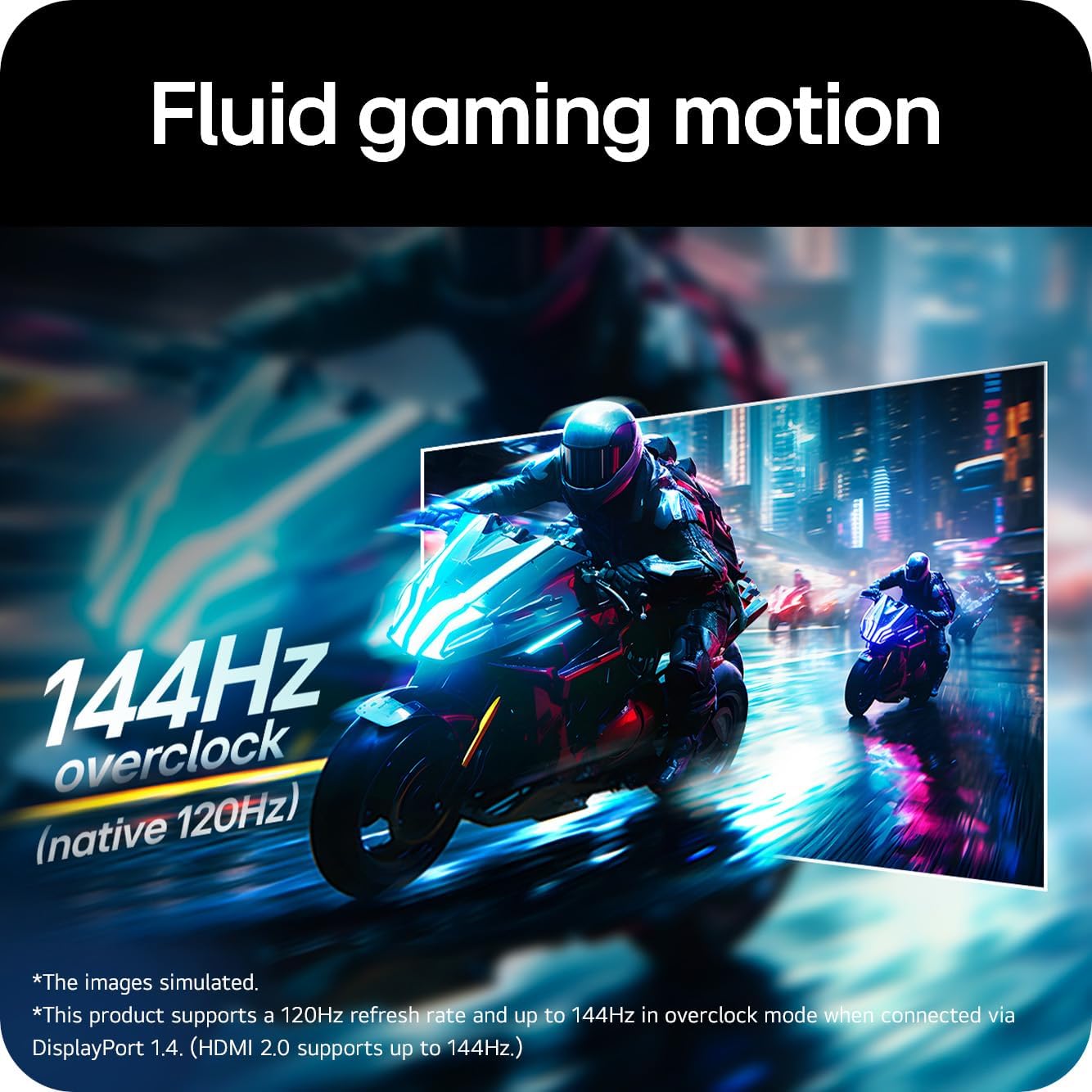
Figure 4.2: Rear view of the monitor, showing the stand attachment point and VESA mount compatibility.
4.2 Connecting Cables
Connect the necessary cables to the monitor and your computer/device:
- Power Cable: Connect the power adapter to the monitor's power input, then plug the power cord into a wall outlet.
- HDMI Cable: Connect one end of the HDMI cable to the HDMI port on your monitor and the other end to the HDMI output on your computer or gaming console.
- DisplayPort Cable: For optimal gaming performance (144Hz Overclock), connect a DisplayPort cable from your monitor's DisplayPort input to your computer's DisplayPort output.
- Audio Out: If using external speakers or headphones, connect them to the 3.5mm audio out jack on the monitor.
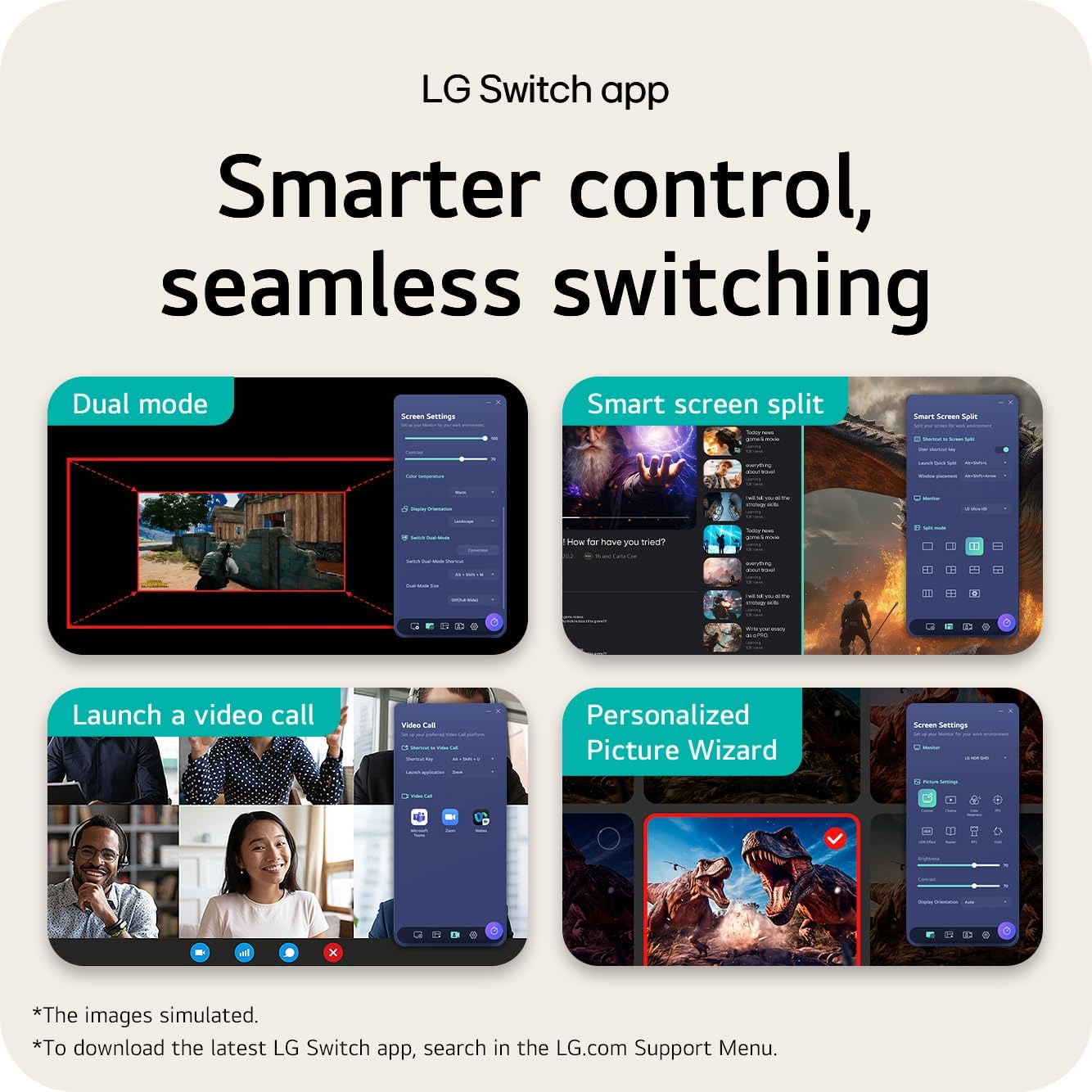
Figure 4.3: Detail of the monitor's rear ports, including HDMI, DisplayPort, and audio out connections.
5. Operating the Monitor
5.1 Power On/Off and OSD Navigation
The monitor features a joystick button located on the bottom center for power control and On-Screen Display (OSD) menu navigation.
- Power On: Press the joystick button once.
- Power Off: Press and hold the joystick button for a few seconds.
- OSD Menu: Press the joystick button once to bring up the main OSD menu. Move the joystick up/down/left/right to navigate and press to select.
5.2 Key Features and Settings
Utilize the OSD menu to configure various display settings:
- Refresh Rate (144Hz O/C): The monitor supports up to 144Hz refresh rate when overclocked via DisplayPort 1.4 (HDMI 2.0 supports up to 144Hz). Ensure your graphics card and cable support this.
- 1ms Motion Blur Reduction (MBR): This feature reduces motion blur for clearer action in fast-paced games. Note that activating MBR may disable AMD FreeSync / Dynamic Action Sync (DAS) and flicker may occur during operation.
- NVIDIA G-Sync Compatible / AMD FreeSync: These technologies synchronize the monitor's refresh rate with your GPU's frame rate to eliminate screen tearing and stuttering. Enable the corresponding setting in your graphics card control panel and on the monitor's OSD.
- HDR10: Experience enhanced color and contrast with HDR10 support. Ensure your content and system settings are configured for HDR.
- Picture Modes: Select from various preset picture modes (e.g., Gamer 1, FPS, RTS, Vivid, Reader) or customize your own settings for brightness, contrast, sharpness, and color temperature.
- Input Selection: Manually switch between HDMI and DisplayPort inputs if auto-detection does not work.
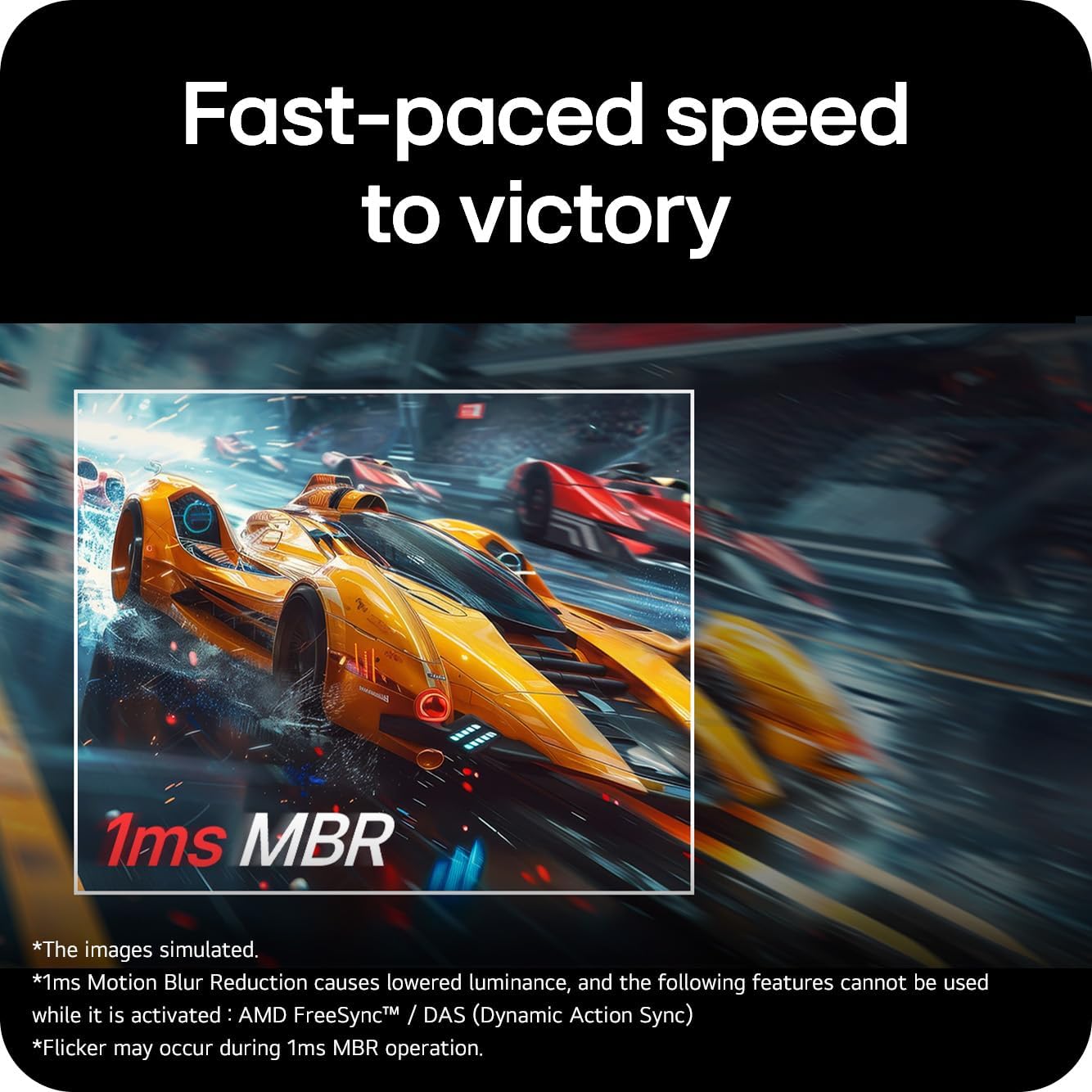
Figure 5.1: The LG 27G411A-B monitor showcasing vivid colors and fluid motion in a gaming environment.

Figure 5.2: An illustration demonstrating the effect of 1ms Motion Blur Reduction (MBR) for clearer visuals during fast-paced action.

Figure 5.3: A visual comparison illustrating the benefits of NVIDIA G-Sync Compatible and AMD FreeSync technologies in eliminating screen tearing.
6. Maintenance
Proper maintenance ensures the longevity of your monitor:
- Cleaning the Screen: Gently wipe the screen with a soft, lint-free cloth. For stubborn marks, lightly dampen the cloth with water or a specialized screen cleaner (non-ammonia based). Do not spray liquid directly onto the screen.
- Cleaning the Cabinet: Use a soft, dry cloth to wipe the monitor's casing. Avoid abrasive cleaners.
- Ventilation: Keep the ventilation openings clear of dust and obstructions to prevent overheating.
- Power Off: Always power off and unplug the monitor when not in use for extended periods.
7. Troubleshooting
If you encounter issues, refer to the following common problems and solutions:
| Problem | Possible Cause | Solution |
|---|---|---|
| No power | Power cord not connected; power outlet issue | Ensure power cord is securely connected. Test the outlet with another device. |
| No signal | Video cable not connected; incorrect input selected | Check HDMI/DisplayPort cable connections. Select the correct input source via the OSD menu. |
| Screen flickering/stuttering | Refresh rate mismatch; G-Sync/FreeSync not enabled or incompatible | Verify refresh rate in display settings. Ensure G-Sync/FreeSync is enabled on both monitor and GPU. Update graphics drivers. |
| Poor image quality | Incorrect resolution; picture settings misconfigured | Set display resolution to 1920x1080. Adjust brightness, contrast, and color settings in the OSD. |
If the problem persists after trying these solutions, contact LG customer support.
8. Specifications
| Feature | Detail |
|---|---|
| Screen Size | 27 Inches |
| Display Resolution | 1920 x 1080 (Full HD) |
| Panel Type | IPS |
| Refresh Rate | 144Hz (Overclock) |
| Response Time | 1ms MBR |
| Adaptive Sync | NVIDIA G-Sync Compatible, AMD FreeSync |
| HDR Support | HDR10 |
| Connectivity | HDMI, DisplayPort |
| Color | Black |
| Dimensions (L x W x H) | 22 x 61.2 x 45.2 cm (with stand) |
| Weight | 3.8 kg |
9. Warranty and Support
Your LG 27G411A-B monitor comes with a limited warranty. Please refer to the warranty card included in your package for specific terms and conditions, including coverage duration and limitations.
For technical support, service inquiries, or to download the latest drivers and software, please visit the official LG support website or contact their customer service. You can find more information at LG Canada Support.
10. Official Product Videos
The following videos provide additional information and visual guides for your LG UltraGear monitor. These videos are provided by the manufacturer.
LG 24GS50FX-B 24-inch Gaming Monitor Overview
This video provides an overview of the LG 24GS50FX-B 24-inch Gaming Monitor, highlighting its features such as 180Hz refresh rate, 1ms Motion Blur Reduction, and AMD FreeSync. While a different model, it demonstrates similar UltraGear features and design principles relevant to the 27G411A-B.
LG 27" FHD Monitor 27MS550 Features
This video showcases the LG 27" FHD Monitor 27MS550, detailing its 100Hz refresh rate, 3-side borderless design, height and tilt adjustment, built-in speakers, and 178-degree viewing angle. Many of these design and ergonomic features are shared with the 27G411A-B model.
LG UltraGear 27-inch Curved Gaming Monitor Overview
This video highlights the LG UltraGear 27-inch Curved Gaming Monitor, focusing on its 180Hz refresh rate, 1ms response time, 1000R curved screen, HDR10 support, and gamer-centric design. While the 27G411A-B is a flat panel, the performance and feature explanations are relevant to understanding the UltraGear gaming experience.