Introduction
This manual provides detailed instructions for the GoveeLife H5171 Outdoor/Indoor Thermometer Hygrometer. Please read thoroughly before use to ensure proper operation and longevity of your device.
The GoveeLife H5171 is a versatile device designed to accurately monitor temperature and humidity in various environments, both indoors and outdoors. Its robust, waterproof design, combined with smart app connectivity, makes it an ideal tool for managing environmental conditions in your home, garden, or during outdoor activities.
What's in the Box
- Thermometer x1
- AAA Battery x2
- Lanyard x1
Specifications
| Feature | Detail |
|---|---|
| Model Number | H5171 |
| Product Dimensions | 1.42"W x 2.61"H (1.42 x 1.42 x 2.61 inches; 2.4 ounces) |
| Batteries | 2 AAA batteries (included) |
| Battery Type | Alkaline |
| Mounting Type | Freestanding |
| Color | Black |
| Accuracy | ±0.54℉ / ±3%RH |
| Sampling Rate | 2 seconds |
| Bluetooth Range | Up to 197ft (60m) |
| Data Storage | 2 years |
| Waterproof Rating | IP65 |
Setup
1. Battery Installation
The GoveeLife H5171 requires two AAA batteries for operation. These are included in the package.
- Gently slide open the battery cover located on the back of the device.
- Insert the two AAA batteries, ensuring correct polarity (+/-).
- If present, remove the battery insulation tab.
- Close the battery cover securely.

Image: Battery compartment with AAA batteries installed.
Video: Instructions on how to install batteries and connect the GoveeLife H5171 thermometer.
2. Attaching the Lanyard (Optional)
For portability and secure carrying, attach the included lanyard to the designated loop on the top of the device.

Image: The GoveeLife H5171 attached to a backpack via its lanyard, demonstrating portability.
3. App Download and Device Pairing
To unlock smart features and remote monitoring, download the Govee Home app and pair your device.
- Download the "Govee Home" app from the App Store (iOS) or Google Play (Android).
- Open the Govee Home app and create an account or log in.
- Ensure Bluetooth is enabled on your smartphone.
- In the app, tap the "+" icon in the top right corner to add a new device.
- Search for "H5171" and select "Portable Thermo-Hygrometer H5171".
- Follow the on-screen instructions to complete the pairing process. This typically involves pressing the device's button to initiate pairing.
- Once paired, you can personalize your device name within the app.
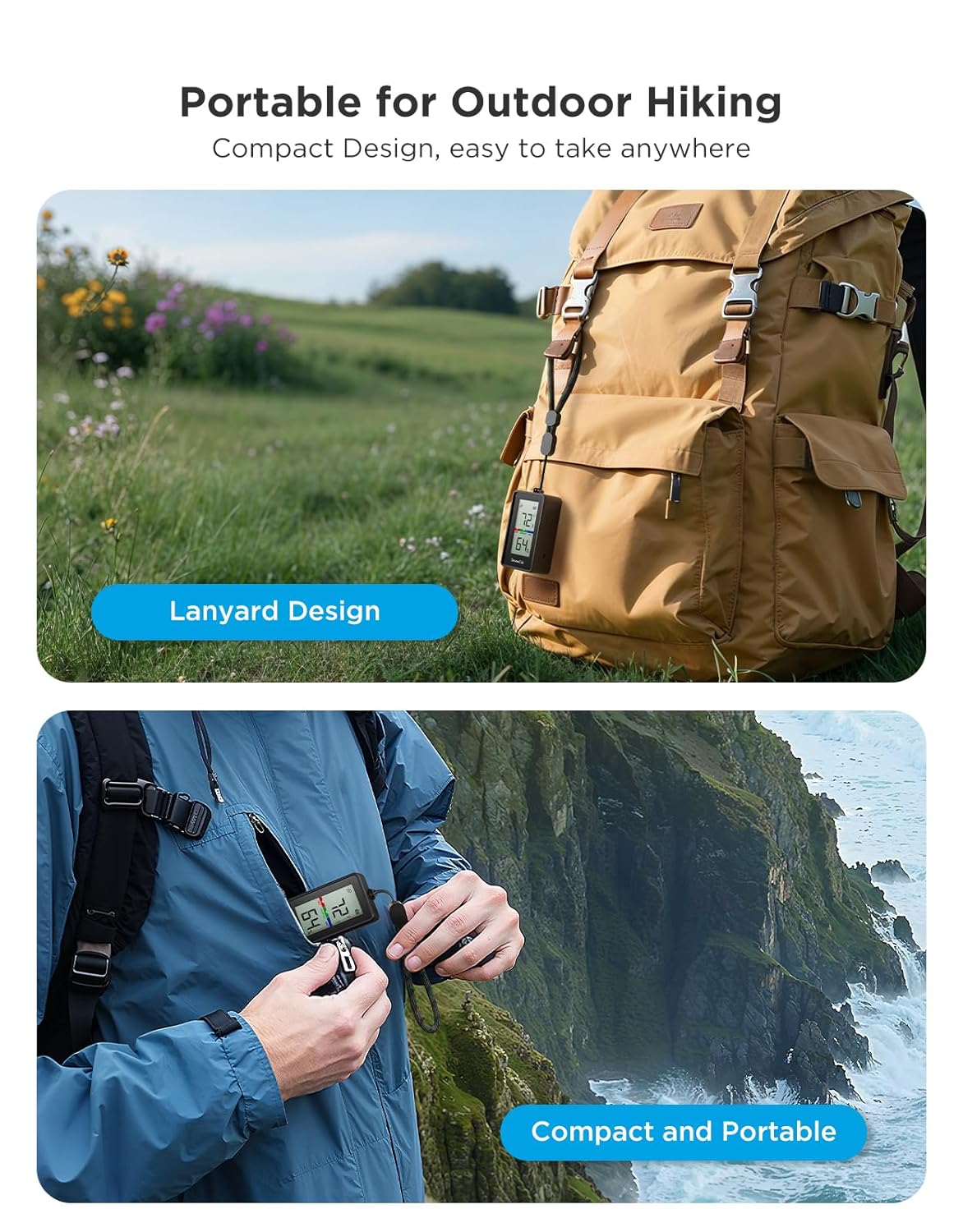
Image: The Govee Home app displaying real-time temperature and humidity data from the H5171 device.
Operating Instructions
1. Reading the LCD Display
The device features a clear LCD display showing current temperature and humidity readings.
- The top number indicates the temperature.
- The bottom number indicates the relative humidity percentage.
- A comfort indicator (DRY, COMFORT, WET) is displayed to quickly assess environmental conditions.

Image: Detailed view of the H5171's LCD screen, highlighting temperature, humidity, and comfort zone.
2. Switching Temperature Units
To switch between Fahrenheit (°F) and Celsius (°C), briefly press the button located on the side of the device.
3. Using the Govee Home App
The Govee Home app provides enhanced functionality and data insights:
- Real-time Monitoring: View live temperature and humidity data directly on your smartphone.
- Historical Data: Access 20-day curve readings and up to 2 years of historical data storage and export. This allows for tracking seasonal patterns and long-term trends.
- Smart Alerts: Set custom temperature and humidity thresholds. Receive instant notifications via the app when readings exceed or fall below your set ranges. Email alerts are also available when connected to a GoveeLife product gateway (sold separately).
- Data Export: Export historical data for further analysis.
- Connectivity: Supports Bluetooth connection up to 197ft (60m). For remote monitoring beyond Bluetooth range, connect to a GoveeLife product gateway (sold separately, supports 2.4 GHz Wi-Fi only).

Image: The Govee Home app showing customizable temperature and humidity alert settings.
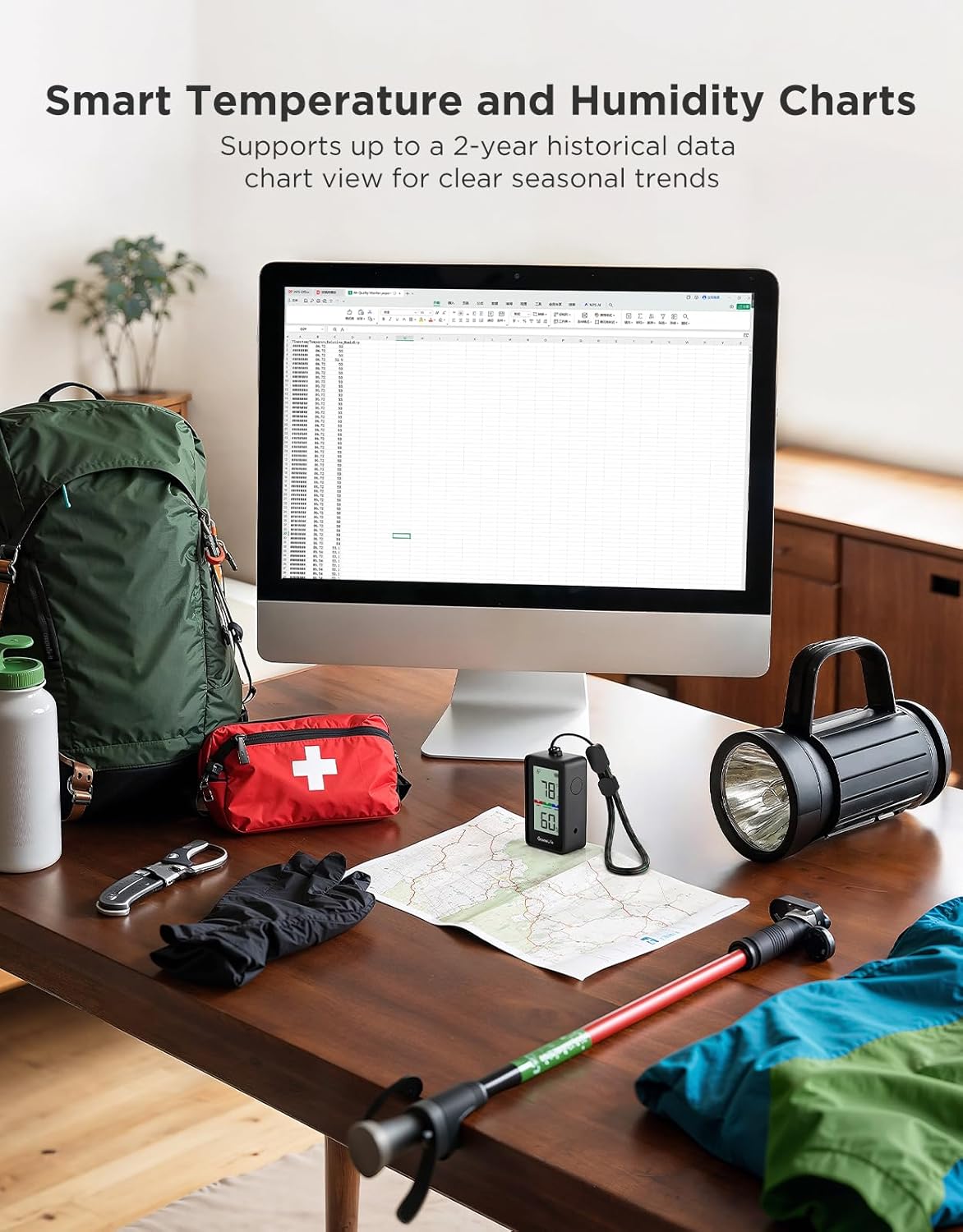
Image: The H5171 device shown with a laptop displaying detailed historical temperature and humidity charts, illustrating data export capabilities.
Video: An overview of the GoveeLife Portable Thermometer H5171, showcasing its features and app integration.
Maintenance
- Cleaning: Wipe the device with a soft, dry cloth. Do not use abrasive cleaners or immerse in water.
- Battery Replacement: When the battery indicator on the LCD display or in the app shows low power, replace the two AAA batteries following the installation steps.
- Storage: Store the device in a cool, dry place when not in use for extended periods.
Troubleshooting
- Device not turning on: Ensure batteries are correctly inserted and fully charged. Check for the battery insulation tab and remove it if present.
- Inaccurate readings: Allow the device to stabilize for at least 30 minutes after placement. Ensure the sensor is not obstructed. Avoid placing the device in direct sunlight or near heat/cold sources.
- Bluetooth connectivity issues: Ensure Bluetooth is enabled on your phone and the device is within the 197ft range. Restart both the device and the Govee Home app.
- No app alerts: Verify alert thresholds are set correctly in the Govee Home app. Check your phone's notification settings for the Govee Home app. For email alerts, ensure a GoveeLife gateway is properly connected and configured.
Warranty and Support
For warranty information, technical support, or further assistance, please refer to the official GoveeLife website or contact GoveeLife customer service directly. Keep your purchase receipt for warranty claims.
Online resources and FAQs may also be available on the GoveeLife support page.


