
1. Introduction
The GREALT Android TV Stick 14.0 is a compact and powerful streaming device designed to transform your television into a smart entertainment hub. Featuring Android 14.0, 4K Ultra HD resolution support, dual-band Wi-Fi, Bluetooth 5.0, and a voice remote control, this device provides access to a vast library of streaming content, games, and applications. This manual provides essential information for setup, operation, and maintenance to ensure optimal performance.

Image: The Android TV Stick supports 4K video decoding, HDR, and 13-bit video processing for enhanced visual quality.
2. Package Contents
Please verify that all items listed below are included in your package:
- GREALT Android TV Stick 14.0
- Bluetooth Voice Remote Control
- USB-A to USB-C Power Cable
- HDMI Extension Cable (optional for tight spaces)
- User Manual
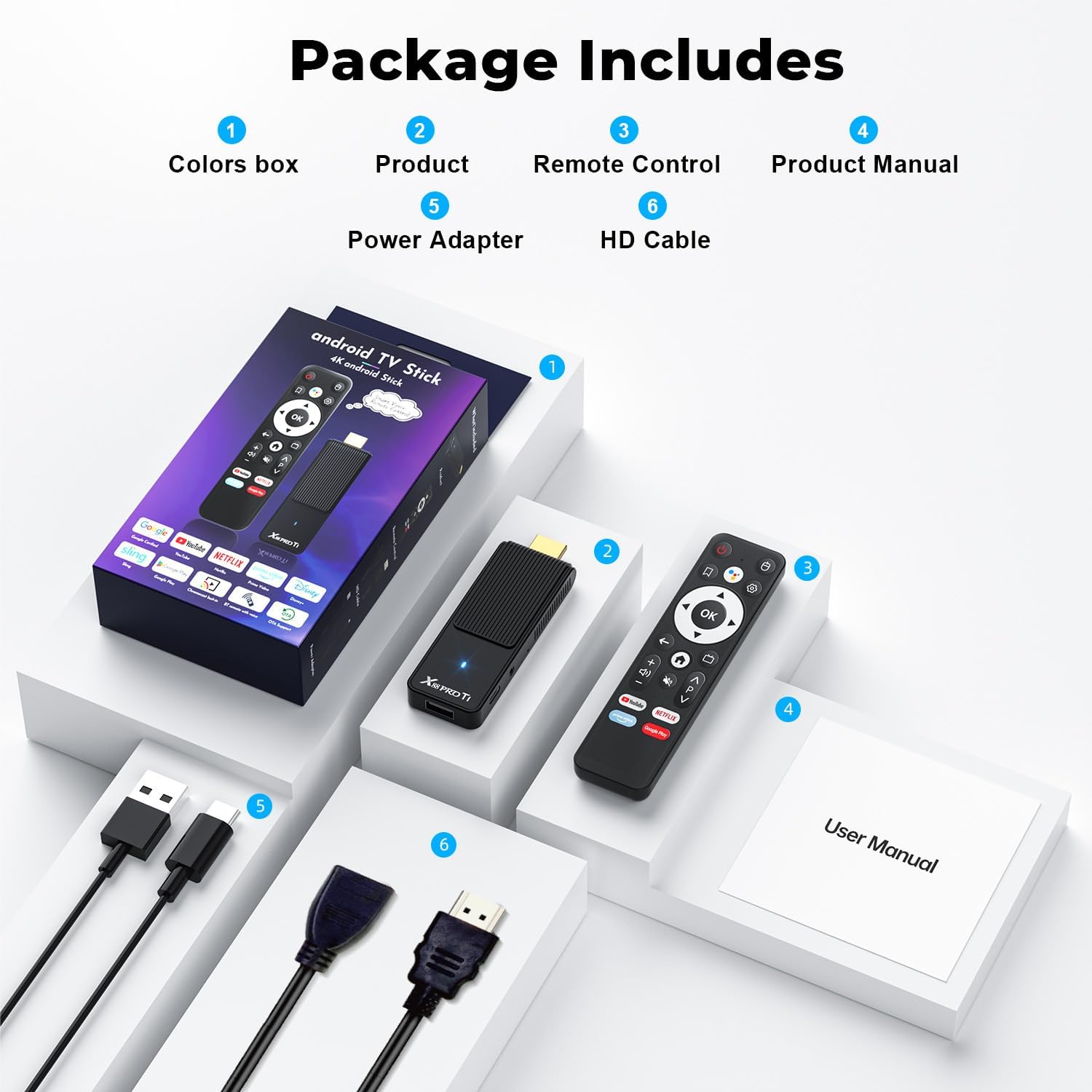
Image: Visual representation of the package contents: the Android TV Stick, remote control, power adapter, HD cable, and user manual.
3. Product Overview
3.1 Device Layout
The Android TV Stick is designed for easy integration with your television. It features essential ports for connectivity and power.
- HDMI Connector: Plugs directly into your TV's HDMI port for video and audio output.
- Type-C Port: Used for connecting the power cable to supply power to the device.
- USB 2.0 Port: For connecting external storage devices or peripherals.
- IR EXT Port: For connecting an optional IR extender cable (not included) if the stick is out of direct line of sight for the remote.
- Work Light: An indicator light that shows the device's operational status.

Image: Detailed view of the Android TV Stick's interface, highlighting the HDMI connector, Type-C power port, USB 2.0 port, IR EXT port, and work light, along with its dimensions (10cm length, 3.3cm width, 1.4cm height).
3.2 Remote Control
The included Bluetooth Voice Remote Control allows for intuitive navigation and voice commands. Familiarize yourself with its buttons for power, navigation (directional pad, OK button), volume, home, back, menu, and dedicated app buttons.
4. Setup Guide
Follow these steps to set up your GREALT Android TV Stick 14.0:
- Connect the TV Stick: Plug the Android TV Stick directly into an available HDMI port on your television. If space is limited, use the provided HDMI extension cable.
- Connect Power: Connect the USB-C end of the power cable to the Type-C port on the TV Stick. Plug the USB-A end into a USB power adapter (not included) and then into a wall outlet, or into an available USB port on your TV if it provides sufficient power.
- Power On and Select Input: Turn on your television and use its remote control to select the correct HDMI input source to which the TV Stick is connected.
- Pair the Remote Control: Once the TV Stick boots up, follow the on-screen instructions to pair the Bluetooth Voice Remote Control. This usually involves holding down specific buttons on the remote (e.g., Home and Back buttons simultaneously) until a pairing confirmation appears.
- Connect to Wi-Fi: Navigate through the initial setup wizard. Select your Wi-Fi network from the list and enter your password. The device supports both 2.4GHz and 5GHz Wi-Fi bands.
- Google Account Login: Sign in with your Google account. This is necessary to access the Google Play Store, download apps, and utilize Google services like voice control.
- Complete Setup: Follow any remaining on-screen prompts to finalize the setup process. Your Android TV Stick is now ready for use.

Image: A visual guide illustrating the three main setup steps: connecting the TV stick to the TV, connecting to the internet via Wi-Fi, and beginning to stream content.
5. Operating Instructions
5.1 Navigation and Interface
The Android TV interface is designed for ease of use. Use the directional pad on your remote to navigate through menus, select apps, and browse content. The 'OK' button confirms selections, while the 'Back' button returns to the previous screen.
5.2 Voice Control
Press the dedicated voice assistant button on your remote control to activate Google Assistant. Speak clearly into the remote to search for movies, TV shows, open apps, control playback, or ask questions. For example, say "Hey Google, play an action movie" or "Open Netflix."

Image: A user demonstrating voice control with the remote, asking Google Assistant to play music or an action movie, highlighting the dual-band Wi-Fi 6 and Bluetooth 5.0 capabilities.
5.3 Installing Applications
Access the Google Play Store from the home screen to download and install a wide variety of streaming apps, games, and utilities. Popular apps like Netflix, YouTube, Prime Video, Hulu, and Disney+ are readily available.

Image: The Android TV Stick's home screen displaying a selection of popular streaming services and apps, including HBO Max, Netflix, Disney+, Peacock, Hulu, and Prime Video.
5.4 Chromecast Built-in
The device includes Chromecast built-in, allowing you to cast content (videos, photos, music) from compatible mobile devices or web browsers directly to your TV screen.
6. Connectivity
6.1 Wi-Fi
The GREALT Android TV Stick supports dual-band Wi-Fi (2.4GHz and 5GHz) and Wi-Fi 6 technology for fast and stable internet connectivity. This ensures smooth streaming of 4K content and responsive online gaming.
6.2 Bluetooth 5.0
Integrated Bluetooth 5.0 allows you to connect various wireless accessories such as the voice remote, game controllers, Bluetooth headphones, or speakers for an enhanced audio and gaming experience.
7. Troubleshooting
If you encounter issues with your Android TV Stick, refer to the following common problems and solutions:
| Problem | Possible Cause / Solution |
|---|---|
| No power / Device not turning on | Ensure the USB-C power cable is securely connected to both the TV Stick and a working power source. Try a different USB power adapter or TV USB port. |
| No picture or sound on TV | Verify the TV Stick is fully inserted into the HDMI port. Check that your TV is set to the correct HDMI input. Try a different HDMI port or cable. |
| Remote control not responding / pairing issues | Ensure batteries are correctly inserted and charged. Re-pair the remote by following the on-screen instructions during initial setup or by checking the device settings for remote pairing options. Move closer to the device. |
| Wi-Fi connection drops frequently | Ensure the TV Stick is within range of your Wi-Fi router. Restart your router and the TV Stick. Check for any obstructions between the device and the router. Consider using the 5GHz band for better performance if available. |
| Slow performance / Buffering during streaming | Check your internet speed. Close unused applications running in the background. Clear cache for streaming apps. Restart the TV Stick. Ensure sufficient bandwidth for 4K streaming. |
| Apps not downloading or crashing | Ensure you are logged into your Google account. Check for available storage space (16GB ROM). Clear the cache and data for the Google Play Store app. Restart the device. |
8. Specifications
Key technical specifications for the GREALT Android TV Stick 14.0:
- Operating System: Android 14.0
- Processor: RK3518 CPU (Quad-Core 64bit Cortex-A53)
- RAM: 2GB
- Internal Storage (ROM): 16GB
- Video Output Resolution: Up to 4K (3840*2160 Pixels) at 60Hz
- Video Codec Support: H.264, H.265/HEVC, HDR10
- Wi-Fi: Dual-band (2.4G/5G) Wi-Fi 6
- Bluetooth: Bluetooth 5.0
- Ports: 1x HDMI, 1x Type-C (Power), 1x USB 2.0, 1x IR EXT
- Supported Internet Services: Google TV, YouTube, Netflix, Prime Video, Hulu, Disney+, and more via Google Play Store
- Controller Type: Bluetooth Voice Remote Control
- Form Factor: TV Stick
- Dimensions (Stick): Approximately 10cm (L) x 3.3cm (W) x 1.4cm (H)

Image: The Android TV Stick demonstrating its 4K video output capability, connecting to various display devices such as a projector, monitor, and HDTV.
9. Maintenance
To ensure the longevity and optimal performance of your GREALT Android TV Stick 14.0, follow these maintenance guidelines:
- Cleaning: Use a soft, dry cloth to clean the device. Do not use liquid cleaners or aerosols.
- Storage: Store the device in a cool, dry place away from direct sunlight and extreme temperatures.
- Ventilation: Ensure the device has adequate ventilation and is not covered, as this can lead to overheating.
- Software Updates: Periodically check for and install system updates to ensure you have the latest features and security enhancements.
10. Warranty and Support
For warranty information and technical support, please refer to the documentation provided with your purchase or contact GREALT customer service directly. Keep your proof of purchase for warranty claims.