
1. Introduction
This manual provides detailed instructions for the setup, operation, maintenance, and troubleshooting of your SOLAKAKA KI99 Pro Wireless Mechanical Keyboard and SM600 Tri-Mode Gaming Mouse Combo. Please read this manual thoroughly before using the product to ensure optimal performance and longevity.
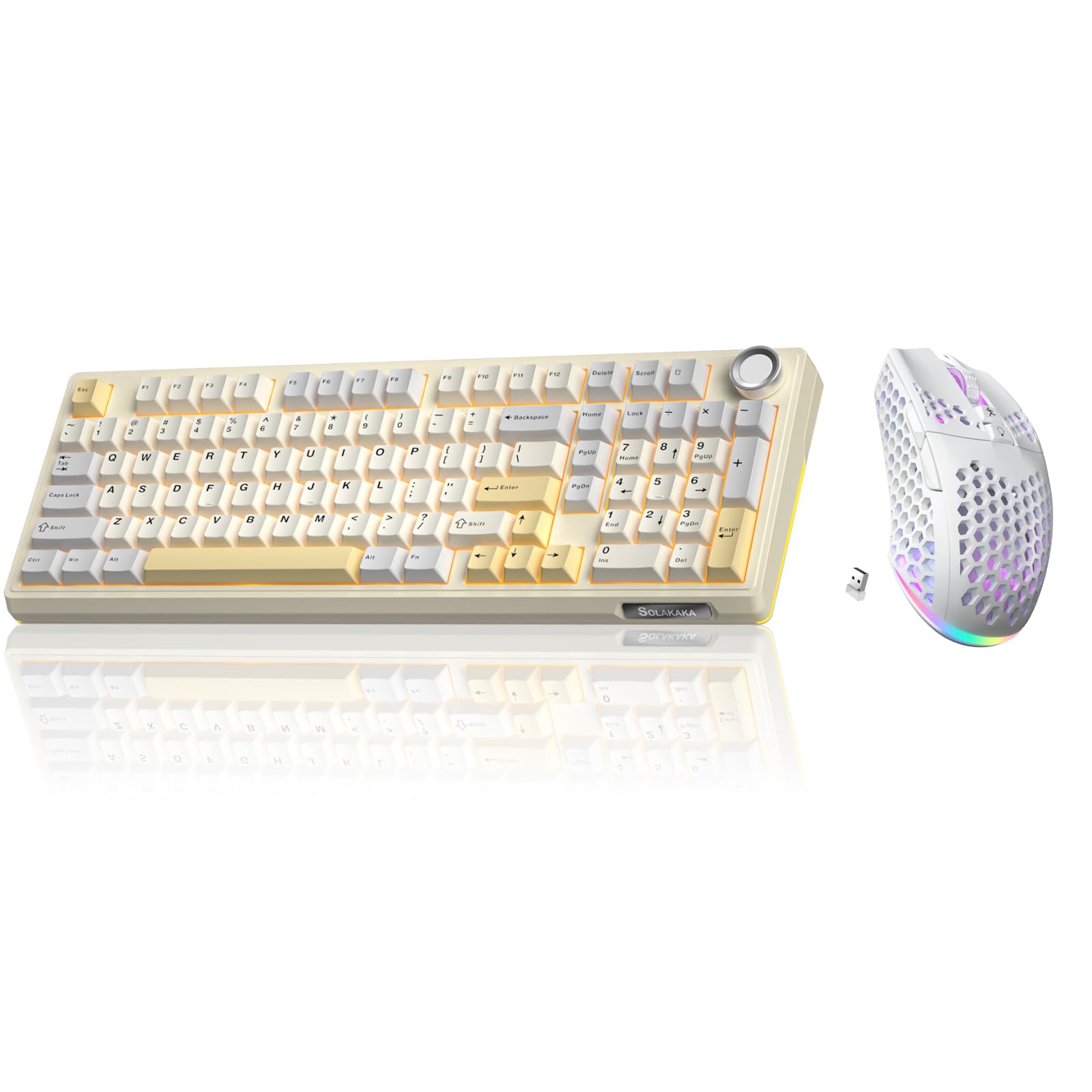
Image 1.1: The SOLAKAKA KI99 Pro Keyboard and SM600 Mouse Combo, showcasing both devices together.
2. Product Overview
2.1. KI99 Pro Wireless Mechanical Keyboard
The KI99 Pro keyboard features a 96% layout, offering a balance between compactness and full functionality. It supports triple-mode connectivity and includes a multifunctional knob for enhanced control.
- Triple-mode Connectivity: Bluetooth 5.0, 2.4GHz Wireless, Type-C Wired.
- Long-lasting Battery: Equipped with a 10,000mAh high-capacity battery.
- 96% Layout: Integrates most functional keys of a traditional full-size keyboard.
- Multifunctional Knob: Easily adjust volume, switch media playback, and regulate light brightness.
- Gasket Structure & Five-layer Noise Reduction: Provides a solid and pure typing experience.
- Hot-swappable: Supports 3/5-pin switches without soldering for personalized tactile customization.
- PBT Keycaps: Dual-color injection molded for excellent wear and fade resistance.
- LEOBOG Flower Switches: Pre-lubricated mechanical switches.
- Compatibility: Supports Windows and macOS systems.

Image 2.1: The KI99 Pro keyboard highlighting its tri-mode connectivity options: 2.4GHz Wireless, BT5.0, and Type-C Wired.

Image 2.2: A close-up view of the KI99 Pro keyboard, demonstrating its hot-swappable switch design and durable two-color PBT keycaps.
LEOBOG Flower Switch Specifications:
| Parameter | Value |
|---|---|
| Total Key Stroke | 3.8 ± 0.3 mm |
| Initial Pressure | 29 gf Min |
| Conduction Stroke | 1.5 ± 0.3 mm |
| Conduction Pressure | 33 ± 3 gf |
| Bottom Pressure | 45 ± 3 gf |
| Mechanical Life | Approximately 60,000,000 times |

Image 2.3: Diagram illustrating the internal structure and specifications of the LEOBOG Flower mechanical switch.
2.2. SM600 Tri-Mode Gaming Mouse
The SM600 mouse is designed for gaming, offering tri-mode connectivity, adjustable DPI, and customizable features within a lightweight honeycomb shell.
- Tri-Mode Connection: 2.4GHz Wireless, 2x Bluetooth 5.1, Type-C Wired.
- Multi-Device Support: Save up to 4 device profiles.
- Adjustable DPI: 6 levels, up to 8000 DPI.
- Custom Macro: Programmable buttons for personalized commands.
- RGB Backlight: 14 customizable RGB lighting modes.
- Lightweight Design: Honeycomb shell for reduced weight.
- Durability: Rated for 5 million clicks.
- Rechargeable Battery: Built-in rechargeable battery.

Image 2.4: The SM600 mouse illustrating its three connection modes: 2.4GHz wireless, Bluetooth, and Type-C wired.

Image 2.5: An overview of the SM600 mouse highlighting its key features such as tri-mode connection, custom macros, adjustable DPI, RGB backlight, lightweight design, honeycomb shell, and rechargeable battery.
3. Setup Instructions
3.1. KI99 Pro Keyboard Setup
- Wired Connection: Connect the provided Type-C USB cable to the keyboard and your computer's USB port. The keyboard will automatically switch to wired mode and begin charging.
- 2.4GHz Wireless Connection:
- Locate the 2.4GHz USB receiver (usually stored in a compartment on the keyboard or mouse).
- Plug the receiver into an available USB port on your computer.
- Switch the keyboard's mode selector to 2.4G mode. The keyboard should connect automatically.
- Bluetooth Connection:
- Switch the keyboard's mode selector to BT mode.
- On your computer or device, open Bluetooth settings and search for new devices.
- Select "KI99 Pro" from the list of available devices to pair.
- The keyboard supports up to three Bluetooth devices. Use specific key combinations (e.g., Fn + 1, Fn + 2, Fn + 3) to switch between paired devices. Refer to the keyboard's specific function key guide for details.
3.2. SM600 Mouse Setup
- Wired Connection: Connect the provided Type-C USB cable to the mouse and your computer's USB port. The mouse will automatically switch to wired mode and begin charging.
- 2.4GHz Wireless Connection:
- Ensure the 2.4GHz USB receiver is plugged into your computer.
- Switch the mouse's mode selector to 2.4G mode. The mouse should connect automatically.
- Bluetooth Connection:
- Switch the mouse's mode selector to BT mode. The mouse supports two Bluetooth channels (BT1, BT2).
- On your computer or device, open Bluetooth settings and search for new devices.
- Select "SM600 BT1" or "SM600 BT2" from the list of available devices to pair.
- To switch between BT1 and BT2, use the dedicated button on the mouse (refer to the mouse diagram for location).
4. Operating Instructions
4.1. KI99 Pro Keyboard Operation
- Mode Switching: Use the physical switch on the keyboard to select between Wired, 2.4G, and BT modes.
- Bluetooth Device Switching: Press Fn + 1, Fn + 2, or Fn + 3 to switch between the three paired Bluetooth devices.
- Multifunctional Knob:
- Rotate: Adjust volume (clockwise to increase, counter-clockwise to decrease).
- Press: Play/Pause media.
- Long Press: Switch RGB lighting effects (if applicable, refer to specific keyboard documentation for advanced lighting controls).
- Windows/Mac Mode: Use the dedicated switch or key combination (e.g., Fn + A for Windows, Fn + S for Mac) to switch between operating system layouts.
- Charging: Connect the Type-C cable to charge the keyboard. The indicator light will show charging status.
4.2. SM600 Mouse Operation
- Mode Switching: Use the physical switch on the mouse to select between Wired, 2.4G, and BT modes.
- DPI Adjustment: Press the DPI button (usually located behind the scroll wheel) to cycle through 6 adjustable DPI levels. The current DPI setting may be indicated by an LED color change. Maximum DPI is 8000.

Image 4.1: The SM600 mouse demonstrating its 6 adjustable DPI levels, with a maximum of 8000 DPI, configurable via a dedicated button.
- RGB Lighting Control: Use the dedicated RGB button or software to cycle through 14 RGB backlight modes.
- Customization Software: The SM600 mouse features dedicated software for Windows systems (2.4GHz wireless and wired modes only). This software allows for custom lighting, button function remapping, and macro programming.

Image 4.2: Screenshot of the SM600 mouse customization software interface, showing options for button remapping, DPI settings, and macro programming. Note: Software supports Windows only, for 2.4GHz wireless and wired modes.
Kindly Reminder: SM600 software only supports Windows system and only supports 2.4GHz wireless and wired mode. Bluetooth mode is not available for software customization.
5. Maintenance
- Cleaning: Use a soft, dry cloth to wipe down the keyboard and mouse. For deeper cleaning, use a slightly damp cloth with mild soap, ensuring no liquid enters the devices. Avoid harsh chemicals.
- Keycap Removal (KI99 Pro): Use the provided keycap puller to carefully remove keycaps for cleaning or switch replacement. Pull vertically to avoid damaging the switch.
- Switch Replacement (KI99 Pro): Use the provided switch puller to carefully remove hot-swappable switches. Align new 3-pin or 5-pin switches correctly before pressing them into place. Do not force switches.
- Battery Care: To prolong battery life, avoid fully discharging the devices frequently. Charge them when the low battery indicator appears. Store in a cool, dry place if not used for extended periods.
- Storage: Store the keyboard and mouse in a clean, dust-free environment when not in use.
6. Troubleshooting
- Device Not Connecting:
- Ensure the device is powered on and the correct connection mode (2.4G, BT, Wired) is selected.
- For 2.4G, ensure the USB receiver is securely plugged in. Try a different USB port.
- For Bluetooth, ensure Bluetooth is enabled on your host device and the device is in pairing mode. Remove previous pairings and try pairing again.
- Try connecting via wired mode to confirm basic functionality.
- Keys/Buttons Not Responding:
- Check battery level and charge the device if low.
- For keyboard, ensure no debris is under the keycap or switch. If hot-swappable, try reseating the switch.
- Restart your computer and the device.
- Lag or Disconnections:
- Ensure the device is within the effective range (up to 10M for 2.4G/BT).
- Minimize interference from other wireless devices (e.g., Wi-Fi routers, other 2.4GHz devices).
- Ensure the USB receiver is not blocked by metal objects.
- RGB Lighting Not Working:
- Check if the lighting is turned off or set to a very dim level.
- Refer to the specific key combinations for lighting control in the operating instructions.
- Ensure the device is sufficiently charged.
- Mouse DPI Not Changing:
- Ensure you are pressing the correct DPI adjustment button.
- If using the software, ensure settings are applied and the mouse is in a compatible mode (2.4G or Wired).
7. Specifications
7.1. KI99 Pro Keyboard
- Connectivity: Bluetooth 5.0, 2.4GHz Wireless, Type-C Wired
- Layout: 96%
- Battery Capacity: 10,000mAh
- Switches: LEOBOG Flower Mechanical (Hot-swappable 3/5-pin)
- Keycaps: PBT Dual-color Injection Molded
- Structure: Gasket Mount, Five-layer Noise Reduction
- Backlight: RGB
- Compatibility: Windows, macOS
7.2. SM600 Mouse
- Connectivity: 2.4GHz Wireless, 2x Bluetooth 5.1, Type-C Wired
- DPI: Up to 8000 (6 adjustable levels)
- Buttons: Programmable, Custom Macro Support
- Click Life: 5 Million Clicks
- Design: Lightweight Honeycomb Shell
- Backlight: 14 RGB Modes
- Battery: Rechargeable
- Software Compatibility: Windows (2.4GHz/Wired modes only)
8. Warranty and Support
SOLAKAKA products are designed for reliability and performance. For warranty information, technical support, or customer service inquiries, please refer to the warranty card included with your product or visit the official SOLAKAKA website. Please retain your proof of purchase for any warranty claims.