1. Introduction
This manual provides essential information for the proper use and maintenance of your Samsung Galaxy Book4 360 2-in-1 AI PC Laptop, model NP750QGK. This device offers versatile functionality, transitioning between laptop, tent, stand, and tablet modes to suit various tasks and environments. Please read this manual thoroughly before operating your device.
2. What's in the Box
Verify that all items are present in the product packaging:
- SAMSUNG Galaxy Book4 360 laptop
- 65W AC Adapter with Power Cord
- User Manual
3. Product Overview
The Samsung Galaxy Book4 360 is a versatile 2-in-1 laptop designed for flexibility and performance. It features a 15.6-inch FHD AMOLED touchscreen display and a durable, lightweight design.
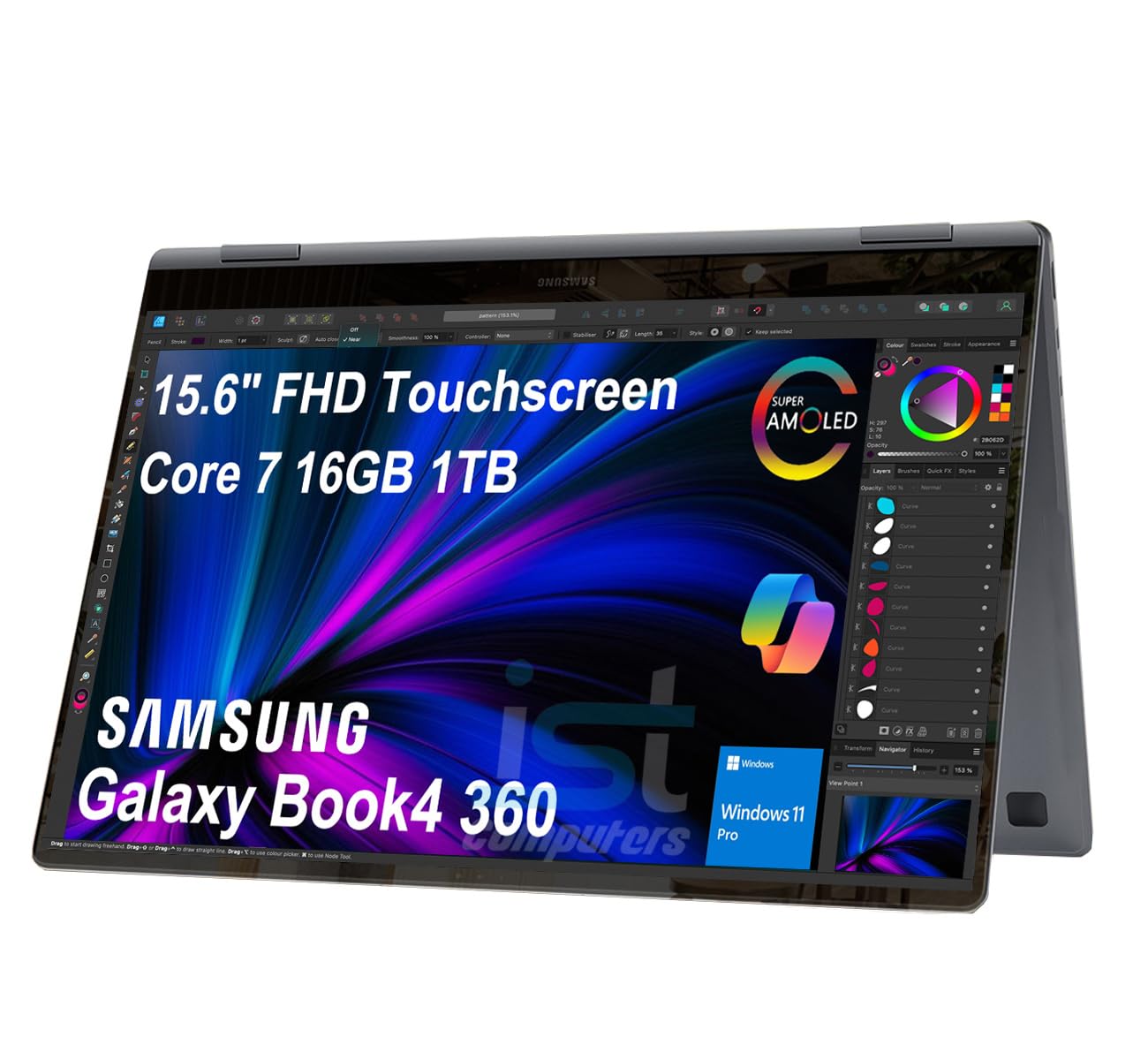
Image: The Samsung Galaxy Book4 360 laptop shown in its open, traditional laptop configuration.
3.1. Physical Features
- 15.6" FHD AMOLED Touchscreen: Provides vibrant visuals and interactive control.
- Backlit Keyboard: Allows for comfortable typing in various lighting conditions.
- Fingerprint Reader: Integrated for secure and convenient login.
- 1080p FHD Webcam: For clear video conferencing.
3.2. Ports and Connectors
The device is equipped with a range of ports for connectivity:

Image: Detailed view of the laptop's side ports, including HDMI, Thunderbolt 4, microSD card slot, USB 3.2 Type-A, and a 3.5mm headphone/microphone combo jack.
- 2x Thunderbolt 4 Ports: For high-speed data transfer, video output, and charging.
- HDMI v1.4b Port: Connect to external displays.
- USB 3.2 Type-A Port: For standard USB devices.
- microSD Reader: Expand storage or transfer files from memory cards.
- 3.5pi Headphone out/Mic-in Combo Jack: For audio input and output.
4. Setup
4.1. Initial Power On
- Unpack the laptop and all accessories.
- Connect the 65W AC adapter to the laptop's Thunderbolt 4 port and then to a power outlet.
- Open the laptop lid. The device may power on automatically, or you may need to press the power button located on the side.
- Follow the on-screen instructions to complete the initial Windows 11 Pro setup, including language selection, network connection, and user account creation.
4.2. Charging the Battery
For optimal battery life, fully charge the laptop before its first use. The 65W AC adapter provides fast charging capabilities.

Image: A close-up of the laptop connected to a USB-C charger, illustrating its fast-charging capability, reaching 39% charge in 30 minutes.
5. Operating Instructions
5.1. Modes of Use
The Galaxy Book4 360 offers four primary modes:
- Laptop Mode: Standard configuration for typing and productivity.
- Tent Mode: Ideal for presentations or viewing content in a confined space.
- Stand Mode: Positions the screen for entertainment or video calls.
- Tablet Mode: Fully folded back for interactive touch-based use.
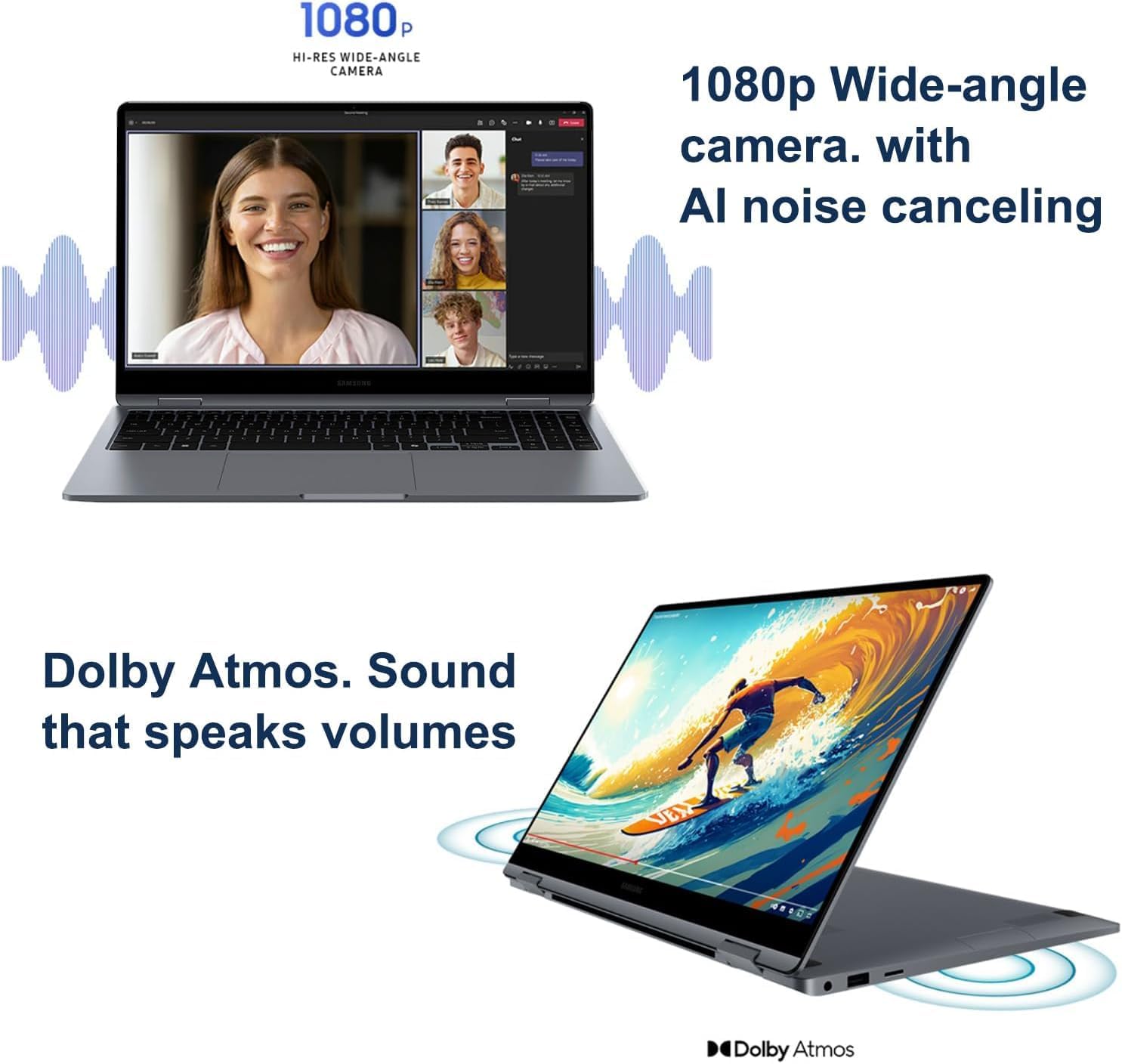
Image: The laptop configured in tent mode, suitable for media consumption or presentations.
5.2. Display and External Monitors
The 15.6-inch FHD AMOLED display provides a resolution of 1920x1080 pixels with 370 nits brightness. You can expand your workspace by connecting up to three external monitors via the HDMI and Thunderbolt 4 ports, supporting resolutions up to 4K@60Hz (without a docking station).

Image: The laptop's AMOLED display showcasing vibrant and rich colors, highlighting its visual quality.
5.3. Performance
Equipped with an Intel Core 7 150U processor (10-Core, 12 Threads, up to 5.4 GHz), 16GB DDR5 6000MT/s RAM, and a 1TB PCIe NVMe M.2 SSD, the Galaxy Book4 360 delivers efficient performance for various tasks.
5.4. Connectivity
The laptop supports Intel Wi-Fi 6E for fast wireless internet and Bluetooth 5.3 for seamless pairing with compatible devices.
5.5. Webcam and Audio
The integrated 1080p FHD Webcam ensures clear video calls, complemented by high-quality microphones with AI noise canceling. The dual-speaker system with Dolby Atmos provides immersive audio.

Image: A split image showing the laptop's 1080p wide-angle camera in use during a video call and the laptop's speakers emitting sound, indicating Dolby Atmos audio.
5.6. Samsung Ecosystem Features
- Buds Auto Switch: Seamlessly switch audio output between your Galaxy Book4 360 and paired Galaxy Buds during calls or media playback.
- Use Your Phone as a Connected Camera: Enhance video call quality by using your Samsung Galaxy smartphone as an external webcam.
- Samsung Studio: Create and edit content across Samsung Galaxy devices, utilizing Quick Share for easy transfers.
- Photo Remaster: An AI-powered tool to enhance old or low-quality photos, remove blur, and adjust lighting.
- Messages Integration: Seamlessly manage messages and interact with your smartphone directly from your laptop.

Image: A visual representation of the Buds Auto Switch feature, demonstrating how audio seamlessly transitions between the Galaxy Book4 360 and a smartphone when paired with Galaxy Buds.

Image: Individuals using a Samsung Galaxy smartphone as a connected camera to enhance the video quality of a call on the Galaxy Book4 360.

Image: The Samsung Studio interface displayed on both the laptop and a mobile phone, illustrating seamless video creation and editing across devices.

Image: The laptop screen displaying the AI Photo Remaster tool, demonstrating its ability to improve image quality with a single tap.

Image: The laptop and a smartphone displaying integrated messaging features, allowing users to manage communications across devices.
6. Maintenance
6.1. Cleaning
- Use a soft, lint-free cloth to clean the screen and exterior surfaces.
- For stubborn marks, lightly dampen the cloth with water or a screen-cleaning solution. Avoid harsh chemicals.
- Ensure the device is powered off and unplugged before cleaning.
6.2. Storage
- Store the laptop in a cool, dry place away from direct sunlight and extreme temperatures.
- If storing for an extended period, ensure the battery is charged to approximately 50% to preserve its health.
7. Troubleshooting
If you encounter issues with your Galaxy Book4 360, refer to the following common solutions:
7.1. Power Issues
- Device not turning on: Ensure the AC adapter is securely connected and the power outlet is functional. Try a different outlet.
- Battery not charging: Verify the charging cable and adapter are not damaged. Ensure the connection to the laptop's Thunderbolt 4 port is firm.
7.2. Display Issues
- No display: Connect an external monitor to check if the issue is with the laptop's internal display. Restart the laptop.
- External monitor not detected: Ensure the cable is properly connected. Check display settings in Windows to detect the monitor.
7.3. Connectivity Issues
- Wi-Fi not connecting: Check if Wi-Fi is enabled. Restart your router and the laptop. Ensure correct password entry.
- Bluetooth device not pairing: Ensure the Bluetooth device is in pairing mode and within range. Check Bluetooth settings on the laptop.
For persistent issues, contact customer support.
8. Specifications
| Feature | Specification |
|---|---|
| Model Name | Galaxy Book4 360 |
| Item Model Number | NP750QGK |
| Standing Screen Display Size | 15.6 Inches |
| Screen Resolution | 1920 x 1080 pixels (FHD AMOLED) |
| Processor | Intel Core 7 150U (10-Core, up to 5.4 GHz) |
| RAM | 16 GB LPDDR5X (6000 MHz) |
| Hard Drive | 1 TB SSD (PCIe NVMe M.2) |
| Graphics Coprocessor | Intel Graphics (Integrated) |
| Wireless Type | 802.11.be (Wi-Fi 6E), Bluetooth 5.3 |
| Ports | 2x Thunderbolt 4, 1x HDMI v1.4b, 1x USB 3.0 (Type-A), microSD Reader, 3.5pi HP/MIC Combo |
| Operating System | Windows 11 Pro |
| Average Battery Life | Up to 22 Hours |
| Item Weight | 3.22 pounds |
| Product Dimensions | 13.99 x 8.98 x 0.54 inches |
| Special Features | Anti Glare Coating, Backlit Keyboard, Fingerprint Reader, Touchscreen |
9. Warranty and Support
Your Samsung Galaxy Book4 360 NP750QGK comes with the following warranty coverage:
- Upgraded SSD: Three-year warranty from Issaquah Highlands Tech.
- Remaining Components: One-year warranty from the manufacturer (Samsung).
For technical support or warranty claims, please refer to the contact information provided with your purchase documentation or visit the official Samsung support website.