
Introduction
Thank you for choosing the FLYRUIT Frameo WiFi Digital Picture Frame. This manual provides detailed instructions to help you set up, operate, and maintain your new digital photo frame. Please read this manual thoroughly before using the device to ensure proper functionality and a seamless experience.
Product Overview
The FLYRUIT Frameo Digital Picture Frame allows you to instantly share photos and videos with loved ones from anywhere in the world. Featuring a vibrant 10.1-inch display and intuitive touchscreen controls, it's designed for ease of use and secure photo sharing.

Image: Overview of the FLYRUIT Frameo 10.1-inch Digital Frame highlighting its key features: 10.1-inch large display, reliable Frameo app, 32GB built-in storage, and 800P HD touchscreen.

Image: The digital frame showcasing its clear view and easy control features, including a 1920x1080 Full HD touchscreen with IPS True Color technology.
What's in the Box
Please check the package contents upon unboxing:
- FLYRUIT Frameo WiFi Digital Picture Frame (M10R7)
- Power Adapter
- Frame Stand
- User Manual
Setup Guide
1. Powering On
- Connect the power adapter to the frame and plug it into a power outlet.
- The frame will automatically power on. If not, press the power button located on the back of the frame.
2. Initial Setup (On-Screen)
- Follow the on-screen prompts to select your preferred language.
- Choose your time zone.
- Connect to a Wi-Fi network. Select your network from the list and enter the password.
3. Downloading the Frameo App
To send photos and videos to your frame, you need to download the Frameo app on your smartphone or tablet.
- Search for "Frameo" in the Apple App Store (for iOS devices) or Google Play Store (for Android devices).
- Download and install the app.
4. Connecting the Frame to the App
- On your Frameo digital frame, tap the "Add friend" icon to generate a unique 6-digit code.
- Open the Frameo app on your smartphone.
- Tap "Add frame" and enter the 6-digit code displayed on your digital frame.
- Once connected, you can start sending photos and videos to your frame.

Image: A white digital picture frame displaying a photo, accompanied by a smartphone showing the Frameo application, illustrating the connection process.
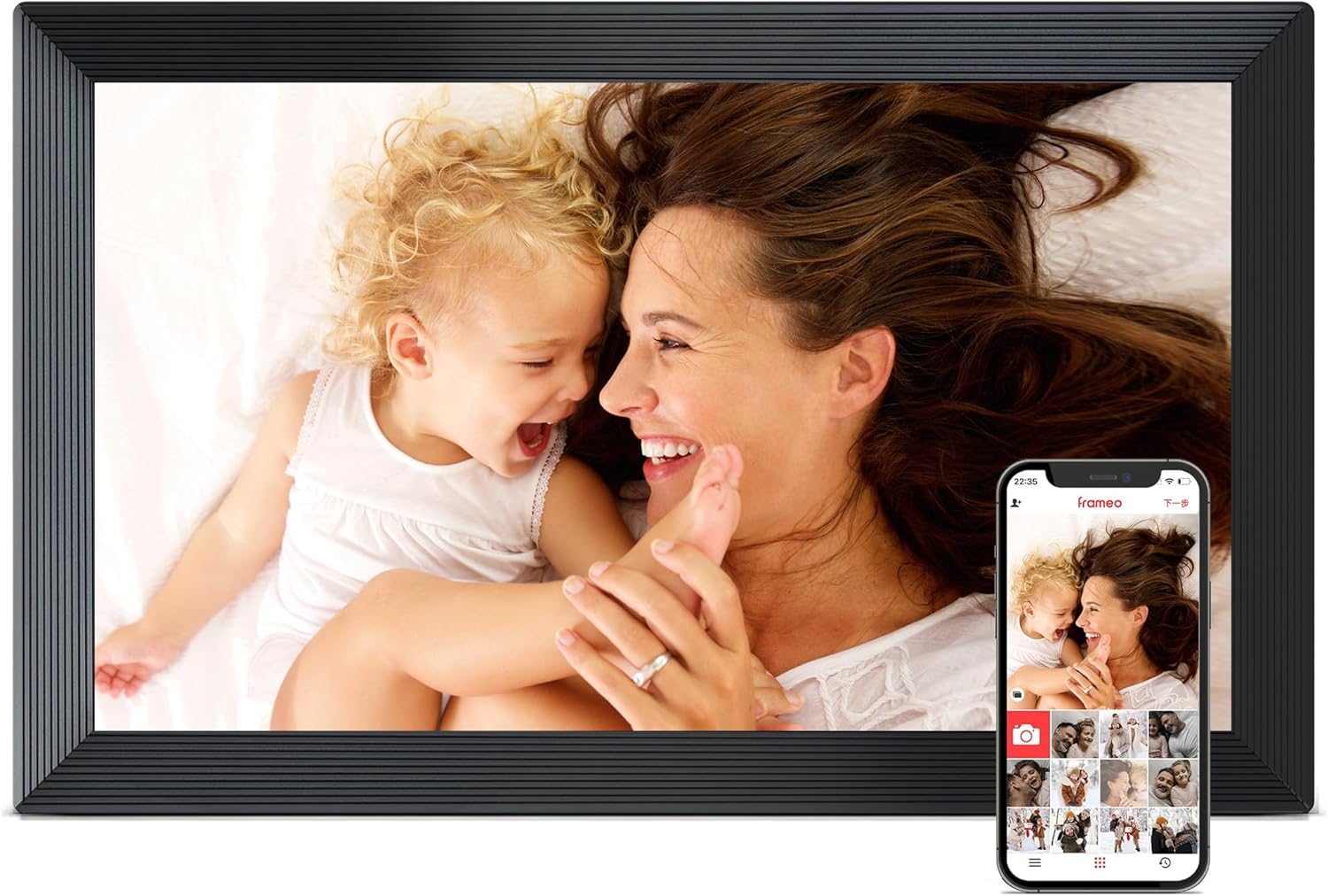
Image: A black digital picture frame displaying a photo, accompanied by a smartphone showing the Frameo application, demonstrating the user interface.
Operating the Frame
1. Sending Photos and Videos
Use the Frameo app to select photos and videos from your phone's gallery and send them directly to your connected frame. Videos can be up to 2 minutes long.

Image: The digital frame displaying a photo sequence, with a smartphone illustrating the Frameo app's instant photo sharing capability over Wi-Fi.
2. Managing Photos and Videos on the Frame
- Delete Photos: Tap on a photo to view it, then tap the delete icon to remove it from the frame.
- Add Captions: When sending photos from the app, you can add captions that will appear on the frame.
- Hide/Show Photos: You can hide specific photos from the slideshow without deleting them.
3. Slideshow Settings
Access the frame's settings menu to customize your slideshow experience:
- Display Time: Adjust how long each photo is displayed.
- Transition Effects: Choose different transition styles between photos.
- Order: Select sequential or random playback.
4. Sleep Mode
Set a schedule for the frame to automatically turn off and on, conserving energy and preventing disturbance during specific hours.
5. Offline Mode and Alternative Transfer
The frame supports offline viewing of previously received photos. You can also transfer photos without Wi-Fi:
- SD Card/USB Drive: Insert a full-sized SD card or USB drive (FAT32 format only, not included) into the frame to display photos directly.
- PC/Laptop: Connect the frame to a Windows PC/laptop via a USB-C cable (not included) to transfer photos.
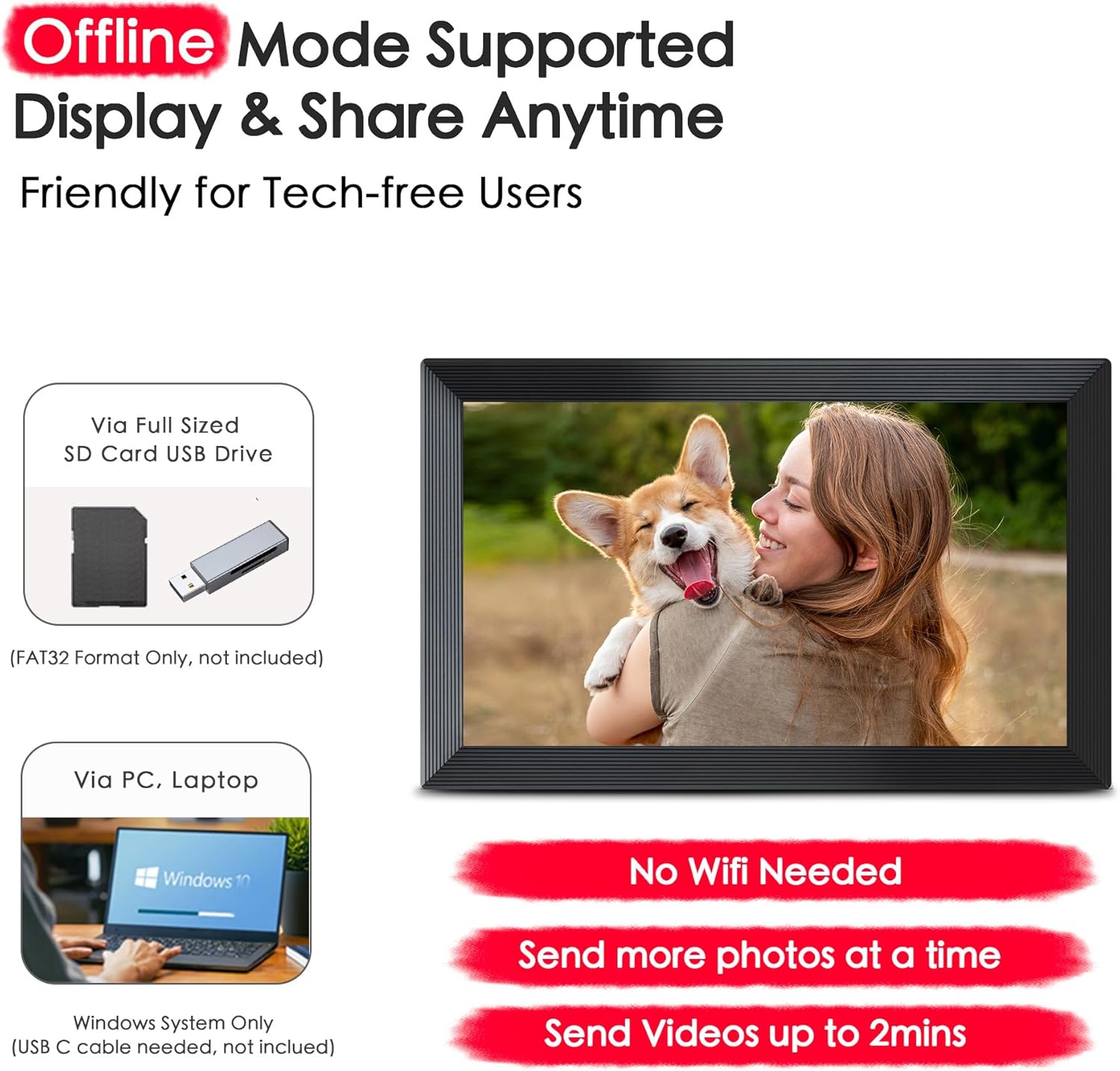
Image: The digital frame demonstrating its offline mode capabilities and alternative photo transfer methods, including SD card/USB drive and PC/laptop connection, without requiring Wi-Fi.
6. Security and Privacy
The Frameo system ensures private and secure communication between the app and the frame, complying with data protection regulations such as GDPR, CCPA, and PSTI. Your photos are stored securely.
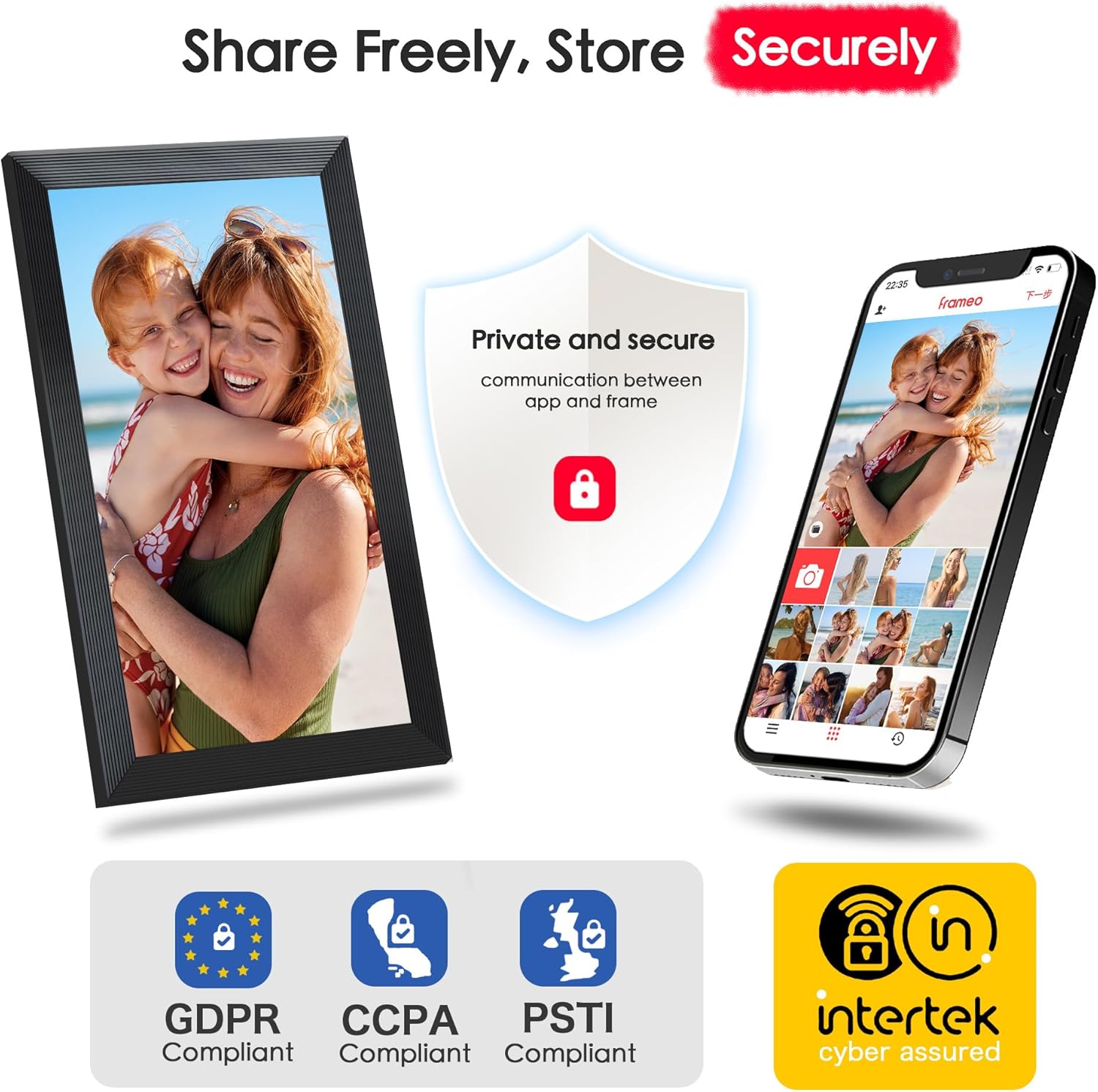
Image: The digital frame and a smartphone illustrating the secure and private nature of photo sharing, highlighting compliance with GDPR, CCPA, PSTI, and Intertek cyber assured standards.
Maintenance
1. Cleaning the Screen
To clean the screen, gently wipe it with a soft, lint-free cloth. For stubborn smudges, slightly dampen the cloth with water or a screen-safe cleaning solution. Avoid using harsh chemicals or abrasive materials.
2. Software Updates
The frame may periodically receive software updates to improve performance and add new features. Ensure your frame is connected to Wi-Fi to receive these updates. You can check for updates manually in the frame's settings menu.
Troubleshooting
- Frame not powering on: Ensure the power adapter is securely connected to both the frame and a working power outlet. Try a different outlet if necessary.
- Cannot connect to Wi-Fi: Double-check your Wi-Fi password. Ensure the frame is within range of your router. Restart your router and the frame, then try connecting again.
- Photos not sending from app: Verify that both your phone and the frame are connected to the internet. Ensure the 6-digit code was entered correctly during pairing. Check the Frameo app for any error messages.
- Screen not responding to touch: Restart the frame by unplugging and re-plugging the power adapter. If the issue persists, contact customer support.
- Frame storage full: Delete old photos or videos from the frame via the settings menu. Consider using an SD card for additional storage.
Specifications
| Feature | Specification |
|---|---|
| Model Number | M10R7 |
| Display Size | 10.1 inches |
| Resolution | 800P (implied 1920x1080 Full HD from image) |
| Internal Storage | 32GB (holds 10,000+ photos) |
| External Storage | Micro SD Card (up to 32GB, not included) |
| Connectivity | WiFi |
| App Compatibility | Frameo (iOS & Android) |

Image: The digital frame emphasizing its 32GB built-in storage capacity, capable of holding over 10,000 photos, and the option for expandable storage via a Micro SD card.
Warranty and Support
Your FLYRUIT Frameo WiFi Digital Picture Frame comes with a standard manufacturer's warranty. For detailed warranty information, please refer to the warranty card included in your package or visit the official FLYRUIT website. If you encounter any issues or require technical assistance, please contact FLYRUIT customer support through the contact information provided on our website or in your product documentation.