
Arlo VMC3080
Arlo Essential Security Camera (3rd Gen) User Manual
Model: VMC3080 | Brand: Arlo
Introduction
The Arlo Essential Security Camera (3rd Gen) provides reliable wireless home monitoring with crystal-clear 2K resolution. This manual guides you through the setup, operation, and maintenance of your camera system, ensuring optimal performance and security for your home and family.

Image: Arlo Essential Security Camera (3rd Gen) system, including three cameras, three solar panels, and a smartphone displaying a motion detection notification.
What's Included
Your Arlo Essential Security Camera package typically includes:
- Arlo Essential Security Cameras (3rd Gen)
- Solar Panels (for continuous charging)
- Mounting hardware (wall plates, screws)
- Charging cable
- Quick Start Guide
Setup Guide
1. Initial Battery Charge
Before beginning the setup process, it is recommended to fully charge your camera's battery. The camera comes partially charged out of the box. The LED indicator light will turn solid blue when fully charged. This may take several hours.
Video: Arlo Essential Battery Camera (3rd Gen) How-To Video. This video demonstrates the setup and mounting process for the camera.
2. Download the Arlo Secure App
Download the Arlo Secure app from your device's app store (iOS or Android). Create an account or log in if you are an existing Arlo user. Ensure the app is updated to the latest version for optimal functionality.
Image: A smartphone screen showing the Arlo Secure app interface, highlighting smart detection features like person, vehicle, package, and animal recognition.
3. Pair Your Camera
- Open the Arlo Secure app.
- Navigate to Devices, then tap the + icon in the upper right corner.
- Select Cameras, then Essential Series, and finally Security Camera 3rd Gen.
- To initiate Bluetooth pairing, press and hold the pairing button on top of the camera for up to 3 seconds until the LED flashes blue. The app will automatically detect your camera.
4. Connect to Wi-Fi and Update Firmware
Follow the in-app prompts to connect your camera to your Wi-Fi network. Ensure you have a strong Wi-Fi signal at the intended mounting location. The app will then check for and install any available firmware updates. This process may take a few minutes.
5. Mounting Your Camera
Choose a mounting location that provides a clear vantage point and a strong Wi-Fi signal. Avoid placing the camera behind glass or reflective surfaces, as this can impact motion detection performance.
- Securely anchor the wall plate with the arrow pointing upward using the included hardware.
- Adjust your camera's mount to align the up arrow on the mount with the one on the wall plate.
- Slide your camera downward onto the wall plate until it clicks into place.
- Adjust the camera angle to capture the desired view.

Image: An Arlo Essential Security Camera (3rd Gen) mounted on a wooden post, illustrating its outdoor placement and key features like 2K video, rechargeable battery, color night vision, 2-way audio, and integrated spotlight.
Operating Instructions
Arlo Secure Plan Features
The Arlo Essential Security Camera (3rd Gen) offers enhanced features with an Arlo Secure plan (6 months included with purchase). These features include:
- 60-Day Video History: Access and review past recorded events.
- Smart Detections: Receive intelligent alerts for people, vehicles, packages, and animals.
- Interactive Notifications: Get real-time animated previews on your phone's lock screen, with options to sound the siren, call a friend, or trigger emergency response.
- Activity Zones: Customize specific areas in your camera's view for motion detection, reducing unwanted alerts.
- 24/7 Emergency Response: Direct access to emergency services when seconds count.

Image: A smartphone screen detailing the benefits of the Arlo Secure Plus Plan, including 60-day video history, person & vehicle recognition, package detection, activity zones, and animal detection.
For current information on features that need a paid subscription, visit www.arlo.com/arlosecure.
Smart Home Integration
The Arlo Essential Security Camera integrates with popular smart home platforms:
- Amazon Alexa
- Apple Home
- Samsung SmartThings
- IFTTT
- Google Home
Use your smart assistant to announce motion alerts, visitors, or automate routines, such as turning on lights when motion is detected.
Image: A smart display showing a live feed from an Arlo camera, with logos for Amazon Alexa, IFTTT, and Google Home, indicating smart home compatibility.
Maintenance
Battery Management
To extend battery life, consider the following:
- Adjust power management settings in the Arlo Secure app (Device Settings > Power Management) to prioritize battery life over video quality.
- Enable "Auto Low Power Mode" to automatically switch to snapshot mode when the battery drops below a set threshold.
- Angle your camera away from areas with excessive motion, such as busy streets, to reduce unnecessary recordings.

Image: A smartphone screen displaying the Arlo app's power management settings, specifically the "Auto Low Power Mode" toggle and threshold slider, designed to extend battery life.
Charging
The Arlo Essential Security Camera is rechargeable. When the battery level is low, remove the camera from its mount and connect it to the charging cable. The included solar panels can help maintain charge, reducing the frequency of manual recharging.

Image: A person connecting a charging cable to an Arlo Essential Security Camera, demonstrating the rechargeable nature of the device for hassle-free installation.
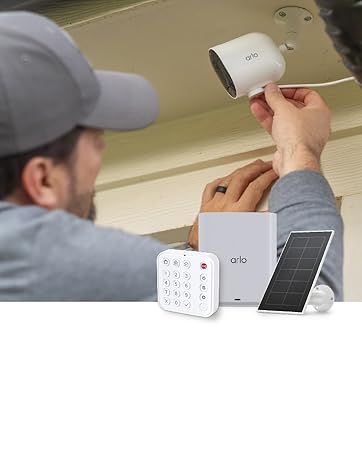
Image: An Arlo Essential Security Camera mounted next to a solar panel, illustrating how the solar panel keeps the camera charged with direct sunlight.
Troubleshooting Tips
If you encounter issues during setup or operation, consider the following:
- Incorrect Model Selection: Ensure you select "Security Camera 3rd Gen" under "Essential Series" in the Arlo Secure app during setup.
- Bluetooth Connection: Verify that Bluetooth is enabled on your phone and that the Arlo Secure app has the necessary Bluetooth permissions in your phone's settings.
- Wi-Fi Connection:
- Confirm you are connecting to the correct Wi-Fi network and have entered the password accurately.
- If the Wi-Fi signal is weak at the camera's location, try moving the camera closer to your router or consider a Wi-Fi extender. You can check the signal strength in the Arlo app.
- Camera Placement:
- Motion sensors are most effective in the lower two-thirds of the camera's view. Position the camera to capture movement where it matters most.
- Avoid placing the camera behind glass, plastic, or mirrors, as this can decrease motion sensor performance.
- Excessive Notifications: If you have an Arlo Secure plan, use the "Zones" feature in your camera settings to customize activity zones. This ensures you only receive alerts for specific areas of interest.
- Muting Notifications: To temporarily mute incoming alerts, hold down on the notification from your phone's lock screen and select "Mute Notifications."
Specifications
| Feature | Detail |
|---|---|
| Brand | Arlo |
| Model Number | VMC3080 |
| Color | White |
| Power Source | Battery Powered |
| Video Capture Resolution | 1440p (2K) |
| Connectivity Technology | Wireless |
| Installation Type | Screw-In (Wall Mount) |
| Alert Type | Motion Only |
| Control Method | App |
| Battery Cell Composition | Lithium Ion |
| Maximum Range | 300 Feet |
| Special Features | 2-Way Audio, Built-In Light, Motion Sensor, Night Vision, Weather Proof |
| Product Dimensions | 2.34 x 2.09 x 3.68 inches |
| Item Weight | 6.09 pounds (for 3 cameras) |
| UPC | 193108151092 |
Warranty Information
Specific warranty details for the Arlo Essential Security Camera (3rd Gen) are not provided in the current product data. Please refer to the official Arlo website or your product packaging for comprehensive warranty information.
Support
For further assistance, troubleshooting, or to access additional resources, please utilize the following support options:
- Arlo Secure App: Access expert support and chat functionality directly through the app.
- Online Support: Visit the official Arlo website for FAQs, troubleshooting guides, and product documentation.
- Contact Support: Reach out to Arlo customer service via phone or chat for personalized assistance.
Arlo is committed to safeguarding your home and your data. Your privacy is a priority, and Arlo's privacy pledge ensures you have full control over your experience, personal data, information, and video history.
Related documentsVMC3080


Ask a question about this manual
Ask about setup, troubleshooting, compatibility, parts, safety, or missing instructions. Manuals+ will review the question and use this page’s manual context to help answer it.