
1. Introduction
Thank you for purchasing the LG UltraGear 27G610A-B 27-inch QHD IPS Gaming Monitor. This manual provides essential information for the safe and efficient use of your monitor. Please read it thoroughly before operating the product and retain it for future reference.

Figure 1.1: Front view of the LG UltraGear 27G610A-B Gaming Monitor.
2. Safety Information
To ensure safe operation and prevent damage, observe the following precautions:
- Do not expose the monitor to rain or moisture.
- Do not open the monitor casing; there are no user-serviceable parts inside.
- Use only the power cord and adapter supplied with the monitor.
- Ensure proper ventilation around the monitor.
- Avoid placing heavy objects on the power cord.
3. Package Contents
Verify that all items are present in your product box:
- Monitor
- Power Cable
- DisplayPort Cable
4. Setup
4.1 Stand Assembly and Adjustments
Follow the instructions provided in the quick setup guide to attach the stand to the monitor. The stand allows for various adjustments:
- Tilt: Adjust the screen angle forward or backward.
- Height: Raise or lower the monitor to your preferred viewing level.
- Swivel: Rotate the monitor horizontally.
- Pivot: Rotate the monitor to portrait orientation.

Figure 4.1: The monitor stand offers comprehensive ergonomic adjustments.
4.2 Connecting Cables
Connect the power cable to the monitor and a wall outlet. Use the supplied DisplayPort cable to connect your PC or gaming console to the monitor. Alternatively, HDMI cables can be used for compatible devices.

Figure 4.2: Available input ports on the monitor.
4.3 Initial Power On
Press the power button located on the bottom center of the monitor to turn it on. The monitor will automatically detect the input source. If no signal is detected, ensure your device is powered on and connected correctly.
5. Operating the Monitor
5.1 On-Screen Display (OSD) Menu Navigation
The OSD menu allows you to adjust various monitor settings. Use the joystick button on the bottom center of the monitor to navigate the menu:
- Press the joystick button to open the OSD menu.
- Move the joystick up/down/left/right to select options.
- Press the joystick button to confirm a selection.
5.2 Adjusting Display Settings
Customize your viewing experience through the OSD menu:
- Brightness/Contrast: Adjust the overall luminance and distinction between light and dark areas.
- Color: Fine-tune color temperature, gamma, and individual RGB values.
- Picture Mode: Select from preset modes (e.g., Gamer 1, FPS, RTS, Vivid, Reader) or customize your own.

Figure 5.1: The monitor supports VESA DisplayHDR 400 for enhanced color and contrast.
5.3 Gaming Features
The LG UltraGear monitor includes features designed to enhance your gaming experience:
- 200Hz Refresh Rate: Provides ultra-smooth motion for fast-paced games.
- 1ms (GtG) Response Time: Minimizes motion blur and ghosting.
- AMD FreeSync Premium: Synchronizes the monitor's refresh rate with your GPU's frame rate to eliminate screen tearing and stuttering.
- Dynamic Action Sync (DAS): Reduces input lag for real-time response.
- Black Stabilizer: Brightens dark areas to help you spot enemies hidden in shadows.
- FPS Counter: Displays your real-time frame rate on screen.
- Crosshair: Places a fixed crosshair in the center of the screen for improved aiming precision.
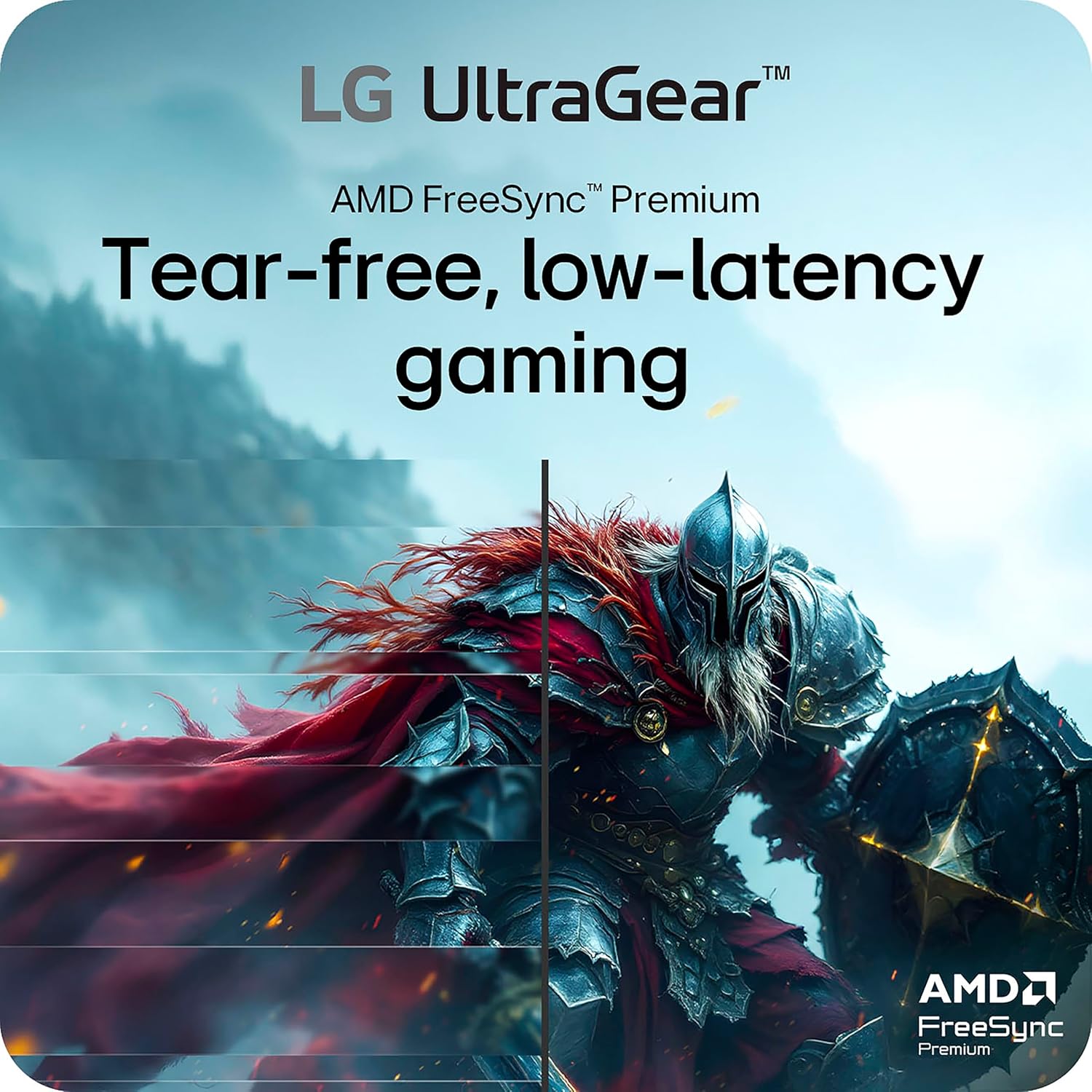
Figure 5.2: AMD FreeSync Premium ensures smooth gameplay.
Gaming UI Features Overview
Video 5.1: Demonstrates the LG UltraGear Gaming UI features including Crosshair, Black Stabilizer, and Dynamic Action Sync.
AMD FreeSync Premium Explained
Video 5.2: Explains how AMD FreeSync Premium eliminates screen tearing and stuttering for smoother gameplay.
VESA DisplayHDR 400 Benefits
Video 5.3: Highlights the benefits of VESA DisplayHDR 400 for enhanced color and contrast in games.
200Hz Refresh Rate in Action
Video 5.4: Illustrates the smoother and clearer gameplay provided by the 200Hz refresh rate.
5.4 LG Switch App
The LG Switch app allows you to transform your monitor into a multitasking hub. It enables screen splitting, custom display layouts, and quick access to video calls. Software installation is required and can be downloaded from LG.com support page.

Figure 5.3: The LG Switch App provides enhanced display management.
6. Maintenance
To maintain your monitor's performance and appearance:
- Always unplug the monitor before cleaning.
- Wipe the screen with a soft, lint-free cloth. For stubborn marks, use a screen-specific cleaning solution applied to the cloth, not directly to the screen.
- Clean the exterior with a soft, damp cloth. Avoid abrasive cleaners.
7. Troubleshooting
If you encounter issues, refer to the following common problems and solutions:
| Problem | Possible Cause | Solution |
|---|---|---|
| No image on screen | Power cable disconnected; input source not selected; device not powered on. | Check power connections; select correct input source via OSD; ensure connected device is on. |
| Image is blurry or distorted | Incorrect resolution; cable not fully connected; graphics driver issue. | Set display resolution to 2560x1440; ensure cables are securely connected; update graphics drivers. |
| Screen tearing or stuttering | FreeSync not enabled; refresh rate mismatch. | Enable AMD FreeSync Premium in OSD and graphics card settings; ensure refresh rate is set to 200Hz. |
| No sound | Audio cable not connected; volume too low; incorrect audio output selected. | Connect audio cable (if applicable); adjust monitor/PC volume; select monitor as audio output. |
8. Specifications
| Feature | Detail |
|---|---|
| Model Number | 27G610A-B |
| Screen Size | 27 Inches |
| Panel Type | IPS |
| Resolution | QHD (2560 x 1440) |
| Max Refresh Rate | 200Hz |
| Response Time | 1ms (GtG) |
| HDR Support | VESA DisplayHDR 400 |
| Adaptive Sync | AMD FreeSync Premium |
| Connectivity | 2 x HDMI 2.0, 1 x DisplayPort 1.4 |
| Dimensions (LxWxH) | 8.8 x 24.1 x 21.4 inches |
| Weight | 11.7 pounds |
9. Warranty and Support
For warranty information, technical support, or service inquiries, please visit the official LG website or contact LG customer service. Keep your purchase receipt for warranty validation.
Official LG Support: www.lg.com/us/support