
1. Introduction
This manual provides essential information for the safe and efficient use of your LG 34U530A-W UltraWide WFHD IPS Computer Monitor. Please read this manual thoroughly before operating the product and retain it for future reference.
The LG 34U530A-W monitor features a 34-inch 21:9 UltraWide Full HD (2560 x 1080) IPS display, offering a wide viewing experience. Key features include a 100Hz refresh rate, VESA DisplayHDR 400, up to sRGB 99% color coverage, and versatile connectivity options including HDMI, DisplayPort, and USB Type-C. It also integrates Waves MaxxAudio speakers and includes features like Reader Mode and the LG Switch App for enhanced productivity and comfort.
2. Safety Information
Observe the following safety precautions to prevent hazards or damage to the product.
- Do not place the monitor near heat sources or in direct sunlight.
- Ensure proper ventilation around the monitor.
- Use only the power cord and adapter supplied with the monitor.
- Do not attempt to disassemble or modify the monitor.
- Keep liquids away from the monitor to prevent electric shock or fire.
- Unplug the monitor from the wall outlet during lightning storms or when unused for long periods.
3. What's in the Box
Verify that all components are included in your product package:
- Monitor Unit
- Power Cable
- HDMI Cable
- Stand Base
- Stand Neck
- User Manual (this document)
4. Setup
4.1 Assembling the Stand
- Place the monitor screen face down on a soft, clean surface to prevent scratches.
- Attach the stand neck to the back of the monitor until it clicks into place.
- Secure the stand base to the stand neck using the provided screw.
- Carefully lift the monitor and place it on a stable, level surface.
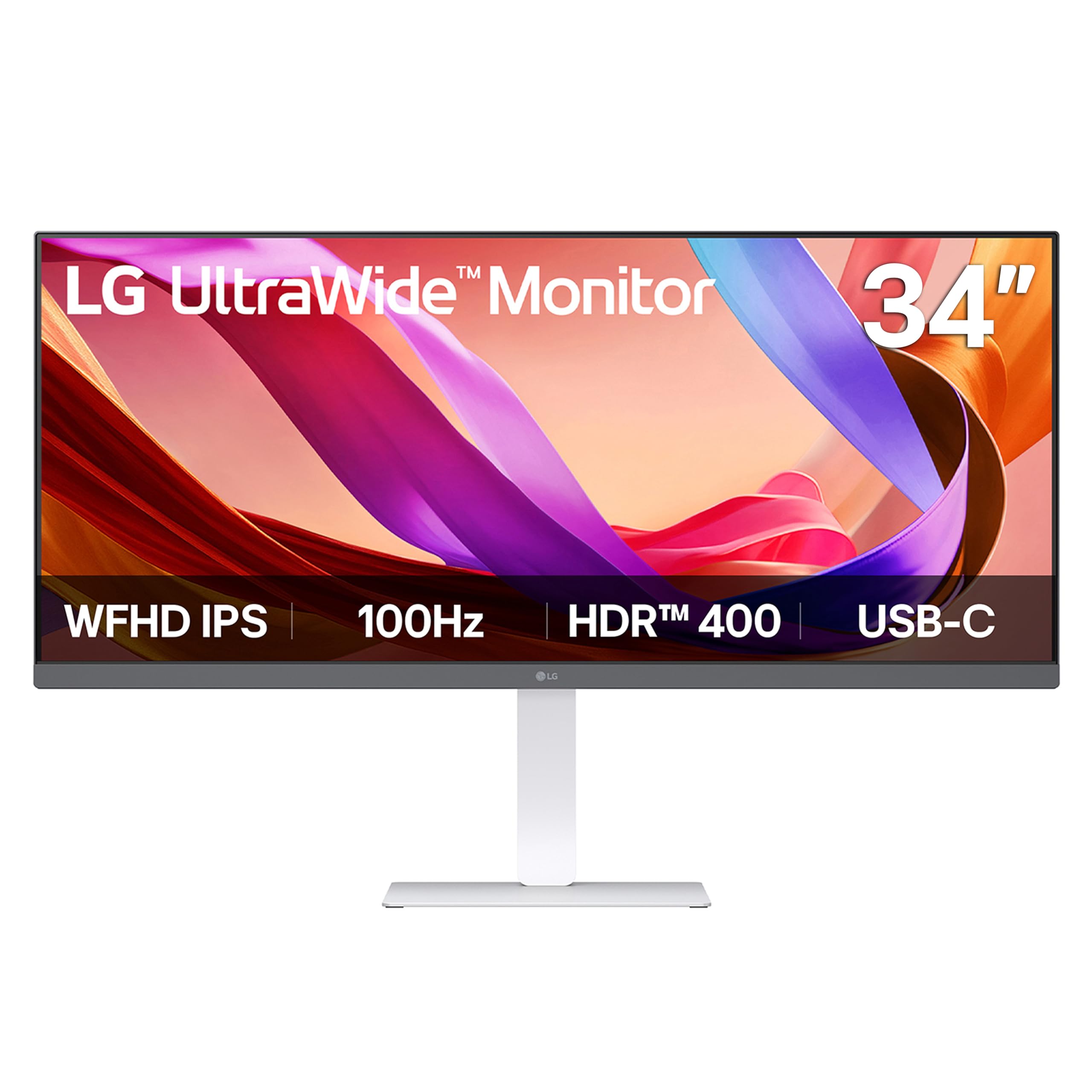
Image: Front view of the LG 34U530A-W monitor with its stand assembled.
4.2 Connecting the Monitor
Connect the monitor to your computer using one of the following methods:
- HDMI Connection: Use the supplied HDMI cable to connect the HDMI port on the monitor to the HDMI port on your computer.
- DisplayPort Connection: Use a DisplayPort cable (not supplied) to connect the DisplayPort on the monitor to the DisplayPort on your computer.
- USB Type-C Connection: Use a USB Type-C cable (not supplied) to connect the USB Type-C port on the monitor to the USB Type-C port on your computer. This connection supports both display output and data transfer.
Image: Rear view of the LG 34U530A-W monitor showing the various input ports including HDMI, DisplayPort, and USB Type-C.
4.3 Powering On
- Connect the power cable to the monitor and then to a wall outlet.
- Press the power button located on the bottom center of the monitor to turn it on.
5. Operating the Monitor
5.1 On-Screen Display (OSD) Controls
The OSD menu allows you to adjust various settings of the monitor. Access the OSD menu by pressing the joystick button located on the bottom center of the monitor.
- Move the joystick up/down/left/right to navigate through the menu options.
- Press the joystick to select an option or confirm a setting.
5.2 Adjusting Display Settings
Within the OSD menu, you can modify settings such as:
- Brightness: Adjust the overall luminance of the screen.
- Contrast: Control the difference between the brightest and darkest areas of the screen.
- Color: Fine-tune color temperature, gamma, and individual RGB values. The monitor supports up to sRGB 99% color coverage for accurate color reproduction.
Video: Demonstrates the LG UltraWide Monitor's sRGB 99% color feature, highlighting vivid and accurate color display.
5.3 Using Productivity Features
- LG Switch App: This software allows you to effortlessly split the screen into up to 6 sections, customize display layouts, and manage multiple windows for efficient multitasking. Software installation is required; visit LG.com to download.
- Reader Mode: Adjusts the display to warmer tones and optimized brightness, reducing blue light emission for comfortable reading during extended sessions.
Video: Illustrates the 21:9 UltraWide screen of the LG monitor, showcasing its expanded workspace for multitasking.
5.4 Audio Settings
The monitor includes built-in stereo speakers with Waves MaxxAudio. You can adjust the volume and other audio settings through the OSD menu.
6. Maintenance
6.1 Cleaning the Monitor
- Always unplug the monitor before cleaning.
- Use a soft, lint-free cloth slightly dampened with water or a mild, non-abrasive cleaner specifically designed for screens.
- Do not spray cleaner directly onto the screen.
- Wipe the screen gently to avoid scratching.
7. Troubleshooting
If you encounter issues with your monitor, refer to the following common problems and solutions:
| Problem | Possible Cause | Solution |
|---|---|---|
| No power | Power cable not connected or power outlet faulty. | Ensure power cable is securely connected. Test the outlet with another device. |
| No image on screen | Video cable not connected or incorrect input selected. | Check video cable connections. Select the correct input source via the OSD menu. |
| Image is blurry or distorted | Incorrect resolution or refresh rate. | Set the display resolution to 2560 x 1080. Ensure the refresh rate is set to 100Hz. |
| No sound from speakers | Volume too low or muted, or audio cable not connected (if using external audio source). | Adjust volume via OSD or computer settings. Check audio cable connections. |
8. Specifications
| Feature | Specification |
|---|---|
| Model Number | 34U530A-W.AUS |
| Screen Size | 34 Inches |
| Panel Type | IPS |
| Resolution | 2560 x 1080 (WFHD) |
| Aspect Ratio | 21:9 |
| Refresh Rate | 100Hz |
| HDR Support | VESA DisplayHDR 400 |
| Color Gamut | sRGB 99% (Typical) |
| Connectivity | HDMI, DisplayPort, USB Type-C |
| Built-in Speakers | Yes (with Waves MaxxAudio) |
| Stand Adjustments | Height, Tilt, Swivel |
| Dimensions (LxWxH) | 32.1 x 9.1 x 21 inches |
| Weight | 19.4 pounds |
9. Warranty and Support
For warranty information, please refer to the warranty card included with your product or visit the official LG website. For technical support, product registration, or service inquiries, please visit LG Support or contact LG customer service directly.