
1. Introduction
This manual provides essential information for setting up, operating, and maintaining your Arlo Essential Indoor Pan Tilt Zoom Security Camera. This camera offers 2K video resolution, 360° pan, and 180° tilt capabilities, ensuring comprehensive indoor surveillance. It is designed for continuous power operation and integrates with the Arlo Secure App for smart features and alerts.
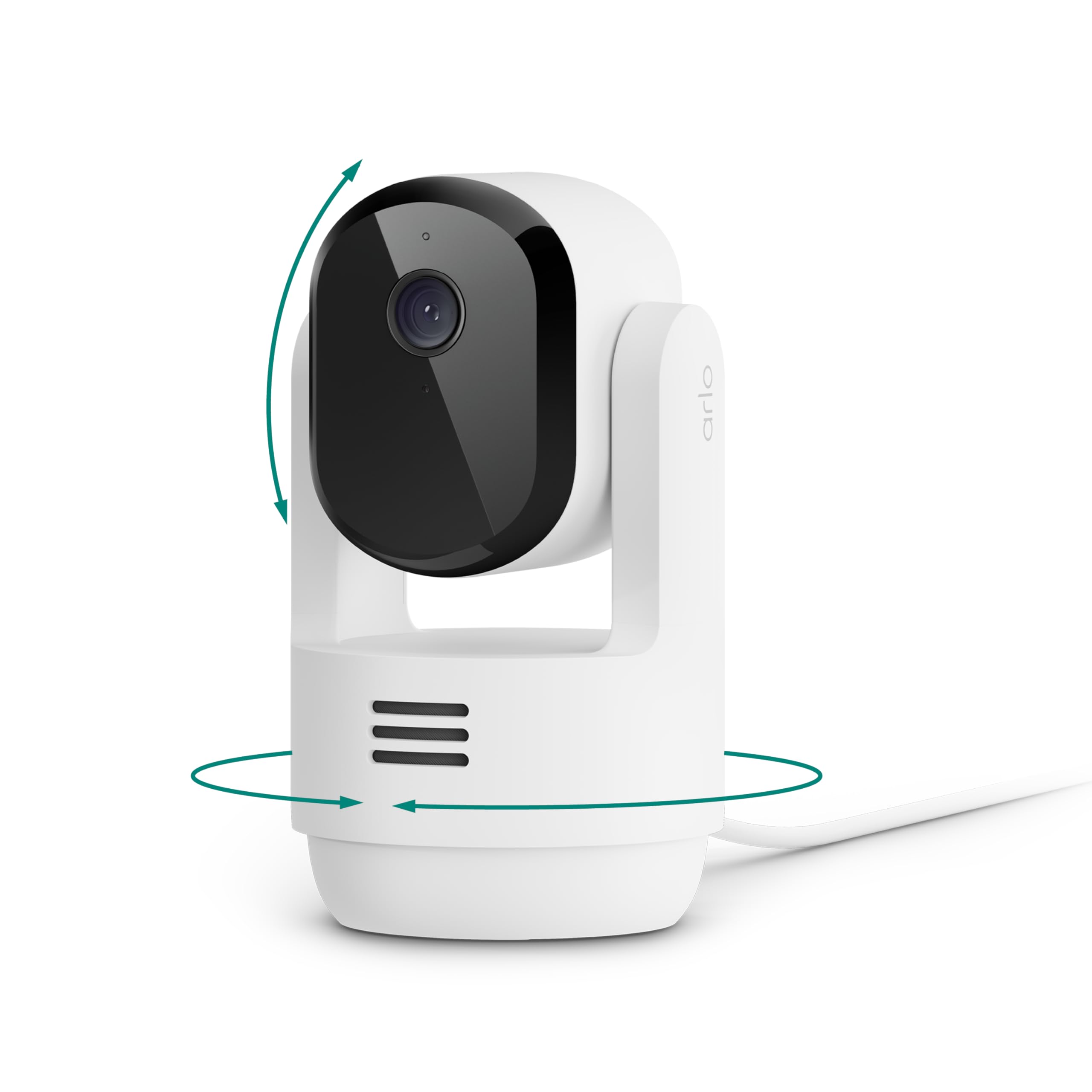
Image 1.1: Front view of the Arlo Essential Indoor Pan Tilt Zoom Security Camera.
2. What's in the Box
Verify that all components are present in your package:
- Arlo Essential Indoor Pan Tilt Zoom Security Camera
- Power Adapter
- USB Cable
- Mounting Plate and Screws (for optional wall/ceiling mounting)
- Quick Start Guide

Image 2.1: The Arlo Essential Indoor Camera with its power cable and mounting accessories.
3. Setup
- Download the Arlo Secure App: Search for 'Arlo Secure' in your mobile device's app store (iOS or Android) and install it.
- Create an Arlo Account: Open the Arlo Secure App and follow the on-screen instructions to create a new account or log in if you already have one.
- Connect Power: Plug the USB cable into the camera and then connect the power adapter to an electrical outlet. The camera will power on, and its LED indicator will begin to flash.
- Add Camera to App: In the Arlo Secure App, tap the '+' icon to add a new device. Select 'Cameras' and then choose your Arlo Essential Indoor Pan Tilt Zoom Camera. Follow the in-app instructions to connect your camera to your 2.4GHz or 5GHz Wi-Fi network.
- Placement: Place the camera on a flat surface or mount it to a wall or ceiling using the provided mounting plate and screws. Ensure the camera has a clear view of the area you wish to monitor.
For detailed mounting instructions, please refer to the official Installation Manual (PDF) available on the Arlo support website.
4. Operating Instructions
4.1. Live View and Pan/Tilt Control
Access live video streaming through the Arlo Secure App. Use the on-screen controls to pan the camera 360° horizontally and tilt it 180° vertically to view different areas of your room.
4.2. Automatic Motion Tracking
Enable Automatic Motion Tracking in the app to have the camera automatically follow detected movement within its field of view, ensuring the subject remains in frame.
4.3. Two-Way Audio
Use the microphone and speaker icons in the live view to communicate with individuals near the camera. The camera features noise-canceling technology for clearer audio.
4.4. Night Vision
The camera automatically switches to night vision in low-light conditions, providing clear black-and-white video up to 25 feet.
4.5. Integrated Siren
Activate the integrated siren remotely from the Arlo Secure App to deter unwanted activity.
4.6. Privacy Control
For privacy, you can command the camera to physically flip its lens down and out of view, disabling both audio and video recording. This can be done manually via the app or automated through routines.

Image 4.1: The Arlo camera demonstrating its privacy mode with the lens retracted.
4.7. Smart Detections and Alerts (Arlo Secure Plan Required)
With an Arlo Secure plan, your camera can differentiate between people, animals, vehicles, and packages. It also offers advanced audio detection for barking, screaming, glass breaking, and gunshot sounds. Customize alerts to receive notifications for specific events.
4.8. Smart Activity Zones
Define specific areas within the camera's view to focus motion detection and reduce irrelevant alerts. This helps in monitoring critical areas while ignoring high-traffic zones.

Image 4.2: Screenshot of the Arlo Secure App showing how to set up Smart Activity Zones.
4.9. Smart Home Integration
The camera is compatible with Amazon Alexa, Google Home, Samsung SmartThings, and IFTTT, allowing for voice control and integration into your smart home routines.
5. Maintenance
- Cleaning the Lens: Gently wipe the camera lens with a soft, lint-free cloth to remove dust or smudges. Do not use harsh chemicals or abrasive materials.
- Power Connection: Ensure the power cable is securely connected to the camera and the power outlet for uninterrupted operation.
- Software Updates: Keep your Arlo Secure App updated to the latest version. Firmware updates for the camera are typically managed automatically through the app.
6. Troubleshooting
6.1. Camera Not Connecting to Wi-Fi
- Ensure your Wi-Fi network is active and within range.
- Verify you are entering the correct Wi-Fi password.
- Try restarting your Wi-Fi router and the camera.
- Confirm your router supports 2.4GHz or 5GHz Wi-Fi and that your camera is connecting to the appropriate band.
6.2. No Video or Poor Video Quality
- Check your internet connection speed. A stable and fast connection is required for 2K video streaming.
- Ensure the camera lens is clean and free from obstructions.
- Verify the camera is receiving adequate power.
6.3. Motion Detection Not Working
- Check motion detection settings in the Arlo Secure App (sensitivity, activity zones).
- Ensure the camera is positioned correctly to capture motion in the desired area.
- Verify the camera is online and connected to your Arlo account.
7. Specifications
| Model Number | VMC3073 |
| Video Resolution | 2K (1440p) |
| Field of View | 130 degrees (diagonal) |
| Pan/Tilt Range | 360° Pan, 180° Tilt |
| Zoom | 12x Digital Zoom |
| Night Vision | Black & White, up to 25 feet |
| Audio | 2-Way Audio with Noise Cancellation |
| Connectivity | 2.4GHz and 5GHz Dual-Band Wi-Fi |
| Power Source | Corded Electric |
| Indoor/Outdoor Use | Indoor Only |
| Dimensions | 2.83 x 2.83 x 4.9 inches |
| Weight | 1.1 pounds |
8. Warranty and Support
For warranty information, please refer to the official Arlo website or the warranty card included with your product. Arlo provides expert support through the Arlo Secure App and their website, including 24/7 chat support. Product use and support are intended for the United States only.
Visit arlo.com for the latest support resources, FAQs, and community forums.