
NETGEAR RBE363
NETGEAR Orbi 360 Series WiFi 7 Mesh System (RBE363) User Manual
Model: RBE363-100NAS
1. Introduction
The NETGEAR Orbi 360 Series WiFi 7 Mesh System provides high-performance wireless connectivity for your home. This system includes one Orbi WiFi 7 Router (RBE361) and two Orbi WiFi 7 Satellites (RBE360), designed to deliver extensive coverage and fast speeds across multiple devices.
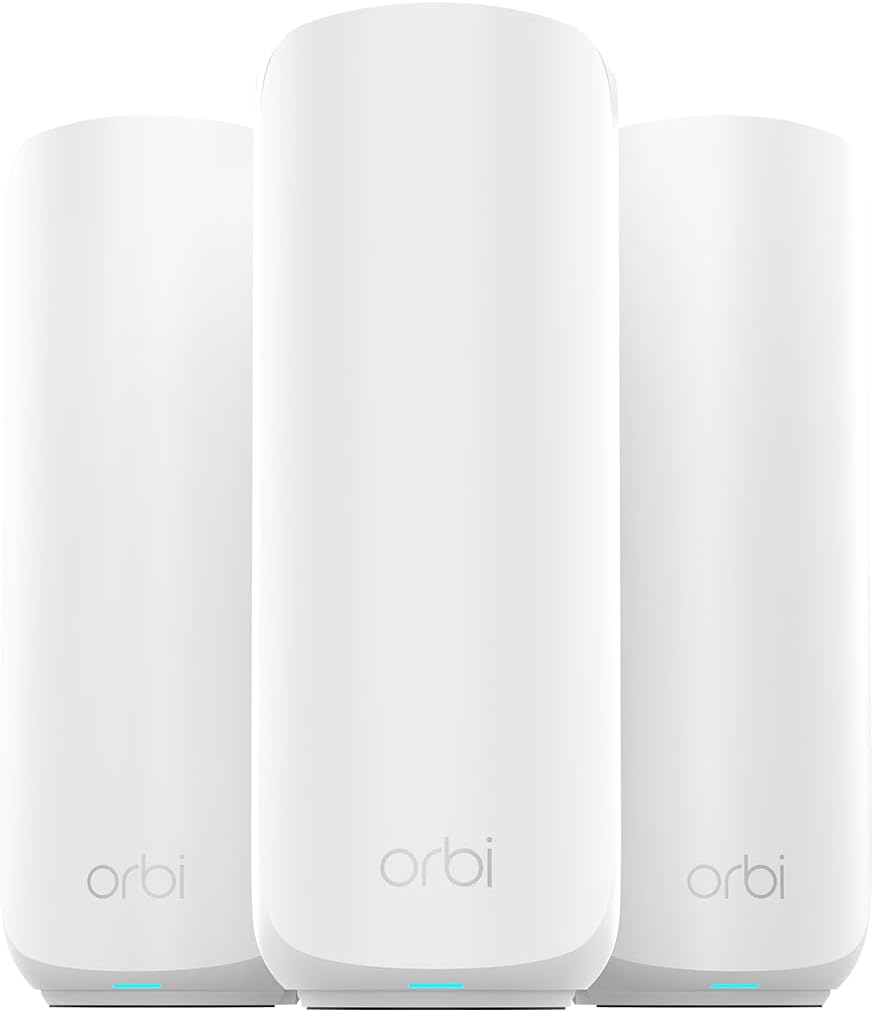
Image: The NETGEAR Orbi 360 Series WiFi 7 Mesh System components.

Image: Key features of the Orbi RBE363 system, including speed, coverage, and port type.
This manual will guide you through the setup process, operational details, maintenance tips, and troubleshooting steps to ensure optimal performance of your Orbi system.
2. What's in the Box
Verify that all components are present in your package:
- 1 x Orbi WiFi 7 Router (RBE361)
- 2 x Orbi WiFi 7 Satellites (RBE360)
- 1 x Ethernet cable
- 3 x Power adapters
- Quick start guide
3. Setup Instructions
3.1. Placement of Orbi Units
For optimal WiFi coverage, place the Orbi Router in a central location in your home, ideally near your internet modem. Position the Orbi Satellites in areas that require extended WiFi coverage, ensuring they are within range of the router or another satellite. Avoid placing units near large metal objects, concrete walls, or other devices that may cause interference.
3.2. Connecting the Orbi Router
- Power off your modem and remove any existing router.
- Connect your modem to the 2.5 Gig Internet port on the Orbi Router using the provided Ethernet cable.
- Power on your modem and wait for it to fully boot up.
- Connect the power adapter to the Orbi Router and plug it into a power outlet. The LED on the Orbi Router will light up.

Image: Rear view of an Orbi unit highlighting the 2.5 Gig Internet and LAN ports.
3.3. Setting Up Orbi Satellites
- Place the Orbi Satellites in desired locations.
- Connect the power adapters to the Orbi Satellites and plug them into power outlets. The LED on each satellite will light up.
- The satellites will automatically attempt to sync with the Orbi Router. The LED will change color to indicate connection status (e.g., blue for good connection, magenta for no connection).
3.4. Using the Orbi App for Setup
The recommended method for setup is using the Orbi app:
- Download the NETGEAR Orbi app from your mobile device's app store.
- Open the app and follow the on-screen instructions to set up your Orbi system. This includes creating your WiFi network name (SSID) and password.
- The app will guide you through connecting your router and satellites, and configuring your network settings.

Image: The Orbi app interface for easy setup and management.
4. Operating Your Orbi System
4.1. LED Indicators
The LED on the top of your Orbi Router and Satellites indicates the system's status:
- Solid Blue: Good connection.
- Solid Magenta: No connection or out of range.
- Pulsing White: Booting up.
- Solid White: Ready for setup or connected to the internet.
4.2. Connecting Devices
You can connect devices to your Orbi network wirelessly or via Ethernet:
- Wireless Devices: Use the WiFi network name (SSID) and password you created during setup to connect smartphones, tablets, laptops, and other wireless devices.
- Wired Devices: Use Ethernet cables to connect devices like gaming consoles, smart TVs, or desktop computers to the 2.5 Gbps Ethernet port on the Orbi Router or the Ethernet ports on the Orbi Satellites.
4.3. Network Performance
The Orbi 360 Series with WiFi 7 is designed for high-demand activities:
- Streaming: Supports multiple 4K streaming devices simultaneously.
- Gaming: Provides low-latency connections for online gaming.
- Video Conferencing: Ensures stable connections for video calls.

Image: Orbi system supporting multiple devices for streaming and conferencing.

Image: Comparison of WiFi 7 performance against previous WiFi standards.
4.4. Multiple Network Options
The Orbi system allows you to create separate networks for enhanced security and performance:
- Home Network: Your primary secure network for personal devices.
- Guest Network: A separate network for visitors, keeping your main network secure.
- IoT Network: A dedicated 2.4GHz network for smart home devices, which often require specific compatibility.

Image: Orbi's capability to create distinct Home, Guest, and IoT networks.
5. Maintenance
5.1. Firmware Updates
Your Orbi system is designed to receive automatic firmware updates to ensure optimal performance, security, and access to new features. Ensure your system is connected to the internet for these updates to occur.
5.2. NETGEAR Armor Security
NETGEAR Armor provides advanced cybersecurity features to protect your network and connected devices from online threats. A 30-day trial is typically included with your purchase.
- Cybersecurity: Protection against viruses, malware, and phishing attacks.
- VPN: Secure remote access to your home network.
- Priority Support: Enhanced support for security-related issues.

Image: NETGEAR Armor interface on a mobile device, highlighting security features.
5.3. General Care
Keep your Orbi units in a well-ventilated area, free from dust and direct sunlight. Clean the exterior with a soft, dry cloth as needed.
6. Troubleshooting
6.1. No Internet Connection
- Check the LED on your Orbi Router. If it's magenta, ensure your modem is working correctly and the Ethernet cable is securely connected to the 2.5 Gig Internet port.
- Restart your modem, then your Orbi Router, and finally your Orbi Satellites.
- Verify your internet service provider (ISP) connection is active.
6.2. Slow WiFi Speeds
- Ensure your Orbi Satellites are placed optimally. A solid blue LED indicates a good connection to the router. If magenta, move the satellite closer to the router or another satellite.
- Check for potential interference from other electronic devices.
- Run a speed test using the Orbi app to diagnose network performance.
6.3. Device Cannot Connect to WiFi
- Verify you are using the correct WiFi network name (SSID) and password.
- Restart the device attempting to connect.
- If connecting an IoT device, ensure it is compatible with the 2.4GHz band and try connecting it to the dedicated IoT network if you have configured one.
6.4. Factory Reset
If issues persist, you may need to perform a factory reset. Use a paperclip to press and hold the Reset button on the back of the Orbi Router for approximately 10 seconds until the LED flashes. This will revert all settings to factory defaults, requiring you to set up the system again.
7. Specifications
| Feature | Specification |
|---|---|
| Model Name | RBE363 |
| Wireless Type | 802.11.be (WiFi 7) |
| Frequency Band Class | Dual-Band |
| Max Wireless Speed | Up to 5 Gbps |
| WiFi Coverage | Up to 6,000 sq. ft. |
| Connected Devices | Up to 70 devices |
| Internet Port | 1 x 2.5 Gig Internet Port |
| Ethernet Ports (Router) | 1 x 2.5 Gbps Ethernet Port |
| Ethernet Ports (Satellite) | 1 x Ethernet Port (per satellite) |
| Operating System | Linux |
| Item Weight | 4.71 pounds (total system) |
| Dimensions (each unit) | 8.02 x 4.72 x 2.95 inches |
8. Warranty and Support
8.1. Product Warranty
NETGEAR products typically come with a limited hardware warranty. Please refer to the warranty card included in your product packaging or visit the official NETGEAR website for detailed warranty information specific to your region and product model.
8.2. Technical Support
For further assistance, technical support, or to access the latest firmware and documentation, please visit the official NETGEAR support website:
You can also use the Orbi app for direct access to support resources and troubleshooting guides.
Related documentsRBE363


Ask a question about this manual
Ask about setup, troubleshooting, compatibility, parts, safety, or missing instructions. Manuals+ will review the question and use this page’s manual context to help answer it.