
Surge SG60094
Surge Wireless Pro Controller User Manual
Model: SG60094
Introduction
This manual provides instructions for the Surge Wireless Pro Controller, Model SG60094. It covers setup, operation, maintenance, troubleshooting, and specifications. Please read this manual thoroughly before using the controller.
The Surge Wireless Pro Controller is designed for multi-platform compatibility, featuring Hall Effect thumb sticks and triggers for precision control.
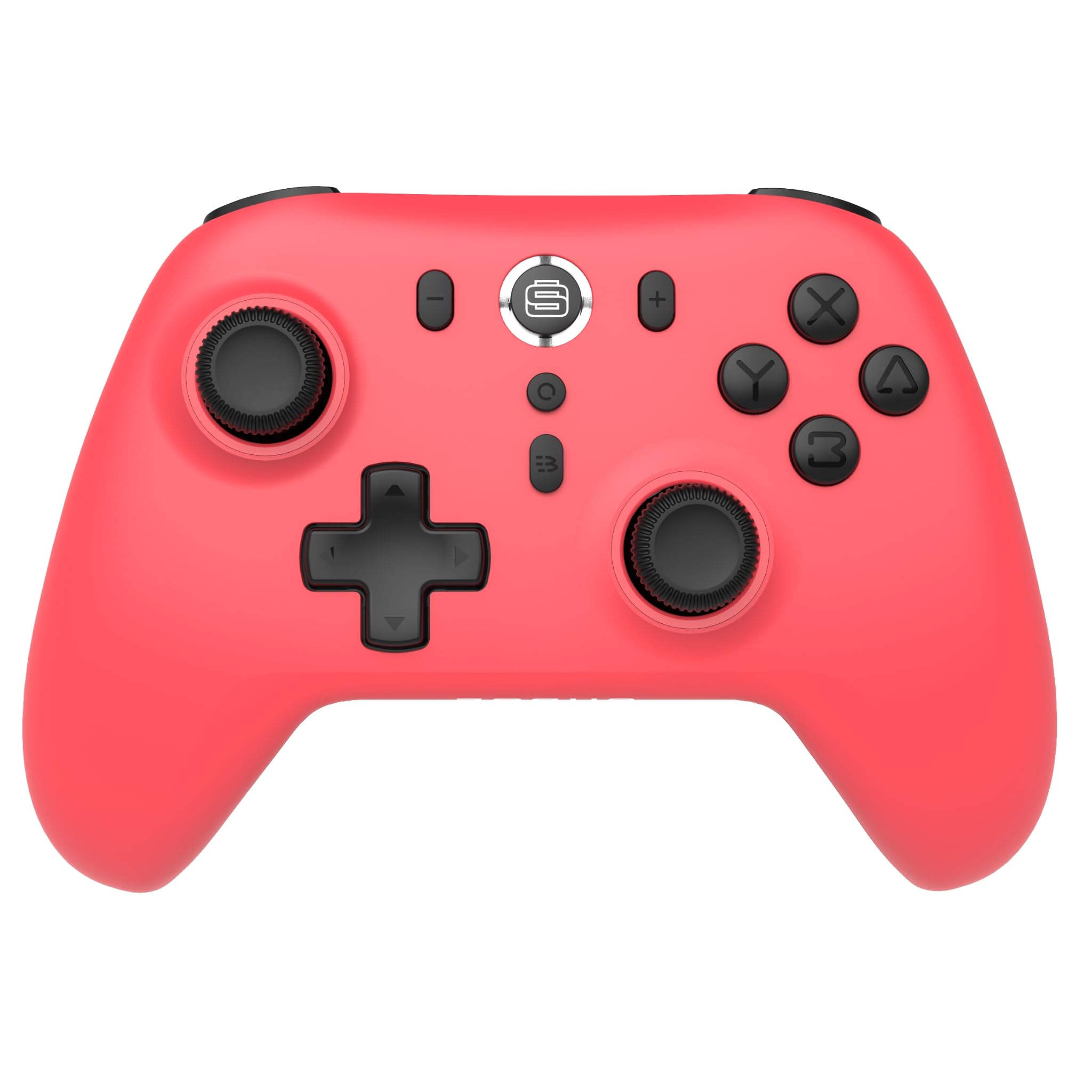
Image: Front view of the Surge Wireless Pro Controller in Neon Red.
Key Features
- Multi-Platform Compatibility: Supports Nintendo Switch/Switch 2 (Note: No C Button/Audio Port on Switch 2), Windows PC, Steam Deck, Android, and iOS devices.
- Hall Effect Thumb Sticks & Triggers: Engineered for precise control and to prevent stick drift.
- Turbo Functionality: Offers 3 adjustable turbo levels for rapid-fire actions.
- Vibration Feedback: Features 4 customizable vibration levels for enhanced haptic feedback.
- Motion Controls: Compatible with games that utilize motion sensing.
- Console Wake Up: Ability to wake the Nintendo Switch console from sleep mode (Nintendo Switch only).
- Rechargeable Battery: Built-in 600mAh Li-polymer battery provides up to 10 hours of gameplay per charge.
- USB-C Charging: Includes a 1-meter USB-C charging cable.
Setup Instructions
1. Initial Charging
Before first use, fully charge the controller. Connect the included USB-C cable to the controller's charging port and the other end to a USB power source (e.g., console, PC, USB wall adapter). The charging indicator will show status.

Image: The controller connected to a USB-C charging cable.
2. Pairing with Nintendo Switch
- On your Nintendo Switch console, go to the HOME Menu.
- Select Controllers, then Change Grip/Order.
- Press and hold the Pairing Button on the top of the Surge Wireless Pro Controller until the player indicator lights begin to flash.
- Once paired, the player indicator light(s) will remain solid.
- To wake the console from sleep mode, press the Home button on the controller.
3. Pairing with PC, Android, or iOS
The pairing process may vary slightly depending on your device's operating system. Generally, you will need to enable Bluetooth on your device and search for new devices.
- Ensure Bluetooth is enabled on your PC, Android, or iOS device.
- On the Surge Wireless Pro Controller, press and hold the Pairing Button until the indicator lights flash.
- On your device, select "Surge Pro Controller" from the list of available Bluetooth devices.
- Follow any on-screen prompts to complete the pairing.
Video: An overview of the 8Bitdo Ultimate 2 Wireless Controller, demonstrating general wireless controller setup principles.
Operating Instructions
Button Layout

Image: Diagram showing the button layout of the Surge Wireless Pro Controller.
- Left/Right Analog Sticks: For movement and camera control. Features Hall Effect technology for enhanced durability and precision.
- D-Pad: For directional input.
- A/B/X/Y Buttons: Standard action buttons.
- L/R Buttons: Shoulder buttons.
- ZL/ZR Triggers: Analog triggers with Hall Effect sensors.
- Home Button: Returns to the console's home menu.
- Screenshot Button: Captures screenshots.
- Plus (+) / Minus (-) Buttons: For in-game menu navigation.
- Turbo Button: Activates/deactivates turbo function.
- Pairing Button: Used for Bluetooth pairing.
Turbo Function
To activate turbo for a button, press and hold the Turbo Button, then press the desired action button (A, B, X, Y, L, R, ZL, ZR). Repeat the process to deactivate. There are 3 adjustable turbo levels; refer to the full product manual for detailed adjustment instructions.
Vibration Adjustment
The controller offers 4 levels of vibration intensity. Specific button combinations or software may be required to adjust these levels. Consult the full product manual or manufacturer's website for precise instructions.
Maintenance
- Cleaning: Use a soft, dry cloth to clean the controller. Avoid using harsh chemicals or abrasive materials.
- Storage: Store the controller in a cool, dry place away from direct sunlight and extreme temperatures.
- Battery Care: To prolong battery life, avoid fully discharging the battery frequently. Charge the controller regularly, even if not in use for extended periods.
- Cable Care: Handle the USB-C charging cable carefully. Avoid bending or twisting it excessively.
Troubleshooting
| Problem | Solution |
|---|---|
| Controller does not power on. | Ensure the controller is fully charged. Connect it to a power source using the USB-C cable. |
| Unable to pair with device. | Make sure Bluetooth is enabled on your device. Press and hold the pairing button on the controller until lights flash. Ensure the controller is not already paired with another device. Try restarting both the controller and the device. |
| Stick drift or inaccurate input. | The controller features Hall Effect sticks to minimize drift. If issues persist, ensure the controller's firmware is up to date. Contact customer support if the problem continues. |
| Vibration not working. | Check in-game settings to ensure vibration is enabled. Verify the vibration intensity level on the controller. |
| Console Wake Up not functioning. | This feature is only supported on Nintendo Switch. Ensure the controller is properly paired with the Switch. |
Specifications
- Model Number: SG60094
- Battery: 1 Nonstandard Battery (600mAh Li-polymer, included)
- Battery Life: Up to 10 hours (approximate)
- Charging Port: USB-C
- Connectivity: Bluetooth Wireless
- Dimensions: 20.1 x 14 x 6.6 cm (approximate)
- Weight: 310 g (approximate)
- Country of Origin: China
Warranty and Support
For warranty information and customer support, please refer to the official Surge website or contact support directly at support@surgegaming.com.
The product typically comes with a manufacturer's warranty covering defects in materials and workmanship. Please retain your proof of purchase for warranty claims.
Ask a question about this manual
Ask about setup, troubleshooting, compatibility, parts, safety, or missing instructions. Manuals+ will review the question and use this page’s manual context to help answer it.